
1. Giriş
This manual provides essential information for the safe and efficient operation of your Next YE-65GFSG8-QLED 65-inch UHD 4K Google QLED TV. Please read this manual thoroughly before using the television and retain it for future reference. Your new television combines QLED display technology with the Google TV operating system, offering a high-quality viewing experience and smart features.
2. Önemli Güvenlik Bilgileri
Always follow these basic safety precautions when operating your television:
- Güç Kaynağı: Televizyonun belirtilen voltaj aralığında bir güç kaynağına bağlı olduğundan emin olun.tage aralığı.
- Havalandırma: Havalandırma açıklıklarını kapatmayın. Televizyonun etrafında yeterli hava akışı için yeterli alan bırakın.
- Su ve Nem: Televizyonunuzu yağmura veya neme maruz bırakmayın. Vazo gibi sıvı dolu nesneleri televizyonun üzerine koymayın.
- Temizlik: Temizlemeden önce televizyonun fişini prizden çekin. Yumuşak, kuru bir bez kullanın. Sıvı temizleyiciler veya aerosol temizleyiciler kullanmayın.
- Atama: Televizyonunuzu sabit ve düz bir yüzeye yerleştirin. Doğrudan güneş ışığına veya ısı kaynaklarının yakınına yerleştirmekten kaçının.
- Yıldırım: During lightning storms or when unused for long periods, unplug the TV from the power outlet and disconnect the antenna.
- Servis: Bu ürüne kendiniz servis vermeye çalışmayın. Tüm servis işlemleri için kalifiye servis personeline başvurun.
3. Paket İçeriği
Verify that all items are present in your TV package:
- Next YE-65GFSG8-QLED 65-inch UHD 4K Google QLED TV
- Uzaktan kumanda
- Güç kablosu
- TV Sehpası (2 adet) ve Vidalar
- Kullanım Kılavuzu (bu belge)
- Hızlı Başlangıç Kılavuzu
4. Kurulum
4.1 Fiziksel Kurulum
You can install your TV on a stand or mount it on a wall. Ensure the TV is placed on a stable surface or securely mounted.

Resim: TV Dimensions. This image illustrates the physical dimensions of the 65-inch television, including its width, height, and diagonal screen size of 164 cm (65 inches).
Stand Kurulumu:
- Ekranın hasar görmesini önlemek için televizyonu dikkatlice yumuşak ve düz bir yüzeye, yüzü aşağı bakacak şekilde yerleştirin.
- Attach the two stand pieces to the designated slots on the bottom of the TV.
- Standları birlikte verilen vidalarla sabitleyin.
- Televizyonu dikkatlice kaldırıp sabit bir yüzeye dik konumda yerleştirin.
Duvara Montaj:
For wall mounting, use a VESA-compatible wall mount kit (sold separately) that matches the TV's VESA pattern. Follow the instructions provided with your wall mount kit. It is recommended to have professional assistance for wall mounting.
4.2 Çevre Birimlerini Bağlama
Harici cihazlarınızı televizyonunuzun arkasındaki uygun bağlantı noktalarına bağlayın.
Resim: Rear Panel Connections. This image displays the various input and output ports located on the back of the television, including HDMI, USB, DVB-S, DVB-T, CI Module, Mini AV-IN, Optical Out, and Ethernet.
- HDMI (ARC): Connect Blu-ray players, game consoles, or other HDMI devices. HDMI 1 supports Audio Return Channel (ARC).
- USB (2x): Medya oynatmak için USB depolama aygıtlarını bağlayın.
- DVB-S / DVB-T: Connect satellite (DVB-S) or terrestrial (DVB-T) antenna cables.
- CI Module: Insert a Common Interface (CI) module for encrypted digital channels.
- Mini AV girişi: Connect older devices using an AV adapter cable.
- Optik Çıkış: Connect to an external audio system for digital audio output.
- Ethernet: Kablolu internet bağlantısı için bir Ethernet kablosu bağlayın.
- Güç: Güç kablosunu televizyona ve ardından duvardaki prize bağlayın.
4.3 İlk Çalıştırma ve İlk Kurulum
- Tüm kabloları bağladıktan sonra, güç kablosunu elektrik prizine takın.
- Uzaktan kumandadaki veya televizyondaki güç düğmesine basın.
- The TV will guide you through the initial setup process, which includes:
- Dil seçimi
- Wi-Fi veya Ethernet'e bağlanma
- Signing in with your Google Account (required for Google TV features)
- Şartlar ve koşulları kabul ediyorum
- Channel scanning (for DVB-S/T)
- Kurulumu tamamlamak için ekrandaki talimatları izleyin.
5. TV'nizi Çalıştırma
5.1 Uzaktan Kumanda İşlevleri
The remote control allows you to navigate the TV's features. Familiarize yourself with its buttons:
- Güç: Televizyonu açar veya kapatır.
- Google Asistan: Sesli komutları etkinleştirir.
- Gezinme Paneli (Yukarı/Aşağı/Sol/Sağ/Tamam): Menülerde gezinir ve seçenekleri seçer.
- Geri: Önceki ekrana döner.
- Ev: Google TV ana ekranına erişir.
- Hacim +/-: Ses seviyesini ayarlar.
- Kanal +/-: TV kanallarını değiştirir.
- Giriş: Giriş kaynaklarını seçer (HDMI, AV, vb.).
- Uygulama Düğmeleri: Popüler yayın uygulamalarına doğrudan erişim.
5.2 Navigating Google TV Interface
Google TV organizes your entertainment with a personalized home screen. Content from your apps is brought together and organized for easy discovery.

Resim: Google TV Interface. This image shows the main Google TV home screen with various streaming app icons and content recommendations, demonstrating the user interface.
- Ana Ekran: Displays personalized recommendations, installed apps, and quick access to content.
- Sizin İçin Sekmesi: Provides tailored content suggestions based on your viewalışkanlıklar.
- Canlı Sekme: Accesses live TV channels from integrated services.
- Uygulamalar Sekmesi: Shows all installed applications. You can download more from the Google Play Store.
- Kütüphane Sekmesi: Accesses your purchased or rented content from Google Play.
5.3 Görüntü ve Ses Ayarları
Görüntü ve ses ayarlarını yapmak için:
- Basın Ayarlar button (usually a gear icon) on your remote.
- Şuraya git: Ekran ve Ses.
- Resim Ayarları: Adjust brightness, contrast, color, sharpness, and select picture modes (e.g., Standard, Vivid, Movie, Game). Your QLED TV offers enhanced color saturation.
- Ses Ayarları: Adjust bass, treble, balance, and select sound modes (e.g., Standard, Music, Movie, Speech).

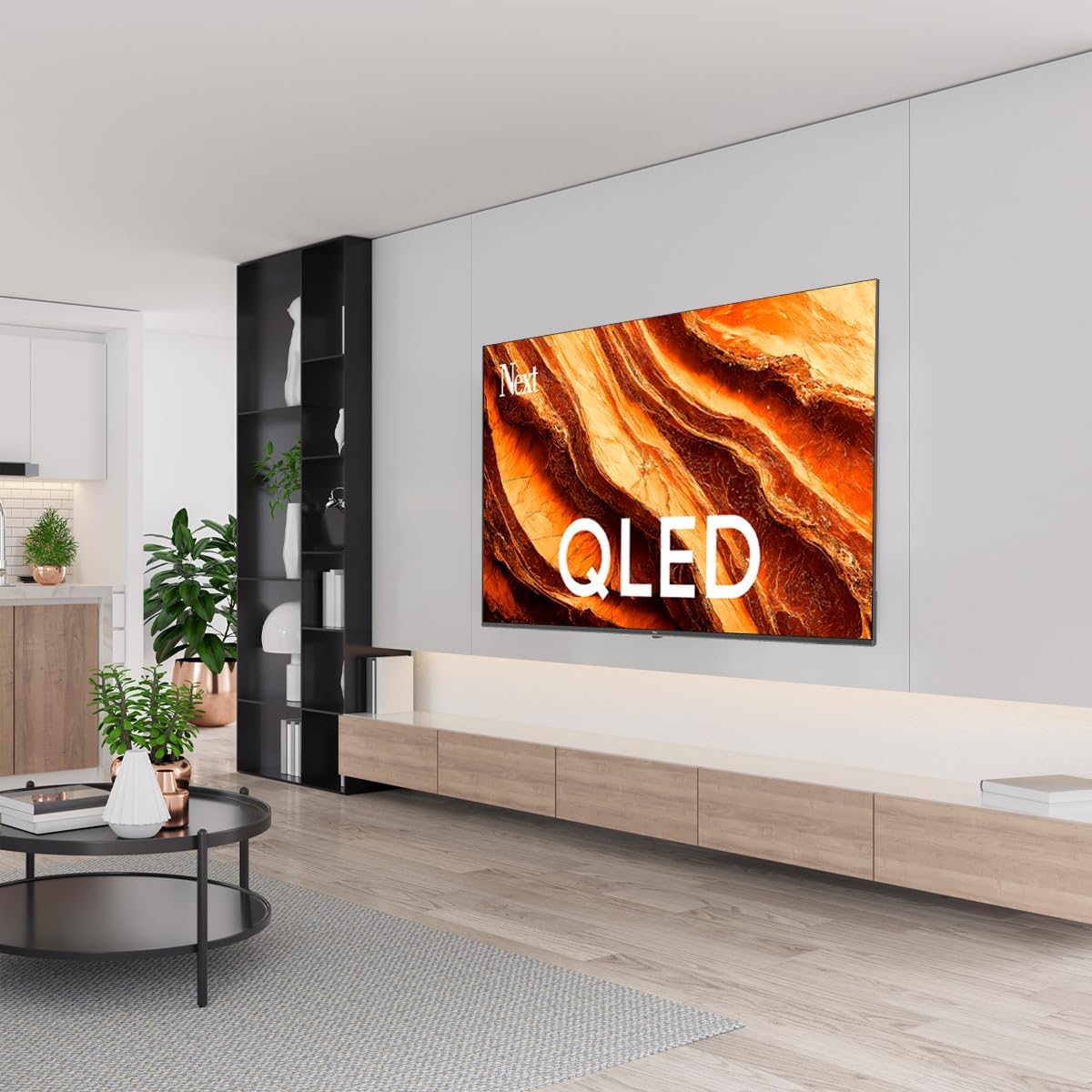
Resim: QLED Color Saturation. This image visually demonstrates the high color saturation achieved with QLED technology, showing a vibrant and rich color display.

Resim: HDR (High Dynamic Range). This image illustrates the visual impact of HDR, showcasing improved contrast and color detail in a scene when HDR is enabled versus when it is off.
5.4 Ağ Ayarları
To connect your TV to the internet:
- Basın Ayarlar Uzaktan kumandanızdaki düğmeye basın.
- Şuraya git: Ağ ve İnternet.
- Seçme Wifi to connect to a wireless network or ensure Ethernet is connected for a wired connection.
- For Wi-Fi, select your network from the list and enter the password.
6. Bakım
6.1 TV'nin temizlenmesi
- Televizyonu temizlemeden önce mutlaka fişini çekin.
- Yumuşak, kuru ve tüy bırakmayan bir bez kullanarak ekranı ve televizyon gövdesini nazikçe silin.
- İnatçı izler için hafifçe silinampen the cloth with water or a specialized screen cleaner (ensure it's safe for TV screens). Never spray cleaner directly onto the screen.
- Aşındırıcı temizleyiciler, cilalar veya çözücüler kullanmaktan kaçının.
6.2 Yazılım Güncellemeleri
Your TV may receive software updates to improve performance and add new features. It is recommended to keep your TV's software updated.
- Televizyonunuzun internete bağlı olduğundan emin olun.
- Basın Ayarlar Uzaktan kumandanızdaki düğmeye basın.
- Şuraya git: Sistem > Hakkında > Sistem güncellemesi.
- Seçme Güncellemeyi kontrol edin.
- Ekranda beliren yönergeleri izleyerek mevcut güncellemeleri indirin ve yükleyin.
7. Sorun Giderme
Televizyonunuzda sorunlarla karşılaşırsanız, aşağıdaki yaygın sorunlara ve çözümlere bakın:
| Sorun | Olası Neden / Çözüm |
|---|---|
| Güç yok | Check if the power cord is securely plugged into the TV and the wall outlet. Ensure the outlet is working. |
| Görüntü yok, ancak ses mevcut | Check the input source. Ensure the connected device is turned on and functioning correctly. |
| Ses yok ama görüntü var | Check the volume level and mute status. Verify audio cable connections for external devices. Check TV sound settings. |
| Uzaktan kumanda çalışmıyor | Pilleri değiştirin. Uzaktan kumanda ile televizyonun kızılötesi sensörü arasında herhangi bir engel olmadığından emin olun. |
| Wi-Fi'ye bağlanılamıyor | Ensure your Wi-Fi router is on and within range. Re-enter the Wi-Fi password carefully. Try restarting the TV and router. |
| Uygulamalar yavaş veya donuyor | Close unused apps. Clear app cache (Settings > Apps > See all apps > [App Name] > Clear cache). Ensure a stable internet connection. |
Bu çözümleri denedikten sonra sorun devam ederse lütfen müşteri desteğiyle iletişime geçin.
8. Özellikler
Technical specifications for the Next YE-65GFSG8-QLED 65-inch UHD 4K Google QLED TV:
- Marka: Sonraki
- Model Yılı: 2025
- Çözünürlük: 4K (3840x2160)
- Ekran Teknolojisi: QLED
- Ekran Boyutu: 65 inç (165 cm)
- En Boy Oranı: 16:9
- Yenileme Hızı: 60 Hz
- Temel Özellikler: Çerçevesiz Tasarım
- Bağlantı: Bluetooth, Ethernet, HDMI (ARC), USB (2x), Wi-Fi
- Ürün Ölçüleri: 27.8D x 144.6G x 88.9Y cm
- Ağırlık: 16.3 Kilogram
- İşletim Sistemi: Google televizyon
- Dahil Bileşenler: Uzaktan kumanda
- Menşei ülke: Türkiye
9. Garanti ve Destek
Your Next YE-65GFSG8-QLED TV comes with a manufacturer's warranty. Please refer to the warranty card included in your package for specific terms and conditions, including the warranty period and coverage details.
For technical support, service requests, or further assistance, please contact Next customer service. Contact information can typically be found on the manufacturer's websitede veya garanti belgelerinde yer almaktadır.
- Çevrimiçi destek: Visit the official Next website for FAQs, troubleshooting guides, and support contact details.
- Servis Merkezleri: For hardware issues, locate an authorized service center near you.