
1. Giriş
Thank you for choosing the Hivento Smart Tower Fan AT-932. This intelligent tower fan is designed to provide efficient and comfortable air circulation with its WiFi connectivity, multiple speed and mode settings, oscillation, and convenient timer function. Please read this manual carefully before use to ensure proper operation and maintenance.
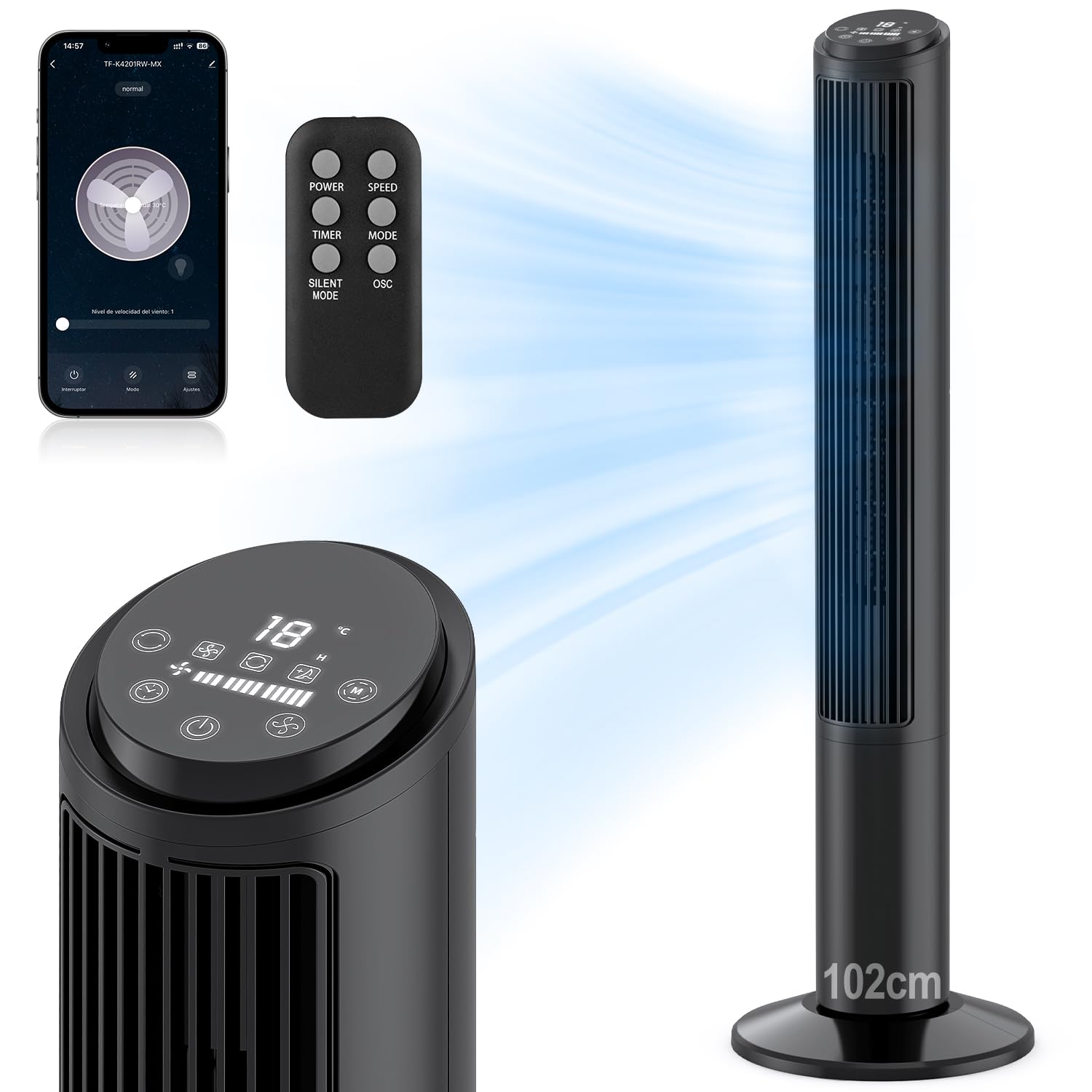
Image: Hivento Smart Tower Fan AT-932, showcasinşık siyah tasarımıyla.
2. Güvenlik Talimatları
Yangın, elektrik çarpması veya yaralanma riskini azaltmak için lütfen aşağıdaki güvenlik önlemlerine uyun:
- Temizlik veya bakım yapmadan önce mutlaka vantilatörün fişini çekin.
- Fanı hasarlı kablo veya fişle çalıştırmayın.
- Keep fingers and other objects away from the fan grille when in operation.
- Devrilmesini önlemek için vantilatörün sabit ve düz bir yüzeye yerleştirildiğinden emin olun.
- Fanı ıslak veya nemli ortamlarda kullanmayın.amp ortamlar.
- This fan features a bladeless design for enhanced safety, especially around children and pets. It also includes a child lock function.

Image: Bladeless design of the fan, highlighting safety features like a safety plug and child lock, with a child nearby.
3. Paket İçeriği
Lütfen paketi aşağıdaki öğeler açısından kontrol edin:
- Hivento Tower Fan (x1)
- Installation Accessories (Base parts) (x1 set)
- Uzaktan Kumanda (x1)
- Kullanıcı Kılavuzu (x1)
4. Kurulum
4.1 Taban Montajı
The tower fan requires minimal assembly. The base consists of two identical parts. Simply cross these two parts and attach them to the bottom of the fan unit. Ensure they are securely fastened.
4.2 Güç Bağlantısı
Güç kablosunu standart bir 120V AC elektrik prizine takın.
4.3 İlk Güç Açma
Press the power button on the control panel or remote control to turn on the fan. The LED display will illuminate.
4.4 WiFi Setup (App Control)
To use the smart features, download the Tuya Smart app on your smartphone. Follow the in-app instructions to pair your fan:
- Download and open the Tuya Smart app.
- Hesabınıza kaydolun veya giriş yapın.
- Tap 'Add Device' or the '+' icon.
- Select the fan from the device list or use auto-scan.
- Follow the app's prompts to connect the fan to your 2.4GHz WiFi network. This usually involves resetting the device by pressing and holding the power button until the indicator light flashes.
- Once connected, you can control the fan via the app.

Image: Step-by-step guide on a smartphone screen demonstrating how to pair the Hivento Smart Tower Fan with the Tuya Smart app.
5. Kullanım Talimatları
5.1 Kontrol Paneli ve LED Ekran
The fan features an intuitive LED display and touch controls on the top. The display shows ambient temperature, current speed, mode, and timer settings.
- Güç Düğmesi: Vantilatörü açar/kapatır.
- Hız Düğmesi: Fan hızını ayarlar (Düşük, Orta, Yüksek).
- Mod Düğmesi: Cycles through operating modes (Normal, Natural, Sleep).
- Zamanlayıcı Düğmesi: Otomatik kapanma zamanlayıcısını ayarlar.
- Salınım Düğmesi: Salınımı etkinleştirir/devre dışı bırakır.

Image: Close-up of the fan's LED display and touch control panel, along with the remote control, indicating various functions.
5.2 Uzaktan Kumanda
The included remote control allows convenient operation from a distance. It duplicates all functions available on the control panel.
- GÜÇ: Vantilatörü açar/kapatır.
- HIZ: Fan hızını ayarlar.
- ZAMANLAYICI: Otomatik kapanma zamanlayıcısını ayarlar.
- TARİFİ: Çalışma modları arasında geçiş yapar.
- SESSİZ MOD: Activates a quiet operation mode (often the Sleep mode).
- OSC: Salınımı etkinleştirir/devre dışı bırakır.

Image: The Hivento Smart Tower Fan oscillating, with a remote control shown in the foreground, illustrating remote operation.
5.3 Smart Control (WiFi & Voice)
After successful WiFi setup, you can control your fan from anywhere using the Tuya Smart app. The fan is also compatible with voice assistants like Amazon Alexa and Google Assistant for hands-free operation.
- Uygulama Kontrolü: Adjust settings, change modes, set timers, and monitor the fan remotely via your smartphone.
- Ses Kontrolü: Integrate with Alexa or Google Assistant to control the fan with voice commands (e.g., "Alexa, turn on the fan," "Hey Google, set fan speed to medium").
5.4 Modlar ve Hızlar
The fan offers 3 speed settings and 2 operating modes:
- Hızlar: Low, Medium, High. Select the desired airflow intensity.
- Doğal Mod: Fan hızını değiştirerek doğal bir esintiyi simüle eder.
- Uyku modu: Operates at a low, quiet speed for minimal disturbance during sleep, with a noise level of less than 30 dB.

Image: Graphic illustrating the fan's 2 modes (Natural, Sleep) and 3 speeds (Low, Medium, High), along with 70° oscillation and 6 m/s airflow.
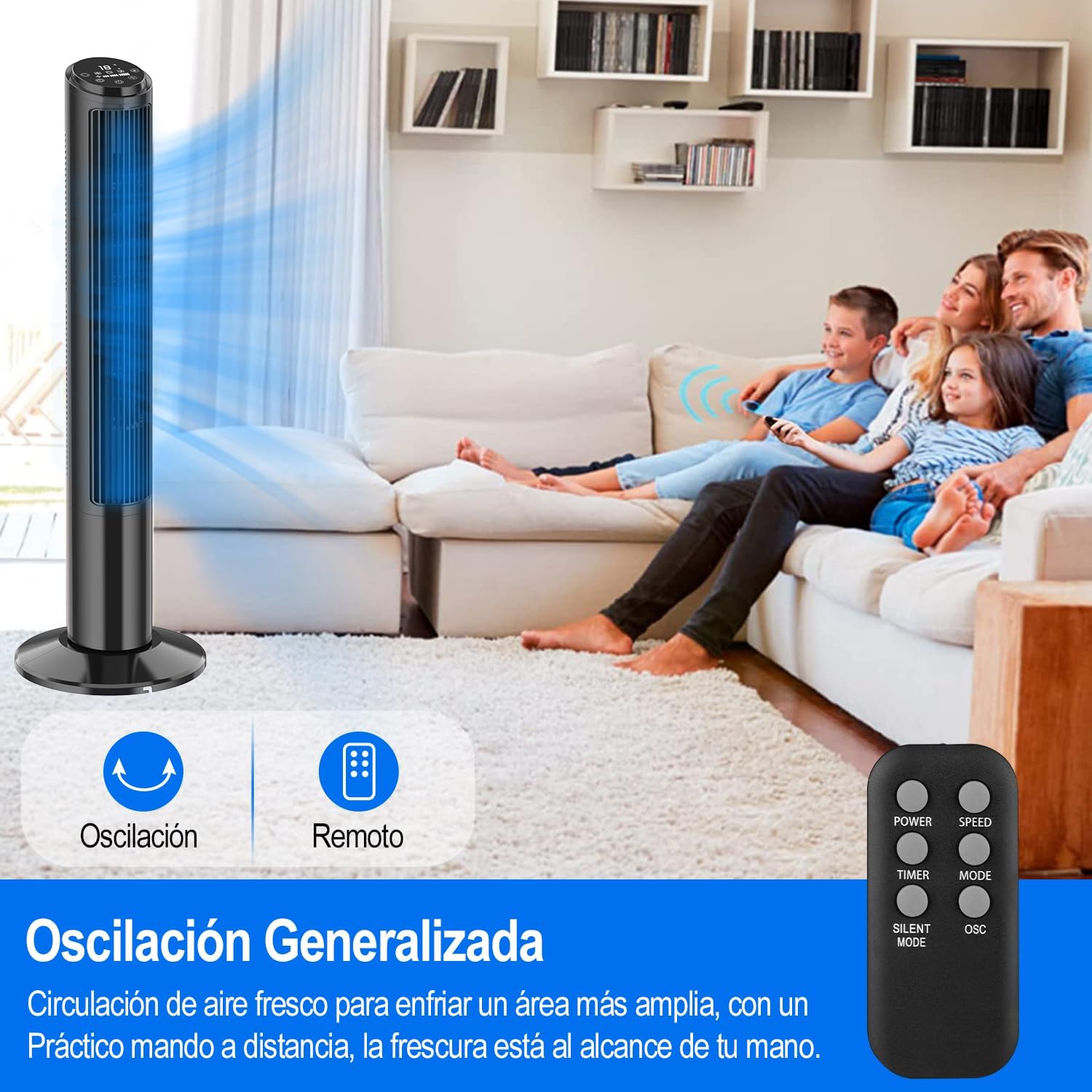
Image: A person sleeping peacefully with the Hivento Smart Tower Fan operating quietly in the background, demonstrating its low noise level for sleep.
5.5 Salınım Fonksiyonu
Activate the oscillation function to distribute airflow across a wider area. The fan oscillates up to 70 degrees.
5.6 Zamanlayıcı İşlevi
Set the fan to automatically turn off after a specified period, from 0 to 15 hours. This is useful for energy saving or for use during sleep.

Image: Graphic showing the fan's timer function, allowing settings from 0 to 15 hours.
6. Bakım
Düzenli temizlik, fanın performansını korumaya ve kullanım ömrünü uzatmaya yardımcı olur.
- Dış Cephe Temizliği: Dış yüzeyleri yumuşak, damp bezle silin. Aşındırıcı temizleyiciler veya çözücüler kullanmayın.
- Hava Giriş/Çıkışının Temizlenmesi: Use a soft brush or vacuum cleaner with a brush attachment to remove dust from the air inlet and outlet grilles.
- Depolamak: When not in use for extended periods, unplug the fan and store it in a cool, dry place.
Dikkat: Fanı suya daldırmayın veya motor gövdesine su damlamasına izin vermeyin.
7. Sorun Giderme
| Sorun | Olası Neden | Çözüm |
|---|---|---|
| Fan çalışmıyor. | Güç kaynağı yok; Güç kablosu düzgün takılmamış. | Ensure the fan is plugged into a working outlet; Check the power cord connection. |
| Fan beklenmedik bir şekilde duruyor. | Timer function activated; Overheating. | Check if the timer is set; Unplug and allow the fan to cool down before restarting. |
| Uzaktan kumanda çalışmıyor. | Piller bitmiş veya yanlış takılmış; uzaktan kumanda ile fan arasında engel var. | Replace batteries; Ensure clear line of sight to the fan's receiver. |
| WiFi bağlantısı başarısız oldu. | Incorrect WiFi password; Router too far; Only 5GHz WiFi available. | Verify WiFi password; Move fan closer to router; Ensure you are connecting to a 2.4GHz network. |
8. Özellikler
| Özellik | Detay |
|---|---|
| Marka | Hivento |
| Model Adı | Hivento Tower Fan AT-932 |
| Model Numarası | AT-932 |
| Renk | Siyah |
| Boyutlar (DxGxY) | 20 x 20 x 102 cm (7.87 x 7.87 x 40.16 inç) |
| Güç Kaynağı | AC (120 Volt) |
| Güç Tüketimi | 50 Watt |
| Hız Sayısı | 3 |
| Çalışma Modları | 2 (Natural, Sleep) |
| salınım | 70° |
| Zamanlayıcı | 15 saate kadar |
| Gürültü Seviyesi | Minimum 30 Decibels |
| Kontrol Türü | App Control, Remote Control, Touch |
| Özel Özellikler | WiFi Function, Bladeless Design, LED Display, Child Lock |
| Malzeme | Plastik |

Image: The Hivento Smart Tower Fan with its dimensions (102cm height, 32cm base diameter) highlighted, demonstrating its compact and portable design.
9. Garanti ve Destek
Specific warranty information is not provided in the product data. For warranty details, technical support, or any product-related inquiries, please contact Hivento customer service through the retailer's platform or the official brand webalan.
You can visit the Hivento store for more information: Hivento Store