
BOXPUT H96 MAX 3528
Kullanım Kılavuzu: H96 Max RK3528 Android 13.0 Akıllı TV Kutusu
Model: H96 MAX 3528 | Brand: BOXPUT
giriiş
This user manual provides comprehensive instructions for setting up, operating, and maintaining your H96 Max RK3528 Android 13.0 Smart TV Box. This device is designed to transform your television into a smart entertainment hub, offering access to a wide range of streaming services, applications, and multimedia content with advanced features like 8K decoding and Wi-Fi 6 connectivity.
Kutuda Neler Var?

The package for your H96 Max RK3528 Android 13.0 Smart TV Box includes all necessary components to get started. Please verify that all items listed below are present:
- 1x Android TV Box (H96 MAX 3528)
- 1x IR Remote control
- 1x HD cable (HDMI cable)
- 1x Power Adapter (US Plug)
- 1x Kullanım kılavuzu
Kurulum Kılavuzu
1. Cihazın Bağlanması
- Televizyona bağlanın: Insert one end of the provided HD cable (HDMI) into the HDMI OUT port on the TV Box and the other end into an available HDMI input on your television.
- Gücü bağlayın: Güç adaptörünü TV Kutusunun DC IN portuna takın, ardından adaptörü duvar prizine takın.
- Ağ Bağlantısı (Opsiyonel):
- Ethernet: For a stable wired connection, connect an Ethernet cable from your router to the LAN port on the TV Box.
- Wifi: You can connect to Wi-Fi later during the initial setup process or via the settings menu.
2. İlk Başlatma
Once connected, the TV Box should power on automatically. If not, press the power button on the remote control. Select the correct HDMI input on your TV using your TV's remote control. The Android 13.0 home screen will appear after a brief loading period.
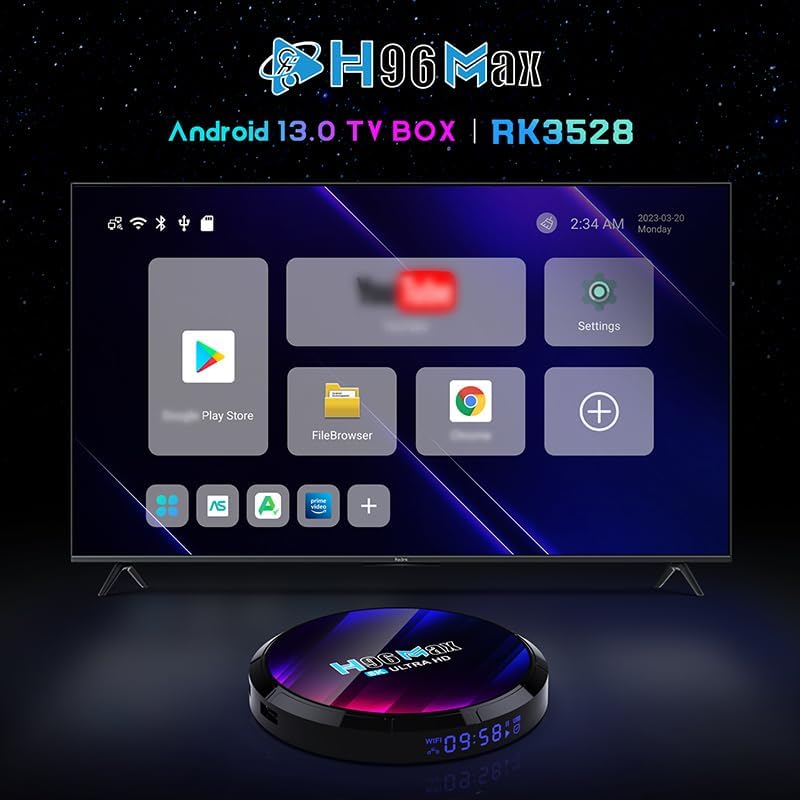
The H96 Max TV Box displaying its Android 13.0 user interface on a connected television.
Kullanım Talimatları
Arayüzde Gezinme
Use the provided IR remote control to navigate the Android 13.0 interface. The directional buttons (up, down, left, right) move the cursor, and the "OK" button selects items. The "Back" button returns to the previous screen, and the "Home" button returns to the main home screen.

The H96 Max TV Box and its included IR remote control for navigation.
Wi-Fi'ye bağlanma
- From the home screen, navigate to the Ayarlar icon and press "OK".
- Seçme Ağ ve İnternet.
- Aç Wifi if it's not already enabled.
- İstediğiniz Wi-Fi ağını listeden seçin.
- Enter the Wi-Fi password using the on-screen keyboard and select Bağlamak.

The H96 Max TV Box supports Wi-Fi 6 for faster and more reliable network performance.
Installing and Managing Applications
The H96 Max TV Box runs on Android 13.0, allowing you to download and install applications from the Google Play Store. Ensure you are logged in with a Google account.
- Uygulamaları Yükle: Şuraya gidin: Oyun Mağazası icon on the home screen, search for your desired app, and select Düzenlemek.
- Uygulamaları Kaldır: Git Ayarlar > UygulamalarKaldırmak istediğiniz uygulamayı seçin ve ardından şu adımları izleyin: Kaldır.
Mirroring and Casting (DLNA, Miracast, Airplay)
The TV Box supports various screen mirroring protocols, allowing you to display content from your smartphone or tablet directly onto your TV screen.

Multi-screen interaction features like Airplay, DLNA, and Miracast are supported for seamless content sharing.
To use these features, ensure your mobile device and the TV Box are connected to the same Wi-Fi network. The specific steps for mirroring will depend on your mobile device's operating system and the casting app you use.
8K Video Decoding
The H96 Max TV Box supports Ultra HD 8K H.265 video decoding, providing a high-quality visual experience. Ensure your TV supports 8K resolution to fully utilize this feature.

Experience stunning visuals with 8K video decoding capabilities.
Customizing UI and Wallpaper
You can personalize the user interface and change the background wallpaper of the main UI.
- Find the "Wallpaper" app in the box's application list.
- Using the Wallpaper app, you can set images from your USB drive or the device's storage as the wallpaper. Image format required: *.png, 1920*1080 pixels.
You can also customize UI buttons:
- Customize UI buttons by clicking "OK" and selecting any app logo.
- Press and hold "OK" to remove or replace an app logo.
OTA Çevrimiçi Yükseltme
The device supports Over-The-Air (OTA) updates to receive the latest firmware versions, bug fixes, and new features.
- Connect the box to the internet by Ethernet or Wi-Fi.
- Find the "System update" app, click "CHECK NOW".
- If a new version is released, it will be displayed, and then you can update according to the prompt.
- The system cannot be powered off during the upgrade, and the box will restart. After the successful upgrade, the box will automatically enter the main screen.
Bakım
- Temizlik: Use a soft, dry cloth to clean the surface of the TV Box. Do not use liquid cleaners or aerosols.
- Havalandırma: TV Kutusunun aşırı ısınmasını önlemek için iyi havalandırılan bir alana yerleştirildiğinden emin olun. Havalandırma açıklıklarını kapatmayın.
- Kapat: When not in use for extended periods, it is recommended to unplug the power adapter from the wall outlet.
- Nemden Kaçının: Cihazı sudan ve yüksek nemli ortamlardan uzak tutun.
Sorun giderme
| Sorun | Olası Neden | Çözüm |
|---|---|---|
| Güç yok/Cihaz açılmıyor | Power adapter not connected; Power outlet issue; Device malfunction. | Check power connections. Try a different power outlet. Contact support if issue persists. |
| Televizyonda görüntü yok. | Yanlış HDMI girişi seçildi; HDMI kablosu gevşek; TV kutusu açık değil. | Ensure TV is on correct HDMI input. Check HDMI cable connection. Power cycle the TV Box. |
| Wi-Fi bağlantı sorunları | Yanlış parola; Yönlendirici çok uzakta; Ağ paraziti. | Re-enter Wi-Fi password. Move TV Box closer to router. Restart router. |
| Uzaktan kumanda yanıt vermiyor | Low batteries; Obstruction between remote and box; Remote not paired (if Bluetooth). | Replace batteries. Ensure clear line of sight. For BT remotes, re-pair if necessary (refer to remote's specific instructions). |
| Uygulamaların çökmesi veya yavaş performans | Too many apps running; Low storage; Outdated app version. | Close background apps. Clear app cache/data. Uninstall unused apps. Update apps. |
Özellikler
| Özellik | Detay |
|---|---|
| İşletim Sistemi | Android 13.0 |
| İşlemci | Rockchip RK3528 Quad Core Cortex-A53 |
| Grafik işlemcisi | Mali-450 |
| Veri deposu | 4 GB |
| ROM (Dahili Depolama) | 64 GB |
| Wifi | 2.4GHz/5.8GHz Dual-band Wi-Fi 6 |
| Bluetooth | BT 5.0 |
| Ethernet | 100M |
| Video Kod Çözme | 8K H.265 Ultra HD, 4K supported |
| USB Bağlantı Noktaları | USB 3.0 (for fast transfer) and USB 2.0 |
| Özel Özellikler | DLNA, Miracast, 3D support |
| Boyutlar | 7.49 x 4.84 x 2.46 inç |
| Ağırlık | 13.6 ons |

Key features of the H96 Max TV Box, including Android 13.0 and 8K support.
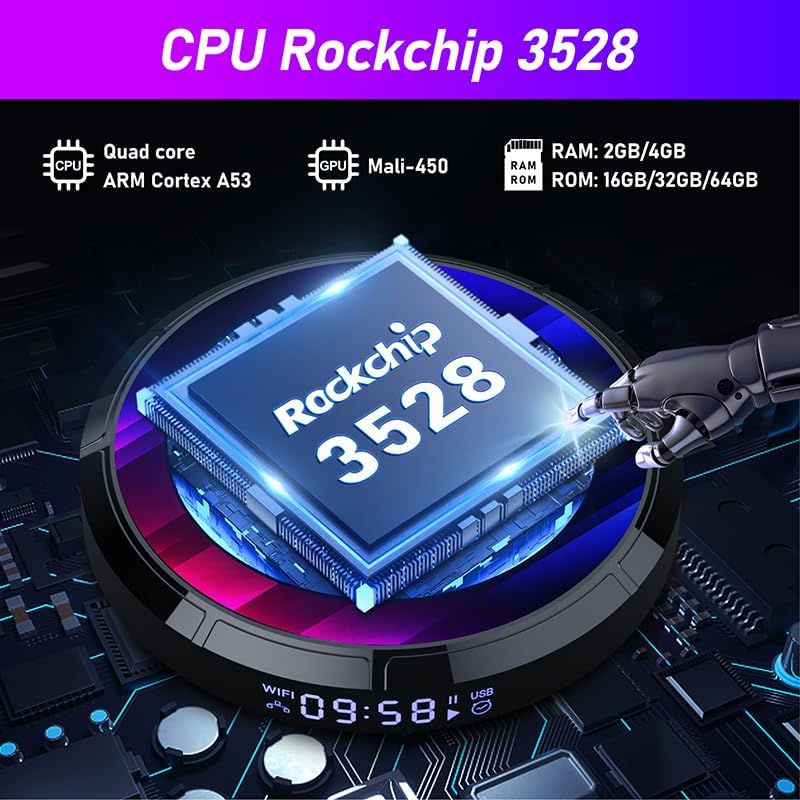
Detailed specifications of the Rockchip RK3528 processor.
Ürün Bittiview Video
This video provides an unboxing and review of the H96 MAX 3528 Android TV Box, showcasing its components and initial setup.
Garanti ve Destek
Garanti bilgileri ve teknik destek için lütfen resmi BOXPUT web sitesine başvurun. webSite üzerinden satın alabilir veya doğrudan müşteri hizmetleriyle iletişime geçebilirsiniz. Satın alma fişinizi, garanti talepleriniz için satın alma belgesi olarak saklayın.
Official BOXPUT Store: BOXPUT Amazon Mağazası
Ask a question about this manual
Ask about setup, troubleshooting, compatibility, parts, safety, or missing instructions. Manuals+ will review the question and use this page’s manual context to help answer it.