
BOXPUT G60S PRO BT
G60S Pro BT Bluetooth Sesli Uzaktan Kumanda ve Klavye Kullanım Kılavuzu
Model: G60S PRO BT
Marka: BOXPUT
giriiş
This user manual provides detailed instructions for the G60S Pro BT Multi-Function Air Mouse. Please read this manual carefully before using the product to ensure proper operation and to maximize its features.
The G60S Pro BT is a versatile remote control featuring dual connectivity modes (2.4GHz wireless and Bluetooth 5.0), a full QWERTY keyboard with a touchpad, backlight, 6-axis gyroscope, and voice search capabilities. It is designed for use with various devices such as TV boxes, projectors, PCs, and Android TV boxes.
Paket İçeriği
Paketi açtığınızda lütfen aşağıdaki tüm öğelerin pakette bulunduğundan emin olun:
- 1x G60S Pro BT Remote Control
- 1x USB Alıcısı
- 1x USB Şarj Kablosu
- 1x Kullanım Kılavuzu (bu belge)

Image: Contents of the G60S Pro BT package, showing the remote control, USB receiver, USB charging cable, and user manual.
Ürün Bittiview
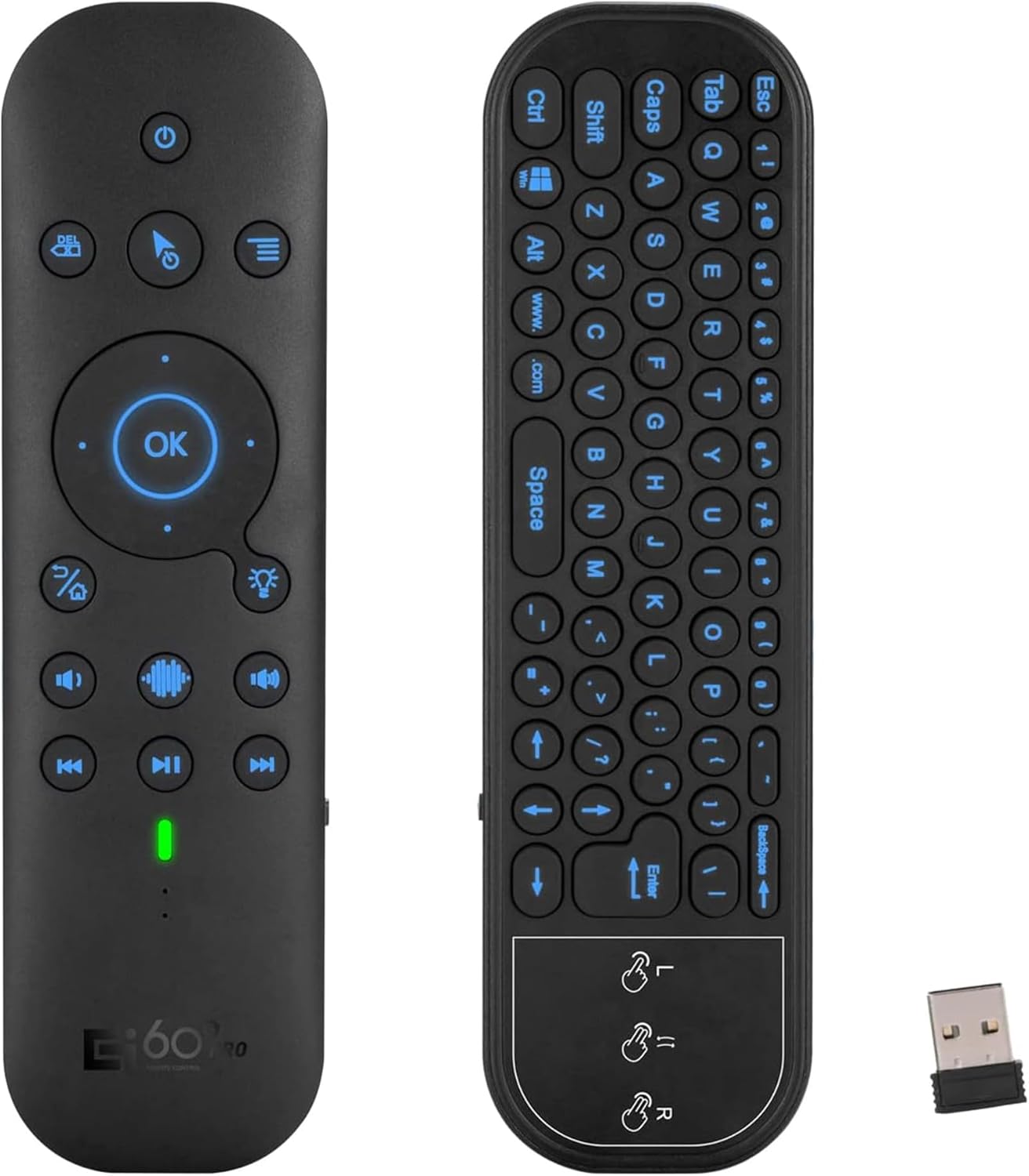
Image: The G60S Pro BT remote control showing both its front (remote) and back (keyboard with touchpad) sides, alongside its USB receiver.
The G60S Pro BT is a multi-functional air mouse remote control designed for versatile use with various smart devices. It features a dual-sided design, with a traditional remote control interface on one side and a full QWERTY keyboard with a touchpad on the other. Key features include:
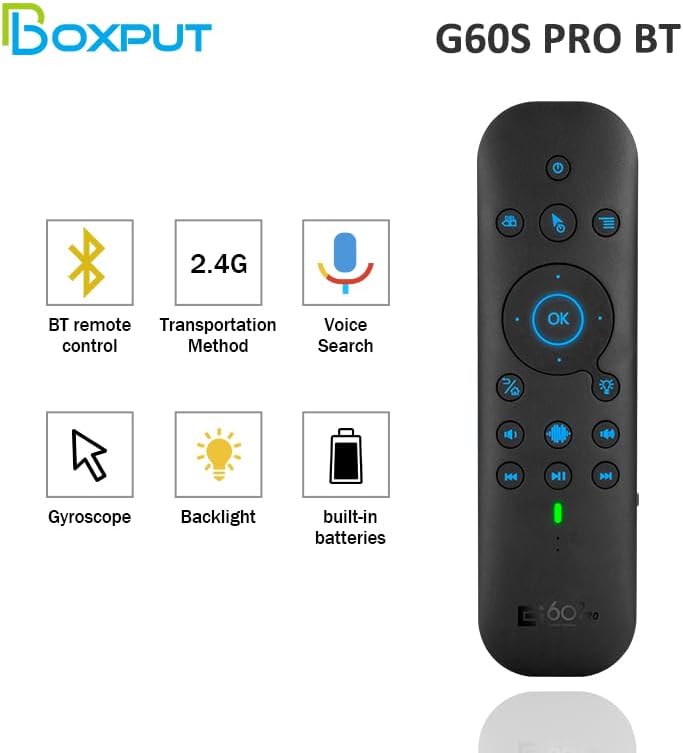
Image: Icons representing the key features of the G60S Pro BT: Bluetooth remote control, 2.4G wireless transmission, Voice Search, Gyroscope, Backlight, and Built-in batteries.
- Çift Modlu Bağlantı: Supports both 2.4GHz wireless (via USB receiver) and Bluetooth 5.0.
- Tam QWERTY Klavye: Integrated on the back for easy text input.
- Multi-touch Touchpad: For precise cursor control and gesture support.
- Arka aydınlatma: Illuminated keys for convenient use in low-light conditions.
- 6 Eksenli Jiroskop: Enables accurate air mouse functionality.
- Sesli Arama: Allows for voice commands (2.4G mode only).
- Şarj Edilebilir Pil: Built-in lithium battery, charged via USB-C.
Front Side (Remote Control)
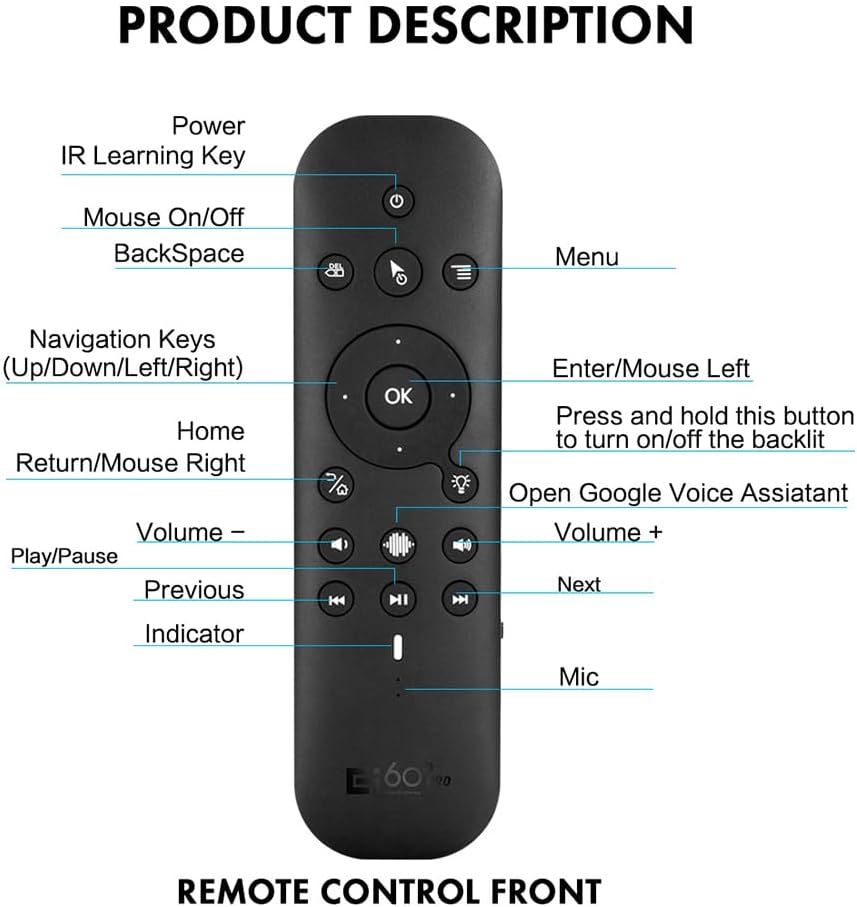
Image: Diagram of the G60S Pro BT remote control's front side, labeling buttons such as Power, IR Learning Key, Mouse On/Off, Backspace, Menu, Navigation Keys, OK, Enter/Mouse Left, Home, Return/Mouse Right, Volume -, Volume +, Play/Pause, Previous, Next, Indicator, and Mic.
- Güç Düğmesi: Cihazı açar/kapatır.
- IR Learning Key: For programming infrared functions.
- Mouse On/Off: Hava faresinin işlevini açıp kapatır.
- Geri tuşu: Karakterleri siler.
- Menü: Menü seçeneklerine erişim sağlar.
- Gezinti Tuşları (Yukarı/Aşağı/Sol/Sağ): Yön kontrolü için.
- Tamam Düğmesi: Seçimleri onaylar.
- Enter/Mouse Left: Acts as Enter key or left mouse click.
- Ev: Ana ekrana döner.
- Return/Mouse Right: Acts as Back key or right mouse click.
- Ses Seviyesi - / Ses Seviyesi +: Ses seviyesini ayarlar.
- Oynat/Duraklat: Medya oynatmayı kontrol eder.
- Önceki Sonraki: Skips to previous or next media track.
- Gösterge: Durum ışığı.
- Mikrofon: Ses girişi için mikrofon.
- Arka Işık Düğmesi: Arka ışığı açmak/kapatmak için uzun basın.
- Google Voice Assistant Button: Opens Google Voice Assistant.
Back Side (Keyboard & Touchpad)

Image: Close-up of the G60S Pro BT's keyboard and touchpad, illustrating multi-touch gestures: one-finger for left-click, two-finger drag for slide up and down, and two-finger for right-click.
- QWERTY klavye: Full keyboard for text input.
- Dokunmatik panel: Gezinme için çoklu dokunmatik hareketleri destekler.
- Multi-touch Functions:
- One-finger tap: Left-click function.
- Two-finger drag: Slide up and down function (scrolling).
- Two-finger tap: Right-click function.
Kurulum ve Bağlantı
The G60S Pro BT offers two connection methods: 2.4G wireless via USB receiver and Bluetooth 5.0.
2.4G Wireless Connection (Recommended for Voice Functionality)
- Locate the USB receiver included in the package. It is typically stored inside the battery compartment of the remote or in the packaging.
- Insert the USB receiver into an available USB port on your device (e.g., TV Box, PC, Projector).
- The remote control should automatically connect to the receiver. The indicator light on the remote may flash briefly and then turn solid or off, indicating a successful connection.
- Test the remote by moving it to control the cursor or pressing buttons.
Not: The voice search function only works when connected via 2.4GHz wireless mode. It does not function in Bluetooth mode.
Bluetooth 5.0 Bağlantısı
- Cihazınızın Bluetooth özelliğinin etkin olduğundan emin olun.
- On the G60S Pro BT remote, press and hold the OK düğme ve Hacim - button simultaneously for a few seconds until the indicator light starts flashing rapidly. This indicates pairing mode.
- On your device, search for Bluetooth devices. You should see "G60S PRO" appear in the list of available devices.
- Select "G60S PRO" to pair. Once paired, the indicator light on the remote will stop flashing.
- Uzaktan kumandanın işlevselliğini test edin.
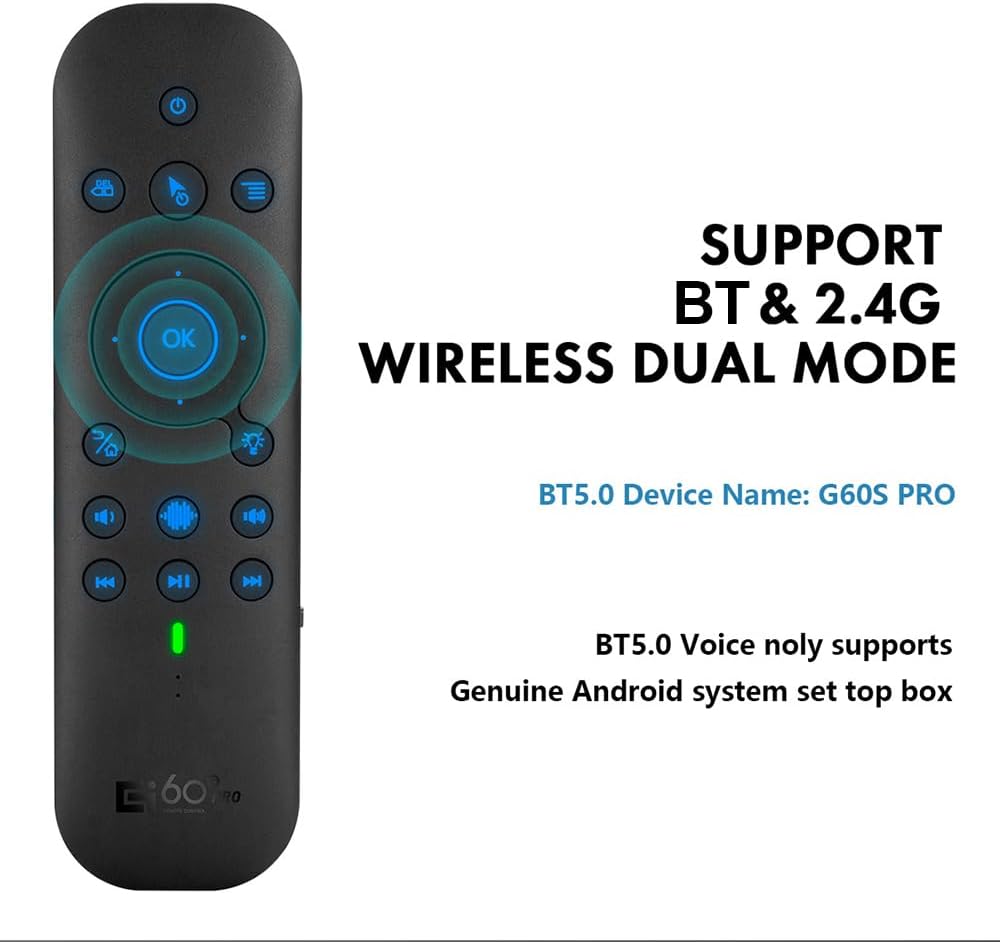
Image: Illustration showing the G60S Pro BT remote supporting both Bluetooth and 2.4G wireless dual modes. It notes that the Bluetooth 5.0 device name is "G60S PRO" and that BT5.0 voice only supports genuine Android system set-top boxes.
Not: Bluetooth 5.0 voice functionality is primarily supported on genuine Android system set-top boxes.
Kullanım Talimatları
Hava Fare İşlevi
The G60S Pro BT features a 6-axis gyroscope, allowing for precise air mouse control.
- Hava faresini etkinleştirmek için, tuşuna basın. Fare Açık/Kapalı button (usually depicted with a mouse icon).
- Hold the remote in your hand and move it in the air to control the cursor on your screen.
- Basın OK button for left-click actions.
- Basın Return/Mouse Right button for right-click actions.
- To deactivate the air mouse, press the Fare Açık/Kapalı Tekrar düğmeye basın.
Klavye ve Dokunmatik Yüzey Kullanımı
Flip the remote to access the full QWERTY keyboard and touchpad.
- Yazma: Use the individual keys for text input.
- Arka aydınlatma: Long press the backlight button on the remote side to turn the keyboard backlight on or off for use in dark environments.
- Dokunmatik yüzey: Use the touch panel for cursor control.
- Tek Parmakla Dokunma: Performs a left-click.
- Two Finger Drag: Scrolls up or down.
- İki Parmakla Dokunma: Performs a right-click.
Voice Search Function
The voice search function allows you to control your device using voice commands. This feature is only available in 2.4GHz wireless mode.
- Ensure the remote is connected via the 2.4G USB receiver.
- Basılı tutun Ses Düğmesi (microphone icon) on the remote.
- Speak clearly into the microphone located on the remote.
- Release the voice button when you are finished speaking. The device will process your command.
Not: Compatibility with voice search may vary depending on the operating system and applications of your connected device.
IR Öğrenme Fonksiyonu (Güç Düğmesi için)
The power button on the G60S Pro BT can be programmed to learn the infrared signal from another remote control, such as your TV's power button.
- Place the G60S Pro BT remote and your original remote control head-to-head, about 1-3 cm apart.
- Basılı tutun IR Learning Key (often labeled with an IR icon or a specific learning button) on the G60S Pro BT remote for 3-5 seconds until the indicator light starts flashing slowly.
- Press the power button on your original remote control. The indicator light on the G60S Pro BT remote should flash rapidly, indicating it has received the signal.
- Basın Güç Düğmesi on the G60S Pro BT remote. The indicator light will turn solid, indicating successful learning.
- Test the power button on the G60S Pro BT remote to ensure it now controls your device.
Şarj ve Pil
The G60S Pro BT is equipped with a built-in rechargeable lithium battery.
- To charge the remote, connect the included USB charging cable to the USB-C port on the remote and the other end to a USB power source (e.g., computer USB port, USB wall adapter).
- The indicator light will typically show charging status (e.g., red while charging, off or green when fully charged).
- A full charge usually takes a few hours.
- When the battery is low, the indicator light may flash to alert you to recharge.
Uyumluluk
The G60S Pro BT air mouse remote is compatible with a wide range of operating systems and devices:
- Pencereler
- macOS
- Linux
- Android TV Kutusu
- Projektörler
- Smart TVs (some models)
- Mobile Phones (some models)
- Tablet Computers
- Masaüstü Bilgisayarlar

Image: Grid of devices illustrating the G60S Pro BT's compatibility, including TV Box, Raspberry Pi, Projector, Smart TV, Cell phone, Tablet, Computer, All-in-one PC, and HTPC.
Önemli Uyumluluk Notları:
- Bu uyumlu değil with Amazon Fire TV and Fire TV Stick.
- Olabilir uyumlu değil with some Samsung, LG, Sony, and Mi smart TVs or Mi TV Boxes.
Sorun giderme
| Sorun | Olası Neden / Çözüm |
|---|---|
| Remote not responding (2.4G mode) |
|
| Remote not responding (Bluetooth mode) |
|
| Hava faresinin imleci düzensiz hareket ediyor veya düzgün hareket etmiyor. |
|
| Voice search not working |
|
| Keyboard backlight not turning on/off |
|
Özellikler
| Özellik | Detay |
|---|---|
| Model Numarası | G60S PRO BT |
| İletim Yöntemi | 2.4G Kablosuz + Bluetooth 5.0 |
| Sensörler | 6-axis Gyroscope (3-Gyro + 3-Gsensor) |
| Çalışma Mesafesi | 8-10 metre |
| Anahtar Sayısı | 17 (remote side) + 63 (keyboard side) |
| Pil Türü | Built-in Lithium Battery (Rechargeable via USB-C) |
| Malzeme | ABS Plastic and Silicone |
| Boyutlar (U*G*Y) | 19.6 x 8.9 x 1.9 cm (7.72 x 3.50 x 0.75 inç) |
| Ağırlık | 91 gr (3.21 ons) |
| Özel Özellikler | Voice Control (2.4G only), Gyroscope, Backlight, Mini Keyboard, Multi-touch Touchpad, IR Learning |
| Sertifikalar | FCC, CE, RoHS |

Image: Diagram showing the dimensions of the G60S Pro BT remote control, indicating a length of 178mm (7.01 inches), width of 50mm (1.97 inches), and thickness of 16mm (0.63 inches).
Bakım ve Özen
- Keep the remote control dry. Avoid exposure to water or excessive humidity.
- Do not expose the remote to extreme temperatures (hot or cold).
- Kumandayı yumuşak, kuru bir bezle temizleyin. Aşındırıcı temizleyiciler veya çözücüler kullanmayın.
- Avoid dropping or subjecting the remote to strong impacts.
- When not in use for extended periods, ensure the remote is fully charged and stored in a cool, dry place.
Garanti ve Destek
Garanti bilgileri ve teknik destek için lütfen resmi BOXPUT web sitesine başvurun. webDaha fazla bilgi için sitelerini ziyaret edebilir veya doğrudan müşteri hizmetleriyle iletişime geçebilirsiniz. Ayrıntılar genellikle ürün ambalajında veya üreticinin resmi kanallarında yer alır.
Manufacturer: BOXPUT
Daha fazla yardım için lütfen şu adresi ziyaret edin: BOXPUT Store on Amazon.
Ask a question about this manual
Ask about setup, troubleshooting, compatibility, parts, safety, or missing instructions. Manuals+ will review the question and use this page’s manual context to help answer it.