
BOXPUT X88 PRO 13
BOXPUT X88 PRO 13 Akıllı TV Kutusu Kullanım Kılavuzu
Model: X88 PRO 13
1. Giriş
This manual provides detailed instructions for the setup, operation, and maintenance of your BOXPUT X88 PRO 13 Smart TV Box. Please read this manual thoroughly before using the device to ensure proper functionality and to maximize your user experience. Keep this manual for future reference.
2. Paket İçeriği
Aşağıda listelenen tüm öğelerin ürün paketinizde bulunduğundan emin olun. Herhangi bir öğe eksik veya hasarlıysa, lütfen satıcınızla iletişime geçin.
- BOXPUT X88 PRO 13 Smart TV Box
- Uzaktan kumanda
- HDMI Kablosu
- Güç Adaptörü (DC 5V/2A)
- Kullanıcı Kılavuzu
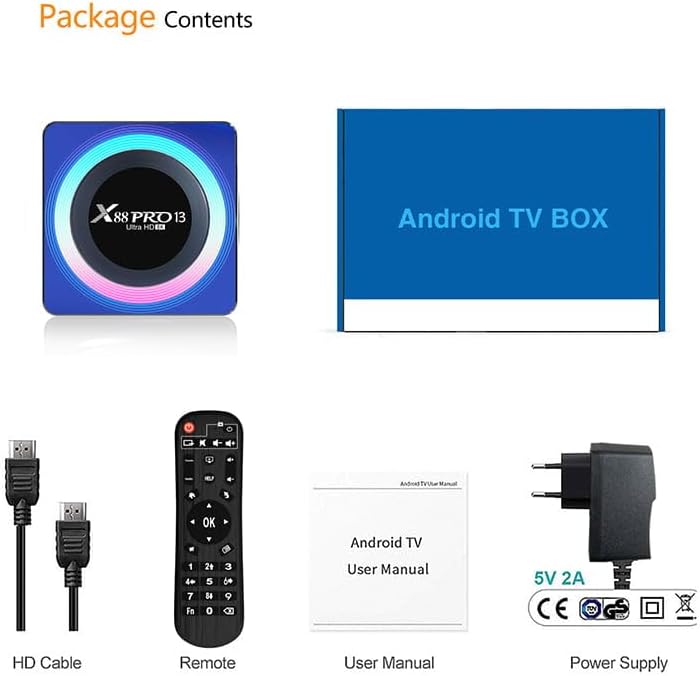
Image: Contents of the product package, including the TV box, HDMI cable, remote control, user manual, and power adapter.
3. Ürün Bittiview
The BOXPUT X88 PRO 13 is a high-performance Smart TV Box designed to deliver an enhanced media experience. It features the Android 13.0 operating system and a powerful RK3528 Quad-Core processor.

Image: The BOXPUT X88 PRO 13 Smart TV Box and its accompanying remote control.
Temel Özellikler
- Android 13.0 İşletim Sistemi
- RK3528 Quad-Core 64bit Cortex-A53 Chipset
- Mali 450 MP2 GPU
- Support for 8K HD Video Decoding
- Dual-band Wi-Fi (2.4G/5G) with Wi-Fi 6
- Bluetooth V5.0
- Screen Cast Functionality

Image: Visual representation of key features including Android 13.0, 8K video support, RK3528 processor, WiFi 6, and Screen Cast.
4. Kurulum Kılavuzu
Follow these steps to set up your BOXPUT X88 PRO 13 Smart TV Box.
- Televizyona bağlanın: HDMI kablosunun bir ucunu TV Box üzerindeki HDMI portuna, diğer ucunu ise televizyonunuzdaki kullanılabilir bir HDMI girişine bağlayın.
- Gücü bağlayın: Plug the power adapter into the DC 5V/2A port on the TV Box, then plug the adapter into a wall outlet.
- Güç Açık: The device should power on automatically or can be turned on using the power button on the remote control.
- Girişi Seçin: On your television, select the correct HDMI input source using your TV's remote control.
- İlk kurulum: Follow the on-screen instructions to complete the initial setup, including language selection and network configuration.
5. Kullanım Talimatları
5.1 Temel Gezinme
Use the provided remote control to navigate the Android interface. The directional buttons (up, down, left, right) are used to move the cursor, and the 'OK' button confirms selections. The 'Back' button returns to the previous screen, and the 'Home' button returns to the main menu.
5.2 Ağ Bağlantısı
The TV Box supports both wired and wireless network connections.
- Kablolu Bağlantı (Ethernet): Yönlendiricinizden TV Box'ın LAN portuna bir Ethernet kablosu bağlayın.
- Kablosuz Bağlantı (Wi-Fi): Git Ayarlar > Ağ ve İnternet > Wi-Fi, select your network, and enter the password. The device supports 2.4GHz and 5GHz dual-band Wi-Fi 6 for faster and more stable connections.

Image: An illustration demonstrating the improved speed and stability offered by WiFi 6 technology.
5.3 Bluetooth Bağlantısı
The TV Box features Bluetooth V5.0, allowing connection to various external devices.
- Git Settings > Connected Devices > Pair new device.
- Put your Bluetooth device (e.g., speaker, headphones, game controller) into pairing mode.
- Select the device from the list on your TV screen to pair.

Image: The TV box demonstrating Bluetooth 5.0 connectivity with a speaker, headphones, and a game controller.
5.4 Medya Oynatma
The BOXPUT X88 PRO 13 supports advanced media formats, including 8K H.265 ultra-high-definition content and 3D video playback.
- 8K Video Kod Çözme: Enjoy crystal-clear visuals with support for 8K resolution.
- 3D Desteği: Experience immersive 3D content when connected to a compatible 3D television.

Image: A television screen showcasing a high-resolution winter scene, illustrating the 8K video decoding capability of the device.
5.5 Çoklu Ekran Etkileşimi
The device supports various multi-screen interaction protocols, allowing you to cast content from your mobile devices to your TV.
- Hava oyunu: Apple cihazları için.
- DLNA: For compatible devices across various platforms.
- Miracast: For Android devices.
To use these features, ensure your mobile device and the TV Box are connected to the same Wi-Fi network. Activate the casting feature on your mobile device and select the TV Box from the available devices.

Image: A television screen displaying a racing car, demonstrating multi-screen interaction capabilities such as Airplay, DLNA, and Miracast.
6. Bakım
To ensure the longevity and optimal performance of your TV Box, follow these maintenance guidelines:
- Temizlik: Cihazı temizlemek için yumuşak ve kuru bir bez kullanın. Sıvı temizleyiciler veya aerosoller kullanmayın.
- Havalandırma: Cihazın aşırı ısınmasını önlemek için iyi havalandırılan bir alana yerleştirildiğinden emin olun. Havalandırma açıklıklarını kapatmayın.
- Yazılım Güncellemeleri: Sistem güncellemelerini düzenli olarak kontrol edin. Settings > About > System update to ensure you have the latest features and security patches.
- Depolamak: Avoid placing heavy objects on the device. Store in a cool, dry place away from direct sunlight and extreme temperatures.
7. Sorun Giderme
If you encounter issues with your BOXPUT X88 PRO 13, refer to the following common problems and solutions:
- Güç Yok:
- Güç adaptörünün cihaza ve çalışan bir elektrik prizine güvenli bir şekilde bağlandığından emin olun.
- Elektrik prizinin çalışır durumda olduğundan emin olun.
- Televizyonda Sinyal Yok:
- Check that the HDMI cable is properly connected to both the TV Box and the TV.
- Televizyonunuzun doğru HDMI giriş kaynağına ayarlandığından emin olun.
- Televizyonunuzda farklı bir HDMI kablosu veya HDMI portu deneyin.
- Wi-Fi Bağlantısı Yok:
- Confirm your Wi-Fi router is powered on and functioning.
- Check Wi-Fi settings on the TV Box (Ayarlar > Ağ ve İnternet > Wi-Fi) and ensure the correct network is selected and password entered.
- TV kutusunu ve Wi-Fi yönlendiricinizi yeniden başlatın.
- Uzaktan Kumanda Yanıt Vermiyor:
- Uzaktan kumandanın pillerini değiştirin.
- Uzaktan kumanda ile TV kutusu arasında herhangi bir engel olmadığından emin olun.
- Uygulamalar Çöküyor veya Donuyor:
- Uygulamayı kapatın ve yeniden başlatın.
- Clear the cache of the problematic application via Ayarlar > Uygulamalar > [Uygulama Adı] > Depolama ve önbellek > Önbelleği temizle.
- Cihazda yeterli boş depolama alanı olduğundan emin olun.
- Mümkünse sistem güncellemesi yapın.
8. Özellikler
| Özellik | Şartname |
|---|---|
| Örnek | X88 PRO 13 |
| İşletim Sistemi | Android 13.0 |
| Yonga seti | RK3528 Dört Çekirdekli 64 bit Cortex-A53 |
| Grafik işlemcisi | Mali 450 MP2 |
| Veri deposu | 4 GB |
| ROM (Dahili Depolama) | 64GB EMMC |
| USB Ana Bilgisayarı | 1 *USB 3.0; 1 * USB2.0 |
| LAN/Ethernet | 10/100M Standard RJ-45 |
| Wireless/Wi-Fi | 2.4G / 5G Dual-band Wi-Fi 802.11 a/b/g/n/ac/ax (Wi-Fi 6) |
| Bluetooth | V5.0 |
| Güç Kaynağı | DC 5V/2A |
| Video Kod Çözme | 8K H.265, 3D Support |
| Ürün Boyutları | 107x107x21 mm |
9. Garanti ve Destek
Garanti bilgileri ve teknik destek için lütfen satın alma işleminizle birlikte verilen belgelere bakın veya satıcınızla iletişime geçin. Garanti talepleriniz için satın alma belgenizi saklayın.
Ask a question about this manual
Ask about setup, troubleshooting, compatibility, parts, safety, or missing instructions. Manuals+ will review the question and use this page’s manual context to help answer it.