
1. Ürün Bittiview
The BOXPUT BPR3S BT Remote Control is a universal voice remote designed for Android TV boxes and other compatible devices. It features a 6-axis gyroscope for precise pointing, IR learning capabilities for all buttons, and a unique 4-key IR isolation function for simultaneous control of your TV and streaming device. This remote enhances your home entertainment experience with its versatile control options.
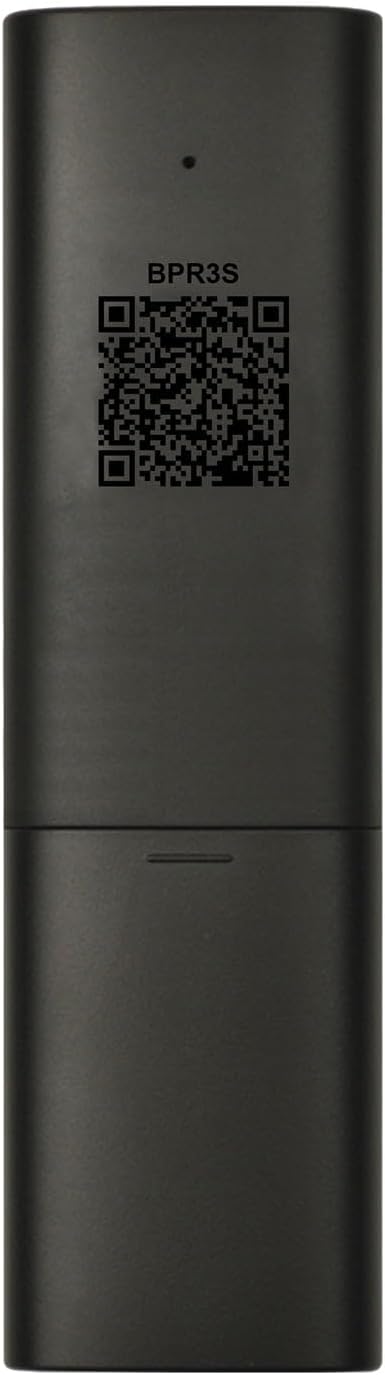
Resim: Ön ve arka view of the BOXPUT BPR3S remote control, highlighting its sleek design and the QR code for the electronic manual on the back.
Temel Özellikler:
- Bluetooth Bağlantısı: Seamless connection to Android streaming media devices.
- 6 Eksenli Jiroskop: Enables precise air mouse functionality for intuitive navigation.
- IR Öğrenme: All buttons support infrared learning for controlling other devices.
- 4-Key IR Isolation: Control your TV and streaming device simultaneously without Bluetooth disconnection.
- Ses girişi: Supports voice commands for searching TV programs on compatible ATV devices.
- Sayısal Tuşlar: Full numeric keypad for direct input.
2. Kurulum Kılavuzu
2.1. Kutusundan Çıkarma
Video: An unboxing video of the BOXPUT BPR3S remote control, showing the remote and its packaging contents.
2.2. Pil Kurulumu
The BPR3S remote control requires two AAA batteries (not included). To install the batteries:
- Uzaktan kumandanın arkasındaki pil bölmesi kapağını açın.
- İki adet AAA pili, doğru kutuplara (+ ve -) dikkat ederek takın.
- Pil bölmesi kapağını sıkıca kapatın.
2.3. Bluetooth Bağlantısı
To connect the BPR3S remote control via Bluetooth to your Android TV box or compatible device:
- Using your original remote, navigate to the "Settings" menu on your device.
- Go to "Remotes & Accessories" or "Bluetooth" settings.
- On the BPR3S remote, press and hold the "OK" button and the "Back" button simultaneously until the LED indicator on the remote starts blinking. This indicates the remote is in pairing mode.
- On your device, select "Add Bluetooth accessory" and search for "BOXPUT | BPR3S".
- Confirm the connection on your device. The LED indicator on the BPR3S remote will stop blinking once successfully connected.

Image: Visual guide demonstrating the steps to connect the BOXPUT BPR3S remote control via Bluetooth, showing which buttons to press and the device's pairing screen.
3. Kullanım Talimatları
3.1. Düğme Düzeni ve Temel İşlevler

Image: Diagram of the BOXPUT BPR3S remote control with labels for each button, indicating their primary functions such as Power, Mute, Volume, OK, Menu, Voice, Home, Back, and Numeric Keys.
- Güç Düğmesi: Cihazı açar/kapatır.
- Tamam Düğmesi: Seçimleri onaylar.
- Yön Tuş Takımı (Yukarı/Aşağı/Sol/Sağ): Menülerde ve seçeneklerde gezinmeyi sağlar.
- Geri Düğmesi: Önceki ekrana döner.
- Ana menü tuşu: Cihazınızın ana ekranına geri döner.
- Hacim +/-: Ses seviyesini ayarlar.
- Sessiz tuşu: Sesi kapatır/açar.
- Sayısal Tuşlar (0-9): For direct input of numbers.
3.2. Air Mouse (6-Axis Gyroscope)
The BPR3S remote features a 6-axis gyroscope for precise pointing, allowing you to control the cursor on your screen by moving the remote in the air.
- Hold the remote firmly.
- Ekrandaki imleci kontrol etmek için bileğinizi hareket ettirin.
- Press the "OK" button to click on items.

Image: Illustration of a hand holding the BOXPUT BPR3S remote control and moving it to control an on-screen cursor, demonstrating the air mouse functionality.
3.3. Voice Input
The voice input function allows you to search for content using your voice. This feature is primarily supported on ATV (Android TV) certified devices.
- Press the Voice button (microphone icon) on the remote.
- Komutunuzu veya arama sorgunuzu uzaktan kumandanın mikrofonuna net bir şekilde söyleyin.
- Note: Voice search typically works within built-in voice input search boxes or apps and may not function across all applications.
Video: A demonstration of how to use the voice control feature on the BOXPUT BPR3S remote control with an Android TV box, showing a user speaking commands into the remote.
3.4. Kızılötesi Öğrenme (IR Learning)
The BPR3S remote supports IR learning for all its buttons, allowing it to mimic functions from other infrared remote controls (e.g., your TV's original remote).
- Place the BPR3S remote and your original IR remote head-to-head, about 1-3 cm apart.
- Press and hold the button on the BPR3S remote that you wish to program for 8 seconds. The LED indicator will blink rapidly and then stay solid, indicating it's ready to learn.
- While the LED is solid, press the corresponding button on your original IR remote. The LED on the BPR3S remote will blink to confirm successful learning.
- Repeat the process for other buttons you wish to program.
- To exit IR learning mode, press any button that has not been programmed, or wait for 10 seconds.

Image: Diagram illustrating the IR learning process for the BOXPUT BPR3S remote control, showing two remotes facing each other and the indicator light sequence for successful learning.
3.5. Four Keys IR Isolation
The BPR3S features four dedicated TV buttons that operate independently via IR, even when the remote is in Bluetooth mode. This allows you to control basic TV functions (like power) without disconnecting from your streaming device.
- The four TV buttons (typically located at the top right) have default Samsung TV IR code values.
- These buttons support IR learning, allowing you to program them to control your specific TV model.
- In Bluetooth mode, these four buttons will prioritize sending IR signals if they have been programmed, while other buttons function via Bluetooth.

Image: Visual explanation of the 4-key IR isolation feature on the BOXPUT BPR3S remote control, highlighting the dedicated TV buttons and their independent infrared functionality.
4. Bakım
- Temizlik: Uzaktan kumandayı temizlemek için yumuşak, kuru bir bez kullanın. Sıvı temizleyiciler veya aşındırıcı malzemeler kullanmayın.
- Pil Değişimi: Replace batteries when the remote's performance degrades or the LED indicator shows low power. Always use new AAA batteries and dispose of old batteries responsibly.
- Depolamak: Uzaktan kumandayı serin, kuru ve doğrudan güneş ışığından ve aşırı sıcaklıklardan uzak bir yerde saklayın.
5. Sorun Giderme
- Uzaktan kumanda yanıt vermiyor:
- Pillerin doğru takılıp takılmadığını ve yeterli şarj seviyesine sahip olup olmadığını kontrol edin.
- Ensure the remote is within operating range of your device.
- Re-pair the remote via Bluetooth (refer to Section 2.3).
- Air Mouse not working accurately:
- Ensure the remote is fully charged.
- Kumandayı birkaç saniye düz bir yüzeye koyarak jiroskopu yeniden kalibre edin.
- Sesli komut işlevi çalışmıyor:
- Verify that your device is an ATV certified device, as AOSP uncertified devices may not support this feature in Bluetooth mode.
- Ensure the voice function is being used within a built-in voice input search box or a compatible app.
- IR Learning issues:
- Ensure the BPR3S remote and the original remote are placed very close (1-3 cm) and directly facing each other during the learning process.
- Öğrenme adımlarını dikkatlice tekrarlayın.
- Bluetooth eşleştirme sorunları:
- Başka hiçbir Bluetooth cihazının karışmadığından emin olun.
- Try unpairing any existing remote from your device's Bluetooth settings and then re-pairing the BPR3S.
6. Özellikler
- Modeli: BPR3S
- Marka: KUTU
- Bağlantı: Bluetooth
- Özel Özellikler: 6-Axis Gyroscope, IR Learning, Numeric Keypad, TV 4-Button Infrared Isolation, Voice Search
- Renk: Siyah
- Güç Kaynağı: 2 x AAA Piller (dahil değildir)
- Ürün Ölçüleri: 7.22 x 1.83 x 0.78 inç
- Ürün Ağırlığı: 2.89 ons
- Desteklenen Maksimum Cihaz Sayısı: 2
- Uyumlu Cihazlar: Android Devices (excluding Fire Stick, DVB Box, ROKU Box, MAG Box, Apple Box, and some LG/Samsung TVs)

Image: Visual representation of various devices compatible with the BOXPUT BPR3S remote control, including TV boxes, HTPCs, Raspberry Pi, Android projectors, all-in-one PCs, computers, tablets, and phones (with OTG).
7. Destek
If you encounter any operational or usage issues that cannot be resolved using this manual, please contact BOXPUT Official Support. Our technical team will assist you within 24 hours to help resolve the problem.
For remote-specific issues, please provide details of the problem when contacting support.