
1. Giriş
This manual provides detailed instructions for the setup, operation, maintenance, and troubleshooting of your Xprinter XP-233B Thermal Barcode Printer. The XP-233B is designed for efficient thermal printing of barcodes and labels, utilizing heat-sensitive paper without the need for ink or ribbons.
2. Güvenlik Talimatları
- Yazıcının doğru voltajda bir güç kaynağına bağlı olduğundan emin olun.tagGüç adaptöründe belirtildiği gibi.
- Yazıcıyı suya veya aşırı neme maruz bırakmayın.
- Yazıcıyı doğrudan güneş ışığına veya ısı kaynaklarının yakınına koymaktan kaçının.
- Keep the printer away from dust and debris to prevent damage to internal components.
- Yazıcıyı kendiniz sökmeye veya onarmaya çalışmayın. Yardım için yetkili servis personeline başvurun.
- Use only recommended thermal label rolls to ensure optimal print quality and printer longevity.
3. Paket İçeriği
Paketin içinde tüm öğelerin mevcut olduğundan emin olun:
- Xprinter XP-233B Thermal Barcode Printer
- Güç Adaptörü
- USB kablosu
- Hızlı Başlangıç Kılavuzu (eğer dahilse)
- Driver CD (if included, drivers can also be downloaded online)
4. Ürün Bittiview
Familiarize yourself with the main components of the XP-233B printer.

Şekil 4.1: Ön taraf view of the Xprinter XP-233B, showing the power switch, control panel, and label output slot.

Şekil 4.2: Arka view of the Xprinter XP-233B, highlighting the USB, Ethernet, and power input ports.
Kontrol Paneli Fonksiyonları:
- BESLEME Düğmesi: Press to feed a blank label. Hold to perform a self-test print.
- DURAKLAT Düğmesi: Yazdırma işlemini duraklatır veya devam ettirir.
- İPTAL Düğmesi: Mevcut yazdırma işlemini iptal eder.
- LED Göstergeleri: Display printer status (e.g., Power, Error, Paper Out). Refer to troubleshooting for specific light patterns.
5. Kurulum
5.1 Yazıcıyı Bağlama
- Connect the power adapter to the printer's power input port and then plug it into a wall outlet.
- Connect the USB cable from the printer to your computer. For Ethernet connectivity, connect an Ethernet cable from the printer to your network router or switch.
- Yazıcıyı yan tarafta bulunan güç anahtarını kullanarak açın.
5.2 Etiketleri Yükleme
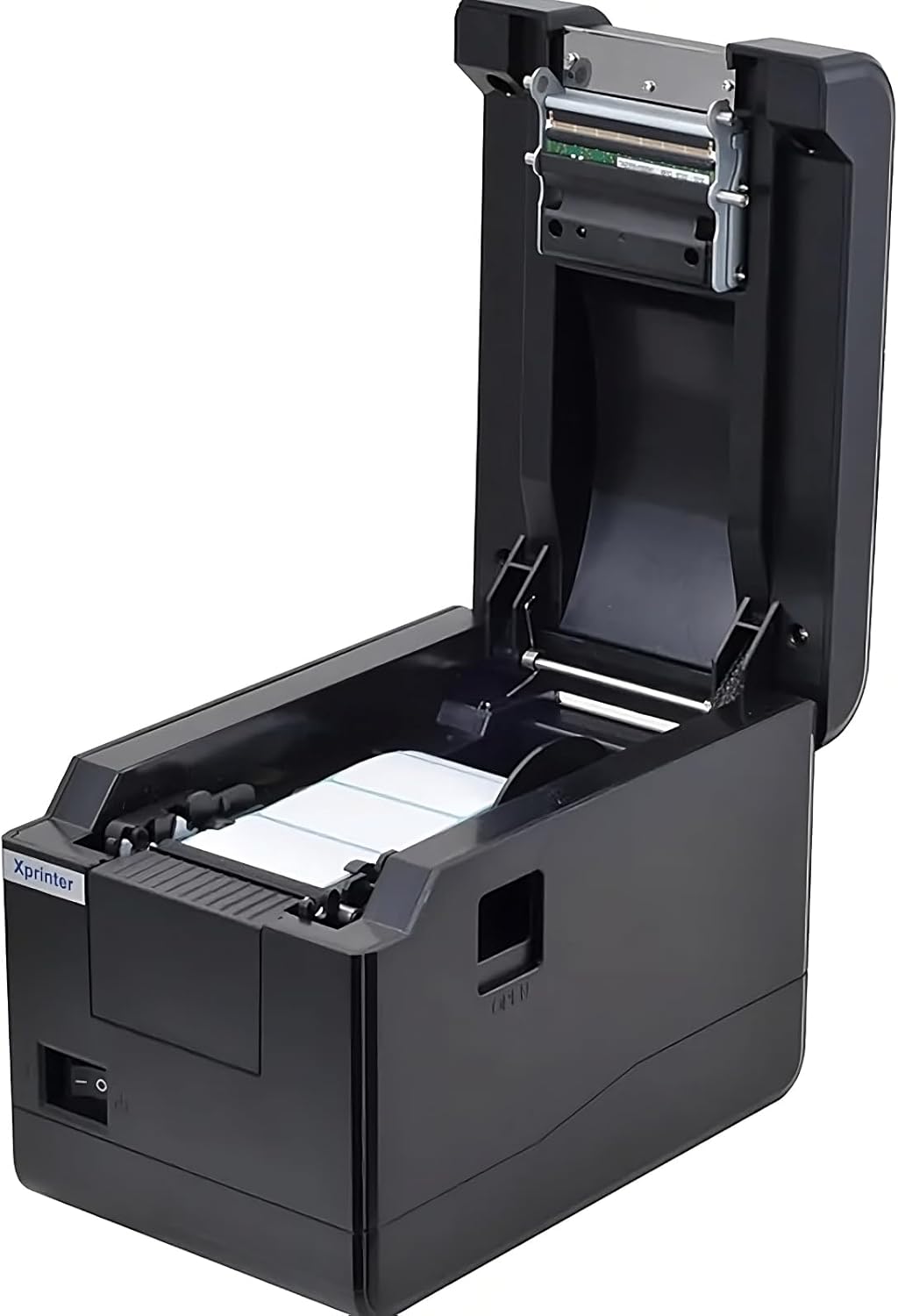
Şekil 5.1: Yukarıdan aşağıya view of the Xprinter XP-233B with the cover open, illustrating the label loading area.
- Yazıcının yan tarafındaki 'AÇ' düğmesine basarak üst kapağı açın.
- Place the thermal label roll into the label compartment, ensuring the labels feed from the bottom of the roll and the printable side faces upwards.
- Adjust the movable label guides to fit the width of your label roll snugly, without pinching the labels.
- Pull a few labels past the print head and out through the front slot.
- Üst kapağı yerine oturana kadar sıkıca kapatın.
- The printer will automatically calibrate and feed a few labels to detect the label gap.
5.3 Sürücü Kurulumu
Install the printer drivers on your computer. Drivers can typically be found on the included CD or downloaded from the official Xprinter webSiteye gidin. Kurulum için ekrandaki talimatları izleyin.
6. Yazıcının Çalıştırılması
6.1 Temel Baskı
Once the printer is set up and drivers are installed, you can print labels from your application (e.g., label design software, shipping software). Ensure the correct printer model (Xprinter XP-233B) is selected in your application's print settings.
6.2 Self-Test Print
To perform a self-test print:
- Yazıcının açık olduğundan ve etiketlerin yüklü olduğundan emin olun.
- Basılı tutun BESLEMEK button for approximately 3-5 seconds until the printer starts printing.
- The self-test print will display printer information and a test pattern, confirming basic functionality.
7. Bakım
7.1 Baskı Kafasının Temizlenmesi
Regular cleaning of the print head ensures optimal print quality and extends the printer's lifespan. Clean the print head when print quality degrades or after every few rolls of labels.
- Yazıcıyı kapatın ve güç kablosunu çıkarın.
- Üst kapağı açın.
- Yazıcı kafasının yüzeyini pamuklu bir çubukla hafifçe silin.ampened with isopropyl alcohol (70% or higher).
- Allow the print head to dry completely (approximately 2-3 minutes) before closing the cover and turning on the printer.
7.2 Dış Cephenin Temizlenmesi
Yazıcının dışını yumuşak bir bezle silin.amp bez. Sert kimyasallar veya aşındırıcı temizleyiciler kullanmayın.
8. Sorun Giderme
| Sorun | Olası Neden | Çözüm |
|---|---|---|
| Yazıcı açılmıyor | Power cord loose; power outlet faulty; power adapter damaged. | Check power connections; try a different outlet; replace power adapter if necessary. |
| No labels feeding | Labels incorrectly loaded; paper out; label guides too tight. | Reload labels correctly; replace label roll; adjust label guides. |
| Baskı kalitesi düşük (soluk, çizgiler) | Print head dirty; low-quality labels; print head damaged. | Clean print head (refer to Section 7.1); use recommended thermal labels; contact support if print head is damaged. |
| Printer not responding to print commands | Incorrect driver installed; USB/Ethernet cable loose; printer paused. | Reinstall drivers; check cable connections; press DURAKLAT Devam etmek için düğmesine basın. |
| Etiketler atlıyor veya yanlış hizalanıyor | Incorrect label sensor calibration; label guides not set correctly. | Perform a self-test print to recalibrate; adjust label guides. |
9. Özellikler
| Özellik | Şartname |
|---|---|
| Model Adı | Xprinter - Thermal barcode printer |
| Ürün Model Numarası | XP-233B |
| Yazıcı Teknolojisi | Termal |
| Bağlantı Teknolojisi | Ethernet, USB |
| Yazıcı Çıktısı | Tek renkli |
| Basılı Medya | Etiketler |
| Maksimum Levha Kapasitesi | 100 (typical for roll capacity, actual sheet capacity depends on label size) |
| Ürün Boyutları (D x G x Y) | 26.8x18x17.2 cm |
| Ürün Ağırlığı | 1.2 kilo |
| Renk | Siyah |
10. Garanti Bilgileri
Xprinter products typically come with a limited manufacturer's warranty. Please refer to the warranty card included with your product or visit the official Xprinter website for specific warranty terms and conditions, including coverage duration and service procedures. Keep your purchase receipt as proof of purchase for warranty claims.
11. Müşteri Desteği
For technical assistance, driver downloads, or further inquiries regarding your Xprinter XP-233B, please visit the official Xprinter support website or contact their customer service department. Contact information can usually be found on the Xprinter webBu bilgiye siteden veya yazıcınızla birlikte verilen belgelerden ulaşabilirsiniz.