
AUSDOM Sofkeys 4
AUSDOM 2.4G Wireless Bluetooth Keyboard User Manual
Model: Sofkeys 4
giriiş
Thank you for choosing the AUSDOM 2.4G Wireless Bluetooth Keyboard. This manual provides detailed instructions for setting up, operating, and maintaining your new keyboard. Please read it thoroughly before use to ensure optimal performance and longevity of the product.
This keyboard offers multi-device connectivity, quiet typing, an ultra-slim design, and a rechargeable battery, making it ideal for various computing environments.
Kutuda Neler Var?
- 1 x AUSDOM Wireless Keyboard
- 1 x USB Kablosu (şarj için)
- 1 x USB Receiver (for 2.4G connection)
- 1 x Kullanım Kılavuzu
Özellikler
| Özellik | Detay |
|---|---|
| Ürün Boyutları | 16.73 x 4.49 x 0.5 inç |
| Ürün Ağırlığı | 1.02 pound |
| Üretici | AUSDOM |
| Model Numarası | Ekran tuşları 4 |
| Piller | 1 Lityum Polimer pil gerekli (dahil) |
| Uyumlu Cihazlar | Laptop, PC, Smart TV, Smartphone, Tablet iPad |
| Bağlantı Teknolojisi | 2.4G RF, Bluetooth 5.0 |
| Anahtar Sayısı | 110 |
| Özel Özellikler | Lightweight, Low-Profile Key, Silent, Rechargeable |
Kurulum Kılavuzu
Klavyeyi Şarj Etme
Before first use, fully charge the keyboard using the provided USB cable. Connect the USB-C end to the keyboard's charging port and the USB-A end to a power source (e.g., computer USB port, USB wall adapter).

Image: The AUSDOM keyboard connected to a USB-C charging cable, illustrating the charging process. The image highlights the USB-C port and the charging indicator.
A full charge takes approximately 1.5 hours and provides over 30 days of usage time. The keyboard will enter sleep mode after 30 minutes of inactivity to conserve battery.
Cihazlara Bağlanma
The AUSDOM keyboard supports connection via 2.4G USB receiver and Bluetooth 5.0, allowing seamless switching between up to 3 devices.
2.4G Kablosuz Bağlantı
- USB alıcısını bulun; genellikle klavyenin üzerindeki bir bölmede saklanır.
- USB alıcısını bilgisayarınızdaki veya cihazınızdaki boş bir USB portuna takın.
- Klavyeyi açın. Alıcıya otomatik olarak bağlanmalıdır.
- Klavye artık kullanıma hazırdır.
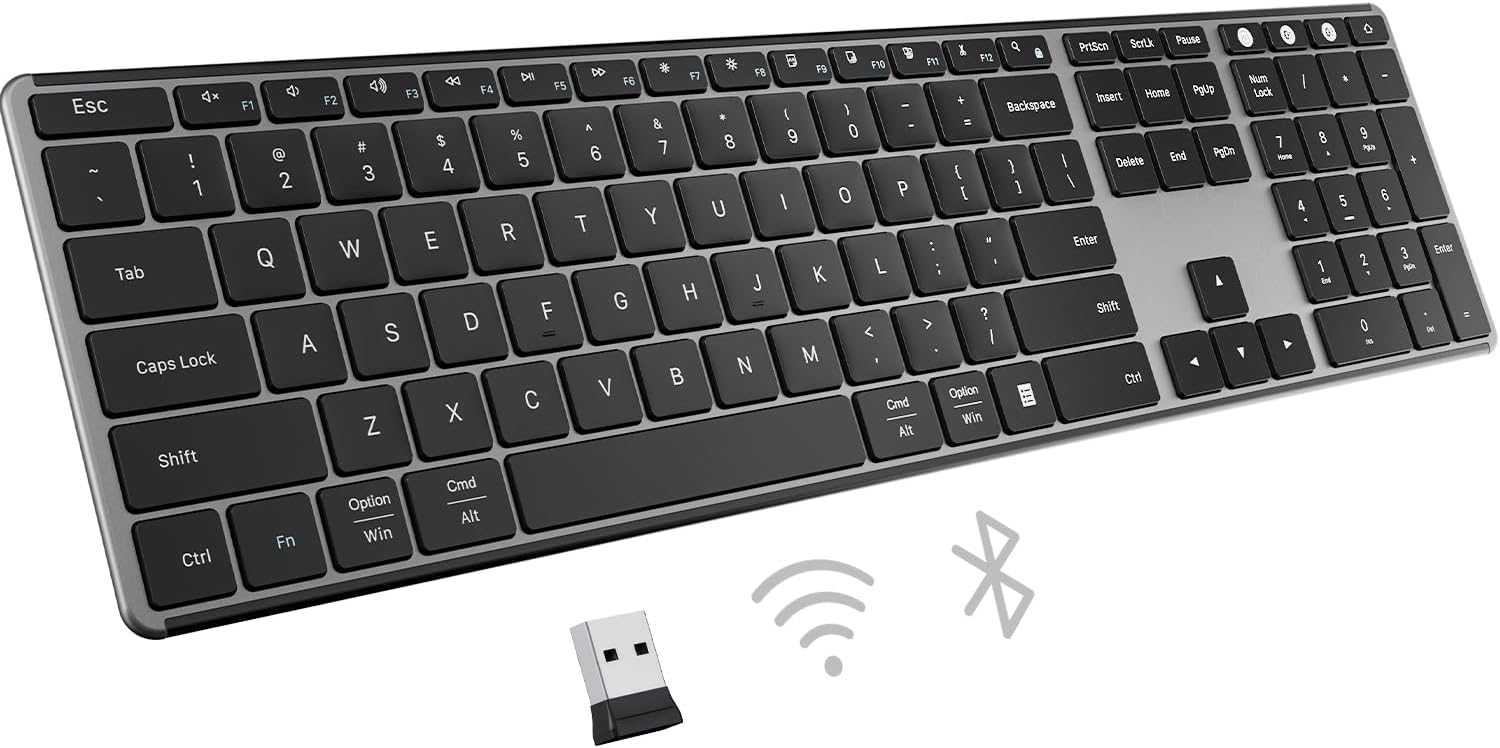
Image: The AUSDOM keyboard displayed with its 2.4G USB receiver and Bluetooth icons, indicating its dual connectivity options.
Bluetooth Connection (Up to 3 Devices)
The keyboard supports connecting to three different Bluetooth devices. Use the dedicated Bluetooth channel keys (BT1, BT2, BT3) to switch between them.
- Klavyeyi açın.
- Bluetooth kanal tuşlarından birine basılı tutun (örneğin, Fn + BT1Gösterge ışığı hızlı bir şekilde yanıp sönene kadar (eşleştirme modunu gösterir) 3-5 saniye basılı tutun.
- On your device (computer, tablet, smartphone), go to Bluetooth settings and search for "AUSDOM Keyboard" or similar.
- Eşleştirmek istediğiniz klavyeyi seçin. Bağlantı kurulduktan sonra gösterge ışığı yanıp sönmeyi durduracaktır.
- Repeat for other devices using Fn + BT2 Ve Fn + BT3.
- Eşleştirilmiş cihazlar arasında geçiş yapmak için ilgili Bluetooth kanal tuşuna basmanız yeterlidir (Fn + BT1/BT2/BT3).

Image: An illustration showing the AUSDOM keyboard connected to a desktop monitor via 2.4G and to a tablet and laptop via Bluetooth, demonstrating its multi-device capability.
Kullanım Talimatları
Klavye Düzeni ve Fonksiyon Tuşları
The AUSDOM keyboard features a full-size QWERTY layout with a numeric keypad and 15 shortcut keys for enhanced productivity.

Resim: Yakın çekim view of the AUSDOM keyboard, highlighting its full-size layout, integrated number pad, and various shortcut keys.
Many function keys (F1-F12) have secondary multimedia or system control functions. These are typically accessed by pressing the Fn İstenilen fonksiyon tuşuyla aynı anda tuşa basın.
- Fn + F1: Ev
- Fn + F2: Aramak
- Fn + F3: Select All
- Fn + F4: Kopyala
- Fn + F5: Yapıştır
- Fn + F6: Cut
- Fn + F7: Önceki parça
- Fn + F8: Oynat/Duraklat
- Fn + F9: Sonraki parça
- Fn + F10: Sesini kapatmak
- Fn + F11: Sesi kıs
- Fn + F12: Sesi aç
Yazma Deneyimi
The keyboard features a scissor-switch structure for precise, comfortable, and quiet typing. The low-profile keys reduce noise and increase stability.
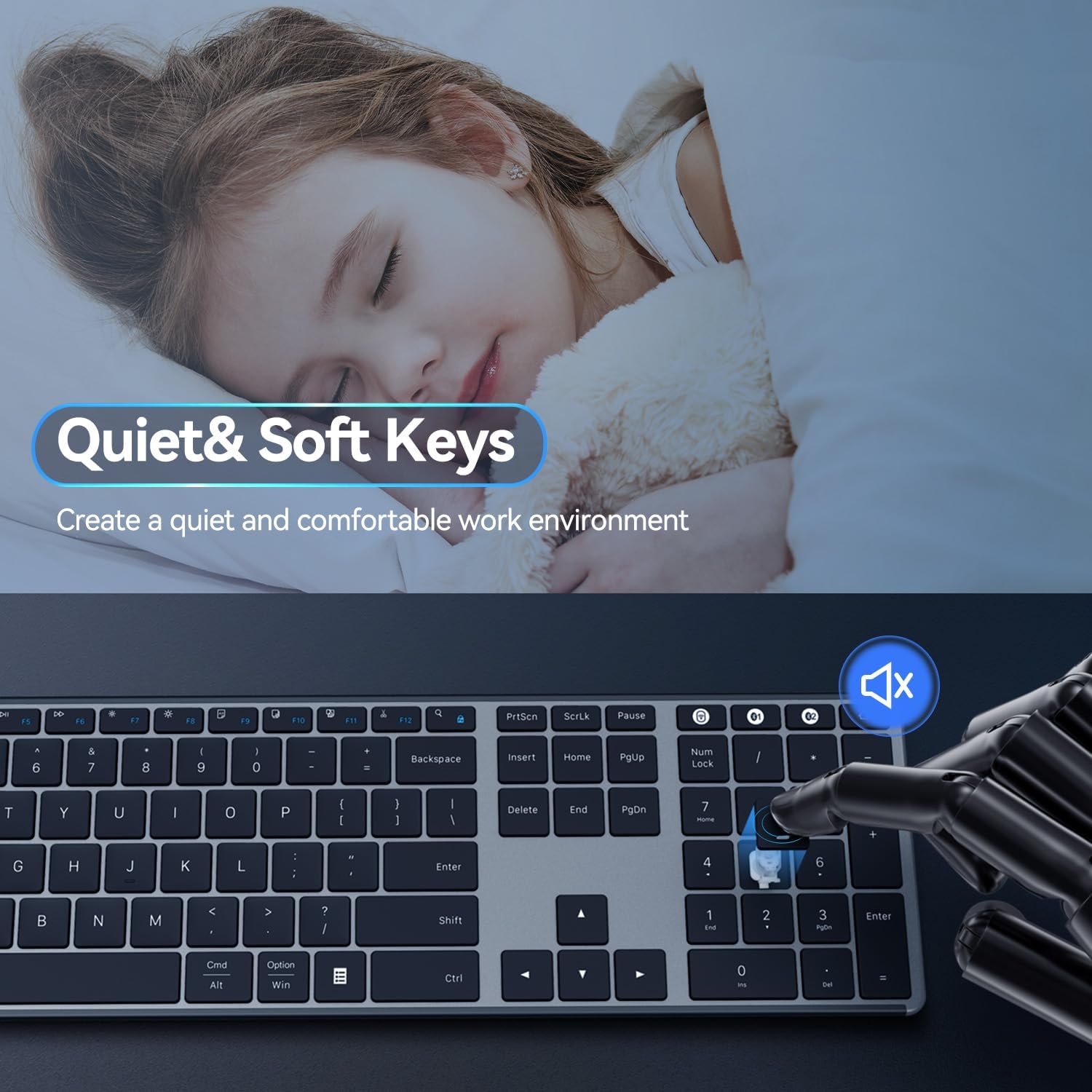
Image: An illustration emphasizing the quiet and soft keys of the AUSDOM keyboard, with a sleeping child in the background, symbolizing a peaceful work environment.

Resim: Bir taraf view of the AUSDOM keyboard, showcasing its ultra-slim design and integrated typing angle for ergonomic comfort.
Bakım ve Özen
- Temizlik: Klavye yüzeyini silmek için yumuşak ve kuru bir bez kullanın. İnatçı kirler için hafifçe silin.ampBezi su veya hafif bir temizleme solüsyonuyla silin. Aşırı nemden kaçının.
- Depolamak: When not in use for extended periods, turn off the keyboard to conserve battery. Store in a cool, dry place away from direct sunlight and extreme temperatures.
- Pil: To prolong battery life, avoid fully discharging the keyboard frequently. Recharge when the low battery indicator appears.
- Dökülmeleri Önleyin: Dahili bileşenlerin hasar görmesini önlemek için sıvıları klavyeden uzak tutun.
Sorun giderme
| Sorun | Olası Neden | Çözüm |
|---|---|---|
| Klavye yanıt vermiyor | Low battery, not connected, incorrect mode. | Charge the keyboard. Ensure the USB receiver is properly plugged in or Bluetooth is paired. Switch to the correct connection mode (2.4G or BT1/2/3). |
| Gecikmeli veya aralıklı bağlantı | Parazitlenme, mesafe, düşük pil seviyesi. | Move the keyboard closer to the device. Remove obstacles. Ensure no other devices are causing interference. Recharge the keyboard. |
| Bluetooth üzerinden eşleştirilemiyor | Keyboard not in pairing mode, device Bluetooth off. | Ensure keyboard is in pairing mode (flashing indicator). Turn on Bluetooth on your device. Forget previous pairings and try again. |
| Tuşlar düzgün çalışmıyor | Software issue, physical damage, dirt under keys. | Restart your device. Clean the keyboard. If problem persists, contact customer support. |
Sıkça Sorulan Sorular (SSS)
Here are answers to some common questions:
- Can the keyboard be used as a wired keyboard with a USB cable connected?
Yes, the keyboard can function as a wired keyboard when connected via the USB cable, which also charges the device. - Can the battery be replaced when the keyboard stops working?
The keyboard has a built-in rechargeable lithium battery. It is not designed for user replacement. Please contact customer support for battery-related issues. - Is the keyboard compatible with any system or device?
This wireless keyboard is compatible with Mac, Windows, iOS, Android, and other operating systems. It works well with desktops, Chromebooks, Macbooks, PCs, laptops, and more.
Garanti ve Destek
AUSDOM provides a one-year warranty service for this product. If you encounter any problems during use, please contact us for assistance.
For customer support, please visit the official AUSDOM websiteye gidin veya ürün ambalajınızda bulunan iletişim bilgilerine başvurun.
Ayrıca ziyaret edebilirsiniz AUSDOM Store on Amazon Daha fazla bilgi ve destek kaynakları için.
Ask a question about this manual
Ask about setup, troubleshooting, compatibility, parts, safety, or missing instructions. Manuals+ will review the question and use this page’s manual context to help answer it.