
NETFUN B098DZNJBF
NETFUN WiFi Extender User Manual
Model: B098DZNJBF
Introduction
This manual provides comprehensive instructions for setting up, operating, and maintaining your NETFUN WiFi Extender. Please read this manual carefully before using the device to ensure optimal performance and longevity.
Package Contents
- NETFUN WiFi Extender Unit
- Ethernet Cable
- Quick Installation Guide
Product Overview
The NETFUN WiFi Extender is designed to expand your existing wireless network coverage, eliminating Wi-Fi dead zones and providing stable internet access throughout your home or office. It supports various operating modes to suit different networking needs.

Figure 1: NETFUN WiFi Extender, showing its compact design and four external antennas.

Figure 2: Key features include 4 high-gain antennas, a powerful central processor, WPS button, and WAN/LAN port.
Video 1: An overview of the 2024 Release NETFUN WiFi Extender, highlighting its capabilities and design.
Setup Guide
Method 1: WPS Button Setup (Recommended)
- Plug the NETFUN extender into an electrical outlet near your wireless router. Wait for the Power LED to turn solid.
- Press the WPS button on your router.
- Within 2 minutes, press the WPS button on the NETFUN extender. The Signal LED on the extender should start blinking.
- Wait for the Signal LED to turn solid, indicating a successful connection.
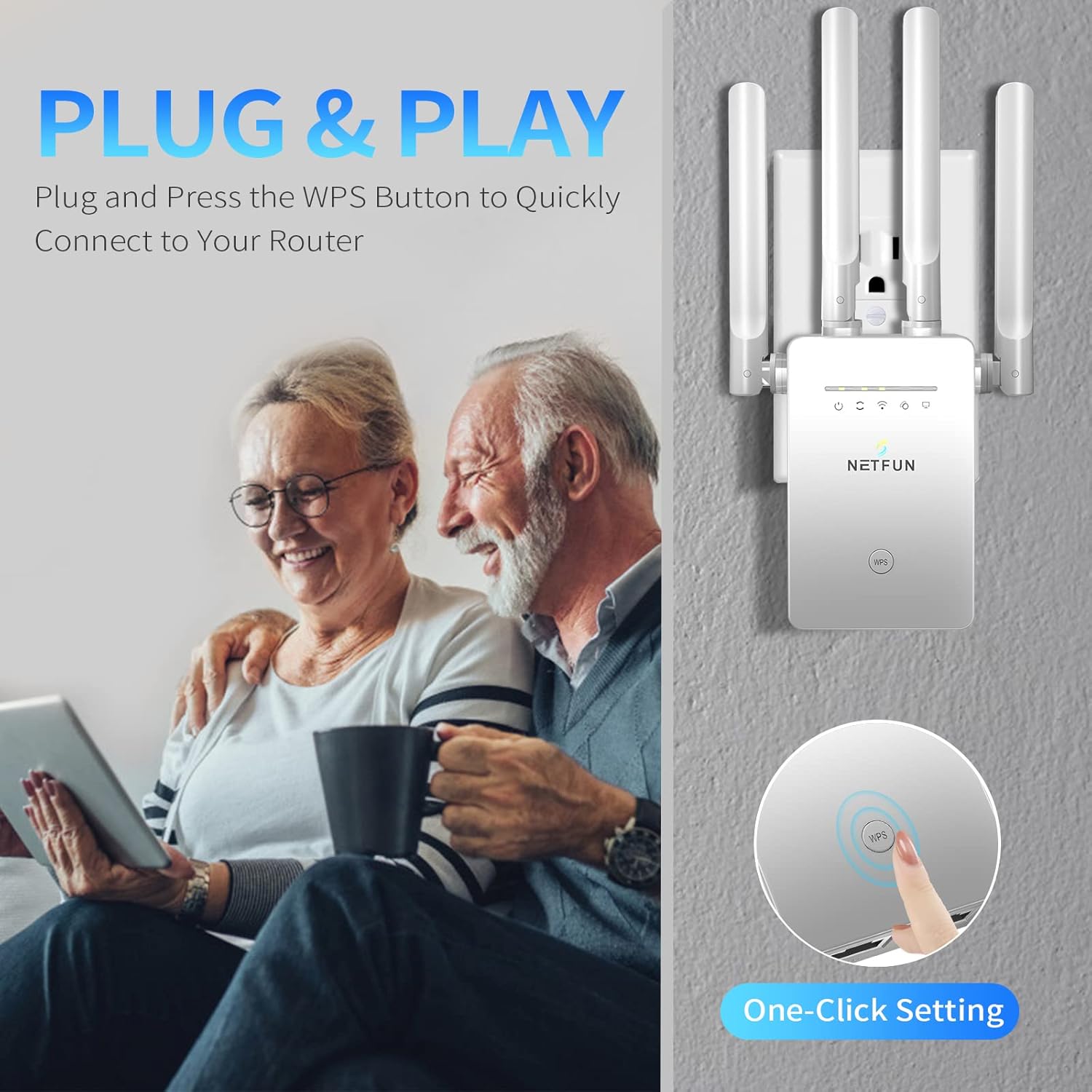
Figure 3: Simple Plug & Play setup using the WPS button for quick connection to your router.
Method 2: Web Browser Setup
- Plug the NETFUN extender into an electrical outlet near your wireless router.
- On your computer or mobile device, connect to the extender's default Wi-Fi network (e.g., "Netfun-xxxx"). This network will typically be open.
- Open a web browser and enter the default IP address (e.g., 192.168.10.1) in the address bar.
- Log in using the default username and password (usually "admin" for both).
- Follow the on-screen wizard to select "Repeater Mode" and choose your existing Wi-Fi network to extend. Enter your main router's Wi-Fi password when prompted.
- Save the settings. The extender will restart.
- Once restarted, connect your devices to the new extended network (e.g., "YourNetworkName_Ext").
Video 2: Detailed installation guide for the NETFUN WiFi Extender, including mobile phone setup steps.
Operating Modes
The NETFUN WiFi Extender supports multiple operating modes to cater to diverse networking requirements:
- Repeater Mode: Extends existing Wi-Fi coverage. Ideal for eliminating dead zones.
- AP (Access Point) Mode: Converts a wired network connection into a wireless one. Useful for creating a new Wi-Fi hotspot.
- Bridge Mode: Connects two separate networks, often used to bridge a wired network to a wireless one.
- Router Mode: Functions as a primary router, providing internet access to connected devices.
- Client Mode: Allows wired-only devices (like smart TVs or gaming consoles) to connect to a wireless network.

Figure 4: Visual representation of the five versatile operating modes: Repeater/Client, AP, Bridge/Router.
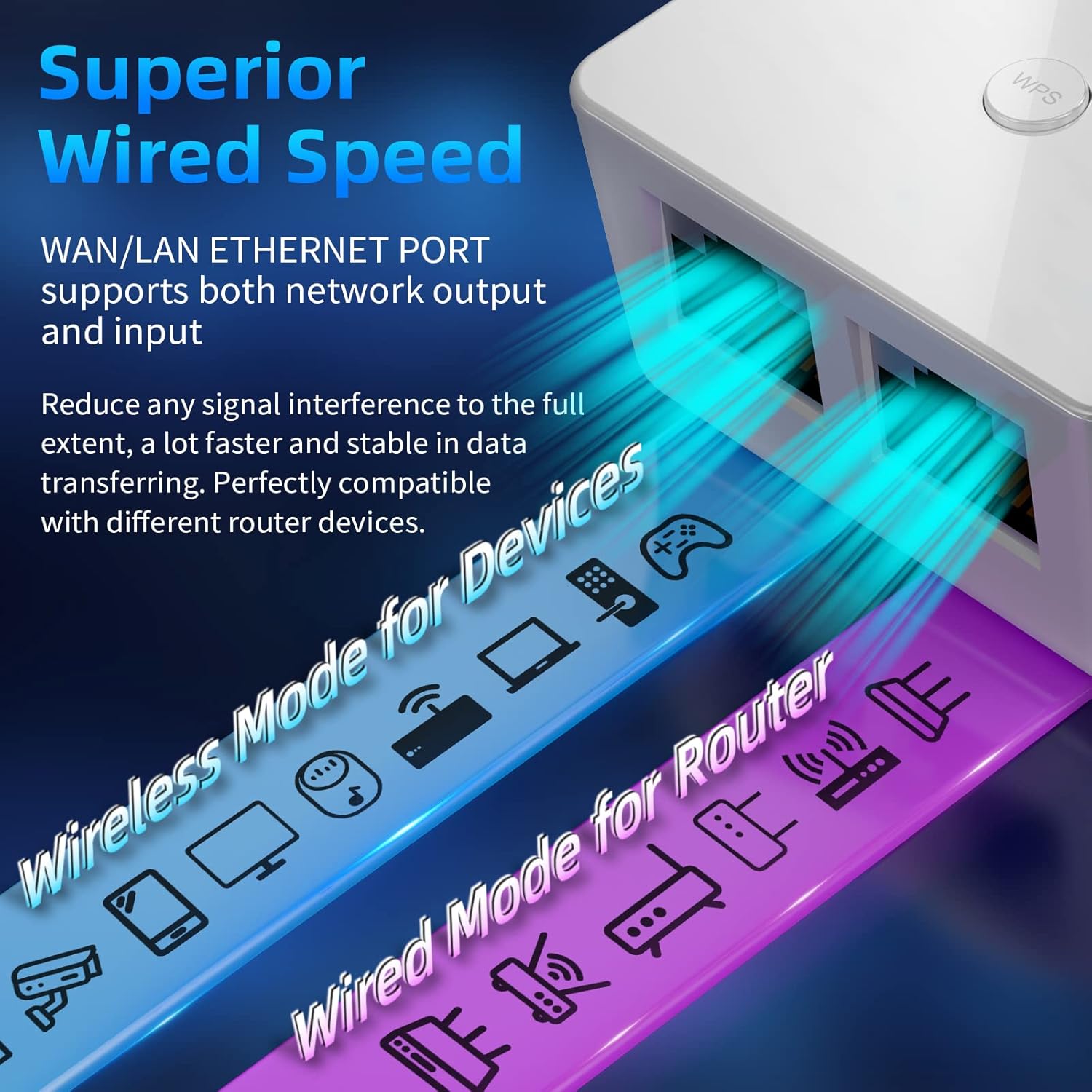
Figure 5: The WAN/LAN Ethernet port supports both network output and input, enabling superior wired speeds and flexible connectivity.
Placement and Optimization
Optimal placement of your WiFi extender is crucial for maximizing coverage and performance. Consider the following:
- Mid-point Placement: Place the extender roughly halfway between your main router and the area where you experience weak Wi-Fi signal.
- Avoid Obstructions: Walls, large metal objects, and electronic devices (like microwaves or cordless phones) can interfere with Wi-Fi signals. Try to place the extender in an open area.
- Line of Sight: A clear line of sight between the router and the extender, and between the extender and your devices, will provide the best signal.

Figure 6: The extender helps eliminate dead zones, providing extensive Wi-Fi coverage throughout your property.
Maintenance
To ensure your NETFUN WiFi Extender operates reliably, follow these maintenance tips:
- Regular Reboot: Periodically reboot the extender (unplug and plug back in after 10 seconds) to clear its memory and refresh its connection.
- Keep Updated: Check the manufacturer's website for firmware updates. Keeping the firmware updated can improve performance and security.
- Cleanliness: Keep the device free from dust and debris. Use a soft, dry cloth for cleaning.
- Ventilation: Ensure the extender is placed in a well-ventilated area to prevent overheating.
Troubleshooting
If you encounter issues with your NETFUN WiFi Extender, try the following solutions:
| Problem | Solution |
|---|---|
| No internet connection after setup. | Ensure you entered the correct password for your main router during setup. Verify that the extended network name (SSID) matches your main network with "_Ext" appended. Try moving the extender closer to your main router. |
| Weak signal or frequent disconnections. | Relocate the extender to a position halfway between your router and the weak signal area. Avoid physical obstructions. Check for interference from other electronic devices. |
| Cannot access the extender's web management page. | Ensure your device is connected to the extender's Wi-Fi network. Verify the IP address (192.168.10.1) is entered correctly. Try clearing your browser's cache or using a different browser. |
| WPS setup fails. | Ensure your router supports WPS. Try pressing the WPS buttons simultaneously or within the specified time frame. If it continues to fail, use the web browser setup method. |
Video 3: Short preview video addressing common issues like no connection from the new network and signal strength problems.
Specifications
- Brand: NETFUN
- Model: B098DZNJBF
- Package Dimensions: 12.68 x 8.58 x 3.62 inches
- Item Weight: 10.8 ounces
- Connectivity: 2.4GHz, up to 300Mbps
- Ports: WAN/LAN Ethernet Port
- Security Protocols: WEP/WPA/WPA2
- Antennas: 4 High-Gain External Antennas
- Working Modes: Repeater, AP, Bridge, Router, Client

Figure 7: A summary of the extender's capabilities including Wi-Fi coverage extension, 2.4GHz 300Mbps speed, high-performance chip, WPS easy setup, 5 working modes, WAN/LAN port, and WEP/WPA/WPA2 security protocols.
Warranty and Support
NETFUN provides an 18-month extended warranty for this product upon registration. For technical support, troubleshooting assistance, or warranty claims, please refer to the contact information provided in your product packaging or visit the official NETFUN website.
Always ensure you are using the latest firmware for optimal performance and security. Firmware updates can typically be found on the manufacturer's support page.
Ask a question about this manual
Ask about setup, troubleshooting, compatibility, parts, safety, or missing instructions. Manuals+ will review the question and use this page’s manual context to help answer it.