
giriiş
This user manual provides detailed instructions for the installation, operation, maintenance, and troubleshooting of your Xprinter XP-K200L 80mm Thermal Receipt Printer. Please read this manual thoroughly before using the printer to ensure proper function and to extend the product's lifespan. Keep this manual for future reference.
Güvenlik Bilgileri
- Her zaman yazıcıyla birlikte verilen güç adaptörünü kullanın.
- Yazıcıyı suya veya neme maruz bırakmayın.
- Yazıcıyı doğrudan güneş ışığına veya ısı kaynaklarının yakınına koymaktan kaçının.
- Yazıcının çevresinde yeterli havalandırmanın olduğundan emin olun.
- Yazıcıyı kendiniz sökmeye veya onarmaya çalışmayın. Yetkili servis personeliyle iletişime geçin.
- Çocukların erişemeyeceği yerde saklayınız.
Paket İçeriği
Please check the package contents upon unpacking. If any items are missing or damaged, contact your vendor.
- Xprinter XP-K200L Thermal Receipt Printer
- Güç Adaptörü
- Güç Kablosu
- USB kablosu
- Termal Kağıt Rulosu (başlangıç rulosu)
- Para Çekmecesi Kablosu
- Kullanım Kılavuzu (bu belge)
Ürün Bittiview
Familiarize yourself with the main components of your Xprinter XP-K200L thermal receipt printer.

Şekil 1: Yan view of the Xprinter XP-K200L thermal receipt printer. On the right, the power switch is visible, and on the left, a button to open the paper cover is present.
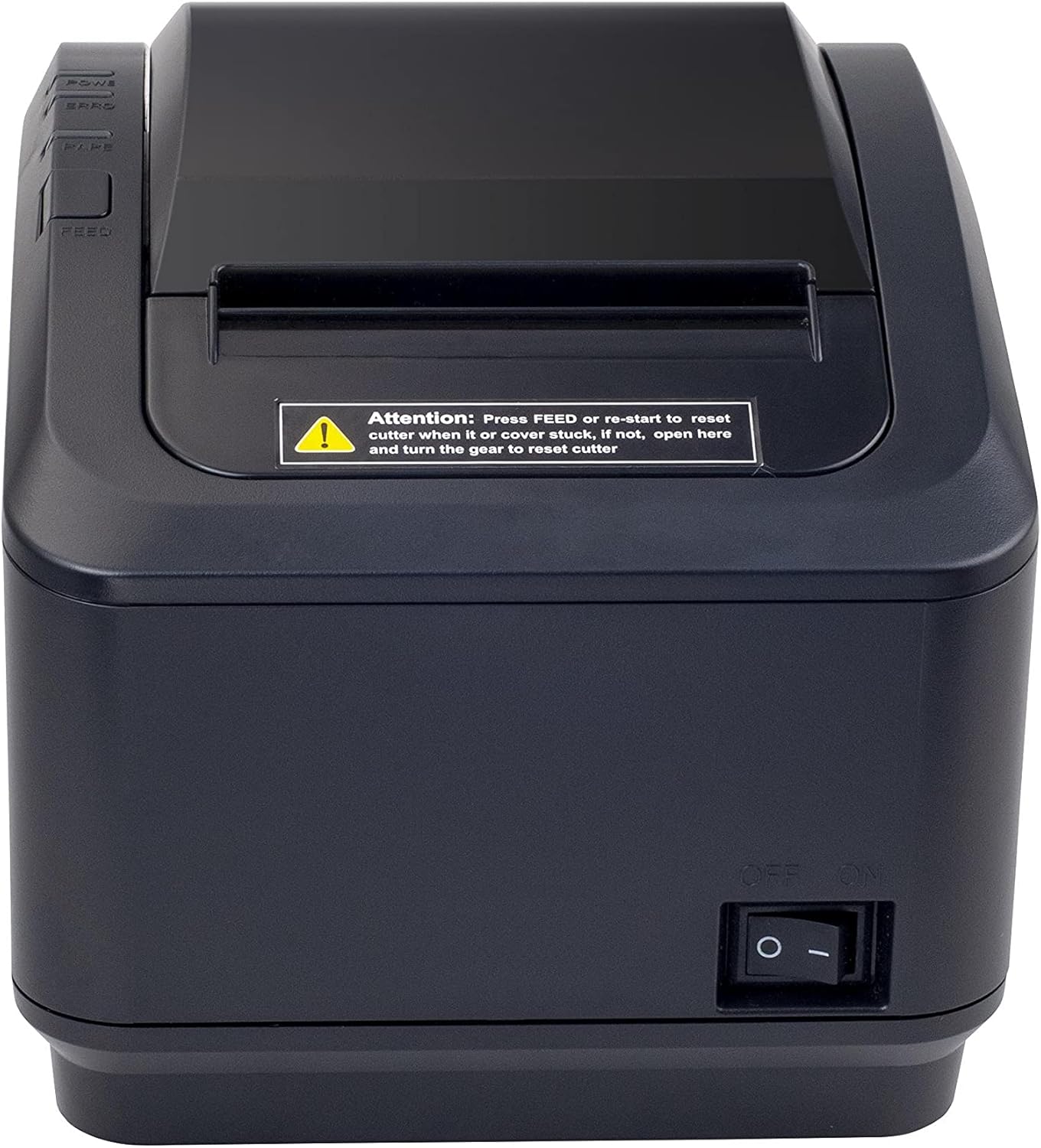
Figure 2: A front view of the Xprinter XP-K200L thermal receipt printer. The paper output slot is at the top, and below it are control buttons for functions like feed and error reset. A warning label is also visible.

Figure 3: This image displays the Xprinter XP-K200L thermal receipt printer with its top cover open, showing the internal compartment where the thermal paper roll is loaded. The print head mechanism is also visible.
Kurmak
1. Güç Bağlantısı
- Ensure the printer's power switch is in the KAPALI konum.
- Güç adaptörünü yazıcının güç girişine bağlayın.
- Güç kablosunu uygun bir elektrik prizine takın.
2. Termal Kağıdın Yüklenmesi
- Press the cover open button (refer to Figure 1) to open the top cover of the printer.
- Insert a new 80mm thermal paper roll into the compartment, ensuring the paper feeds from the bottom and the leading edge extends slightly out of the printer.
- Close the top cover firmly until it clicks into place. Ensure there is no slack in the paper roll.
3. Bir Bilgisayara/Ağa Bağlanma
The XP-K200L printer supports both USB and LAN (Ethernet) connectivity.
USB Bağlantısı:
- USB kablosunun bir ucunu yazıcının USB portuna bağlayın.
- USB kablosunun diğer ucunu bilgisayarınızdaki boş bir USB portuna takın.
- Install the printer drivers. Drivers are typically provided on a CD or can be downloaded from the manufacturer's webSiteye gidin. Kurulum için ekrandaki talimatları izleyin.
LAN (Ethernet) Bağlantısı:
- Connect one end of an Ethernet cable to the printer's LAN port.
- Ethernet kablosunun diğer ucunu ağ yönlendiricinize veya anahtarınıza bağlayın.
- Configure the printer's network settings (e.g., IP address) if necessary. This usually involves printing a self-test page to get the current IP address and then accessing the printer's web interface or using a utility tool provided by the manufacturer.
- Install the printer drivers on your computer, selecting the network connection option during setup.
4. Connecting a Cash Drawer
- Connect the cash drawer cable to the dedicated cash drawer port on the printer.
- Ensure your POS software is configured to send commands to open the cash drawer via the printer.
Kullanım Talimatları
Açma/Kapatma
- To power on the printer, flip the power switch (refer to Figure 1) to the ON konum.
- To power off the printer, flip the power switch to the KAPALI konum.
Temel Yazdırma
Once the printer is connected and drivers are installed, you can print receipts from your POS software or any application that supports printing.
- Yazıcının açık olduğundan ve kağıdın yüklü olduğundan emin olun.
- From your application, select the print option.
- Choose the "Xprinter XP-K200L" from the list of available printers.
- Confirm print settings and click "Print".
Self-Test Page
To print a self-test page, which provides information about the printer's settings and status:
- Ensure the printer is powered off and the paper roll is loaded.
- Basılı tutun BESLEMEK düğme.
- Tutarken BESLEMEK button, turn the power switch to ON.
- Serbest bırak BESLEMEK button after the printer starts printing.
Bakım
Yazıcıyı Temizleme
- Yazdırma Kafası: Pamuklu bir çubuğu hafifçe kullanınampened with isopropyl alcohol to gently wipe the thermal print head. Allow it to dry completely before use. Clean regularly to ensure print quality.
- Kesici: If the cutter becomes jammed or dirty, carefully clean it with a soft brush or cloth.
- Dış: Yazıcının dış yüzeyini yumuşak, kuru bir bezle silin. Aşındırıcı temizleyiciler veya çözücüler kullanmayın.
Replacing Thermal Paper
When the paper roll is depleted or near its end, replace it following the steps in the "Loading Thermal Paper" section under Setup.
Sorun giderme
| Sorun | Olası Neden | Çözüm |
|---|---|---|
| Yazıcı açılmıyor. | Power cord or adapter not connected properly; power outlet issue. | Tüm güç bağlantılarını kontrol edin. Farklı bir elektrik prizi deneyin. |
| Yazdırma yok. | No paper; paper loaded incorrectly; printer offline; driver issue; incorrect connection. | Load paper correctly. Check printer status. Reinstall drivers. Verify USB/LAN connection. |
| Kötü baskı kalitesi. | Dirty print head; low quality thermal paper. | Clean the print head (see Maintenance). Use recommended thermal paper. |
| Paper jam or cutter error. | Paper loaded incorrectly; debris in cutter mechanism. | As per printer label: Basmak BESLEMEK or re-start to reset cutter. If the issue persists, open the top cover and carefully turn the gear to reset the cutter mechanism. Ensure paper is loaded correctly and remove any obstructions. |
| Cash drawer does not open. | Cable not connected; POS software not configured. | Check cash drawer cable connection. Verify POS software settings for cash drawer trigger. |
Özellikler
| Özellik | Detay |
|---|---|
| Marka | X yazıcı |
| Model Adı | XP-K200L |
| Yazıcı Teknolojisi | Termal |
| Bağlantı Teknolojisi | USB, LAN (Ethernet) |
| Özel Özellikler | Ağa Hazır |
| Renk | Siyah |
| Yazıcı Çıktısı | Tek renkli |
| Ürün Ağırlığı | 1.5 kilo |
| Ürün Boyutları (DxGxY) | 19.5 cm x 14 cm x 13.8 cm |
| Compatible OS/Controller Type | Android (and typically Windows/Linux via drivers) |
| Basılı Medya | Plain Thermal Paper |
| baskı Rengi | Siyah |
| Çözünürlük | 576 x 512 dots per inch (or dots per line) |
| Max Print Resolution B/W | 576 dpi |
| Ek Yazıcı İşlevleri | Yalnızca yazdır |
| Kontrol Yöntemi | Uzak |
| Maksimum Medya Boyutu | 80 mm |
| Kağıt Boyutu | 79.5 mm |
| Güç | 60 watt |
| Dahil Bileşenler | Power adapter, Cash drawer cable |
| Seri | XP-K |
| Belirli Kullanımlar | Restaurants, bars, cinemas, garages, transportation, hospitals, clinics |
| Toplam USB Bağlantı Noktaları | 1 |
Garanti ve Destek
For warranty information and technical support, please refer to the documentation provided with your purchase or contact your vendor directly. Keep your proof of purchase for warranty claims.
For driver downloads and further support resources, visit the official Xprinter webalan.