
1. Giriş
This manual provides detailed instructions for the setup, operation, maintenance, and troubleshooting of your Darmoshark ZEUS6400 Wired Gaming Mouse. Please read this manual thoroughly before using the product to ensure proper function and longevity.
2. Paket İçeriği
- Darmoshark ZEUS6400 Wired Gaming Mouse
- Kullanıcı Kılavuzu

Image: The Darmoshark ZEUS6400 gaming mouse shown in its retail packaging, highlighting the product and its presentation.
3. Ürün Bittiview
The Darmoshark ZEUS6400 is a lightweight wired gaming mouse designed for precision and comfort. It features a honeycomb shell, a 6400 DPI optical sensor, and 6 programmable function buttons.
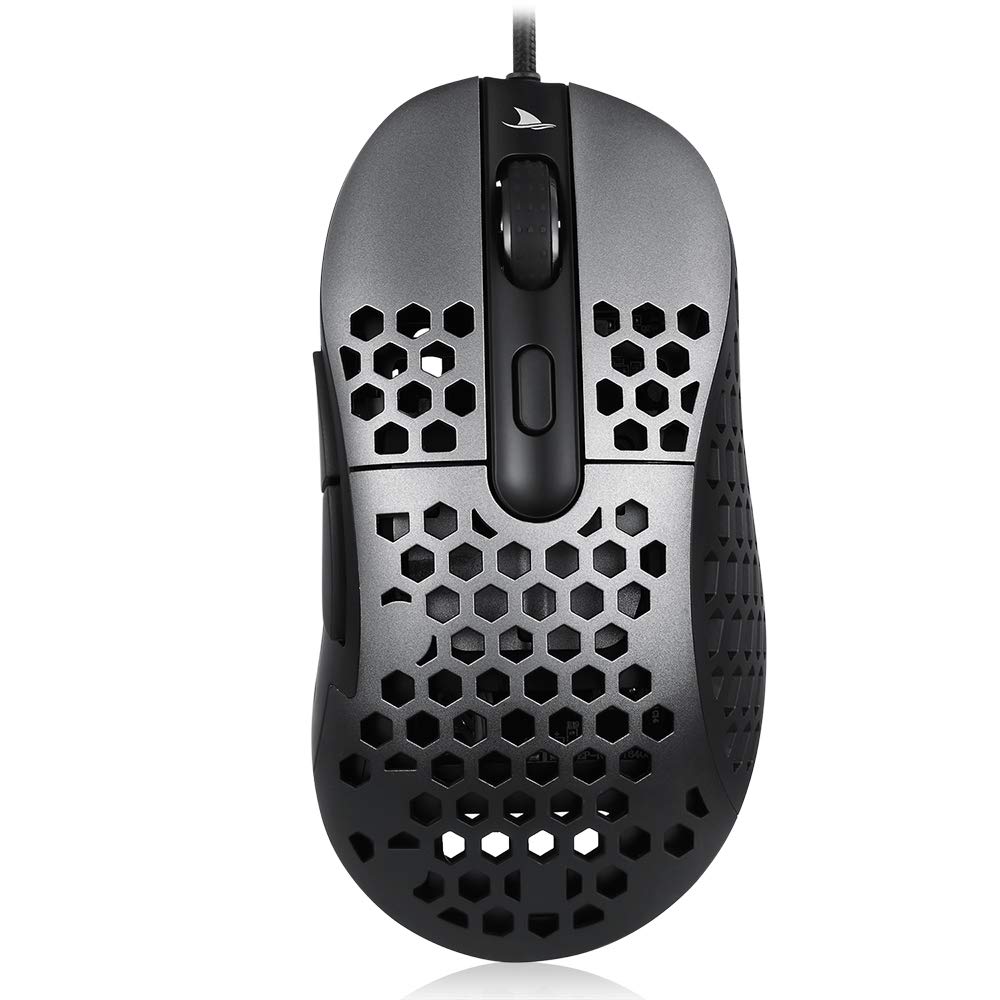
Resim: Yukarıdan aşağıya view of the Darmoshark ZEUS6400 Wired Gaming Mouse, showcasing its dark grey finish and honeycomb shell design.
Temel Özellikler:
- Lightweight Honeycomb Shell (approx. 66g)
- 6 Function Buttons + Scroll Wheel
- 6400 DPI Optik Sensör
- Adjustable DPI and USB Refresh Rate
- Durable Teflon Foot Stickers
- 1.8M Ultra-flexible Braided Cable
4. Kurulum Talimatları
Fareyi Bağlama:
- Bilgisayarınızda kullanılabilir bir USB bağlantı noktası bulun.
- Plug the USB connector of the Darmoshark ZEUS6400 mouse into the USB port.
- İşletim sisteminiz gerekli sürücüleri otomatik olarak algılayıp yüklemelidir. Temel işlevler için genellikle ek yazılım kurulumu gerekmez.
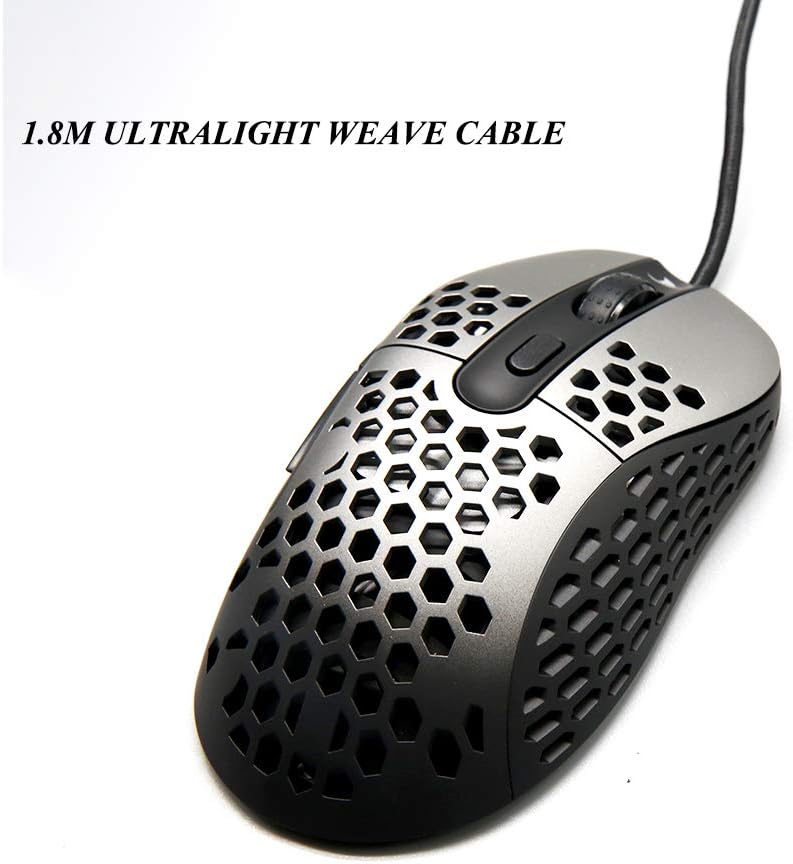
Image: The Darmoshark ZEUS6400 mouse connected via its 1.8-meter ultralight weave cable, illustrating the wired connection.
5. Kullanım Talimatları
Düğme Fonksiyonları:
The Darmoshark ZEUS6400 mouse features 6 function buttons and a scroll wheel:
- Sol Tuş: Birincil tıklama işlevi.
- Sağ Buton: İkincil tıklama işlevi (bağlam menüsü).
- Tekerlek Düğmesi: Middle click, often used for opening links in new tabs or specific in-game actions.
- DPI Düğmesi: DPI ayarları arasında geçiş yapar.
- İleri Düğmesi: İleriye doğru gezinir web tarayıcılar veya file kaşifler.
- Geri Düğmesi: Geriye doğru gezinir web tarayıcılar veya file kaşifler.
DPI Ayarı:
Press the DPI button located on the top of the mouse to cycle through the 6 available DPI settings. Each setting is indicated by a specific LED color:
- 400DPI: Kırmızı LED
- 800DPI: Mavi LED
- 1600DPI: Yeşil LED
- 3200DPI: Mor LED
- 4800DPI: Turuncu LED
- 6400DPI: Buz Mavisi LED

Image: The Darmoshark ZEUS6400 mouse, emphasizing its gaming-grade optical sensor and high performance capabilities like 6400 DPI and 6200 FPS scanning rate.
USB Refresh Rate Adjustment:
The USB refresh rate (polling rate) can be adjusted to 125Hz, 500Hz (default), or 1000Hz. The method for adjusting this setting is typically through dedicated software or a combination of mouse buttons. Refer to the manufacturer's website for specific instructions if software is required.
6. Bakım
Doğru bakım, oyun farenizin uzun ömürlü olmasını ve optimum performans göstermesini sağlar.
Temizlik:
- Dış: Fare yüzeyini silmek için yumuşak, kuru bir bez kullanın. İnatçı kirler için, biraz daha kuru bir bez yeterli olacaktır.amp cloth with mild soap can be used, ensuring no liquid enters the mouse.
- Honeycomb Shell: Use compressed air to clear dust and debris from the honeycomb perforations. A soft brush can also be used gently.
- Optik sensör: Gently clean the optical sensor lens on the underside of the mouse with a cotton swab or compressed air to prevent tracking issues.
Kablo Bakımı:
- Kabloda keskin kıvrımlardan veya bükülmelerden kaçının.
- Do not pull the mouse by its cable. Always grasp the mouse body.
- Keep the cable away from heat sources or sharp edges.
Ayak Etiketleri:
The mouse is equipped with super wear-resistant Teflon foot stickers. If these become worn over time, replacement stickers can be purchased from authorized retailers to maintain optimal glide performance.
7. Sorun Giderme
If you encounter issues with your Darmoshark ZEUS6400 mouse, refer to the following common problems and solutions:
- Fare Yanıt Vermiyor:
- USB kablosunun bilgisayarınızdaki çalışan bir USB portuna güvenli bir şekilde takılı olduğundan emin olun.
- Fareyi farklı bir USB portuna takmayı deneyin.
- Bilgisayarınızı yeniden başlatın.
- Düzensiz İmleç Hareketi:
- Farenin alt tarafındaki optik sensörü temizleyin.
- Fareyi temiz ve düzgün bir yüzeyde (örneğin, fare altlığı) kullandığınızdan emin olun. Çok yansıtıcı veya şeffaf yüzeylerden kaçının.
- Sensörün çevresinde herhangi bir fiziksel engel olup olmadığını kontrol edin.
- DPI Ayarı Değişmiyor:
- Lütfen doğru DPI düğmesine bastığınızdan emin olun.
- Observe the LED indicator to confirm DPI changes.
- Sorun devam ederse bilgisayarınızı yeniden başlatmayı deneyin.
- Çalışmayan Düğmeler:
- Verify that the buttons are not physically stuck.
- Yazılım çakışmalarını elemek için fareyi başka bir bilgisayarda test edin.
8. Özellikler
Detailed technical specifications for the Darmoshark ZEUS6400 Wired Gaming Mouse:
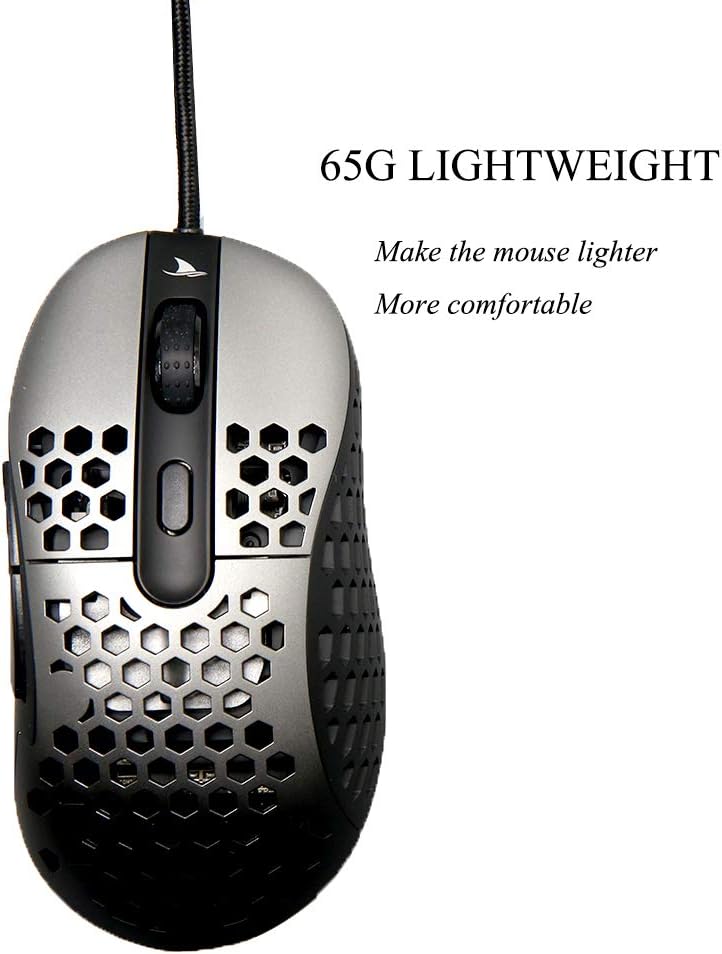
Image: The Darmoshark ZEUS6400 mouse, emphasizing its lightweight design at 65 grams for enhanced comfort and maneuverability.
| Özellik | Şartname |
|---|---|
| Örnek | ZEUS6400 |
| Vücut Ölçüsü | 128x66x39 mm |
| Ağırlık (telsiz) | 66 g ± 5 g |
| Malzeme | ABS Plastic (Honeycomb Shell) |
| Düğmeler | 6 Function Buttons + 3D Scroll Wheel |
| Hayat Değiştir | Yaklaşık 20 milyon tıklama |
| Kablo Uzunluğu | 1.8M (exposed 1.7M), USB Gold Plated, Five-core shielded magnetic ring braided wire |
| İşletim Sistemi | Windows XP/Vista/7/8/10, Macintosh OS |
| Çalışma Hacmitage | DC 5V ±% 5 |
| Çalışma Akımı | ≤ 100mA |
| optik IC | ZEUS6400 |
| Arayüz | USB 2.0 |
| DPI Ayarları | 400 (Red), 800 (Blue), 1600 (Green), 3200 (Purple), 4800 (Orange), 6400 (Ice Blue) |
| SPI Sampzaman | 8ms / 2ms (default) / 1ms (adjustable) |
| USB Yenileme Hızı | 125Hz / 500Hz (default) / 1000Hz (adjustable) |
| Image Processing FPS | 6200 kare/sn |
| Maksimum Hız | 220 IPS |
| Hızlanma | 30 gr |

Image: The Darmoshark ZEUS6400 mouse, showcasing its comfortable ergonomic design optimized for right-handed gaming, including two extra side buttons.
9. Garanti ve Destek
Garanti Bilgileri:
For specific warranty terms and conditions, please refer to the warranty card included with your product or contact the retailer from whom you purchased the mouse. Warranty coverage typically includes defects in materials and workmanship under normal use.
Müşteri Desteği:
If you require further assistance or have questions not covered in this manual, please contact YUNZII customer support through their official website or the contact information provided with your product. When contacting support, please have your product model (ZEUS6400) and purchase details ready.