
1. Giriş
This manual provides essential information for setting up, operating, maintaining, and troubleshooting your Acer Predator Orion 3000 (PO3-600) desktop computer. Please read this guide thoroughly to ensure proper use and to maximize your system's performance and longevity.
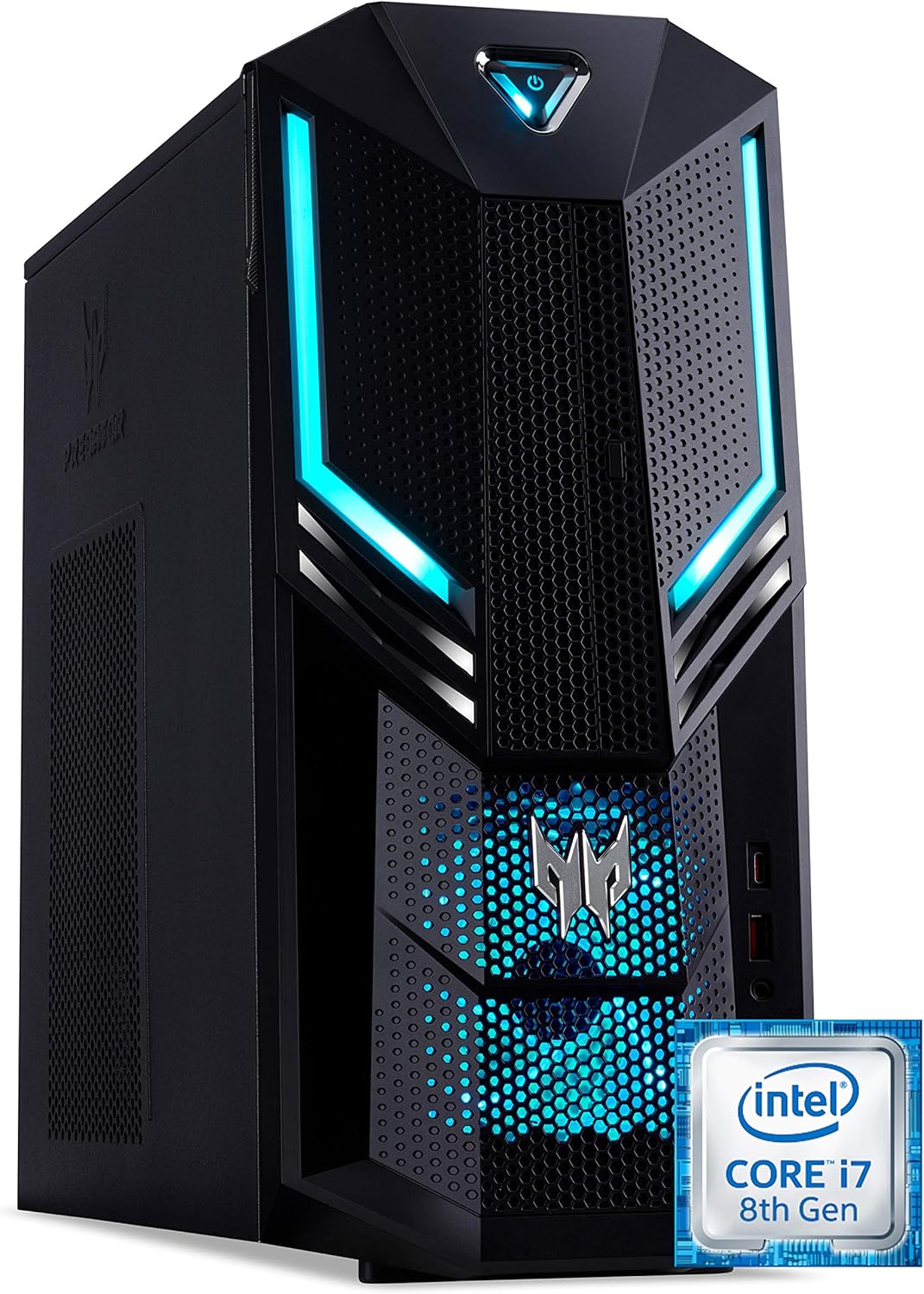
Şekil 1.1: Ön sağ view of the Acer Predator Orion 3000 desktop computer, showcasing its black chassis with blue LED accents and angular design.
2. Kurulum
2.1 Paketin açılması
Carefully remove all components from the packaging. Verify that all items listed in the 'Included Components' section of this manual are present. Retain the packaging for future transport or service needs.
2.2 Çevre Birimlerini Bağlama
- İzleme: Connect your monitor to one of the available video output ports (HDMI, DVI, or DisplayPort) on the graphics card at the rear of the computer.
- Klavye ve Fare: Connect the included Predator USB keyboard and mouse to any available USB ports. The system features both USB 2.0, USB 3.1, and USB 3.1 Type-C ports.
- Ağ: For a wired connection, connect an Ethernet cable from your router or modem to the LAN port on the rear of the computer. For wireless, ensure your Wi-Fi antenna (if external) is connected.
- Ses: Connect speakers or headphones to the audio output jacks. The system supports Sound BlasterX Pro Gaming Sound Engine for enhanced audio.
- Güç: Connect the power cable to the power supply unit (PSU) at the rear of the computer, then plug the other end into a grounded electrical outlet.
2.3 İlk Güç Açma
Press the power button located on the top front of the computer. The system will boot up, and the blue LED accents will illuminate. Follow the on-screen instructions to complete the Windows 10 Home operating system setup, including language, region, and user account creation.
3. Bilgisayarınızı Çalıştırma
3.1 Güç Yönetimi
- Güç Açık: Güç düğmesine bir kez basın.
- Kapat: From Windows, click the Start button, then Power > Shut down.
- Tekrar başlat: From Windows, click the Start button, then Power > Restart.
- Uyumak: From Windows, click the Start button, then Power > Sleep.
3.2 Windows 10 Home
Your Predator Orion 3000 comes pre-installed with Windows 10 Home. Familiarize yourself with the operating system's interface, settings, and features. Regular updates are recommended for security and performance.
3.3 Oyun Özellikleri
The system is designed for gaming, featuring an Intel Core i7-8700 processor and NVIDIA GeForce GTX 1060 graphics. It is VR-ready, allowing for immersive virtual reality experiences. The integrated Sound BlasterX Pro Gaming Sound Engine provides high-quality audio for gaming and multimedia.

Şekil 3.1: Acer Predator Orion 3000 desktop with gaming headphones, highlighting its gaming capabilities.
4. Bakım
4.1 Temizlik
- Dış: Yumuşak bir d kullanınamp Dış yüzeyleri temizlemek için bez kullanın. Aşındırıcı temizleyicilerden kaçının.
- Havalandırmalar: Regularly check and clean the air intake vents on the front and left side of the chassis to ensure proper airflow and prevent dust buildup. Use compressed air to gently clear dust.
- Dahili Bileşenler: For advanced cleaning of internal components, it is recommended to consult a professional or refer to detailed service guides.
4.2 Yazılım Güncellemeleri
Keep your operating system, drivers (especially graphics drivers), and applications updated to ensure optimal performance, security, and compatibility.

Şekil 4.1: Dahili view of the Acer Predator Orion 3000 desktop computer with the side panel removed, revealing the motherboard, CPU cooler, RAM slots, and storage drive bays. Regular cleaning of these areas is important for system health.
5. Sorun Giderme
Bu bölümde karşılaşabileceğiniz yaygın sorunlar ele alınmaktadır. Daha karmaşık sorunlar için Acer'ın resmi destek kaynaklarına başvurun.
5.1 Güç Yok
- Güç kablosunun hem bilgisayara hem de elektrik prizine güvenli bir şekilde bağlı olduğundan emin olun.
- Başka bir cihazı takarak elektrik prizinin çalışır durumda olduğunu doğrulayın.
5.2 Ekran Yok
- Check that the monitor is powered on and the video cable is securely connected to both the computer and the monitor.
- Monitörünüzde doğru giriş kaynağının seçildiğinden emin olun.
5.3 Sistem Yavaş veya Yanıt Vermiyor
- Arka planda çalışan gereksiz uygulamaları kapatın.
- Güvenilir bir antivirüs yazılımı kullanarak kötü amaçlı yazılımları veya virüsleri kontrol edin.
- Birincil sürücünüzde (SSD) yeterli boş alan olduğundan emin olun.
- Bilgisayarı yeniden başlatın.
5.4 Aşırı Fan Gürültüsü
- Ensure the computer's air vents are not obstructed and are free of dust.
- Verify the computer is in a well-ventilated area.
- Monitor CPU and GPU temperatures using system utilities. High temperatures can cause fans to run faster.
6. Özellikler
Below are the key technical specifications for the Acer Predator Orion 3000 (PO3-600) desktop computer.
| Bileşen | Şartname |
|---|---|
| Model Adı | Acer Predator Orion 3000 (PO3-600) |
| İşletim Sistemi | Windows 10 Ev |
| İşlemci | Intel Core i7-8700 (6 Cores, 3.2 GHz base, up to 4.6 GHz burst) |
| Grafik Kartı | NVIDIA GeForce GTX 1060 (6 GB GDDR5 VRAM) |
| Veri deposu | 16 GB DDR4 (Max 16 GB) |
| Depolamak | 128 GB SSD + 1 TB HDD |
| Optik Sürücü | DVD+R |
| Bağlantı | Ethernet RJ-45, Wi-Fi (802.11ac) |
| Ön Portlar | 1x USB 3.1, 1x USB 3.1 Type-C, Audio Jacks |
| Arka Bağlantı Noktaları | 2x USB 3.1, 4x USB 2.0, 1x HDMI, 1x DVI, 3x DisplayPort, 5x Audio Jacks, LAN |
| Genişleme Yuvaları | 1x PCIe x16, 1x PCIe x1, 2x M.2 (1x SSD, 1x Wi-Fi) |
| Boyutlar (Y x G x D) | 35x16.3x34 cm |
| Ağırlık | 6 kilo |
| Soğutma | Passive, via air intake |
| Dahil Edilen Çevre Birimleri | Predator USB Keyboard (blue), Predator USB Mouse (blue) |

Şekil 6.1: Intel Core i7 8th Gen logo, indicating the processor type used in the system.
7. Garanti ve Destek
7.1 Üretici Garantisi
Your Acer Predator Orion 3000 (PO3-600) desktop computer is covered by a 2 yıllık üretici garantisi. This warranty covers defects in materials and workmanship under normal use. Please refer to the warranty documentation included with your product for full terms and conditions. Your statutory warranty rights remain unaffected.
7.2 Teknik Destek
For technical assistance, troubleshooting beyond this manual, or warranty claims, please contact Acer customer support. You can typically find contact information on the Acer official webBu bilgiye site üzerinden veya bilgisayarınızla birlikte verilen belgelerden ulaşabilirsiniz.