
MIKUSO KB-C026 Wireless Keyboard and Mouse Combo User Manual
1. Introduction
This manual provides instructions for the setup, operation, and maintenance of your MIKUSO KB-C026 Wireless Keyboard and Mouse Combo. This combo set offers a reliable 2.4G wireless connection, providing a full-size keyboard with a numeric keypad and an ergonomic mouse for efficient computing tasks. It is designed for ease of use and a clutter-free workspace.
2. Safety Information
- Do not expose the devices to liquids or excessive moisture.
- Avoid extreme temperatures.
- Do not attempt to disassemble or repair the devices yourself. Refer to qualified service personnel.
- Keep out of reach of children.
- Dispose of batteries according to local regulations.
3. Package Contents
Please check the package for the following items:
- MIKUSO Full-Size Wireless Keyboard
- MIKUSO Ergonomic Wireless Mouse
- USB 2.4G Wireless Receiver
- User Manual (this document)
4. Setup
Follow these steps to set up your MIKUSO Wireless Keyboard and Mouse Combo:
- Insert Batteries: Open the battery compartments on the underside of both the keyboard and the mouse. Insert the required batteries (typically AA or AAA, not included) according to the polarity indicators.
- Connect USB Receiver: Locate an available USB port on your computer. Plug the USB 2.4G wireless receiver into the USB port.
- Power On: Turn on the keyboard and mouse using their respective power switches, usually located on the underside of each device.
- Automatic Connection: The keyboard and mouse should automatically connect to your computer. No additional software installation is required. Your computer will recognize the devices and install necessary drivers.
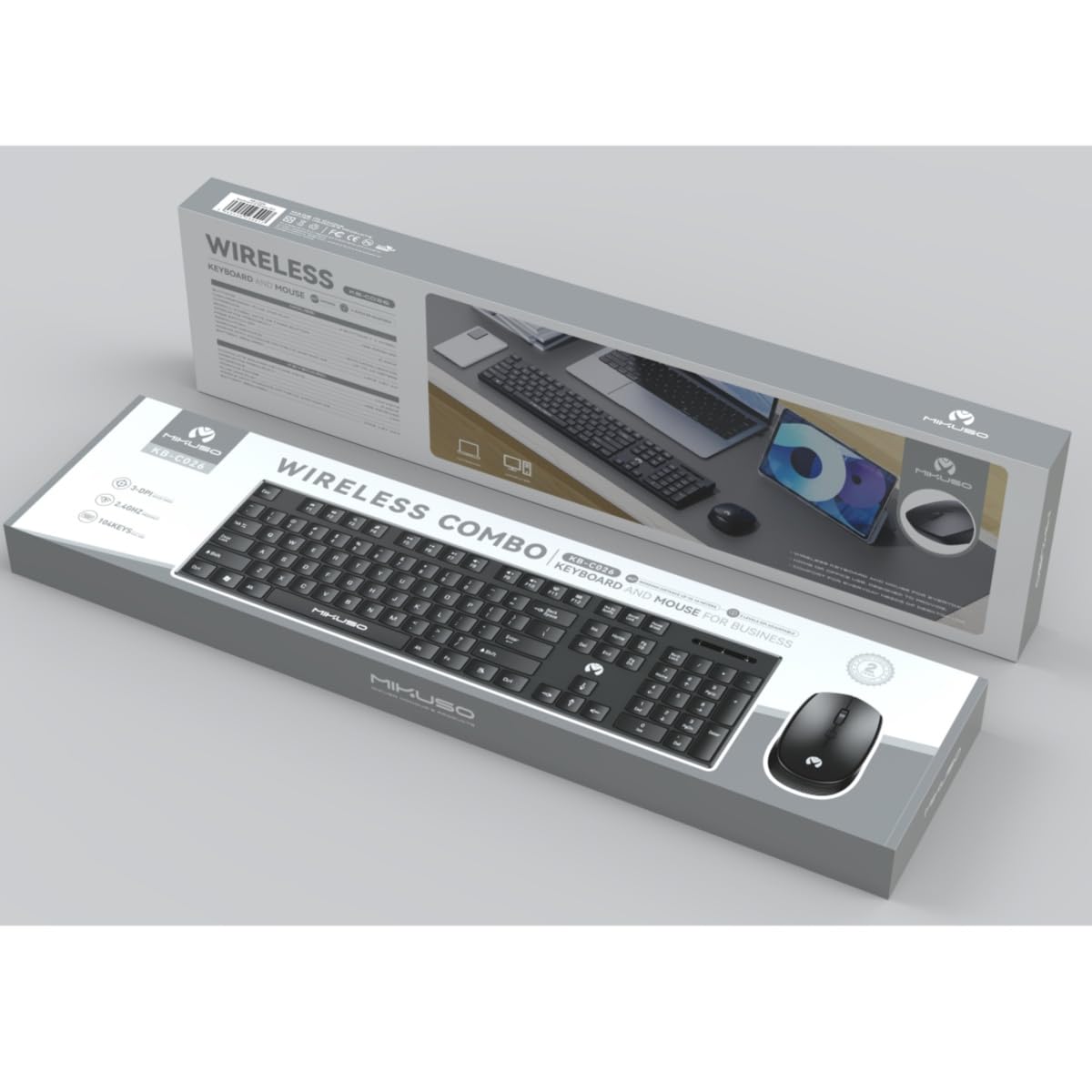
Image 1: MIKUSO KB-C026 Wireless Keyboard and Mouse Combo. This image displays the full-size keyboard, ergonomic mouse, and the compact USB receiver, illustrating the components included in the set.
5. Operating Instructions
5.1. Keyboard Usage
- Typing: Use the full QWERTY layout for standard typing.
- Numeric Keypad: The dedicated numeric keypad on the right side is ideal for data entry and calculations. Ensure the 'Num Lock' key is active if numbers are not registering.
- Function Keys (F1-F12): These keys perform various functions, often in combination with the 'Fn' key, depending on your operating system and software.
5.2. Mouse Usage
- Left Click: Primary action, selection.
- Right Click: Opens context menus.
- Scroll Wheel: Scroll through documents and web pages. The scroll wheel may also function as a middle click.
- Movement: Move the mouse on a flat surface to control the cursor on your screen.
6. Maintenance
- Cleaning: Use a soft, dry cloth to clean the surfaces of the keyboard and mouse. For stubborn dirt, a slightly damp cloth with mild soap can be used, ensuring no liquid enters the devices.
- Battery Replacement: When the devices become unresponsive or exhibit delayed input, replace the batteries. Ensure correct polarity.
- Storage: When not in use for extended periods, turn off the devices to conserve battery life. Store in a cool, dry place.
7. Troubleshooting
| Problem | Solution |
|---|---|
| Keyboard/Mouse not responding |
|
| Lag or intermittent connection |
|
| Numeric keypad not working |
|
8. Specifications
- Model: KB-C026
- Connectivity: 2.4G Wireless
- Wireless Range: Up to 10 meters (33 feet)
- Keyboard Layout: Full-size QWERTY with Numeric Keypad
- Mouse Type: Ergonomic, Optical
- Receiver: USB Nano Receiver
- Compatibility: Windows 7, Windows 8, Windows 10, Windows 11 (Desktop and Laptop Computers)
- Power Source: Batteries (not included, typically AA/AAA for devices)
9. Warranty and Support
This product is covered by a standard manufacturer's warranty. For specific warranty terms and conditions, please refer to the documentation provided at the time of purchase or contact your retailer. If you encounter any issues or require technical assistance, please contact the seller or manufacturer's customer support through the details provided on your purchase receipt or the product packaging.


