1. Introduction
This manual provides essential information for setting up, operating, and maintaining your Samsung Galaxy Tab A 10.1" Wi-Fi tablet. Please read this manual thoroughly to ensure proper use and to maximize the device's capabilities.
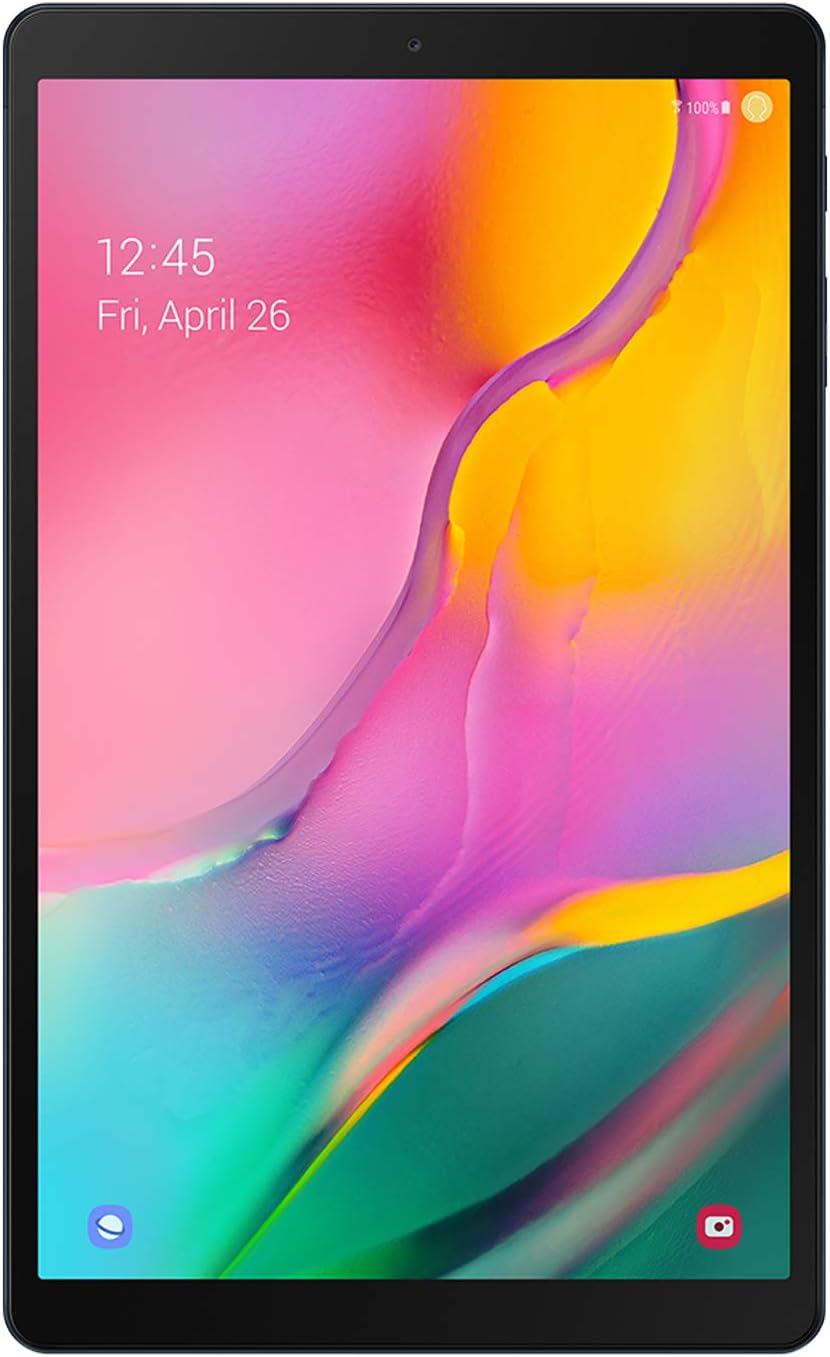
Figure 1: Front view of the Samsung Galaxy Tab A 10.1" tablet.
The Samsung Galaxy Tab A 10.1" features a vibrant Full HD display, immersive Dolby Atmos sound, and a long-lasting battery, making it suitable for entertainment and everyday tasks.
2. Setup
2.1 What's in the Box
- Samsung Galaxy Tab A 10.1" Tablet
- Data Cable
- Ejection Pin
- Quick Start Guide
- Terms Agreement
2.2 Initial Device Setup
- Power On: Press and hold the Power button located on the side of the tablet until the Samsung logo appears.
- Language Selection: Follow the on-screen prompts to select your preferred language.
- Wi-Fi Connection: Connect to a Wi-Fi network to enable internet access.
- Google Account: Sign in with your Google account or create a new one. This is essential for accessing the Google Play Store and other Google services.
- Samsung Account (Optional): Sign in with your Samsung account for additional features and services.
- Data Transfer: If you have a previous device, you may transfer data during this step.
- Security Setup: Set up a screen lock (PIN, pattern, password) for device security.
- Complete Setup: Follow any remaining prompts to finalize the setup process.

Figure 2: Angled view of the Samsung Galaxy Tab A 10.1" tablet, highlighting its slim design.
3. Operating Your Tablet
3.1 Display and Audio
The tablet features a 10.1" Full HD display with a resolution of 1920x1200 pixels, offering a clear and vibrant viewing experience. It supports Dolby Atmos surround sound for an immersive audio experience, delivered through its dual speakers located on the bottom edge.

Figure 3: The tablet's 10.1" Full HD display provides a cinematic viewing experience.

Figure 4: Enjoy rich audio with Dolby Atmos surround sound.
3.2 Performance and Gaming
Powered by an Exynos 7904 processor and 3GB of RAM, the Galaxy Tab A 10.1" is designed for smooth performance during everyday tasks such as browsing, streaming, and light multitasking. It comes with 64GB of internal storage, expandable up to 512GB via a Micro SD card (sold separately).
For gaming, the tablet handles popular titles like PUBG Mobile and Asphalt 9 with HD graphics and high frame rates, offering a satisfactory experience for casual gamers.
Video 1: A comparison video showcasing the display and performance of the Galaxy Tab A 10.1" against a newer model. This video highlights screen brightness, color differences, and gaming performance.
3.3 Camera Functionality
The tablet is equipped with an 8MP rear camera and a 5MP front-facing camera. Both cameras support 1080p video recording. While not designed for professional photography, they are suitable for video calls, scanning documents, and capturing casual photos in well-lit environments.
Video 2: A review video discussing the features and long-term usability of the Galaxy Tab A 10.1" (2019), including insights into its camera capabilities.
3.4 Connectivity and Battery
The tablet supports Bluetooth v4.2 for connecting wireless accessories and Wi-Fi (802.11a/b/g/n/ac on both 2.4 GHz and 5 GHz bands) for internet access. It features a USB-C port for charging and data transfer, and a 3.5mm headphone jack for wired audio.
A 6150 mAh battery provides approximately 6.5 hours of usage during battery drain tests, allowing for extended browsing, streaming, and gaming sessions.

Figure 5: Side view of the tablet, showing the USB-C port, headphone jack, and speaker grilles.

Figure 6: The tablet features a long-lasting battery for extended use.
3.5 Software
The tablet originally shipped with Android 9 Pie and has received updates to Android 11, providing access to the latest Android features and security enhancements. It includes Samsung's One UI for a user-friendly interface.

Figure 7: Samsung Kids provides a safe and engaging environment for children.

Figure 8: Stay organized with pre-installed Samsung apps like Calendar and Notes.
4. Maintenance
4.1 Cleaning and Care
- Use a soft, lint-free cloth to clean the screen and body of the tablet.
- Avoid using harsh chemicals or abrasive materials.
- Keep the tablet away from extreme temperatures and direct sunlight.
- Protect the screen with a screen protector and use a protective case to prevent scratches and damage.
4.2 Software Updates
Regularly check for and install software updates to ensure your device has the latest features, security patches, and performance improvements. You can usually find this option in the device's Settings menu under "Software update."
5. Troubleshooting
If you encounter issues with your tablet, try the following basic troubleshooting steps:
- Restart the Device: A simple restart can resolve many minor software glitches.
- Check Connections: Ensure Wi-Fi is enabled and connected, and any cables are securely plugged in.
- Free Up Storage: If the device is slow, delete unnecessary files or apps to free up storage space.
- Factory Reset: As a last resort, if problems persist, you may perform a factory reset. Warning: This will erase all data on your device. Back up important data before proceeding.
- Contact Support: If the issue cannot be resolved, refer to the Warranty and Support section for further assistance.
6. Specifications
| Feature | Specification |
|---|---|
| Model Name | Galaxy Tab A 10.1" (T510) |
| Item Model Number | SM-T510NZKFXAR |
| Screen Size | 10.1 Inches |
| Screen Resolution | 1920 x 1200 Pixels (Full HD) |
| Processor | 1.8 GHz Octa-Core (Exynos 7904) |
| RAM | 3 GB |
| Internal Storage | 64 GB |
| Expandable Storage | Micro SD up to 512 GB |
| Operating System | Android 9 Pie (Upgradable to Android 11) |
| Rear Camera | 8 MP |
| Front Camera | 5 MP |
| Battery Capacity | 6150 mAh (13 Hours Average Life) |
| Connectivity | Wi-Fi (802.11a/b/g/n/ac), Bluetooth v4.2, USB-C |
| Audio | Dual Speakers with Dolby Atmos, 3.5mm Headphone Jack |
| Dimensions (LxWxH) | 9.65 x 5.88 x 0.3 inches |
| Item Weight | 1.03 pounds |
7. Warranty and Support
For warranty information, technical support, and service inquiries, please visit the official Samsung website or contact Samsung customer service. Keep your proof of purchase for warranty claims.
You can find additional support resources and FAQs on the Samsung Store page.


