
1. บทนำ
Thank you for choosing the THOMSON TDF-1001P Digital Photo Frame. This device allows you to display your favorite photos and videos, play music, and utilize features like a calendar, clock, and alarm. With Wi-Fi connectivity, you can easily share media and receive weather updates. Please read this manual thoroughly before operating the device to ensure proper use and maintenance.
2. ข้อมูลด้านความปลอดภัย
- อย่าให้เครื่องอยู่ในที่ชื้น ฝน หรืออุณหภูมิที่สูงหรือต่ำเกินไป
- หลีกเลี่ยงการวางอุปกรณ์ใกล้แหล่งความร้อนหรือแสงแดดโดยตรง
- โปรดใช้เฉพาะอะแดปเตอร์แปลงไฟที่ให้มาเท่านั้น การใช้อะแดปเตอร์ที่ไม่ได้รับอนุญาตอาจทำให้เครื่องเสียหายและทำให้การรับประกันเป็นโมฆะ
- อย่าพยายามถอดประกอบหรือซ่อมแซมอุปกรณ์ด้วยตนเอง แนะนำให้ส่งช่างผู้ชำนาญการไปรับบริการทั้งหมด
- เก็บอุปกรณ์ให้ห่างจากสนามแม่เหล็กแรงสูง
- Clean the screen with a soft, dry cloth. Do not use liquid cleaners or sprays directly on the screen.
3. เนื้อหาบรรจุภัณฑ์
กรุณาตรวจสอบแพ็คเกจสำหรับรายการต่อไปนี้:
- THOMSON TDF-1001P Digital Photo Frame
- อะแดปเตอร์แปลงไฟ
- คู่มือการใช้งาน (เอกสารนี้)
- ยืน (ถ้ามี)
4. สินค้าหมดview
ทำความคุ้นเคยกับส่วนประกอบต่างๆ ของกรอบรูปดิจิทัลของคุณ
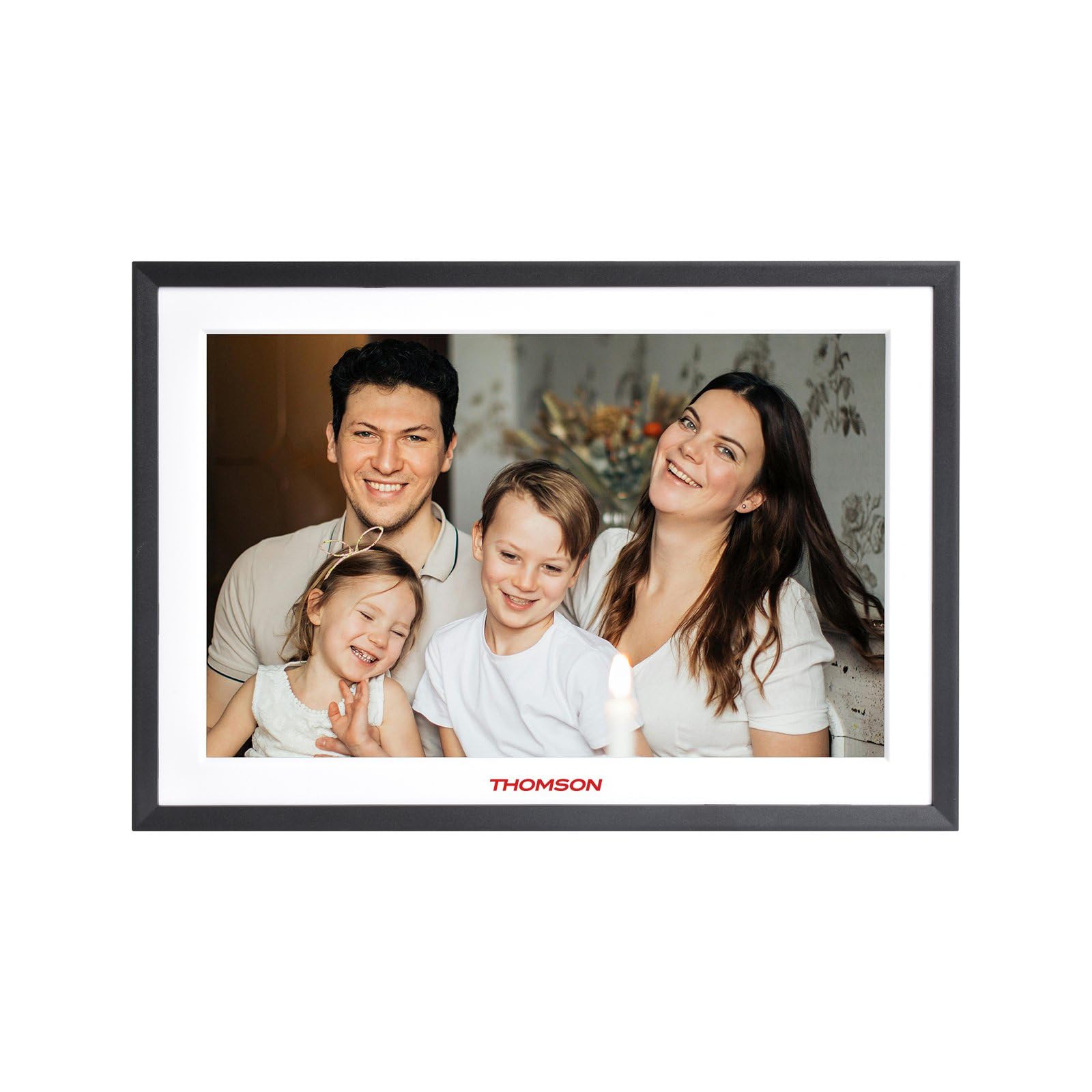
รูปที่ 4.1: ด้านหน้า view of the THOMSON TDF-1001P Digital Photo Frame. This image shows the 10.1-inch IPS display with a black frame, designed for clear photo and video playback.
4.1. แผงด้านหน้า
- หน้าจอสัมผัส IPS ขนาด 10.1 นิ้ว: The main display for viewing content and interacting with the device.
4.2. แผงด้านหลังและพอร์ต
The rear panel typically includes various ports for connectivity and power.
- กำลังไฟเข้า: เชื่อมต่อกับอะแดปเตอร์ไฟฟ้าที่ให้มา
- พอร์ต USB: สำหรับเชื่อมต่ออุปกรณ์ USB เพื่อถ่ายโอนข้อมูล
- ช่องเสียบการ์ด SD: For inserting SD cards to expand storage or transfer media.
- ปุ่มรีเซ็ต: A small pinhole button to reset the device if necessary.
5. การตั้งค่า
5.1. การเปิดเครื่องครั้งแรก
- Unpack the digital photo frame and its accessories.
- Attach the stand to the back of the frame, ensuring it is securely fastened.
- ต่ออะแดปเตอร์แปลงไฟเข้ากับพอร์ตรับไฟบนตัวเครื่อง
- เสียบอะแดปเตอร์แปลงไฟเข้ากับเต้ารับที่ผนัง กรอบรูปจะเปิดใช้งานโดยอัตโนมัติ
- ปฏิบัติตามคำแนะนำบนหน้าจอเพื่อเลือกภาษาและภูมิภาคของคุณ
5.2 การเชื่อมต่อ Wi-Fi
Connecting to Wi-Fi enables online features like photo sharing and weather updates.
- จากเมนูหลัก แตะที่ 'การตั้งค่า'
- Select 'Wi-Fi' or 'Network Settings'.
- Toggle Wi-Fi to 'On'. The frame will scan for available networks.
- เลือกเครือข่าย Wi-Fi ที่คุณต้องการจากรายการ
- ป้อนรหัสผ่าน Wi-Fi โดยใช้แป้นพิมพ์บนหน้าจอ แล้วแตะ 'เชื่อมต่อ'
- เมื่อเชื่อมต่อแล้ว ไอคอน Wi-Fi จะปรากฏบนแถบสถานะ
5.3. App Setup for Sharing
To share photos and videos via Wi-Fi, you will need to install the dedicated app on your smartphone.
- Locate the app name or QR code in the frame's settings under 'Cloud Services' or 'App Connection'.
- Download and install the app on your smartphone from your device's app store.
- เปิดแอปและสร้างบัญชีหรือเข้าสู่ระบบ
- Follow the app's instructions to pair your smartphone with the digital photo frame, typically by scanning a QR code displayed on the frame or entering a unique device ID.
- Once paired, you can send photos and videos directly from your smartphone to the frame.
6. การใช้งานกรอบรูปดิจิทัล
6.1. การนำทางอินเทอร์เฟซ
The frame features a touch screen for easy navigation. Tap icons to open applications and swipe to browse content or menus.
6.2. Photo and Video Playback
- From the main menu, tap the 'Photos' or 'Gallery' icon.
- Select the source of your media (Internal Storage, SD Card, USB Drive, or Cloud/App).
- Browse through your albums or individual files. Tap on a photo or video to view มัน.
- During playback, you can typically swipe left/right to navigate between files, or tap the screen to reveal playback controls (play/pause, next, previous, rotate, delete).
6.3. การเล่นเพลง
- Tap the 'Music' icon from the main menu.
- Select the source of your music files.
- Browse and tap on a song to begin playback.
- Use the on-screen controls for play/pause, skip, volume adjustment, and repeat modes.
6.4. Calendar, Clock, and Alarm
- ปฏิทิน: Tap the 'Calendar' icon to view the current date and month. Some models may allow adding events.
- นาฬิกา: The current time is usually displayed on the home screen. Time settings can be adjusted in the 'Settings' menu.
- เตือน: Access the 'Alarm' function via the main menu or 'Settings'. You can set multiple alarms with custom times and sounds.
6.5. Weather Updates
If connected to Wi-Fi, the frame can display local weather information.
- ตรวจสอบให้แน่ใจว่ากรอบรูปเชื่อมต่อกับ Wi-Fi แล้ว
- Go to 'Settings' and find 'Weather' or 'Location Services'.
- Enable weather updates and set your location (either automatically or manually).
- The weather forecast will then be displayed on the home screen or a dedicated weather widget.
7. การบำรุงรักษา
7.1. การทำความสะอาดอุปกรณ์
- ควรปิดเครื่องและถอดปลั๊กออกก่อนทำความสะอาดทุกครั้ง
- ใช้ผ้านุ่มที่ไม่เป็นขุยเช็ดหน้าจอและกรอบเบาๆ
- สำหรับคราบสกปรกที่ลบออกยากบนหน้าจอ ให้เช็ดเบาๆampen the cloth with water or a screen-safe cleaning solution, then wipe gently. Do not spray liquids directly onto the screen.
- หลีกเลี่ยงสารทำความสะอาดที่มีฤทธิ์กัดกร่อนหรือตัวทำละลาย
7.2. การจัดเก็บ
When not in use for extended periods, store the digital photo frame in a cool, dry place, away from direct sunlight and extreme temperatures. It is recommended to keep the original packaging for storage.
8 การแก้ไขปัญหา
หัวข้อนี้จะกล่าวถึงปัญหาทั่วไปที่คุณอาจพบเจอ
| ปัญหา | สาเหตุที่เป็นไปได้ | สารละลาย |
|---|---|---|
| เฟรมไม่สามารถเปิดเครื่องได้ | อะแดปเตอร์ไฟไม่ได้เชื่อมต่อหรือมีข้อบกพร่อง | ตรวจสอบให้แน่ใจว่าอะแดปเตอร์แปลงไฟเชื่อมต่อกับโครงอย่างแน่นหนาและเสียบเข้ากับเต้ารับไฟฟ้าที่ใช้งานได้ ลองเสียบเข้ากับเต้ารับอื่นดู |
| ไม่สามารถเชื่อมต่อ Wi-Fi ได้ | รหัสผ่านไม่ถูกต้อง, อยู่นอกช่วงที่กำหนด หรือมีปัญหาที่เราเตอร์ | Verify the Wi-Fi password. Move the frame closer to the router. Restart your Wi-Fi router. |
| รูปภาพ/วิดีโอไม่แสดงผล | ไม่ได้รับการสนับสนุน file รูปแบบเสียหาย files, or incorrect source selected. | ทำให้มั่นใจ files are in supported formats (e.g., JPEG for photos, MP4 for videos). Check if the files are corrupted. Select the correct storage source (SD card, USB, internal). |
| หน้าจอสัมผัสไม่ตอบสนอง | ซอฟต์แวร์มีปัญหาชั่วคราว | Restart the frame by unplugging and replugging the power adapter. If the issue persists, use a pin to press the reset button on the back. |
9. ข้อมูลจำเพาะ
| คุณสมบัติ | ข้อมูลจำเพาะ |
|---|---|
| แบบอย่าง | ทีดีเอฟ-1001พี |
| ขนาดจอแสดงผล | 10.1 นิ้ว |
| ปณิธาน | 800 * 1280 IPS |
| อัตราส่วนภาพ | 16:10 น. |
| Internal Flash Storage | 32GB |
| หน้าจอสัมผัส | G+P Type |
| การเชื่อมต่อ | ไวไฟ |
| ฟังก์ชั่น | Photo, Music, Video, Calendar, Clock, Alarm, Weather, Wi-Fi Sharing |
| วัสดุ | Plastic black frame and white middle frame |
| ขนาดสินค้า (กว้าง x ยาว) | ยาว 7.25 นิ้ว x กว้าง 10.44 นิ้ว |
| แหล่งพลังงาน | สายไฟ |
10. ข้อมูลการรับประกัน
The THOMSON TDF-1001P Digital Photo Frame comes with a รับประกันจำกัด 1 ปี from the date of purchase. This warranty covers manufacturing defects in materials and workmanship under normal use. It does not cover damage caused by misuse, accidents, unauthorized modifications, or external causes such as power surges.
Please retain your proof of purchase for warranty claims. For detailed warranty terms and conditions, refer to the warranty card included in your package or contact customer support.
11. การสนับสนุนลูกค้า
If you have any questions, require technical assistance, or need to make a warranty claim, please contact THOMSON customer support. Refer to the contact information provided on the product packaging or the official THOMSON webเว็บไซต์.
When contacting support, please have your product model number (TDF-1001P) and proof of purchase readily available.