
การแนะนำ
The Roku Hiro 32-inch 720p HD Smart TV offers an integrated Roku streaming experience. This television features an HD display for clear picture quality and speakers with enhanced audio. It supports Bluetooth for private listening with headphones and includes Wi-Fi for internet connectivity. The Roku operating system provides a customizable home screen, access to numerous streaming channels, and automatic updates, making it suitable for various living spaces.
มีอะไรอยู่ในกล่อง
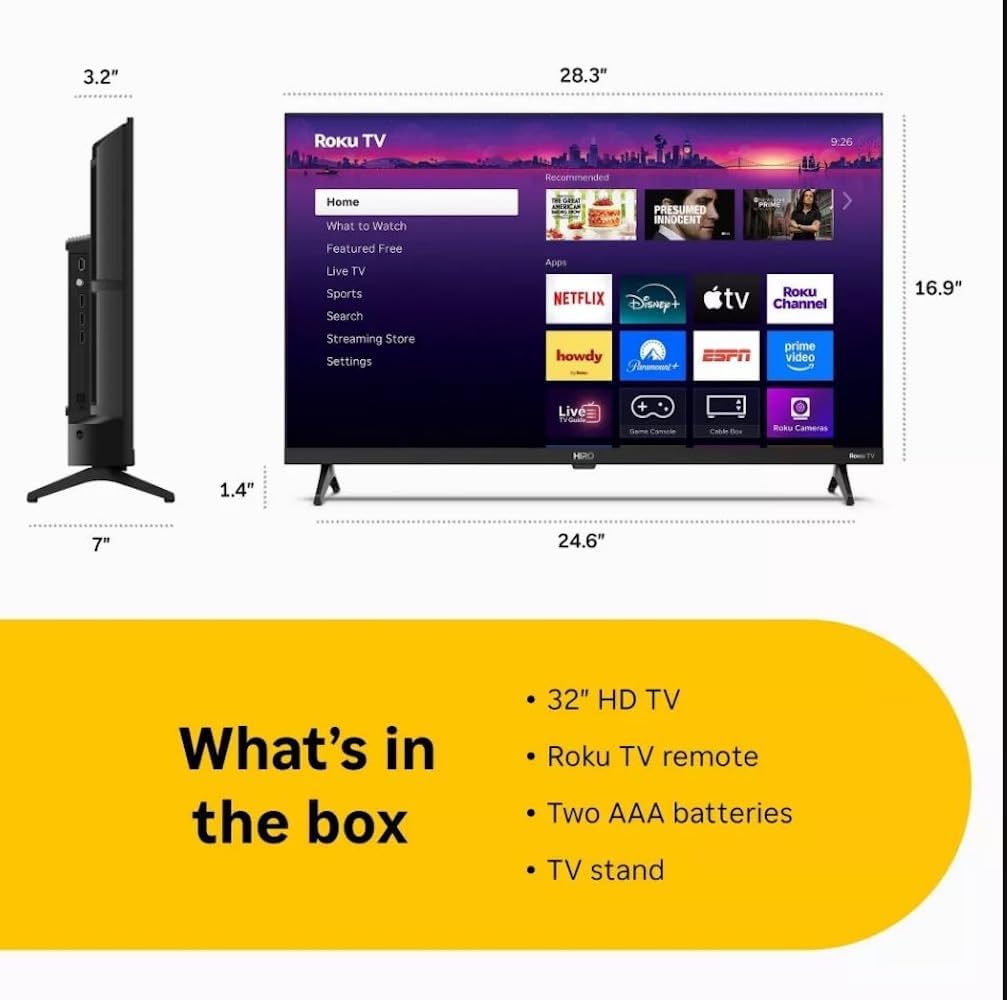
Diagram showing the dimensions of the Roku Hiro 32-inch TV and a list of included accessories: 32-inch HD TV, Roku TV remote, two AAA batteries, and TV stand.
- Hiro 32" 720p HD Smart TV Flat Screen LED Television with Roku TV
- รีโมทคอนโทรล
- แท่นวางทีวี
- สายไฟ
- คู่มือการใช้งาน
การตั้งค่า
1. การติดตั้งขาตั้ง
Carefully place the TV screen-down on a soft, clean surface to prevent damage. Align the TV stand with the designated slots on the bottom of the TV. Secure the stand using the provided screws. Ensure the stand is firmly attached before proceeding.
2. อุปกรณ์เชื่อมต่อ

หลัง view of the Roku Hiro TV, showing the input/output ports including USB, HDMI, and antenna connections.
- พลัง: เชื่อมต่อสายไฟเข้ากับช่องอินพุตไฟของทีวี จากนั้นจึงเชื่อมต่อกับเต้ารับที่ผนัง
- ช่องต่อ HDMI: Connect external devices such as Blu-ray players, game consoles, or cable boxes to the HDMI ports. This TV features 3 HDMI ports.
- ยูเอสบี: Use the USB port for media playback from a USB drive.
- ระบบเสียงออปติคัล: Connect an external sound system using an optical audio cable for enhanced sound.
- เสาอากาศ/สายเคเบิล: Connect an antenna or cable TV feed to the RF input for over-the-air or cable channels.
3. การตั้งค่าเริ่มต้น
After connecting all necessary cables, power on the TV. Follow the on-screen instructions to:
- เลือกภาษาของคุณ
- เชื่อมต่อกับเครือข่าย Wi-Fi ของคุณ
- เปิดใช้งานบัญชี Roku ของคุณ (หรือสร้างบัญชีใหม่)
- Scan for available channels if an antenna is connected.
คำแนะนำการใช้งาน
ฟังก์ชั่นการควบคุมระยะไกล

Close-up of the Roku TV remote control, highlighting buttons for TV power, volume, mute, sleep timer, instant replay, options, and app shortcuts.
- ปุ่มเปิด/ปิด: เปิดหรือปิดทีวี
- แผงทิศทาง (D-Pad): นำทางเมนูและเลือกสินค้า
- ปุ่มตกลง: ยืนยันการเลือก
- ปุ่มโฮม: กลับไปยังหน้าจอหลักของ Roku
- ปุ่มย้อนกลับ: กลับไปยังหน้าจอที่แล้ว
- เพิ่ม/ลดระดับเสียง: ปรับระดับเสียงทีวี
- ปุ่มปิดเสียง: ปิดเสียงหรือเปิดเสียงทีวี
- ปุ่มลัดแอป: Direct access to popular streaming services (e.g., Netflix, Disney+, Apple TV+, Prime Video).
- เวลานอน: Sets a timer for the TV to turn off automatically.
- การเล่นซ้ำทันที: Jumps back a few seconds in supported content.
- ตัวเลือก: Accesses additional settings or information for the current content.
Navigating the Roku OS

The Roku TV home screen interface, showing recommended content and various streaming applications.
The Roku home screen provides access to all your streaming channels, inputs, and settings. Use the D-Pad on your remote to navigate through the menu options on the left and the app grid on the right. You can customize the order of your channels by highlighting an app, pressing the * (Options) button, and selecting 'Move channel'.
สตรีมเนื้อหา
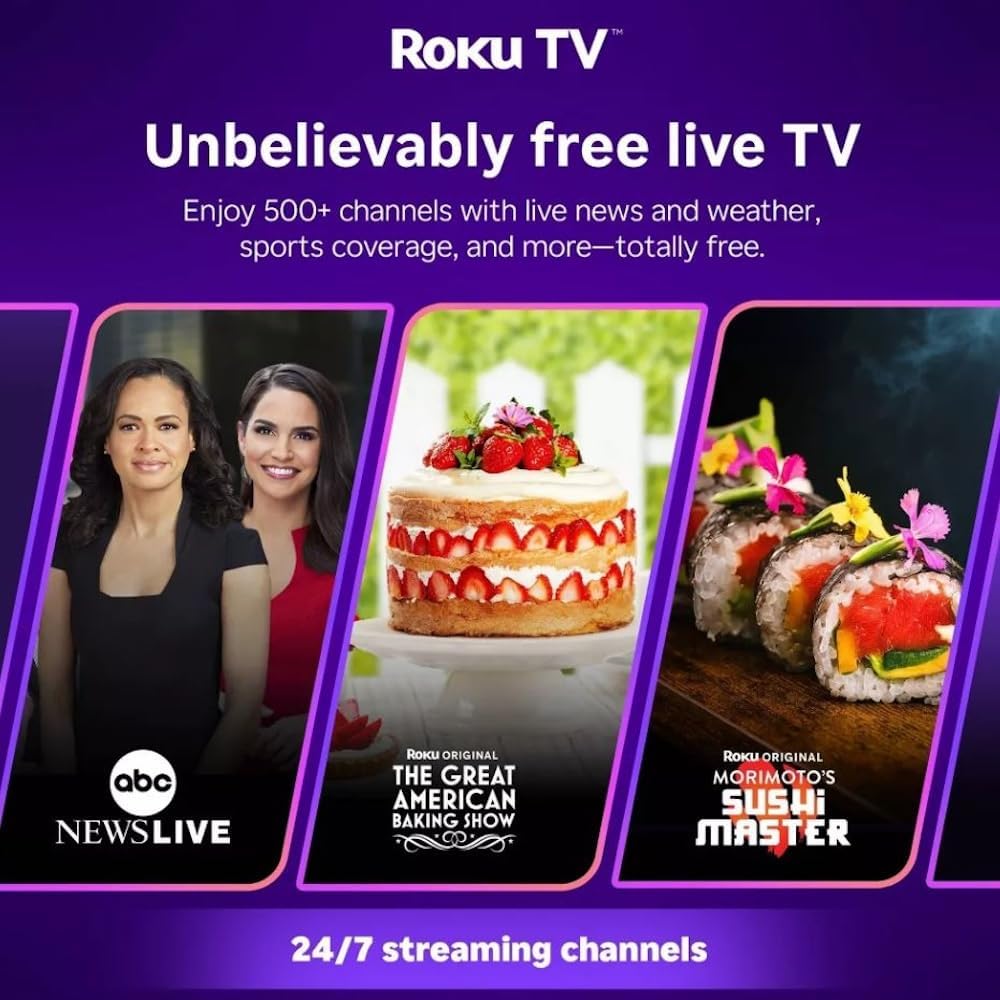
Roku TV interface promoting free live TV channels, featuring examples like ABC News Live, The Great American Baking Show, and Morimoto's Sushi Master.
Access a wide range of streaming services and free content through the Roku Channel Store. The Roku platform offers over 500 free channels, including live television, movies, and news. Use the 'Search' function on the home screen to find specific titles or channels.
คุณสมบัติด้านเสียง

Roku Hiro TV displaying the home screen with various streaming apps, emphasizing enhanced audio quality.
The TV features enhanced audio quality. For private listening, you can pair Bluetooth headphones directly with the TV. Navigate to Settings > Remotes & devices > Bluetooth devices > Pair new device to connect your headphones.
การซ่อมบำรุง
การทำความสะอาดทีวี
- ควรถอดปลั๊กทีวีทุกครั้งก่อนทำความสะอาด
- ใช้ผ้านุ่มที่ไม่เป็นขุยเช็ดหน้าจอและตู้เบาๆ
- สำหรับรอยฝังแน่น ให้เช็ดเบาๆampชุบผ้าด้วยน้ำหรือน้ำยาทำความสะอาดหน้าจอสูตรอ่อนโยนที่ไม่กัดกร่อน ห้ามฉีดน้ำยาลงบนหน้าจอโดยตรง
- หลีกเลี่ยงการใช้สารเคมีรุนแรง แผ่นขัด หรือตัวทำละลาย
การอัพเดตซอฟต์แวร์
The Roku TV automatically checks for and installs software updates when connected to the internet. To manually check for updates, go to การตั้งค่า > ระบบ > อัปเดตซอฟต์แวร์.
การแก้ไขปัญหา
| ปัญหา | สารละลาย |
|---|---|
| ไม่มีไฟฟ้า | ตรวจสอบให้แน่ใจว่าสายไฟเชื่อมต่อกับทีวีและเต้ารับไฟฟ้าที่ใช้งานได้แน่นดีแล้ว ลองใช้เต้ารับอื่น |
| ไม่มีภาพแต่มีเสียง | ตรวจสอบแหล่งที่มาของข้อมูล กดปุ่ม บ้าน button on the remote and select the correct input. Ensure all HDMI cables are securely connected. |
| ไม่มีเสียงแต่มีภาพ | ตรวจสอบระดับเสียงและตรวจสอบให้แน่ใจว่าทีวีไม่ได้ปิดเสียงอยู่ หากใช้เสียงภายนอก ให้ตรวจสอบการเชื่อมต่อและการตั้งค่า |
| ไม่สามารถเชื่อมต่อ Wi-Fi ได้ | Verify your Wi-Fi password. Restart your router and modem. Go to การตั้งค่า > เครือข่าย > ตั้งค่าการเชื่อมต่อ to reconfigure. |
| รีโมตคอนโทรลไม่ทำงาน | ใส่แบตเตอรี่กลับเข้าไปในรีโมท ตรวจสอบให้แน่ใจว่าไม่มีสิ่งกีดขวางระหว่างรีโมทและเซ็นเซอร์อินฟราเรดของทีวี |
ข้อมูลจำเพาะ
| ชื่อรุ่น | H32C2C4 |
| ขนาดหน้าจอ | 32 นิ้ว |
| เทคโนโลยีการแสดงผล | นำ |
| ปณิธาน | 720p |
| อัตราการรีเฟรช | 60 เฮิรตซ์ |
| ระบบปฏิบัติการ | ระบบปฏิบัติการ Roku |
| เทคโนโลยีการเชื่อมต่อ | Bluetooth, HDMI, Optical Audio, USB, Wi-Fi |
| จำนวนพอร์ต HDMI ทั้งหมด | 3 |
| พอร์ต USB รวม | 1 |
| ขนาดสินค้า (ลึก x กว้าง x สูง) | ลึก 3.2 นิ้ว x กว้าง 28.3 นิ้ว x สูง 16.9 นิ้ว |
| น้ำหนักสินค้า | 7.5 ปอนด์ |
| เล่มที่tage | 120 โวลต์ (AC) |
| ประเภทการติดตั้ง | ติดตั้งบนโต๊ะ |
| สี | สีดำ |
ข้อมูลการรับประกัน
This Roku Hiro TV is covered by a 90-day Replacement Warranty. Please retain your proof of purchase for any warranty claims. For detailed terms and conditions, refer to the warranty documentation included with your product or visit the official Roku support webเว็บไซต์.
สนับสนุน
For further assistance, troubleshooting guides, or to contact customer support, please visit the official Roku support website. You can find comprehensive FAQs and contact information there.