
การแนะนำ
This manual provides comprehensive instructions for the URAO 10.1" Android Tablet, Model X109. It covers initial setup, operation, maintenance, and troubleshooting to ensure optimal performance and user experience. Please read this manual thoroughly before using your tablet and retain it for future reference.
เนื้อหาแพ็คเกจ
เมื่อแกะกล่องแล้ว โปรดตรวจสอบว่าสิ่งของทั้งหมดที่ระบุไว้ด้านล่างครบถ้วนและอยู่ในสภาพดี:
- URAO 10.1" Android Tablet (Model X109)
- สายชาร์จแบบ USB Type-C
- อะแดปเตอร์แปลงไฟ
- คู่มือผู้ใช้ (คู่มือนี้)
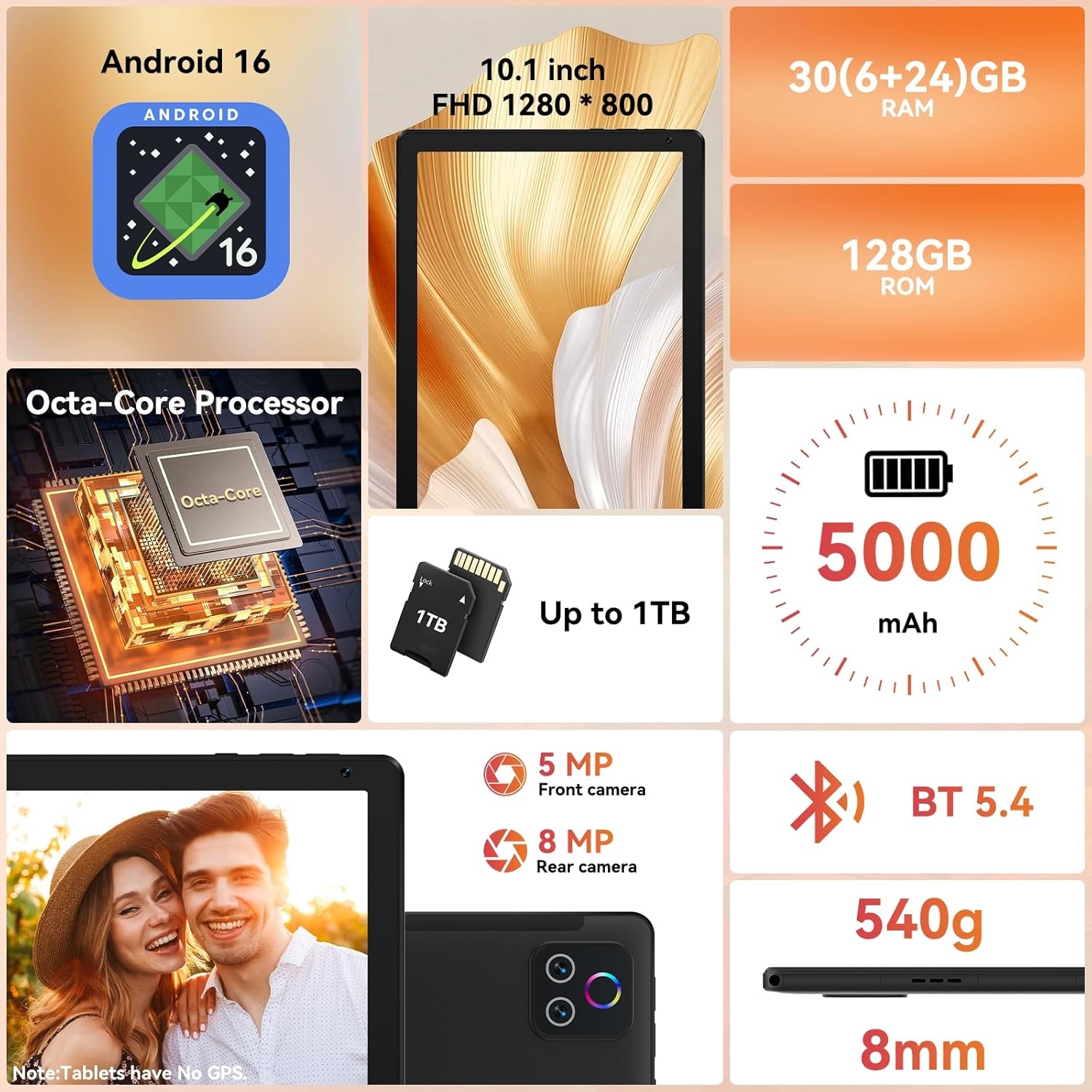
Image: The URAO 10.1" Android Tablet, USB Type-C cable, and power adapter neatly arranged in its packaging.
การตั้งค่า
1. การชาร์จครั้งแรก
Before first use, fully charge the tablet. Connect the USB Type-C cable to the tablet's charging port and the power adapter. Plug the adapter into a wall outlet. The charging indicator will illuminate. A full charge typically takes approximately 1.5 hours.

Image: The URAO tablet connected to a charger via its USB Type-C port, displaying a charging icon on the screen.
2. เปิด/ปิดเครื่อง
- การเปิดเครื่อง: Press and hold the Power button located on the side of the tablet until the URAO logo appears.
- วิธีปิดเครื่อง: Press and hold the Power button until a power menu appears on the screen. Select "Power off".
- ในการรีสตาร์ท: จากเมนูเปิด/ปิด ให้เลือก "รีสตาร์ท"

ภาพ: ด้านข้างโดยละเอียด view of the URAO tablet, highlighting the power button, volume controls, USB-C port, and Micro SD slot.
3. ตัวช่วยการตั้งค่าเริ่มต้น
เมื่อเปิดเครื่องครั้งแรก แท็บเล็ตจะแนะนำคุณตลอดขั้นตอนการตั้งค่าเบื้องต้น ทำตามคำแนะนำบนหน้าจอเพื่อ:
- เลือกภาษาของคุณ
- เชื่อมต่อกับเครือข่าย Wi-Fi
- ตั้งค่าบัญชี Google ของคุณ (หรือสร้างบัญชีใหม่)
- ตั้งค่าวันที่ เวลา และการตั้งค่าพื้นฐานอื่นๆ
คำแนะนำการใช้งาน
1. การนำทางอินเทอร์เฟซ Android 16
The URAO tablet runs on Android 16, offering an intuitive and secure user experience. Key navigation gestures include:
- แตะ: เลือกรายการหรือเปิดแอปพลิเคชัน
- ปัด: เลื่อนดูหน้าจอ รายการ หรือเนื้อหา
- บีบเพื่อซูม: ขยายหรือลดเนื้อหาบนหน้าจอ
- กดแบบยาว: เข้าถึงเมนูบริบทหรือย้ายไอคอน
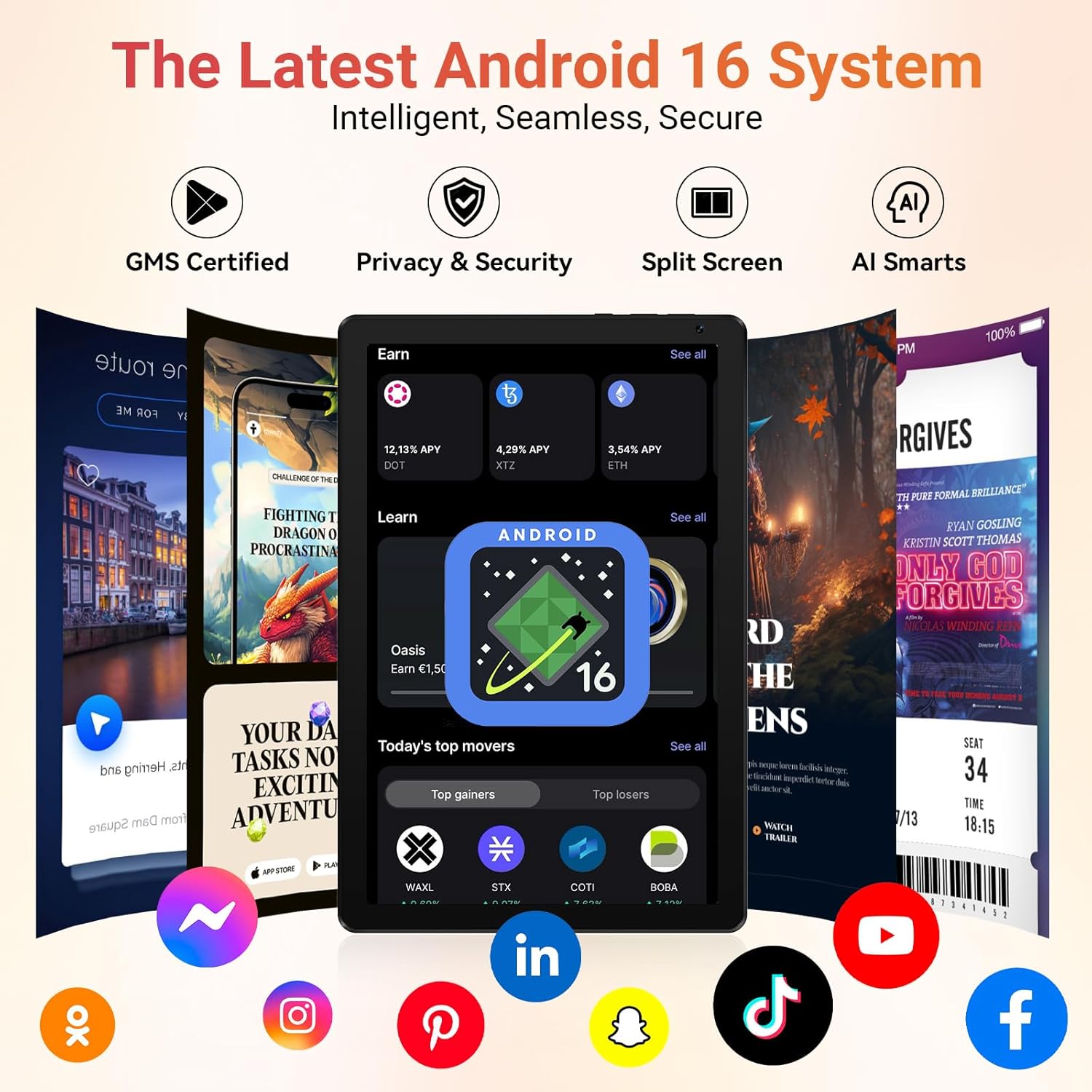
Image: The URAO tablet displaying the Android 16 home screen with various application icons, demonstrating the user interface.
2. การเชื่อมต่อ Wi-Fi และบลูทูธ
Your tablet supports Wi-Fi 6 and Bluetooth 5.4 for fast and stable connections.
- ไวไฟ : ไปที่ การตั้งค่า > เครือข่ายและอินเทอร์เน็ต > Wi-Fiเปิด Wi-Fi และเลือกเครือข่ายที่คุณต้องการ ป้อนรหัสผ่านหากระบบถาม
- บลูทูธ: ไปที่ การตั้งค่า > อุปกรณ์ที่เชื่อมต่อ > บลูทูธ. Turn Bluetooth on and pair with compatible devices.

Image: A URAO tablet screen displaying a video call, with icons for dual-band Wi-Fi and Bluetooth 5.4, indicating seamless connectivity.
3. การใช้กล้อง
แท็บเล็ตนี้มีกล้องหน้า 5 ล้านพิกเซลและกล้องหลัง 8 ล้านพิกเซล
- เปิด กล้อง แอป.
- แตะปุ่มชัตเตอร์เพื่อถ่ายภาพ
- สลับระหว่างกล้องหน้าและกล้องหลังโดยใช้ไอคอนกล้อง
- Use the LED flash for low-light conditions (rear camera only).

Image: The URAO tablet highlighting its 8MP rear camera and 5MP front camera, suitable for video calls and photography.
4. การจัดการการจัดเก็บข้อมูล
The tablet comes with 128GB of internal storage, expandable up to 1TB via a Micro SD card (not included).
- To insert a Micro SD card, locate the Micro SD slot on the side of the tablet and gently push the card in until it clicks.
- Manage storage by going to การตั้งค่า > การจัดเก็บข้อมูล.

Image: The URAO tablet showcasing its 128GB ROM and support for up to 1TB Micro SD card expansion, with various app icons.
5. การปลดล็อกด้วยใบหน้า
The tablet supports facial recognition for convenient unlocking.
- ในการตั้งค่าการปลดล็อกด้วยใบหน้า ให้ไปที่ การตั้งค่า > ความปลอดภัยและความเป็นส่วนตัว > ปลดล็อคด้วยใบหน้า.
- Follow the on-screen instructions to register your facial data.

Image: A woman demonstrating the face unlock feature on the URAO tablet, with a facial recognition graphic overlay.
6 การแบ่งหน้าจอการทำงานหลายอย่างพร้อมกัน
Utilize the split-screen feature to run two applications simultaneously.
- Open an app, then swipe up from the bottom of the screen and hold to access recent apps.
- Tap the app icon at the top of the app's card and select "Split screen".
- Choose a second app from the recent apps list or app drawer to fill the other half of the screen.

Image: The URAO tablet displaying multiple applications in split-screen mode, illustrating its multitasking capabilities.
การซ่อมบำรุง
1. การดูแลแบตเตอรี่
- หลีกเลี่ยงอุณหภูมิที่สูงเกินไป เพราะอาจทำให้แบตเตอรี่มีอายุการใช้งานลดลง
- เพื่อให้แบตเตอรี่มีอายุการใช้งานยาวนานที่สุด ควรหลีกเลี่ยงการปล่อยแบตเตอรี่จนหมดบ่อยครั้ง
- ใช้เฉพาะเครื่องชาร์จที่ให้มาหรือเครื่องชาร์จที่ได้รับการรับรองว่าใช้งานร่วมกันได้เท่านั้น
2. การทำความสะอาดแท็บเล็ต
- ใช้ผ้านุ่มที่ไม่เป็นขุยในการทำความสะอาดหน้าจอและตัวเครื่องแท็บเล็ต
- สำหรับรอยเปื้อนฝังแน่น ให้เช็ดออกเล็กน้อยampชุบผ้าด้วยน้ำหรือน้ำยาทำความสะอาดหน้าจอ
- หลีกเลี่ยงสารเคมีรุนแรง วัสดุที่มีฤทธิ์กัดกร่อน หรือความชื้นที่มากเกินไป
3. การอัปเดตซอฟต์แวร์
ตรวจสอบและติดตั้งการอัปเดตซอฟต์แวร์เป็นประจำเพื่อให้แน่ใจว่าแท็บเล็ตของคุณมีฟีเจอร์ แพตช์ความปลอดภัย และการปรับปรุงประสิทธิภาพล่าสุด ไปที่ การตั้งค่า > ระบบ > อัปเดตระบบ.
การแก้ไขปัญหา
| ปัญหา | สารละลาย |
|---|---|
| แท็บเล็ตไม่สามารถเปิดเครื่องได้ | ตรวจสอบให้แน่ใจว่าแบตเตอรี่ชาร์จเต็มแล้ว เสียบสายชาร์จอย่างน้อย 30 นาที จากนั้นลองเปิดเครื่องอีกครั้ง หากไม่ตอบสนอง ให้กดปุ่มเปิด/ปิดค้างไว้ 10-15 วินาทีเพื่อบังคับรีสตาร์ท |
| ปัญหาการเชื่อมต่อ Wi-Fi | Check if Wi-Fi is enabled in settings. Restart your router and the tablet. Ensure you are within range of the Wi-Fi signal. Verify the Wi-Fi password. |
| แอปทำงานช้าหรือขัดข้อง | ปิดแอปที่ทำงานอยู่เบื้องหลังที่ไม่ได้ใช้งาน ล้างแคชของแอป (การตั้งค่า > แอป > [ชื่อแอป] > ที่เก็บข้อมูลและแคช > ล้างแคช). Restart the tablet. Ensure sufficient storage space is available. |
| แบตเตอรี่หมดเร็วมาก | Reduce screen brightness. Close background apps. Disable Wi-Fi/Bluetooth when not in use. Check battery usage in settings to identify power-hungry apps. |
ข้อมูลจำเพาะ
| คุณสมบัติ | รายละเอียด |
|---|---|
| แบบอย่าง | เอ็กซ์109 |
| ระบบปฏิบัติการ | แอนดรอยด์ 16 |
| โปรเซสเซอร์ | Octa-core 2.0 กิกะเฮิรตซ์ |
| แรม | 30GB (ขยาย 6GB + 24GB) |
| หน่วยความจำภายใน (ROM) | 128GB |
| พื้นที่เก็บข้อมูลแบบขยายได้ | Up to 1TB Micro SD Card (not included) |
| แสดง | 10.1-inch HD IPS Touchscreen (1280x800) |
| กล้องหลัง | 8MP |
| กล้องหน้า | 5MP |
| ไวไฟ | Wi-Fi 6 (Dual-band 2.4G+5G) |
| บลูทูธ | บลูทูธ 5.4 |
| ความจุของแบตเตอรี่ | 5000mAh |
| พอร์ตชาร์จ | ยูเอสบี ไทป์ ซี |
| ขนาด | 8mm thin, 540g weight |
| สี | ถ่าน |

Image: The URAO 10.1" Android Tablet displaying its key features and specifications, including Android 16, 10.1-inch display, Octa-core processor, 30GB RAM, 128GB ROM, 5000mAh battery, and dual cameras.
การรับประกันและการสนับสนุน
The URAO tablet comes with a การรับประกันจากผู้ผลิต 2 ปี. For warranty claims or technical support, please contact URAO customer service through their official website or the retailer where the product was purchased. Please have your purchase receipt and product model number (X109) ready when contacting support.
สำหรับแหล่งข้อมูลเพิ่มเติมและคำถามที่พบบ่อย โปรดไปที่ URAO Store on Amazon.
วิดีโอผลิตภัณฑ์view
ดูวิดีโอนี้เพื่อดูภาพรวมอย่างรวดเร็วview of the URAO 10.1" Android Tablet's features and unboxing experience.
วิดีโอ: การแกะกล่องและรีวิวสินค้าview of the URAO 10.1" Android Tablet, demonstrating its physical appearance and key functionalities.