
1. บทนำ
This manual provides essential information for setting up, operating, maintaining, and troubleshooting your Samsung Galaxy Tab A11 WiFi tablet. Please read this manual carefully to ensure proper use and to maximize the device's performance and longevity.
บันทึก: This model is intended for the Latin America market and does not include a USA warranty. It supports WiFi connectivity only, with no cellular call or data capabilities.
2. อะไรอยู่ในกล่อง
- แท็บเล็ต Samsung Galaxy Tab A11
- สาย USB
- อะแดปเตอร์แปลงไฟ
3. การตั้งค่า
3.1 การเปิดเครื่องครั้งแรกและการกำหนดค่า
- กดปุ่มเปิด/ปิดค้างไว้ (อยู่ด้านข้าง) จนกระทั่งโลโก้ Samsung ปรากฏขึ้น
- ทำตามคำแนะนำบนหน้าจอเพื่อเลือกภาษา เชื่อมต่อกับเครือข่าย Wi-Fi และยอมรับข้อกำหนดและเงื่อนไข
- ลงชื่อเข้าใช้ด้วยบัญชี Google ของคุณหรือสร้างบัญชีใหม่
- Set up your preferred screen lock method (Face recognition, Pattern, PIN, or Password).
- Choose your display mode (Light or Dark).
3.2 การใส่การ์ด MicroSD
The Galaxy Tab A11 supports expandable storage via a MicroSD card. Locate the MicroSD card slot on the side of the tablet. Use the provided SIM ejector tool (if applicable) to open the tray, insert the MicroSD card, and close the tray securely.
3.3 การชาร์จอุปกรณ์
Connect the USB cable to the tablet's USB-C port and the power adapter. Plug the power adapter into a wall outlet. The device supports 15W fast charging.
4. คู่มือการใช้งาน
4.1 การนำทางและอินเทอร์เฟซ
- หน้าจอหลัก: Access your apps and widgets. The home screen features an updated widget style.
- แผงการแจ้งเตือน: Swipe down from the top of the screen to access notifications and quick settings. You can customize the quick settings layout.
- แผงขอบ: Swipe from the side of the screen to access the Edge Panel, which provides shortcuts to frequently used apps and functions.
- แถบงาน: Located at the bottom of the screen, the taskbar allows for quick switching between applications.
4.2 การตั้งค่าการแสดงผล
- ความราบรื่นของการเคลื่อนไหว: Navigate to Settings > Display > Motion smoothness. Choose between 'Adaptive' (up to 90Hz refresh rate for smoother animations) or 'Standard' (60Hz for longer battery life).
- โหมดการแสดงผล: Select between Light or Dark mode for the user interface.
4.3 คุณสมบัติด้านความปลอดภัย
To protect your tablet, set up a screen lock:
- การจดจำใบหน้า: Unlock your tablet using your face.
- ลวดลาย: Draw a specific pattern on the screen.
- พิน: Enter a numeric code.
- รหัสผ่าน: Enter an alphanumeric password.
4.4 Side Button Customization
By default, holding the power button brings up the power menu. You can customize the double-press action of the side button:
- Go to Settings > Advanced features > Side button.
- Choose to launch the Camera, Voice Recorder, Samsung Notes, Samsung Capture, Modes and Routines, or any other installed app.
5. คุณสมบัติ
5.1 การออกแบบและการแสดงผล
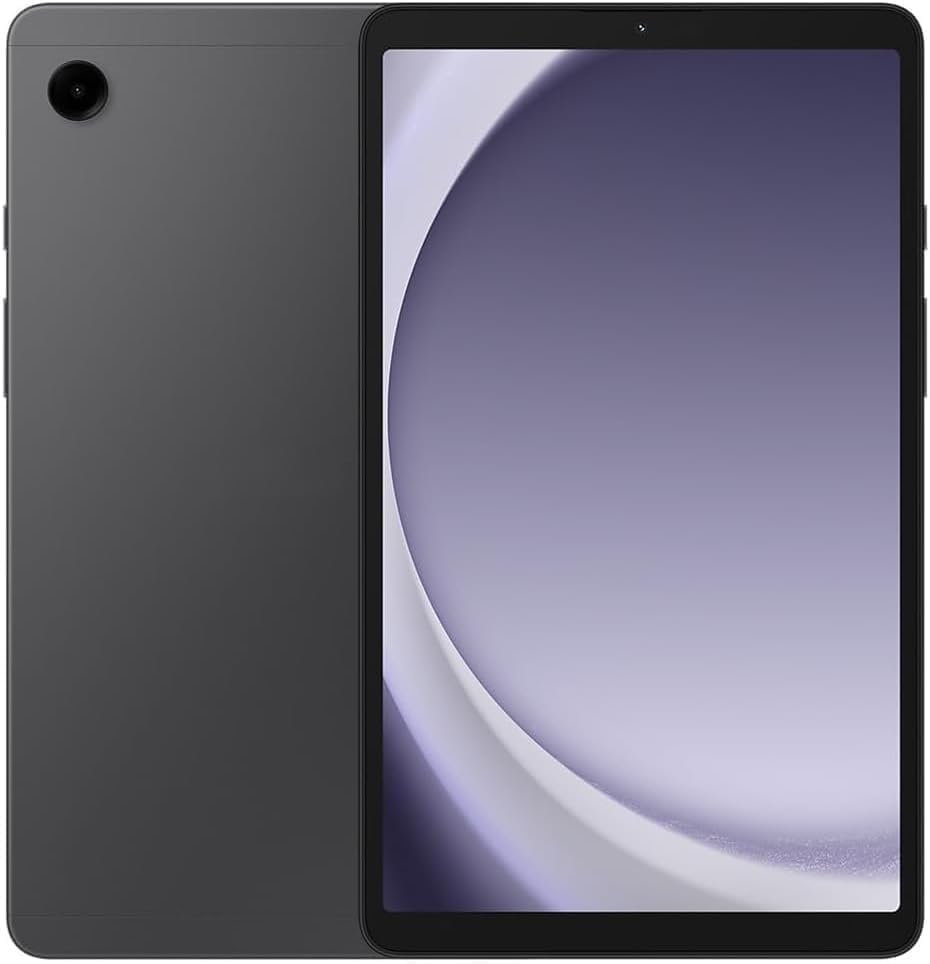
The Samsung Galaxy Tab A11 features a sleek, refined design with a streamlined silhouette. It comes with an 8.7-inch TFT LCD display with a resolution of 1340 x 800 (WXGA+). The display now supports a 90Hz refresh rate for smoother visuals.
5.2 การปฏิบัติงาน
Powered by an Octa-core processor (2x2.2 GHz Cortex-A76 & 6x2.0 GHz Cortex-A55) with Mali-G57 MC2 GPU, the tablet offers reliable performance for everyday tasks and light gaming. It is available with 4GB or 8GB of RAM and 64GB or 128GB of internal storage, expandable via MicroSD card.
กล้อง 5.3 ตัว
- กล้องหลัง: 8.0 MP with Auto Focus.
- กล้องหน้า: 5.0 MP (upgraded from 2.0 MP in previous models).
- การบันทึกวิดีโอ: Both front and rear cameras support HD (1920 x 1080) @30fps video recording.
5.4 เสียง
The Galaxy Tab A11 features Dolby-engineered Dual Speakers for a rich, multidimensional audio experience. It also includes a 3.5mm audio jack for wired headphones.
5.5 การเชื่อมต่อ
- ไวไฟ : 802.11a/b/g/n/ac 2.4GHz+5GHz, VHT80, Wi-Fi Direct.
- บลูทูธ: Version 5.3 (A2DP, AVRCP, DI, HFP, HID, HOGP, HSP, MAP, OPP, PAN, PBAP profileส).
- ยูเอสบี: USB 2.0 (Type-C).
- เทคโนโลยีการระบุตำแหน่ง: GPS, Glonass, Beidou, Galileo, QZSS.
5.6 ซอฟต์แวร์และการอัปเดต
The tablet runs on Android 15 with One UI 7.0. It is notable for receiving 7 years of software updates, ensuring long-term support and security.
6. ข้อมูลจำเพาะ
| คุณสมบัติ | ข้อมูลจำเพาะ |
|---|---|
| ขนาดการแสดงผลหน้าจอยืน | 8.7 นิ้ว |
| ความละเอียดหน้าจอ | 1340x800 พิกเซล |
| ความละเอียดหน้าจอสูงสุด | 1340 x 800 พิกเซล |
| โปรเซสเซอร์ | 2.2 GHz Octa-core (MediaTek Helio G99 equivalent) |
| คำอธิบายการ์ด | บูรณาการ |
| ประเภทไร้สาย | 802.11a, 802.11ac, 802.11b, 802.11g, 802.11n |
| ระบบปฏิบัติการ | ระบบปฏิบัติการ Android 15, One UI 7.0 |
| น้ำหนักสินค้า | 13 ออนซ์ |
| ขนาดสินค้า | 8.31 x 0.31 x 4.91 นิ้ว |
| สี | Gray SM-X113NZAAL15 |
| ยี่ห้อโปรเซสเซอร์ | ซัมซุง |
| แบตเตอรี่ | 1 Nonstandard Battery (included), 5100 mAh |
| การชาร์จไฟ | ชาร์จเร็ว 15W |
7. การบำรุงรักษา
7.1 การทำความสะอาดแท็บเล็ตของคุณ
Use a soft, lint-free cloth to gently wipe the screen and body of the tablet. Avoid using harsh chemicals or abrasive materials that could damage the device.
7.2 การอัปเดตซอฟต์แวร์
Regularly check for and install software updates to ensure your tablet has the latest features, security patches, and performance improvements. Navigate to Settings > Software update to check for available updates.
7.3 การดูแลแบตเตอรี่
To prolong battery life, avoid exposing the tablet to extreme temperatures. It is recommended to keep the battery charge between 20% and 80% for optimal long-term health. Avoid leaving the tablet plugged in for extended periods after it's fully charged.
8 การแก้ไขปัญหา
8.1 ปัญหาทั่วไป
- อุปกรณ์ไม่เปิด: ตรวจสอบให้แน่ใจว่าแบตเตอรี่ชาร์จเต็มแล้ว เสียบแท็บเล็ตเข้ากับอะแดปเตอร์แปลงไฟ แล้วลองใหม่อีกครั้ง
- ประสิทธิภาพช้า: ปิดแอปที่ไม่ได้ใช้งาน ล้างแคช หรือรีสตาร์ทอุปกรณ์ ตรวจสอบการอัปเดตซอฟต์แวร์ที่มีอยู่
- ปัญหาการเชื่อมต่อ Wi-Fi: Restart your router and the tablet. Forget the network and reconnect.
- แอปขัดข้อง: Ensure apps are updated to their latest versions. Clear the app's cache or reinstall it.
8.2 รีเซ็ตเป็นค่าโรงงาน
หากคุณพบปัญหาต่อเนื่อง การรีเซ็ตเป็นค่าโรงงานอาจแก้ไขปัญหาเหล่านั้นได้ คำเตือน: This will erase all data on your tablet. Back up important data before proceeding. Navigate to Settings > General management > Reset > Factory data reset.
9. การรับประกันและการสนับสนุน
This Samsung Galaxy Tab A11 model is specifically for the Latin America market. There is no warranty coverage in the USA for this device. For support and warranty information within the designated market, please refer to the documentation provided with your purchase or contact Samsung customer service in your region.
For additional assistance, visit the official Samsung support webเว็บไซต์หรือติดต่อช่องทางบริการลูกค้าของเรา