
การแนะนำ
This manual provides essential information for the proper installation, operation, and maintenance of your UGREEN 8K@60Hz Active Display Port to HDMI Unidirectional Adapter. Please read this manual thoroughly before using the product to ensure optimal performance and to prevent damage.

Image: UGREEN 8K@60Hz Active Display Port to HDMI Unidirectional Adapter, showcasing การออกแบบที่กะทัดรัด
สินค้าเกินview และคุณสมบัติ
The UGREEN 8K@60Hz Active Display Port to HDMI Unidirectional Adapter is designed to convert a DisplayPort 1.4 signal from a source device to an HDMI 2.1 signal for display on an HDMI-compatible monitor, TV, or projector. This adapter supports high resolutions and refresh rates, ensuring a high-quality visual and audio experience.
- High Resolution and Refresh Rate Support: Supports up to 8K@60Hz, 4K@240Hz, 2K@240Hz, and 1080P@480Hz.
- Uni-directional Signal Flow: Converts DisplayPort (source) to HDMI (display) only. It does not support HDMI to DisplayPort conversion.
- แบนด์วิดธ์สูง: Provides up to 32.4Gbps bandwidth for stable and high-fidelity signal transmission.
- เทคโนโลยีขั้นสูง: Compatible with DisplayPort 1.4, HDMI 2.1, HDCP 2.2, DSC1.2a, and HDR 10+ for vivid images and perfect synchronization.
- รองรับเสียง: Supports 24-bit/192kHz audio sampling rate and various audio formats including Dolby Atmos and DTS:X.
- ปลั๊กแอนด์เพลย์: No driver installation required for operation.
- โครงสร้างทนทาน: Features a slim aluminum housing for heat dissipation, tinned copper conductors for conductivity, and gold-plated connectors for corrosion resistance.
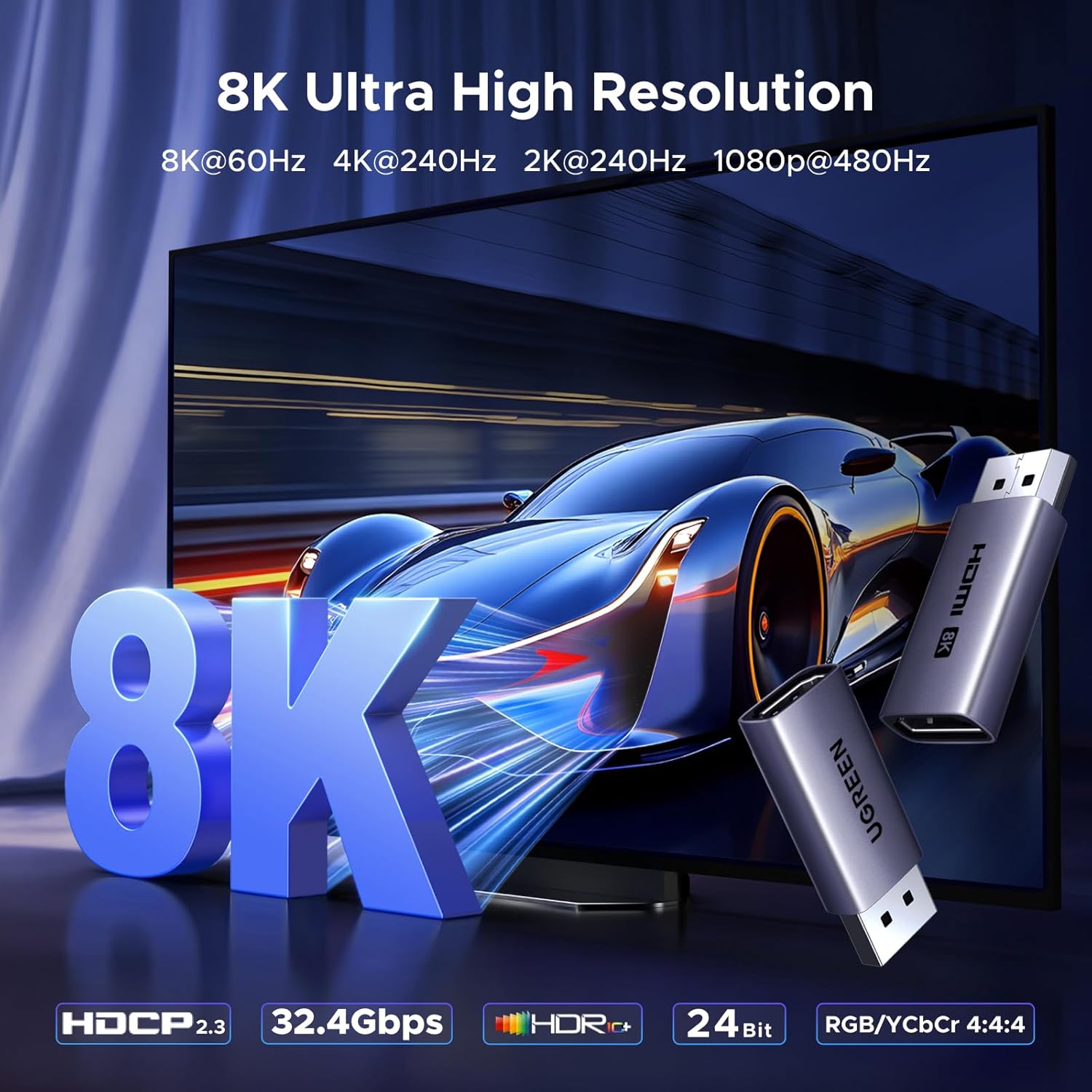
Image: Visual representation of 8K Ultra High Resolution capabilities.

Image: Depiction of smooth video and immersive experience with G-SYNC.

Image: Illustration of perfect audio-visual synchronization.

Image: Close-up of the UGREEN 8K Active DP Male to HDMI Female Adapter.
คำแนะนำการตั้งค่า
Follow these steps to connect your UGREEN DisplayPort to HDMI adapter:
- Connect the Adapter to the DisplayPort Source: Insert the DisplayPort male connector of the adapter into the DisplayPort output port of your source device (e.g., PC, laptop, graphics card).
- เชื่อมต่อสาย HDMI: Connect one end of an HDMI cable (not included) into the HDMI female port of the adapter.
- Connect to HDMI Display: Connect the other end of the HDMI cable to the HDMI input port of your display device (e.g., monitor, TV, projector).
The adapter is plug-and-play, requiring no additional drivers. Ensure both your DisplayPort source device and HDMI display device support the desired resolution and refresh rate (e.g., 8K@60Hz) to achieve that specific effect.

Image: Step-by-step visual guide for connecting the adapter.
Using an adapter can help protect the original DisplayPort on your device from wear and tear caused by repeated plugging and unplugging.

Image: Diagram illustrating how the adapter protects the original DisplayPort.
คำแนะนำการใช้งาน
Once connected, the adapter will automatically detect and transmit the video and audio signal from your DisplayPort source to the HDMI display. You can configure your display settings through your computer's operating system.
Multi-Display Modes
This adapter supports common multi-display configurations:
- โหมดมิเรอร์: Duplicates your primary display onto the connected HDMI display.
- โหมดขยาย: Extends your desktop across both displays, allowing for more workspace.

ภาพ: ภาพตัวอย่างamples of mirroring and extended display modes.
ความละเอียดและอัตราการรีเฟรช
The adapter will attempt to negotiate the highest possible resolution and refresh rate supported by both your source device and display. For specific resolutions like 8K@60Hz or 4K@240Hz, ensure all components in your setup (source, adapter, HDMI cable, and display) are compatible with these specifications.

Image: Illustration demonstrating high refresh rate capabilities.
ความเข้ากันได้
This adapter is designed for specific DisplayPort to HDMI signal conversion. Please review ข้อมูลความเข้ากันได้มีดังต่อไปนี้:
อุปกรณ์ที่รองรับ:
- DisplayPort Source Devices: PCs, Laptops, Graphics Cards (e.g., NVIDIA/AMD/RX 6000/7000, UltraSharp, ThinkPad T14 Gen 4) with a DisplayPort output.
- HDMI Display Devices: Monitors, TVs/HDTVs, Projectors with an HDMI input.
Non-Compatible Devices:
อะแดปเตอร์นี้คือ ไม่ compatible with HDMI source devices or DisplayPort monitors. It will not function with:
- MacBook (HDMI source)
- PS5, PS4, Switch, Switch 2, Xbox, GoPro (HDMI source devices)
- DisplayPort Monitors (as a display device for an HDMI source)
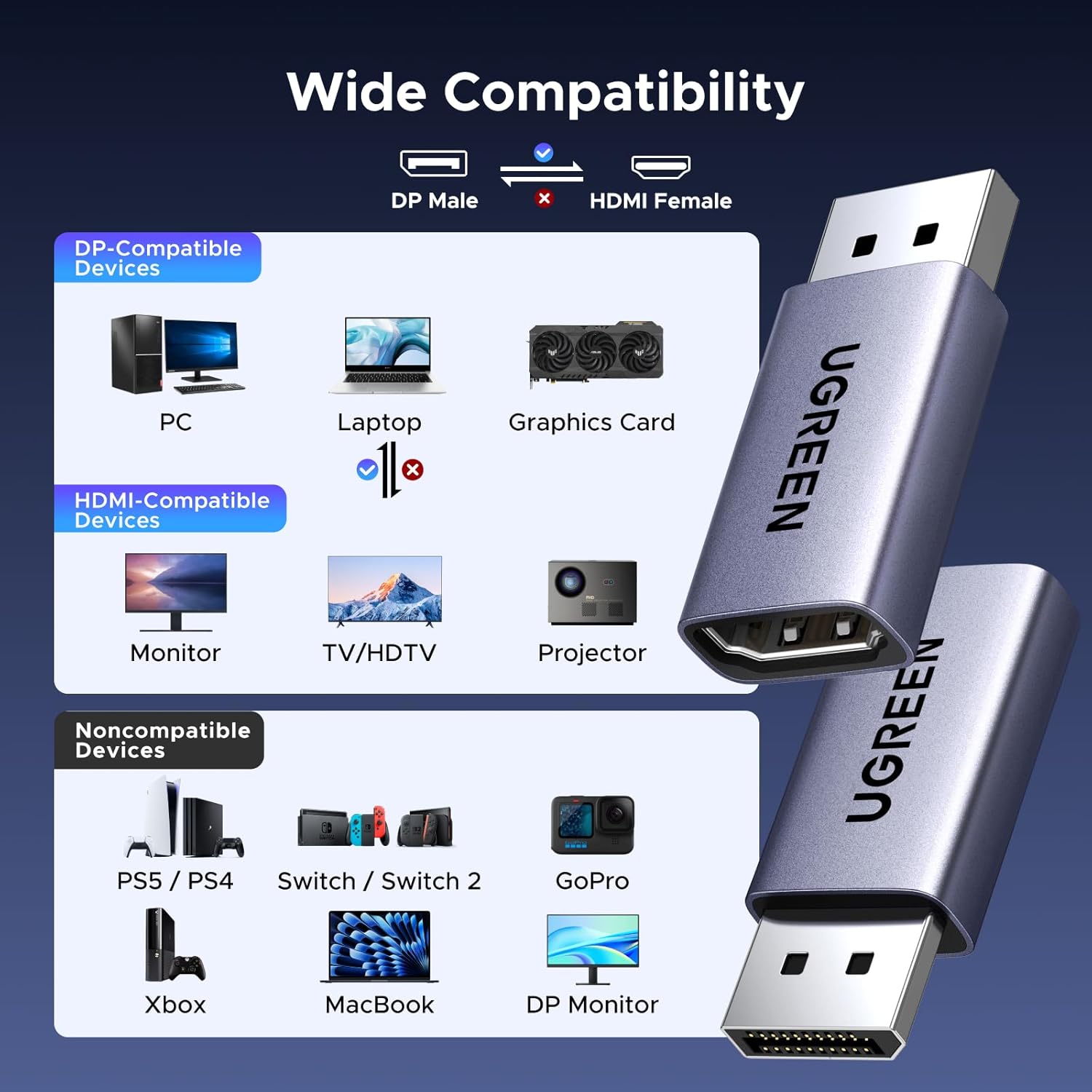
Image: Diagram showing compatible DisplayPort source devices and HDMI display devices, along with non-compatible devices.
ข้อมูลจำเพาะ
| คุณสมบัติ | ข้อมูลจำเพาะ |
|---|---|
| หมายเลขรุ่น | 85996 |
| ประเภทขั้วต่อ | DisplayPort Male to HDMI Female |
| รองรับความละเอียดสูงสุด | 8K@60Hz, 4K@240Hz, 2K@240Hz, 1080P@480Hz |
| แบนด์วิธ | 32.4Gbps |
| มาตรฐาน DisplayPort | DP 1.4 (backward compatible with DP 1.3/1.2) |
| มาตรฐาน HDMI | HDMI2.1 การเชื่อมต่อ |
| รองรับ HDCP | HDCP 2.2, HDCP 2.3 |
| รองรับ HDR | HDR10+ ขึ้นไป |
| การสนับสนุนด้านเสียง | 24-bit/192kHz, Dolby Atmos, DTS:X |
| สี | สีเทา |
| วัสดุที่ใช้ทำตัวเรือน | อลูมิเนียม |
To achieve the stated resolutions, both the input and output devices, as well as the HDMI cable used, must support DisplayPort 1.4 and HDMI 2.1 standards respectively.

Image: Table detailing resolution support and recommended cable specifications.
การแก้ไขปัญหา
- ไม่มีการแสดงผล/สัญญาณ:
- ตรวจสอบให้แน่ใจว่าการเชื่อมต่อทั้งหมดมีความปลอดภัย
- Verify that the DisplayPort source device is powered on and outputting a signal.
- Confirm the HDMI display is set to the correct input source.
- Remember this is a uni-directional adapter (DP to HDMI only). It will not work if connecting an HDMI source to a DisplayPort display.
- Lower Resolution/Refresh Rate Than Expected:
- Check that both your DisplayPort source device and HDMI display device support the desired resolution and refresh rate.
- Ensure your HDMI cable is rated for the desired resolution and refresh rate (e.g., an 8K HDMI cable for 8K@60Hz). Refer to the specifications table for cable length and AWG guidelines.
- Update graphics drivers on your source PC.
- ปัญหาเกี่ยวกับเสียง:
- Verify audio output settings on your source device are configured to send audio via DisplayPort/HDMI.
- ตรวจสอบระดับเสียงทั้งบนอุปกรณ์ต้นทางและจอแสดงผลของคุณ
- Display Not Recovering from Sleep Mode:
- If the display does not resume after the PC enters sleep mode, try unplugging and re-inserting the adapter.
- Consider adjusting power management settings on your PC to prevent the DisplayPort from entering a deep sleep state.
- G-SYNC/VRR Functionality:
- While G-SYNC compatibility has been reported, Variable Refresh Rate (VRR) support may vary depending on your specific hardware and software configuration.
การซ่อมบำรุง
The UGREEN DisplayPort to HDMI adapter requires minimal maintenance. Follow these guidelines to ensure its longevity:
- Keep the adapter in a clean, dry environment.
- ควรหลีกเลี่ยงการวางอะแดปเตอร์ไว้ในที่ที่มีอุณหภูมิสูงหรือต่ำเกินไป หรือโดนแสงแดดโดยตรง
- Do not bend or twist the adapter excessively.
- Clean the connectors gently with a dry, lint-free cloth if necessary. Avoid using liquid cleaners.
การรับประกันและการสนับสนุน
ผลิตภัณฑ์ UGREEN ได้รับการออกแบบมาเพื่อความน่าเชื่อถือและประสิทธิภาพ สำหรับข้อมูลการรับประกันหรือการสนับสนุนทางเทคนิค โปรดดูที่เว็บไซต์อย่างเป็นทางการของ UGREEN webหรือติดต่อฝ่ายบริการลูกค้าโดยตรง เก็บใบเสร็จรับเงินไว้เพื่อใช้ในการเคลมประกัน