
1. บทนำ
This manual provides detailed instructions for the setup, operation, maintenance, and troubleshooting of your Jectse WiFi 6 4G/5G CPE LTE Router. Please read this manual carefully before using the device to ensure optimal performance and safety.
คุณสมบัติหลัก:
- ประสิทธิภาพสูง: Connects up to 32 devices simultaneously, covering an area of approximately 300 square meters. Ideal for home or small office environments.
- Comprehensive 4G LTE Support: Compatible with a wide range of 4G LTE bands including FDD (B1, 3, 5, 7, 8, 20), TDD (B38, 40, 41), and WCDMA (B1, 5, 8), ensuring stable connectivity across various network providers.
- 6 Antenna Design: Equipped with six antennas for enhanced signal coverage and faster network speeds, providing a stable and consistent internet experience.
- Fast Internet Speeds: Achieves 4G download speeds up to 150 Mbps, upload speeds up to 50 Mbps, and wireless transfer rates up to 300 Mbps for smooth streaming, gaming, and browsing.
- ตั้งค่าได้ง่าย: Simply insert a standard SIM card to convert 4G LTE into a WiFi hotspot, allowing multiple devices to connect without complex installations.
2. เนื้อหาบรรจุภัณฑ์
กรุณาตรวจสอบแพ็คเกจสำหรับรายการต่อไปนี้:
- Jectse WiFi 6 4G/5G CPE LTE Router
- อะแดปเตอร์แปลงไฟ
- สายเคเบิลอีเทอร์เน็ต
- คู่มือการใช้งาน (เอกสารนี้)

Image: Package contents including the router, power adapter, and Ethernet cable.
3. สินค้าหมดview
ด้านหน้าและด้านบน View:
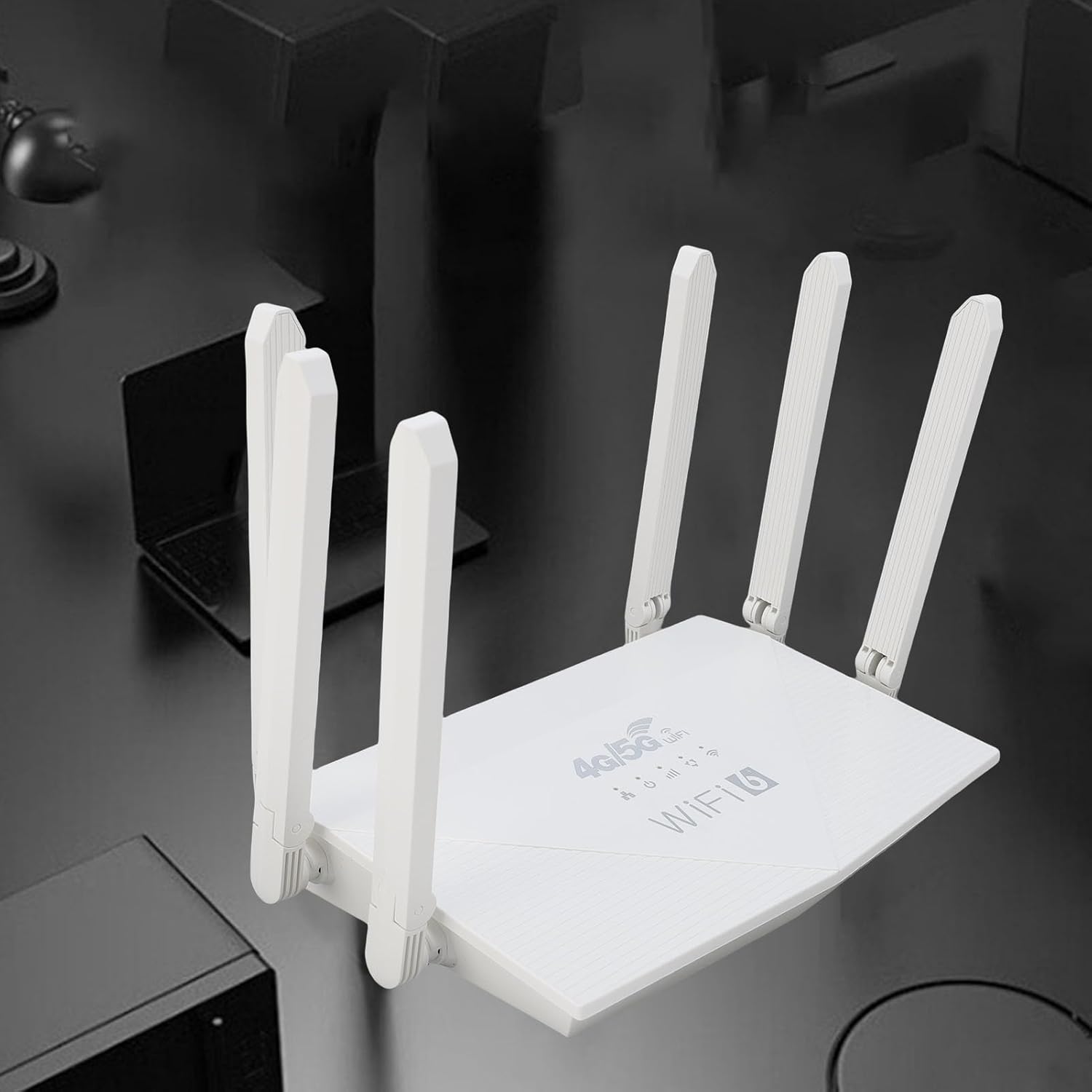
ภาพ: ด้านบน view of the router, showing the '4G/5G LTE WiFi 6' branding and six external antennas.
แผงด้านหลังและพอร์ตต่างๆ:

ภาพ: ด้านหลัง view of the router, displaying the various ports and antenna connections.
- ปุ่มรีเซ็ต: ใช้เพื่อคืนค่าการตั้งค่าจากโรงงาน
- พอร์ต Type-C: For power input (if applicable, check power adapter type).
- พอร์ตไฟ: อินพุตไฟ DC
- ช่องใส่ซิมการ์ด: For inserting a standard 4G/5G SIM card.
- ETH1-ETH4 Ports: Four Ethernet LAN ports for wired connections.

Image: Close-up of the reset button, Type-C port, power port, and SIM card slot.

Image: Close-up of the four Ethernet LAN ports (ETH1, ETH2, ETH3, ETH4).
Bottom Label:
The bottom label contains important information such as the default WiFi name, WiFi key, IP address, and login credentials.

Image: Bottom label of the router with essential network details.
4. คำแนะนำในการตั้งค่า
- ใส่ซิมการ์ด: Locate the SIM card slot on the rear panel. Gently insert a standard-sized 4G/5G SIM card until it clicks into place. Ensure the SIM card is correctly oriented.
- เชื่อมต่อพลังงาน: Connect the provided power adapter to the router's power port and then plug the adapter into a power outlet.
- เปิดเครื่อง: The router will automatically power on. Wait for the indicator lights to stabilize, which typically takes a few minutes.
- เชื่อมต่ออุปกรณ์:
- การเชื่อมต่อแบบไร้สาย: On your device (smartphone, tablet, laptop), search for available Wi-Fi networks. Select the network name (SSID) found on the router's bottom label. Enter the default Wi-Fi key (password) also found on the label.
- การเชื่อมต่อแบบมีสาย: Connect one end of the Ethernet cable to any of the ETH1-ETH4 ports on the router and the other end to the Ethernet port on your computer or other wired device.
- เข้าถึง Web ส่วนต่อประสาน (ไม่บังคับ): เปิด web browser and enter the default IP address (e.g., 192.168.0.1) found on the bottom label. Use the default username and password (e.g., admin/admin) to log in and configure advanced settings.
5. คู่มือการใช้งาน
การเชื่อมต่อกับเครือข่าย:
Once the router is powered on and the SIM card is active, your devices can connect to the internet:
- ไวไฟ : Use the SSID and password printed on the router's bottom label to connect your wireless devices.
- อีเธอร์เน็ต: Connect devices directly to the ETH ports for a stable wired connection.
การจัดการการตั้งค่าเราเตอร์:
To customize your network, such as changing the Wi-Fi name or password, or configuring advanced features:
- ตรวจสอบให้แน่ใจว่าอุปกรณ์ของคุณเชื่อมต่อกับเราเตอร์แล้ว (ผ่าน Wi-Fi หรือสาย Ethernet)
- เปิด web browser and enter the router's IP address (e.g., 192.168.0.1).
- Log in using the username and password from the bottom label.
- Navigate through the interface to adjust settings as needed.
6. การบำรุงรักษา
- การทำความสะอาด: รักษาเราเตอร์ให้สะอาดและปราศจากฝุ่น ใช้ผ้าแห้งนุ่มๆ เช็ดทำความสะอาด ห้ามใช้น้ำยาทำความสะอาดชนิดเหลว
- การระบายอากาศ : ควรวางเราเตอร์ไว้ในบริเวณที่มีอากาศถ่ายเทสะดวกเพื่อป้องกันความร้อนสูงเกินไป ห้ามปิดรูระบายอากาศ
- อัพเดตเฟิร์มแวร์: ตรวจสอบผู้ผลิตเป็นระยะ webเว็บไซต์สำหรับอัปเดตเฟิร์มแวร์ การอัปเดตเฟิร์มแวร์เราเตอร์ให้เป็นเวอร์ชันล่าสุดจะช่วยเพิ่มประสิทธิภาพและความปลอดภัย
- การเริ่มต้นใหม่: หากคุณประสบปัญหาเกี่ยวกับเครือข่าย ให้ลองรีสตาร์ทเราเตอร์โดยถอดอะแดปเตอร์ไฟออก รอ 10 วินาที แล้วเสียบปลั๊กกลับเข้าไปอีกครั้ง
7 การแก้ไขปัญหา
ไม่มีการเชื่อมต่ออินเทอร์เน็ต:
- ตรวจสอบว่าใส่ซิมการ์ดถูกต้องและเปิดใช้งานแล้วหรือไม่
- Verify that the router's indicator lights are stable.
- รีสตาร์ทเราเตอร์และอุปกรณ์ที่เชื่อมต่ออยู่
- ตรวจสอบให้แน่ใจว่าซิมการ์ดของคุณมีแพ็กเกจอินเทอร์เน็ตที่ใช้งานอยู่
- เข้าถึงเราเตอร์ web interface to check the network status and APN settings.
ความเร็วอินเตอร์เน็ตช้า:
- Ensure the router is placed in an open area, away from obstructions and interference sources.
- ลดจำนวนอุปกรณ์ที่เชื่อมต่อหรือกิจกรรมที่ใช้แบนด์วิดท์มาก
- Check your 4G/5G signal strength in the router's web อินเทอร์เฟซ
- Contact your mobile network provider to inquire about network congestion or data plan limits.
ไม่สามารถเข้าถึงการตั้งค่าเราเตอร์ได้:
- ตรวจสอบให้แน่ใจว่าอุปกรณ์ของคุณเชื่อมต่อกับเครือข่ายของเราเตอร์
- โปรดตรวจสอบให้แน่ใจว่าคุณป้อนที่อยู่ IP ที่ถูกต้อง (เช่น 192.168.0.1) ในเบราว์เซอร์ของคุณ
- Confirm the username and password are correct (check the bottom label).
- ลองแบบอื่น web หรือล้างแคชของเบราว์เซอร์ของคุณ
- If all else fails, perform a factory reset by pressing the reset button for 5-10 seconds (note: this will erase all custom settings).
8. ข้อมูลจำเพาะ
| คุณสมบัติ | คำอธิบาย |
|---|---|
| ยี่ห้อ | เจคเซ่ |
| หมายเลขรุ่น | Jectse7yitc28aer |
| สี | สีขาว |
| ระบบปฏิบัติการ | เราเตอร์โอเอส |
| เทคโนโลยีการเชื่อมต่อ | แอลทีอี, ไวไฟ |
| คุณสมบัติพิเศษ | Integrated firewall, full 4G LTE support, fast internet speeds |
| อุปกรณ์ที่รองรับ | Smartphone, tablet, computer |
| ระดับย่านความถี่ | วงเดียว |
| มาตรฐานการสื่อสารไร้สาย | 802.11b, 802.11g, 802.11n |
| การใช้ที่แนะนำ | บ้าน, มืออาชีพ |
| ความเร็วในการดาวน์โหลด 4G | สูงสุดถึง 150 Mbps |
| ความเร็วในการอัพโหลด 4G | สูงสุดถึง 50 Mbps |
| Wireless Transfer Rate | สูงสุดถึง 300 Mbps |
| อุปกรณ์ที่เชื่อมต่อสูงสุด | 32 |
| พื้นที่ให้บริการ | 300㎡ |
| รองรับวง LTE | FDD (B1, 3, 5, 7, 8, 20), TDD (B38, 40, 41), WCDMA (B1, 5, 8) |
| เสาอากาศ | เสาอากาศภายนอก 6 เสา |
9. การรับประกันและการสนับสนุน
ข้อมูลการรับประกัน:
This Jectse router comes with a การรับประกันจากผู้ผลิต 2 ปีโปรดเก็บหลักฐานการซื้อไว้เพื่อขอรับสิทธิ์การรับประกัน การรับประกันครอบคลุมข้อบกพร่องด้านวัสดุและฝีมือการผลิตภายใต้การใช้งานปกติ
การสนับสนุนลูกค้า:
If you encounter any issues or have questions not covered in this manual, please contact Jectse customer support or your retailer for assistance. You may find contact information on the product packaging or the official Jectse webเว็บไซต์.