
1. บทนำ
Thank you for choosing the KEYCOOL K21 Wireless Numeric Keyboard. This mechanical numpad offers versatile connectivity, customizable RGB lighting, and hot-swappable switches, designed for enhanced productivity across various operating systems. This manual provides detailed instructions for setup, operation, maintenance, and troubleshooting to ensure optimal performance.
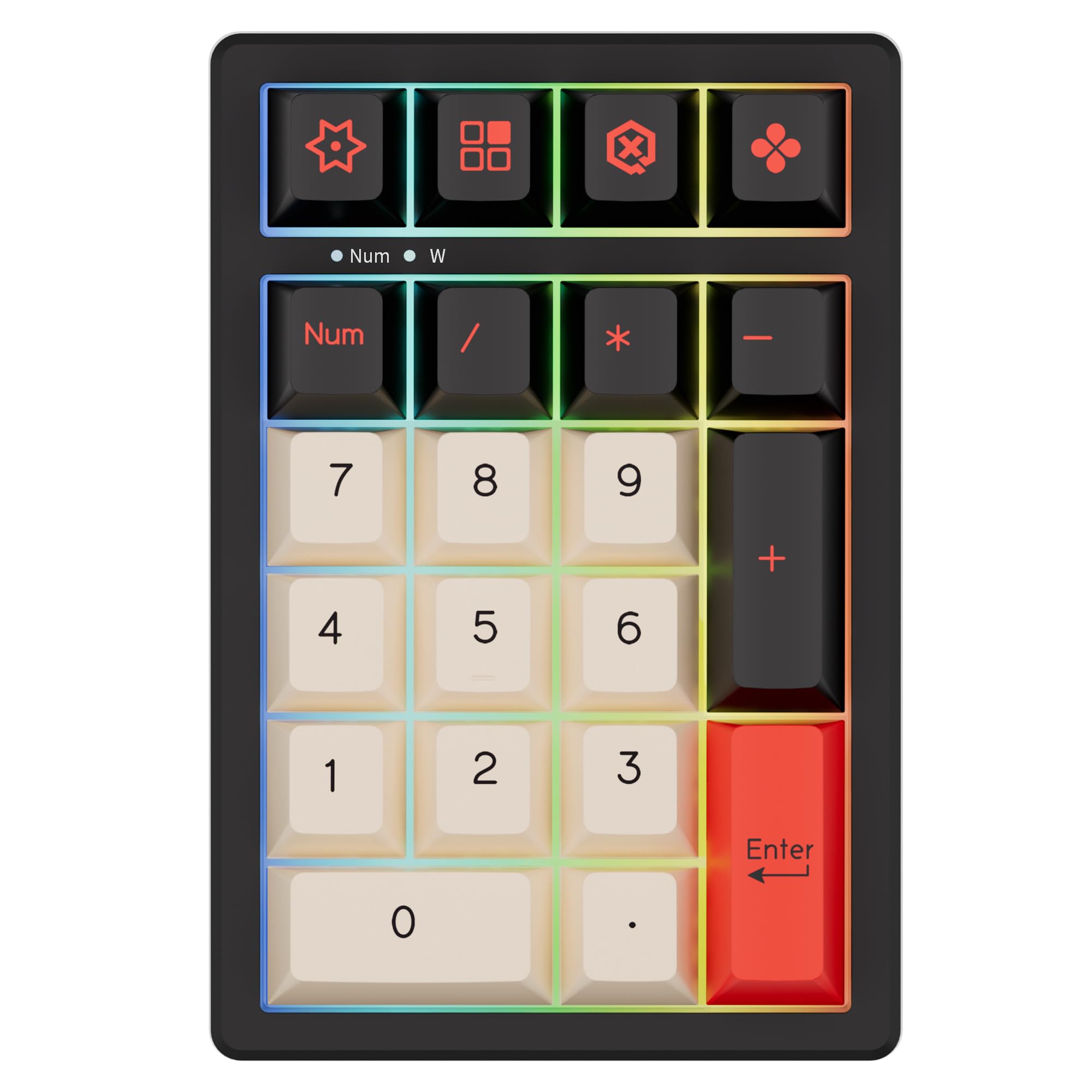
Image 1.1: The KEYCOOL K21 Wireless Numeric Keyboard, showcasinด้วยดีไซน์ที่กะทัดรัดและการจัดวางปุ่มกดที่ลงตัว
2. การตั้งค่า
2.1 เนื้อหาบรรจุภัณฑ์
ก่อนดำเนินการต่อ โปรดตรวจสอบว่าสินค้าทั้งหมดมีอยู่ในแพ็คเกจของคุณ:
- KEYCOOL K21 แป้นพิมพ์ตัวเลขไร้สาย
- สาย USB-C
- ตัวรับสัญญาณไร้สาย 2.4GHz
- ตัวดึงกุญแจ
- ตัวดึงสวิตช์
- Spare Mechanical Switches (2 pcs)

Image 2.1: Included accessories: USB-C cable, switch puller, and two spare mechanical switches.
2.2 โหมดการเชื่อมต่อ
The K21 supports three connectivity modes:
- โหมดสาย: Connects via the included USB-C cable.
- โหมดไร้สาย 2.4GHz: Connects via the 2.4GHz USB receiver.
- โหมดบลูทูธ 5.0: เชื่อมต่อแบบไร้สายกับอุปกรณ์ที่รองรับบลูทูธได้สูงสุดสามเครื่อง
2.3 การเชื่อมต่อเริ่มต้น
To power on the keyboard, locate the ON/OFF switch on the back of the unit and slide it to the 'ON' position. The 2.4G wireless receiver is typically stored in a dedicated slot on the keyboard for convenience.

ภาพที่ 2.2: ด้านหลัง view of the K21, highlighting the 2.4G receiver slot, ON/OFF switch, and USB Type-C port.
2.3.1 การเชื่อมต่อแบบมีสาย
- Connect the USB-C cable to the keyboard's Type-C port.
- เชื่อมต่อปลายอีกด้านหนึ่งของสาย USB-C เข้ากับพอร์ต USB ที่ว่างอยู่บนคอมพิวเตอร์ของคุณ
- ระบบจะตรวจจับแป้นพิมพ์โดยอัตโนมัติ
2.3.2 การเชื่อมต่อไร้สาย 2.4GHz
- Remove the 2.4GHz wireless receiver from its storage slot.
- เสียบตัวรับสัญญาณเข้ากับพอร์ต USB ที่มีอยู่ในคอมพิวเตอร์ของคุณ
- แป้นพิมพ์ควรเชื่อมต่อโดยอัตโนมัติ
2.3.3 การเชื่อมต่อบลูทูธ
- ตรวจสอบให้แน่ใจว่าแป้นพิมพ์เปิดอยู่
- Press and hold the Bluetooth pairing key (refer to keycap legends for specific key, often indicated by a Bluetooth symbol or 'BT') for 3-5 seconds until the indicator light flashes rapidly, indicating pairing mode.
- On your device (laptop, tablet, smartphone), navigate to Bluetooth settings and search for new devices.
- Select "KEYCOOL K21" from the list of available devices to pair.
- Repeat for up to three different Bluetooth devices, switching between them as needed.

Image 2.3: The K21 supports connection to various devices such as laptops, desktops, and mobile devices.
3. คู่มือการใช้งาน
3.1 ฟังก์ชันหลักพื้นฐาน
The K21 features a standard numeric keypad layout with additional function keys and a rotary knob.
- ปุ่มตัวเลข (0-9): For numerical input.
- ตัวดำเนินการทางคณิตศาสตร์ (+, -, *, /): สำหรับใช้ในการคำนวณ
- ใส่รหัส: Confirms input or action.
- ปุ่ม Num Lock: Toggles numeric keypad functionality.
- ลูกบิดหมุน: Functions as a volume control by default. Pressing the knob may mute/unmute audio.
3.2 RGB แบ็คไลท์
The K21 features customizable RGB backlighting. Use the following key combinations to adjust lighting effects:
- Fn + Back: Toggles backlight ON/OFF.
- Fn + 6: Switches between different lighting effects.
- Fn + 7: Switches between different lighting colors.

Image 3.1: Key features of the K21, including RGB backlighting and 21-key layout.
3.3 ปุ่มที่ตั้งโปรแกรมได้และซอฟต์แวร์
The K21 supports personalized key functions and lighting customization through dedicated software. This allows users to remap keys, create macros, and fine-tune RGB effects.
- Fn + Esc (hold for 5 seconds): Resets the keyboard to factory default settings.

Image 3.2: The software interface for customizing key functions and lighting effects.
4. การบำรุงรักษา
4.1 การทำความสะอาด
To clean your numeric keyboard:
- ถอดปลั๊กคีย์บอร์ดออกจากแหล่งจ่ายไฟและอุปกรณ์ทั้งหมด
- ใช้ผ้านุ่มแห้งเช็ดพื้นผิว
- สำหรับสิ่งสกปรกฝังแน่น ให้เช็ดออกเล็กน้อยampชุบผ้าด้วยน้ำหรือน้ำยาทำความสะอาดอ่อนๆ (หลีกเลี่ยงสารเคมีรุนแรง)
- ใช้กระป๋องอัดอากาศเพื่อกำจัดฝุ่นและเศษต่างๆ ออกจากระหว่างปุ่มต่างๆ
4.2 สวิตช์แบบ Hot-Swappable
The K21 features hot-swappable sockets, allowing you to change mechanical switches without soldering. It supports most 3-pin and 5-pin mechanical switches.
4.2.1 Removing a Switch
- ใช้เครื่องมือถอดคีย์แคปที่ให้มาเพื่อถอดคีย์แคปที่ต้องการออกอย่างระมัดระวัง
- Use the included switch puller to grasp the top and bottom clips of the switch.
- Gently pull the switch upwards until it detaches from the PCB.
4.2.2 การติดตั้งสวิตช์
- จัดตำแหน่งขาของสวิตช์ใหม่ให้ตรงกับรูบน PCB ตรวจสอบให้แน่ใจว่าขาตั้งตรง
- กดสวิตช์ลงเบาๆ จนกระทั่งล็อคเข้าที่ อย่าฝืน
- ติดฝาครอบปุ่มกลับเข้าไปใหม่

ภาพที่ 4.1: รายละเอียด view of a mechanical switch, illustrating its internal structure.
5 การแก้ไขปัญหา
If you encounter issues with your KEYCOOL K21, please refer to the following common problems and solutions:
| ปัญหา | สาเหตุที่เป็นไปได้ | สารละลาย |
|---|---|---|
| Keyboard not responding (wired/2.4GHz) | Loose connection, power off, driver issue. | Ensure cable/receiver is securely connected. Check if the keyboard is powered on. Try a different USB port. Install or update drivers from the official webเว็บไซต์. |
| แป้นพิมพ์ไม่ตอบสนอง (บลูทูธ) | ไม่จับคู่, อยู่นอกระยะ, แบตเตอรี่อ่อน | Ensure keyboard is in pairing mode and within range. Re-pair the device. Charge the keyboard. |
| แป้นพิมพ์ไม่รับอินพุต | Faulty switch, software conflict. | Try replacing the switch (refer to Section 4.2). Check for conflicting software or re-install keyboard drivers. |
| RGB lighting not working or flickering | Backlight off, software setting, overcharging. | Press Fn+Back to toggle backlight. Check software settings. Avoid prolonged charging after full battery to prevent flickering. |
| Keyboard goes to sleep and requires double press to wake | Power saving feature in wireless mode. | This is normal behavior for power saving. The first key press wakes the device, the second registers input. |
| Difficulty with Alt-key codes for special characters | Timing sensitivity. | Ensure precise and quick execution of Alt-key combinations. Customization software may offer alternative solutions for specific characters. |
5.1 Driver and Software Download
For the latest drivers and customization software, please visit the official KEYCOOL webเว็บไซต์:

Image 5.1: The KEYCOOL software interface, with a note indicating the driver download webเว็บไซต์.
6. ข้อมูลจำเพาะ
| คุณสมบัติ | รายละเอียด |
|---|---|
| ชื่อรุ่น | เค21 |
| เค้าโครง | เค้าโครง 20%, 21 คีย์ |
| การเชื่อมต่อ | บลูทูธ 5.0, ไร้สาย 2.4GHz, USB-C แบบมีสาย |
| อุปกรณ์ที่รองรับ | Laptop, PC, Smartphone, Tablet, Gaming Console |
| ระบบปฏิบัติการ | วินโดวส์, แมค, ลินุกซ์, แอนดรอยด์, ไอโอเอส |
| ประเภทแป้นพิมพ์ | เครื่องจักรกล |
| ประเภทสวิตซ์ | สามารถสลับได้ (รองรับ 3 พิน/5 พิน) |
| การแบ็คไลท์ | อาร์จีบี |
| ความจุของแบตเตอรี่ | 1500mAh |
| อัตราการสำรวจความคิดเห็น | 1000เฮิรตซ์ |
| น้ำหนักผลิตภัณฑ์ | 0.48 ± 0.02 lb |
| ขนาดสินค้า | 3.62 x 5.35 x 1.61 นิ้ว (โดยประมาณ) |
| คุณสมบัติพิเศษ | Backlit, Hot-Swappable, Portable, Volume Roller |

Image 6.1: Visual representation of KEYCOOL K21 specifications.
7. ข้อมูลการรับประกัน
The KEYCOOL K21 Wireless Numeric Keyboard comes with a การรับประกันจากผู้ผลิต 2 ปีการรับประกันนี้ครอบคลุมข้อบกพร่องด้านวัสดุและฝีมือการผลิตภายใต้การใช้งานปกติ โปรดเก็บหลักฐานการซื้อไว้เพื่อขอรับสิทธิ์การรับประกัน
การรับประกันไม่ครอบคลุมความเสียหายอันเกิดจาก:
- อุบัติเหตุ การใช้งานผิดวิธี การใช้ในทางที่ผิด หรือการติดตั้งที่ไม่ถูกต้อง
- การซ่อมแซมหรือดัดแปลงโดยไม่ได้รับอนุญาต
- ดำเนินการนอกเหนือจากสภาพแวดล้อมที่กำหนดไว้
8. การสนับสนุน
For further assistance, technical support, or warranty inquiries, please contact KEYCOOL customer service through the official webไซต์หรือจุดซื้อของคุณ
เป็นทางการ Webเว็บไซต์: www.kc-keycool.com