
1. บทนำ
The GravaStar Mercury V75 HE Keyboard is a high-performance 75% layout gaming keyboard featuring Hall-Effect magnetic switches. Designed for precision and speed, it offers advanced customization options, ultra-low latency, and durable construction for an optimized gaming and typing experience.

Image: The GravaStar Mercury V75 HE Keyboard, showcasing its unique design and vibrant RGB backlighting.
2. คุณสมบัติหลัก
- สวิตช์แม่เหล็กแบบเอฟเฟกต์ฮอลล์: Advanced technology provides lightning-fast 0.005mm sensitivity and adjustable actuation points (0.1–3.6mm) for precise control.
- อัตราการสำรวจ 8000Hz: Experience ultra-low latency with a 0.125ms response time, providing a competitive edge.
- รูปแบบกะทัดรัด 75%: Streamlined 79-key layout with full arrow and function row support.
- สวิตช์แบบ Hot-Swappable: Easily replace switches without soldering.
- Customizable via Software: Personalize key actuation points, lighting effects, and macros using GravaStar’s intuitive webซอฟต์แวร์ที่ใช้
- Semi-Aluminum Chassis: โครงสร้างทนทานและแข็งแรง
- ไฟแบ็คไลท์ RGB แบบไดนามิก: Per-key RGB and secondary zone lighting with various patterns.

ภาพ: รายละเอียด view of the Hall Effect magnetic switches, highlighting their sensitivity, actuation range, and lifespan.
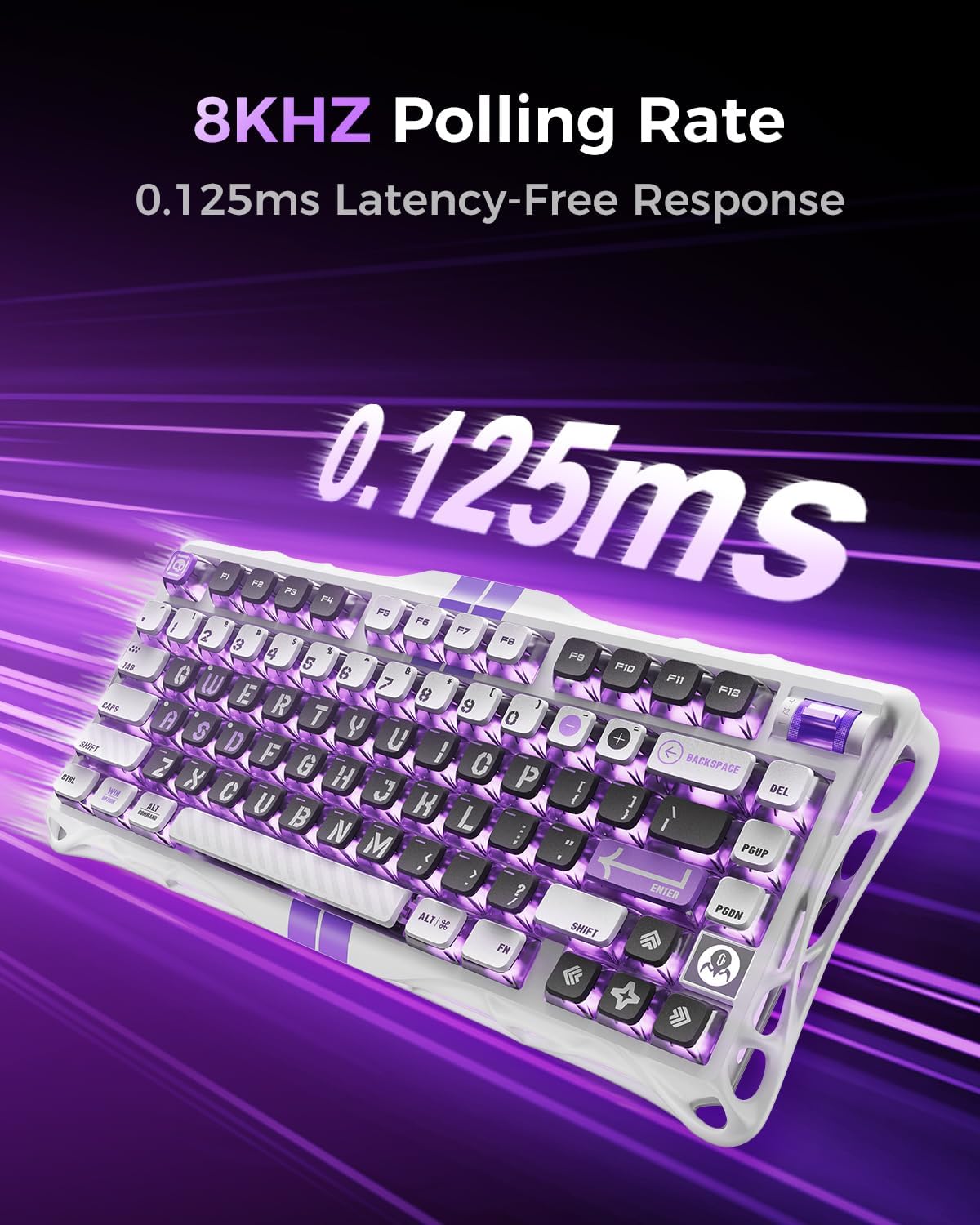
Image: The keyboard emphasizing its 8KHz polling rate for rapid response times.
3. เนื้อหาบรรจุภัณฑ์
Upon unboxing your GravaStar Mercury V75 HE Keyboard, please ensure all the following items are present:
- GravaStar Mercury V75 HE Keyboard
- ตัวดึงกุญแจ
- สาย USB-C
- คู่มือการใช้งาน (เอกสารนี้)

Image: All items included in the GravaStar Mercury V75 HE Keyboard package, laid out for inspection.
4. คู่มือการติดตั้ง
The GravaStar Mercury V75 HE Keyboard is designed for simple plug-and-play setup.
- เชื่อมต่อสาย USB-C: Locate the USB-C port on the back of the keyboard. Insert one end of the provided USB-C cable into this port.
- เชื่อมต่อกับคอมพิวเตอร์: Insert the other end of the USB-C cable into an available USB port on your computer (PC, Laptop, or Gaming Console).
- การจดจำระบบ: Your operating system should automatically detect and install the necessary drivers for the keyboard. This process may take a few moments.
- การทดสอบเบื้องต้น: Once recognized, the keyboard's RGB lighting will illuminate. Test key functionality by typing in a text editor or navigating your system.
5. การดำเนินการ
The Mercury V75 HE Keyboard offers several features to enhance your experience.
5.1 Mode Switches
On the back of the keyboard, you will find two physical switches:
- RT / N Switch: This switch toggles between Rapid Trigger (RT) mode and Normal (N) mode.
- RT (Rapid Trigger) Mode: Optimized for gaming, this mode allows for ultra-fast key resets and repeated inputs, ideal for competitive play.
- โหมด N (ปกติ): Standard keyboard operation, suitable for general typing and office use.
- Win / Mac Switch: This switch allows you to select the appropriate key mapping for Windows or macOS operating systems. Ensure this is set correctly for your system to ensure proper function of modifier keys.

Image: The physical switches on the rear of the keyboard for toggling between RT/Normal mode and Windows/Mac compatibility.
5.2 Volume Rocker
The keyboard features a dedicated volume rocker in the top right corner for convenient audio control. Rotate it to adjust volume up or down.
5.3 การควบคุมแสง RGB
The keyboard features dynamic RGB backlighting. Specific lighting effects and brightness can be adjusted through the web-based software. Refer to the software section for more details.
6. ซอฟต์แวร์ปรับแต่ง
The GravaStar Mercury V75 HE Keyboard is fully customizable via its intuitive web-based software. This software allows for fine-tuning of various parameters to match your preferences and optimize performance.
6.1 การเข้าถึงซอฟต์แวร์
To access the customization software, ensure your keyboard is connected to your computer. Open a web browser (Google Chrome is recommended for optimal compatibility) and navigate to the official GravaStar support page for the Mercury V75 HE keyboard. Look for the link to the web- เครื่องมือกำหนดค่าตาม
6.2 คุณสมบัติของซอฟต์แวร์
- จุดการทำงานที่ปรับได้: Precisely set the actuation point for each key from 0.1mm to 3.6mm. This allows you to customize how sensitive each key press is.
- การตั้งค่าทริกเกอร์แบบรวดเร็ว: Fine-tune the rapid trigger sensitivity for faster resets and repeated inputs, crucial for competitive gaming.
- เอฟเฟกต์แสง RGB: Choose from a wide array of pre-set lighting effects, adjust brightness, speed, and direction. You can also create custom lighting profiles.
- การเขียนโปรแกรมมาโคร: Assign complex sequences of key presses and mouse clicks to a single key for quick execution.
- การรีแมปคีย์: Reassign functions to individual keys to suit your workflow or gaming style.
- โปรfile การจัดการ: สร้างและบันทึกโปรหลายรายการfiles for different applications or games, and switch between them easily.

ภาพ: The web-based software interface for customizing the keyboard's settings, including lighting and key functions.
7. การบำรุงรักษาและการดูแล
การบำรุงรักษาอย่างถูกต้องจะช่วยให้แป้นพิมพ์ของคุณมีอายุการใช้งานยาวนานและมีประสิทธิภาพเหมาะสมที่สุด
- การทำความสะอาด: Regularly clean the keyboard to prevent dust and debris buildup. Use a soft, lint-free cloth for the surface. For keycaps, you can use the provided keycap puller to remove them and clean underneath with compressed air or a small brush.
- หลีกเลี่ยงของเหลว: ควรเก็บของเหลวให้ห่างจากแป้นพิมพ์เพื่อป้องกันความเสียหายต่อชิ้นส่วนภายใน หากเกิดการหกของเหลว ให้ถอดแป้นพิมพ์ออกทันทีและปล่อยให้แห้งสนิทก่อนเชื่อมต่อใหม่
- พื้นที่จัดเก็บ: เมื่อไม่ได้ใช้งานเป็นเวลานาน ควรเก็บแป้นพิมพ์ไว้ในที่แห้งและเย็น หลีกเลี่ยงแสงแดดโดยตรง
- จัดการด้วยความระมัดระวัง: While the keyboard features a durable semi-aluminum chassis, avoid dropping or subjecting it to excessive force.
8 การแก้ไขปัญหา
If you encounter issues with your GravaStar Mercury V75 HE Keyboard, refer to the following common solutions:
| ปัญหา | สาเหตุที่เป็นไปได้ | สารละลาย |
|---|---|---|
| แป้นพิมพ์ไม่ตอบสนอง | การเชื่อมต่อสายเคเบิลหลวม, พอร์ต USB ไม่ถูกต้อง, ปัญหาไดรเวอร์ | ตรวจสอบให้แน่ใจว่าสาย USB-C เชื่อมต่อกับทั้งคีย์บอร์ดและคอมพิวเตอร์อย่างแน่นหนา ลองใช้พอร์ต USB อื่น รีสตาร์ทคอมพิวเตอร์ |
| กุญแจไม่ลงทะเบียนหรือพิมพ์ซ้ำ | Dust/debris under keycap, software actuation setting too low, magnetic interference. | Clean under the keycap. Adjust actuation point in the software. Ensure no strong magnets are near the keyboard. |
| ไฟ RGB ไม่ทำงาน | การตั้งค่าซอฟต์แวร์ ปัญหาพลังงาน | Check lighting settings in the customization software. Ensure keyboard is receiving sufficient power from the USB port. |
| Incorrect key functions (e.g., Alt/Cmd swapped) | Win/Mac switch set incorrectly. | Toggle the Win/Mac switch on the back of the keyboard to the correct operating system setting. |
| ไม่สามารถเข้าถึงได้ web- ซอฟต์แวร์ที่ใช้ | Browser compatibility, internet connection, keyboard not detected by software. | Use Google Chrome. Ensure stable internet connection. Verify keyboard is connected and recognized by the computer. |
8.1 รีเซ็ตเป็นค่าโรงงาน
If issues persist or you wish to revert all settings to default, perform a factory reset by pressing and holding ฟน+เอสซี keys simultaneously for several seconds until the keyboard's lights flash, indicating a reset.
9. ข้อมูลจำเพาะทางเทคนิค
- แบบอย่าง: GS V75
- ประเภทคีย์บอร์ด: 75% Hall-Effect Magnetic-Switch Gaming Keyboard
- จำนวนคีย์: 79-คีย์
- การเชื่อมต่อ: สาย USB-C
- อัตราการสำรวจความคิดเห็น: 8000เฮิรตซ์
- เวลาตอบสนอง: 0.125มิลลิวินาที
- Actuation Sensitivity: 0.005มม.
- ช่วงการทำงานที่ปรับได้: 0.1มม. – 3.6มม.
- ประเภทสวิตช์: Linear Hall Effect Magnetic Switches
- อายุการใช้งาน: 100 ล้านคลิก
- การแบ็คไลท์: RGB (Per-key and edge lighting)
- วัสดุตัวถัง: Semi-Aluminum
- ขนาดสินค้า : ขนาด 13.5 นิ้ว (ยาว) x 6.1 นิ้ว (กว้าง) x 1.8 นิ้ว (สูง) (34.29 ซม. x 15.49 ซม. x 4.57 ซม.)
- น้ำหนักสินค้า: 3.83 ปอนด์ (1.74 กก.)
- อุปกรณ์ที่รองรับ: เครื่องเล่นเกม, แล็ปท็อป, พีซี
- ผู้ผลิต: ZhuoYe ChuangYi บจก.

ภาพ: ระเบิด view illustrating the various internal layers and components of the keyboard's construction.
10. ข้อมูลการรับประกัน
GravaStar products are manufactured to high quality standards. For specific warranty terms and conditions, please refer to the warranty card included with your product or visit the official GravaStar webไซต์ เก็บหลักฐานการซื้อของคุณไว้เพื่อใช้ในกรณีเรียกร้องการรับประกัน
11. การสนับสนุน
For further assistance, technical support, or inquiries regarding your GravaStar Mercury V75 HE Keyboard, please visit the official GravaStar support website or contact their customer service team. Contact information can typically be found on the product packaging or the official brand webเว็บไซต์.
Official GravaStar Store: GravaStar Amazon Store


