
Roinvou 8 Core 4G+64G
Roinvou 8 Core 4GB+64GB Android Radio User Manual for Dodge Caliber 2006-2012
Model: 8 Core 4G+64G
1. บทนำ
This manual provides detailed instructions for the installation, operation, and maintenance of your Roinvou 8 Core 4GB+64GB Android Radio. This unit is specifically designed for Dodge Caliber models manufactured between 2006 and 2012. Please read this manual thoroughly before installation and use to ensure proper functionality and to avoid damage.
2. ความเข้ากันได้
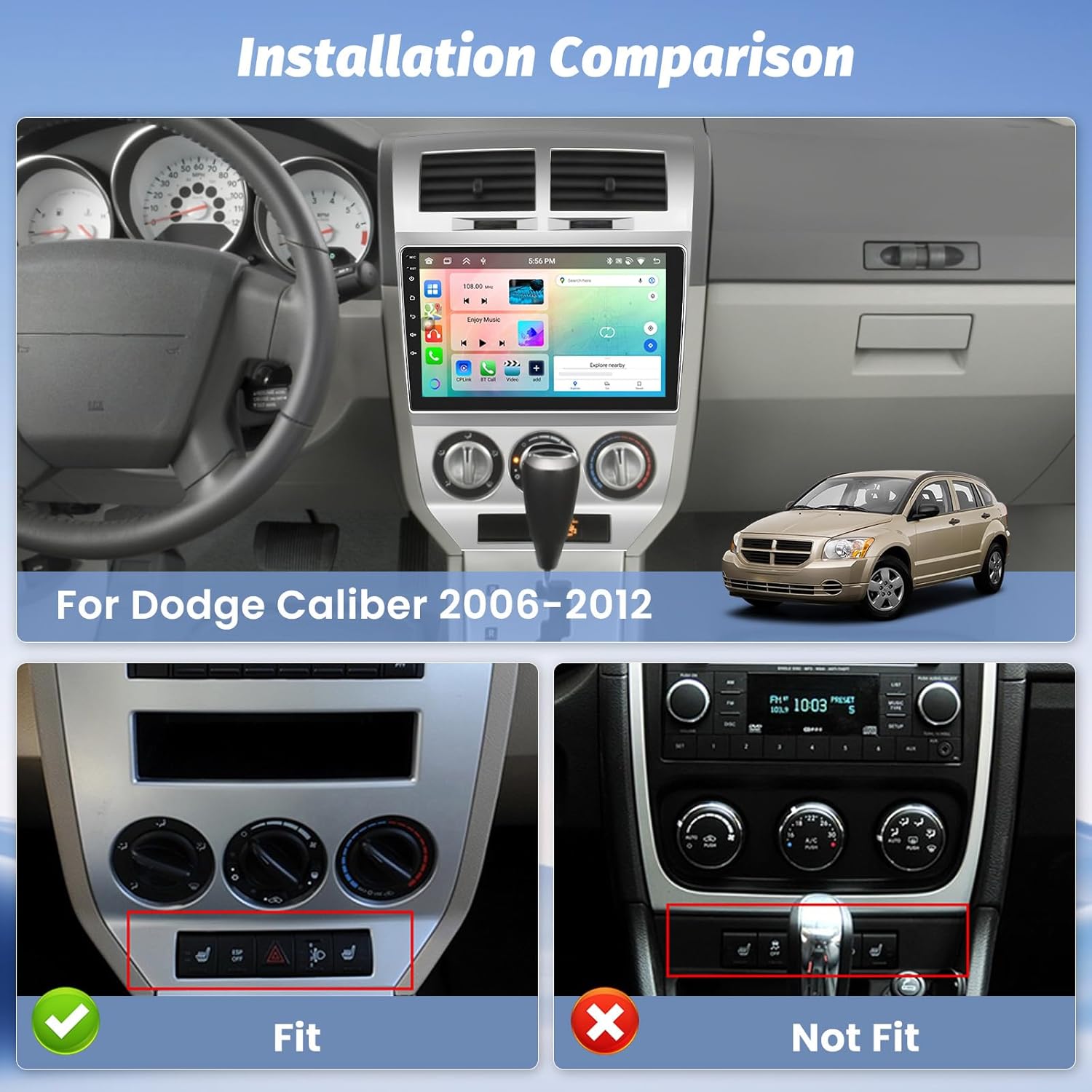
This car stereo is compatible with Dodge Caliber vehicles from model years 2006 to 2012. Before purchasing and installing, verify the year, dimensions, and shape of your vehicle's center console to ensure a proper fit. If you are uncertain about compatibility, consult with a professional or the manufacturer.
3. อะไรอยู่ในกล่อง
แพ็คเกจนี้ประกอบด้วยส่วนประกอบต่อไปนี้:
- Roinvou Android Car Stereo for Dodge Caliber
- สายไฟ 1 เส้น
- เสาอากาศวิทยุ 1 เส้น
- ตัวถอดรหัส Canbus 1 ตัว
- 1 x สายต่อ RCA
- เสาอากาศ GPS 1 เส้น
- กล้องสำรอง AHD 1 ตัว
- 1 x ไมโครโฟนภายนอก
- 1 x สายอินพุตกล้องด้านหลัง
- สายเคเบิล 2 x USB
- 1 x เครื่องมือติดตั้ง

4. การตั้งค่าและการติดตั้ง
แนะนำให้ติดตั้งโดยช่างผู้เชี่ยวชาญ โปรดถอดแบตเตอรี่รถยนต์ออกก่อนเริ่มงานเกี่ยวกับระบบไฟฟ้าใดๆ
4.1 การเชื่อมต่อสายไฟ
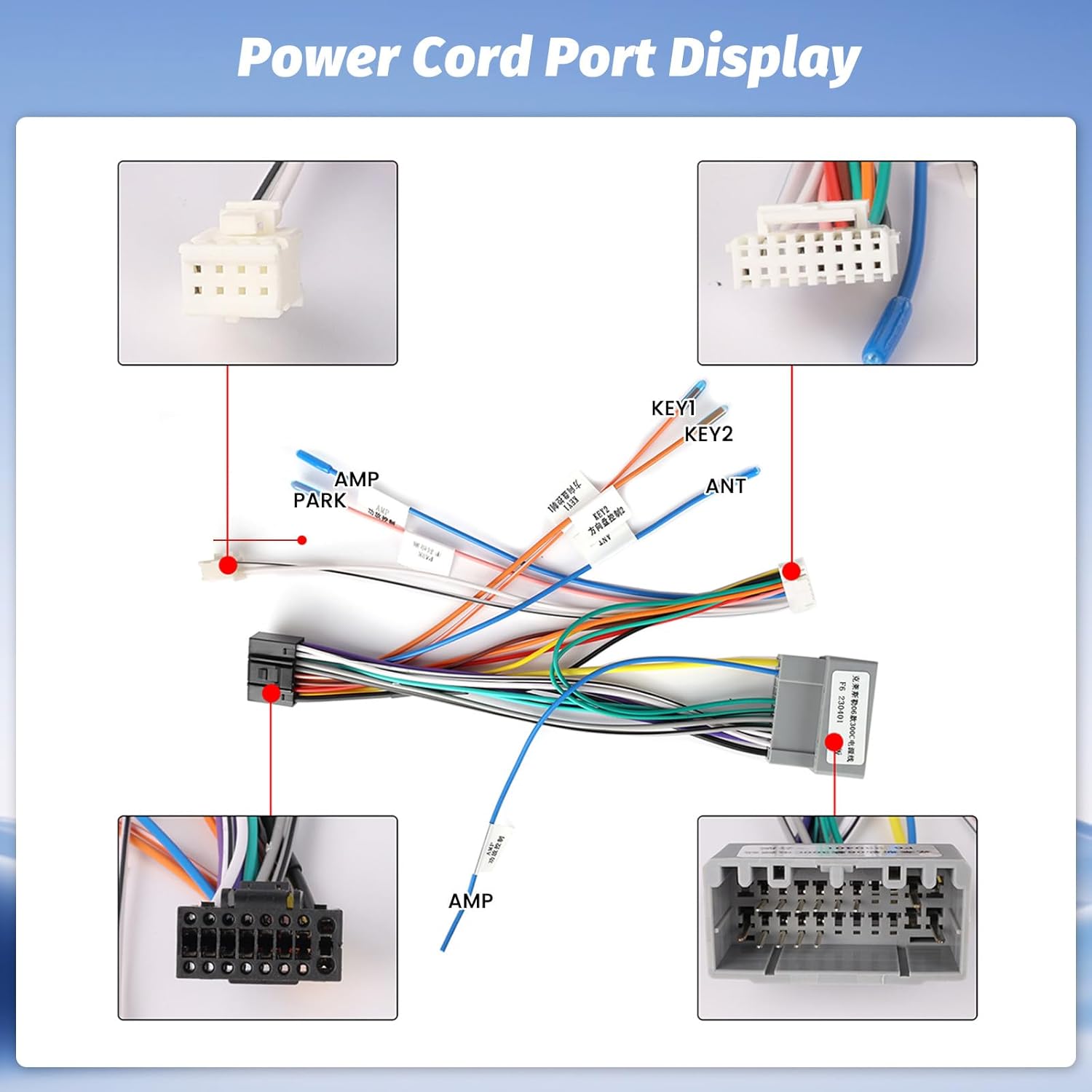
Carefully connect the provided power cable, radio antenna, RCA harness, and other necessary cables to the corresponding ports on the head unit and your vehicle's wiring harness. Ensure all connections are secure to prevent intermittent issues.
4.2 การติดตั้งกล้องสำรอง
Install the AHD backup camera at the rear of your vehicle. Connect the camera's video output to the 'Rear Camera Input' cable on the head unit. Connect the camera's power wire to the vehicle's reverse light circuit and the ground wire to a suitable chassis ground. This ensures the camera activates automatically when the vehicle is in reverse.

4.3 GPS Antenna Placement
ติดตั้งเสาอากาศ GPS ในตำแหน่งที่มีสัญญาณชัดเจน view of the sky, typically on the dashboard or under the windshield, to ensure optimal satellite signal reception for navigation.
5. คู่มือการใช้งาน
5.1 การเปิดเครื่องและการตั้งค่าเริ่มต้น
After installation, reconnect the vehicle's battery. The unit should power on automatically with the vehicle's ignition. Follow the on-screen prompts for initial setup, including language selection and time zone settings.
5.2 การแสดงผลและอินเทอร์เฟซผู้ใช้
The unit features a 10.1-inch HD IPS touchscreen with a resolution of 1280x720. Navigate the interface by touching icons and swiping. The display offers wide viewing angles and an anti-glare coating for visibility in various lighting conditions.

5.3 CarPlay ไร้สายและ Android Auto
Connect your iPhone or Android smartphone wirelessly or via USB to access Apple CarPlay or Android Auto. This allows for hands-free calls, navigation, music streaming, and access to compatible apps directly from the head unit's display. Use voice commands via Siri or Google Assistant for convenience.

5.4 การเชื่อมโยงมิเรอร์
The Mirror Link function allows you to mirror your smartphone's screen onto the head unit's display. This feature supports both wireless and wired connections, enabling you to view เนื้อหาจากโทรศัพท์ของคุณแสดงบนหน้าจอขนาดใหญ่โดยตรง
5.5 ระบบนำทาง GPS และ WiFi
The unit includes built-in GPS with support for offline maps. Connect to a 5G WiFi network for online navigation, app downloads, and streaming services. The system provides accurate positioning and route guidance.

5.6 บลูทู ธ 5.0
Utilize Bluetooth 5.0 for stable and fast wireless connections. Pair your smartphone for hands-free calling and audio streaming. The system supports phone contacts synchronization and call history.
วิทยุ FM/RDS 5.7
Access your favorite radio stations with the built-in FM/RDS tuner. RDS (Radio Data System) provides additional information such as station name and song title where available.
5.8 Audio Equalizer (32-band EQ)
Customize your audio experience with the integrated 32-band equalizer. Adjust frequency levels to match your preferences and vehicle acoustics for optimal sound quality.

5.9 ระบบควบคุมพวงมาลัย (SWC)
The unit supports your vehicle's original steering wheel controls. After installation, configure the SWC settings in the unit's menu to map functions like volume, track change, and mode selection to your steering wheel buttons.

5.10 จอแสดงผลกล้องสำรอง
เมื่อเข้าเกียร์ถอยหลัง หน้าจอจะสลับไปที่ภาพจากกล้องมองหลังโดยอัตโนมัติ view, providing a clear image with parking guidelines to assist with safe maneuvering.
6. ข้อมูลจำเพาะ
Key technical specifications of the Roinvou Android Radio:
| คุณสมบัติ | ข้อมูลจำเพาะ |
|---|---|
| ระบบ | ระบบ Android ล่าสุด |
| หน่วยความจำ | แรม 4GB + รอม 64GB |
| โปรเซสเซอร์ | 8 คอร์ |
| การเข้าถึงอินเตอร์เน็ต | WiFi (5G supported) |
| เวอร์ชันบลูทูธ | 5.0 |
| อีควอไลเซอร์เสียง | DSP 32EQ |
| วิทยุ | เอฟเอ็ม/RDS |
| ความละเอียดหน้าจอ | 1280*720 |
| CarPlay และ Android Auto | Wireless and Wired Support |
| ลิงค์มิเรอร์ | Wireless and Wired Support |
| ไมโครโฟนภายนอก | รองรับ |
| ระบบควบคุมพวงมาลัย | รองรับ |
| กำลังขับ | 4*45วัตต์ |
| รองรับรูปแบบเสียง | APE/FLAC/WAV/MP3/WMA ฯลฯ |
| รองรับรูปแบบวิดีโอ | MKV/RMVB/AVI/MP4/MDV ฯลฯ |
| น้ำหนักสินค้า | 2.03 กิโลกรัม |

7. การบำรุงรักษา
To ensure the longevity and optimal performance of your Roinvou Android Radio, follow these maintenance guidelines:
- การทำความสะอาดหน้าจอ: ใช้ผ้านุ่มไม่เป็นขุยเช็ดหน้าจอสัมผัสเบาๆ หลีกเลี่ยงน้ำยาทำความสะอาดที่มีฤทธิ์กัดกร่อนหรือสารเคมีรุนแรงที่อาจทำลายหน้าจอได้
- การอัปเดตซอฟต์แวร์: ตรวจสอบการอัปเดตซอฟต์แวร์จากผู้ผลิตเป็นระยะ เพื่อให้แน่ใจว่าคุณมีฟีเจอร์ล่าสุดและการแก้ไขข้อผิดพลาดอยู่เสมอ
- สภาพแวดล้อม : หลีกเลี่ยงการให้เครื่องสัมผัสกับอุณหภูมิที่สูงหรือต่ำเกินไป แสงแดดโดยตรงเป็นเวลานาน หรือความชื้นที่มากเกินไป
- การเชื่อมต่อสายเคเบิล: ตรวจสอบให้แน่ใจว่าสายเคเบิลทั้งหมดเชื่อมต่อแน่นสนิท การเชื่อมต่อที่ไม่แน่นอาจทำให้การทำงานไม่สม่ำเสมอ
8 การแก้ไขปัญหา
If you encounter issues with your Roinvou Android Radio, refer to the following common troubleshooting steps:
- ไม่มีไฟฟ้า: Check all power cable connections. Ensure the vehicle's ignition is on and the fuse for the radio is not blown.
- ไม่มีเสียง: Verify speaker connections. Check volume levels and ensure the mute function is not activated. Confirm audio output settings in the system menu.
- การสูญเสียสัญญาณ GPS: ตรวจสอบให้แน่ใจว่าติดตั้งเสาอากาศ GPS อย่างถูกต้องและมีความชัดเจน view ของท้องฟ้า หากสัญญาณอ่อน ให้เคลื่อนย้ายรถไปยังพื้นที่โล่ง
- ปัญหาการเชื่อมต่อบลูทูธ: Ensure Bluetooth is enabled on both the head unit and your smartphone. Delete previous pairings and attempt to re-pair the devices.
- CarPlay/Android Auto ไม่เชื่อมต่อ: Check USB cable integrity if using a wired connection. Ensure your phone's operating system is up to date. Restart both the head unit and your phone.
- กล้องสำรองไม่แสดง: Verify the camera's power and video connections. Ensure the vehicle is in reverse. Check camera settings in the unit's menu.
- หน้าจอสัมผัสไม่ตอบสนอง: Perform a system reset if possible (refer to the device settings for reset options). If the issue persists, contact customer support.
9. ข้อมูลการรับประกัน
The Roinvou Android Radio comes with a รับประกัน 1 ปี from the date of purchase. This warranty covers manufacturing defects and malfunctions under normal use. It does not cover damage caused by improper installation, misuse, accidents, or unauthorized modifications. Please retain your proof of purchase for warranty claims.
10. การสนับสนุนลูกค้า
For further assistance, technical support, or warranty inquiries, please contact Roinvou customer service. You can typically find contact information on the product packaging or the official Roinvou website. For Amazon purchases, you can also reach out to the seller directly through the Amazon platform.

Ask a question about this manual
Ask about setup, troubleshooting, compatibility, parts, safety, or missing instructions. Manuals+ will review the question and use this page’s manual context to help answer it.