
1. สินค้าหมดview
The UGREEN HDMI KVM Switch allows you to control up to four computers using a single monitor, keyboard, and mouse. It supports high resolutions up to 8K@60Hz and 4K@240Hz, leveraging HDMI 2.1 technology for superior video quality. Additionally, it features four USB 3.0 ports for sharing peripherals like hard drives, printers, and USB flash drives among the connected computers, enhancing productivity and reducing desktop clutter.

This image illustrates the benefit of using the KVM switch, showing a cluttered desktop with multiple computers and monitors before, and a streamlined setup with a single monitor and shared peripherals after.
คุณสมบัติหลัก:
- 4-Port KVM Functionality: Control four computers with one monitor and a single set of USB 3.0 peripherals.
- การสนับสนุนความละเอียดสูง: Experience stunning visuals with support for 8K@60Hz and 4K@240Hz resolutions.
- ได้รับการรับรองมาตรฐาน HDMI 2.1: Ensures advanced features like 48Gbps bandwidth, Variable Refresh Rate (VRR), Quick Media Switching (QMS), Quick Frame Transport (QFT), and Auto Low Latency Mode (ALLM).
- พอร์ต USB 3.0: Four USB 3.0 ports (3 USB-A + 1 USB-C) provide data transfer speeds up to 5Gbps for connected devices.
- เพิ่มความทนทาน: Constructed with a robust aluminum alloy case and nickel-plated connectors for long-lasting performance.
2. เนื้อหาบรรจุภัณฑ์
โปรดตรวจสอบว่าสินค้าทั้งหมดมีอยู่ในแพ็คเกจของคุณ:
- UGREEN HDMI KVM Switch Unit
- HDMI 2.1 Cable (6.6FT)
- USB A to C Data Cables (4x)
- อะแดปเตอร์แปลงไฟ
- คู่มือการใช้งาน (เอกสารนี้)
3. Product Diagram and Ports
Familiarize yourself with the KVM switch's layout and port functions:

This diagram shows the front panel with a 'CONTROL' button and four USB 3.0 ports (3 USB-A, 1 USB-C). The rear panel includes a power input, HDMI output, and four sets of HDMI input and USB-C data input ports for connecting up to four computers.
คำอธิบายพอร์ต:
- เอาท์พุต HDMI: เชื่อมต่อกับจอภาพของคุณ
- HDMI Input (PC1-PC4): Connects to the HDMI output of each computer.
- USB-C Data Input (PC1-PC4): Connects to a USB-A or USB-C port on each computer using the provided USB A to C data cables. This is essential for USB peripheral sharing.
- USB 3.0 Ports (Front Panel): Connect your keyboard, mouse, USB flash drives, printers, or other USB 3.0 devices.
- CONTROL Button: Used to switch between connected computers.
- กำลังไฟเข้า: Connect the included power adapter to ensure stable operation, especially when using high-power USB devices.
4. คำแนะนำในการตั้งค่า
ทำตามขั้นตอนต่อไปนี้เพื่อตั้งค่าสวิตช์ KVM HDMI ของ UGREEN:
- เชื่อมต่อจอภาพ: Connect your monitor to the HDMI Output port on the KVM switch using an HDMI 2.1 cable.
- Connect Computers (Video): For each computer (PC1-PC4), connect its HDMI output to the corresponding HDMI Input port on the KVM switch. Ensure your computer's graphics card and monitor support the desired resolution (e.g., 8K@60Hz or 4K@240Hz).
- Connect Computers (USB Data): For each computer, connect one end of the provided USB A to C data cable to a USB-A or USB-C port on your computer, and the other end (USB-C) to the corresponding USB-C Data Input port on the KVM switch. Note: This connection is mandatory for USB device sharing.
- เชื่อมต่ออุปกรณ์ต่อพ่วง USB: Connect your keyboard, mouse, and other USB 3.0 devices to the USB 3.0 ports on the front panel of the KVM switch.
- เชื่อมต่อพลังงาน: Plug the included power adapter into the KVM switch's power input port and then into a wall outlet. This ensures stable operation, especially when connecting high-power USB devices.

This image highlights critical setup considerations: ensuring your computer has both HDMI and USB-A ports, the necessity of connecting the power supply for stability, graphics card/monitor/cable support for 8K@60Hz, and that hot-key switching is not supported. It also clarifies that this is an HDMI KVM switch, not DisplayPort or USB-C KVM, and supports only one monitor.
Cable Length and Resolution Guidelines:
To ensure optimal performance, especially at higher resolutions, adhere to the recommended cable lengths:

This table provides guidelines for maximum HDMI cable lengths (input and output) for different resolutions and refresh rates, along with the recommended AWG (American Wire Gauge) for the cables.
5. การใช้งานสวิตช์ KVM
Once all connections are made, operating the KVM switch is straightforward:
- การสลับคอมพิวเตอร์: Press the 'CONTROL' button on the front panel of the KVM switch to cycle through the connected computers (PC1, PC2, PC3, PC4). The active computer's indicator light will illuminate.
- No Hot-Key Switching: This KVM switch does not support switching via keyboard hot-keys. All switching must be done using the physical button on the device.

This image shows the KVM switch in use, demonstrating how a single user can manage multiple computers efficiently from one workstation.
6. Advanced Video and Data Features
ความละเอียดสูงและอัตราการรีเฟรช:
The KVM switch supports high-definition video output, providing crisp and clear images:
- Up to 8K (7680 x 4320) at 60Hz
- Up to 4K (3840 x 2160) at 240Hz
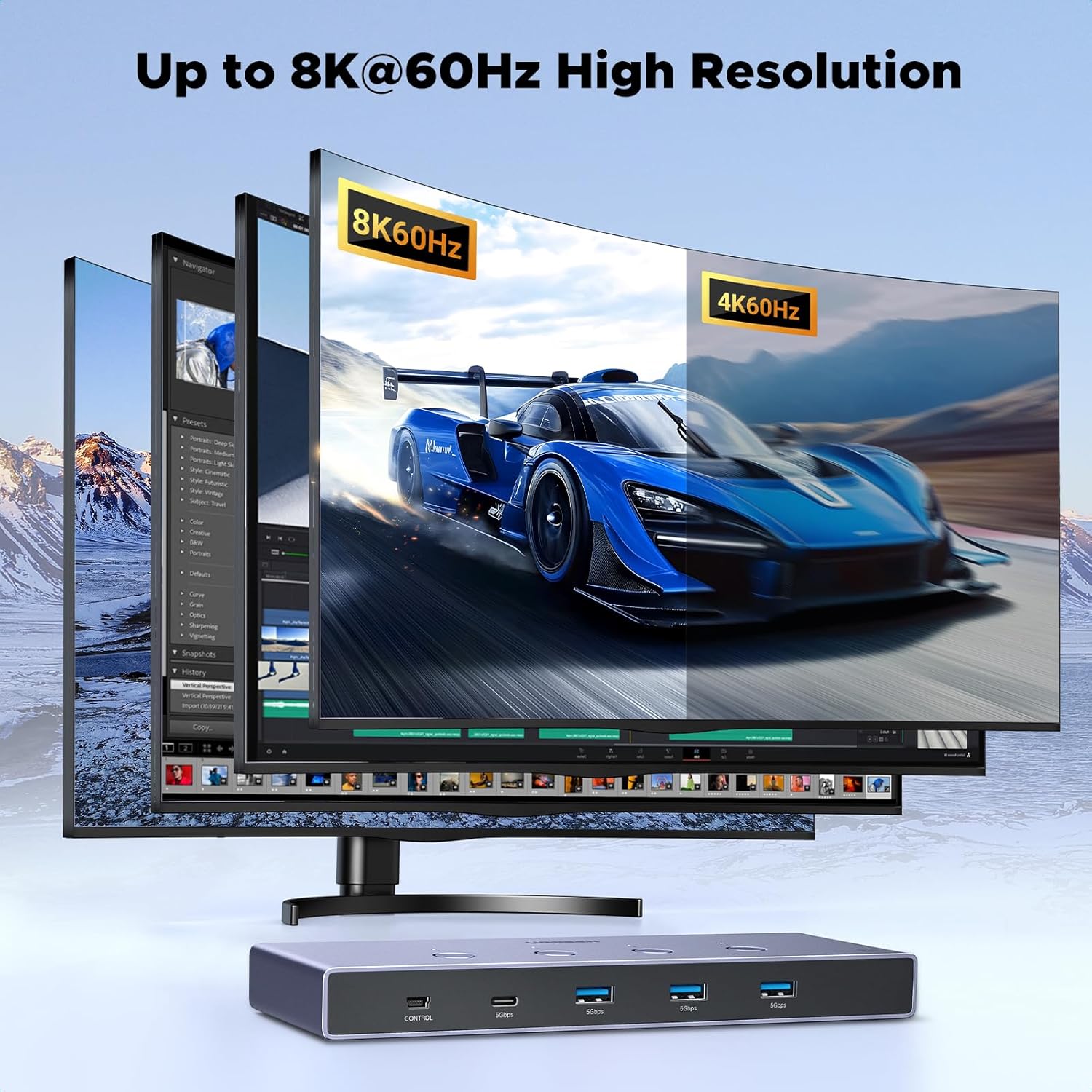
This image visually represents the high-resolution capability of the KVM switch, showcasing an 8K@60Hz display.

This graphic compares the bandwidth of HDMI 2.1 (48Gbps) to HDMI 2.0 (18Gbps), emphasizing the significantly faster data transmission of the newer standard.
USB 3.0 Ultra-fast Data Transfer:
The integrated USB 3.0 ports offer rapid data transfer for your peripherals:
- Data transfer speeds up to 5Gbps, which is 10 times faster than USB 2.0 (480Mbps).
- Ideal for quickly transferring large files from USB flash drives or external hard drives.

This image highlights the speed advantage of USB 3.0, showing 5Gbps transfer rates compared to 480Mbps for USB 2.0.
HDMI 2.1 Gaming Features:
For an optimized gaming experience, the KVM switch supports key HDMI 2.1 features:
- อัตราการรีเฟรชแบบแปรผัน (VRR): ลดการฉีกขาดของหน้าจอและการสะดุดเพื่อการเล่นเกมที่ราบรื่นยิ่งขึ้น
- Quick Media Switching (QMS): Eliminates blank screens when switching between different content.
- Quick Frame Transport (QFT): Reduces display latency for more responsive gaming.
- โหมดเวลาแฝงต่ำอัตโนมัติ (ALLM): ตั้งค่าความหน่วงที่เหมาะสมโดยอัตโนมัติ เพื่อการใช้งานที่ราบรื่นและไม่มีอาการกระตุก viewการมีส่วนร่วมและการโต้ตอบ
- ไดนามิก HDR: Provides more vivid and detailed images with enhanced contrast and color accuracy.

This image illustrates the benefits of HDMI 2.1 features for gamers, including Variable Refresh Rate, Quick Media Switching, Quick Frame Transport, and Auto Low Latency Mode.

This split image demonstrates the visual improvement with Dynamic HDR, showing a more vivid and detailed picture compared to a non-HDR image.
7. การบำรุงรักษา
เพื่อให้มั่นใจได้ว่าสวิตช์ KVM HDMI ของ UGREEN จะมีอายุการใช้งานยาวนานและทำงานได้อย่างมีประสิทธิภาพสูงสุด โปรดปฏิบัติตามคำแนะนำในการบำรุงรักษาดังต่อไปนี้:
- การทำความสะอาด: ใช้ผ้าแห้งเนื้อนุ่มเช็ดทำความสะอาดภายนอกตัวเครื่อง หลีกเลี่ยงการใช้น้ำยาทำความสะอาดหรือสเปรย์ เพราะอาจทำให้เครื่องเสียหายได้
- การระบายอากาศ : ตรวจสอบให้แน่ใจว่าได้วางสวิตช์ KVM ในบริเวณที่มีการระบายอากาศที่ดีเพื่อป้องกันความร้อนสูงเกินไป อย่าปิดกั้นช่องระบายอากาศใดๆ
- พื้นที่จัดเก็บ: เมื่อไม่ได้ใช้งานเป็นเวลานาน ควรเก็บอุปกรณ์ไว้ในที่แห้งและเย็น หลีกเลี่ยงแสงแดดโดยตรงและอุณหภูมิที่สูงหรือต่ำเกินไป
- การจัดการสายเคเบิล: ควรจัดระเบียบสายเคเบิลให้เรียบร้อยและอย่าให้สายเคเบิลบิดงอหรือโค้งงอมากเกินไป เพื่อป้องกันความเสียหายต่อสายเคเบิลและพอร์ต
8 การแก้ไขปัญหา
หากคุณพบปัญหาเกี่ยวกับสวิตช์ KVM โปรดดูปัญหาทั่วไปและวิธีแก้ไขต่อไปนี้:
| ปัญหา | สาเหตุที่เป็นไปได้ | สารละลาย |
|---|---|---|
| ไม่มีการแสดงผลบนจอภาพ | Incorrect HDMI cable connection; KVM switch not powered; Monitor input not selected correctly; Graphics card/monitor/cable not supporting resolution. | Ensure all HDMI cables are securely connected. Verify the KVM switch is powered. Check your monitor's input source. Confirm all components (graphics card, monitor, HDMI cables) support the desired resolution and refresh rate. |
| USB devices (keyboard/mouse) not working | USB A to C data cables not connected; KVM switch not powered; Loose USB connections. | Ensure the USB A to C data cable is connected from each computer to the KVM switch. Verify the KVM switch is powered. Reconnect USB peripherals to the KVM switch. |
| Cannot switch between computers | KVM switch not powered; Faulty button. | Ensure the KVM switch is powered. Press the 'CONTROL' button firmly. Note that hot-key switching is not supported. |
| Intermittent display or flickering | Poor quality HDMI cables; Exceeding recommended cable length; Power instability. | Use high-quality, certified HDMI 2.1 cables. Ensure cable lengths are within recommended limits (refer to Section 4). Verify the power adapter is securely connected and providing stable power. |
| USB 3.0 devices not reaching full speed | USB 2.0 cable used; Computer's USB port is USB 2.0; High-power device without sufficient power. | Ensure you are using USB 3.0 compatible cables and connecting to a USB 3.0 port on your computer. Confirm the KVM switch is powered by the adapter, especially for high-power USB devices. |
9. ข้อมูลจำเพาะ
Detailed technical specifications for the UGREEN HDMI KVM Switch:
- ยี่ห้อ: ยูกรีน
- แบบอย่าง: B0FB3WHZRY
- สี: สีดำ
- อินเทอร์เฟซฮาร์ดแวร์: HDMI, ยูเอสบี
- คุณสมบัติพิเศษ: High Speed 8K HDMI, 48Gbps Bandwidth
- อุปกรณ์ที่รองรับ: Gaming Consoles, Laptops, MacBook, MacBook Air, MacBook Pro, Personal Computer, iMac, iPad, iPhone
- พอร์ต USB ทั้งหมด: 4 (USB-A 3 ช่อง, USB-C 1 ช่อง)
- อัตราการถ่ายโอนข้อมูล: 5 กิกะบิตต่อวินาที (USB 3.0)
- Number of Ports (KVM): 4 (สำหรับคอมพิวเตอร์)
- ความเข้ากันได้ของระบบปฏิบัติการ: ลินุกซ์, แมคโอเอส, วินโดวส์
- วัสดุของกล่องหุ้ม: อลูมิเนียม
10. การรับประกันและการสนับสนุน
ผลิตภัณฑ์ UGREEN ได้รับการออกแบบมาเพื่อความน่าเชื่อถือและประสิทธิภาพ สำหรับข้อมูลการรับประกันและการสนับสนุนทางเทคนิค โปรดดูที่เว็บไซต์อย่างเป็นทางการของ UGREEN webหรือติดต่อฝ่ายบริการลูกค้าโดยตรง
- การสนับสนุนทางออนไลน์: เยี่ยม www.ugreen.com for FAQs, drivers, and support resources.
- บริการลูกค้า: Contact information can be found on the official webไซต์หรือบรรจุภัณฑ์ผลิตภัณฑ์ของคุณ