
1. บทนำ
This manual provides essential information for setting up, operating, maintaining, and troubleshooting your MINIX NR774 Mini PC. Please read this guide thoroughly before using the device to ensure proper functionality and longevity.

ภาพที่ 1.1: ด้านหน้า view of the MINIX NR774 Mini PC, showcasing its compact design and accessible front ports.
2. เนื้อหาบรรจุภัณฑ์
ตรวจสอบว่ารายการทั้งหมดที่ระบุไว้ด้านล่างนี้รวมอยู่ในแพ็คเกจของคุณ:
- 1 x MINIX NGC NR774 มินิพีซี
- 1 x ขาตั้ง VESA พร้อมสกรู
- 1 x Power Adapter with US/EU/UK Plug
- 1 x คู่มือผู้ใช้ (เอกสารนี้)
3. สินค้าหมดview
The MINIX NR774 Mini PC is a compact desktop computer designed for various applications, from home office tasks to gaming and multimedia. It features a robust AMD Ryzen 7 8745HS processor, 32GB DDR5 RAM, and a 1TB PCIe 4.0 SSD, running on Windows 11 Pro.
3.1. การจัดวางพอร์ต
Familiarize yourself with the available ports for connecting peripherals and network devices.

Image 3.1: Detailed diagram illustrating the front and rear port configurations of the MINIX NR774 Mini PC.
- พอร์ตด้านหน้า: Power Button, USB-A 3.2 Gen2 (x2), USB-C 4.0/PD 3.0 (x2), 3.5mm Audio Input/Output Combo Jack, Reset Hole.
- พอร์ตด้านหลัง: DC IN Port, USB-A 2.0 (x2), HDMI, DP (DisplayPort), 2.5G RJ-45 Ethernet Port (x2).
4. คู่มือการติดตั้ง
Follow these steps for initial setup of your Mini PC.
4.1. การเชื่อมต่ออุปกรณ์ต่อพ่วง
- เชื่อมต่อจอแสดงผล: Use an HDMI or DisplayPort cable to connect your monitor to the corresponding port on the rear of the Mini PC. For 8K resolution, ensure your monitor and cable support 8K@60Hz and connect via a single USB-C 4.0 port.
- เชื่อมต่อคีย์บอร์ดและเมาส์: เสียบแป้นพิมพ์และเมาส์ USB ของคุณเข้ากับพอร์ต USB-A ที่ว่างอยู่
- เชื่อมต่อพลังงาน: ต่ออะแดปเตอร์แปลงไฟเข้ากับพอร์ต DC IN ที่ด้านหลังของมินิพีซี จากนั้นเสียบอะแดปเตอร์เข้ากับเต้ารับไฟฟ้า
4.2. เปิดเครื่อง
Press the power button located on the front of the Mini PC. The device will boot up, and the operating system will begin loading.
4.3. การตั้งค่าเริ่มต้นของ Windows 11 Pro
Upon first boot, you will be guided through the Windows 11 Pro setup process. Follow the on-screen instructions to configure language, region, network, and user accounts.
4.4. Multi-Display Configuration
The MINIX NR774 supports up to four displays simultaneously via HDMI, DisplayPort, and two USB-C 4.0 ports. To configure multiple displays:
- Connect additional monitors to the available video output ports.
- Once connected, right-click on the desktop and select 'Display settings' (Windows).
- From the display settings, you can arrange your monitors, set their resolution, and choose display modes (e.g., Extend, Duplicate).
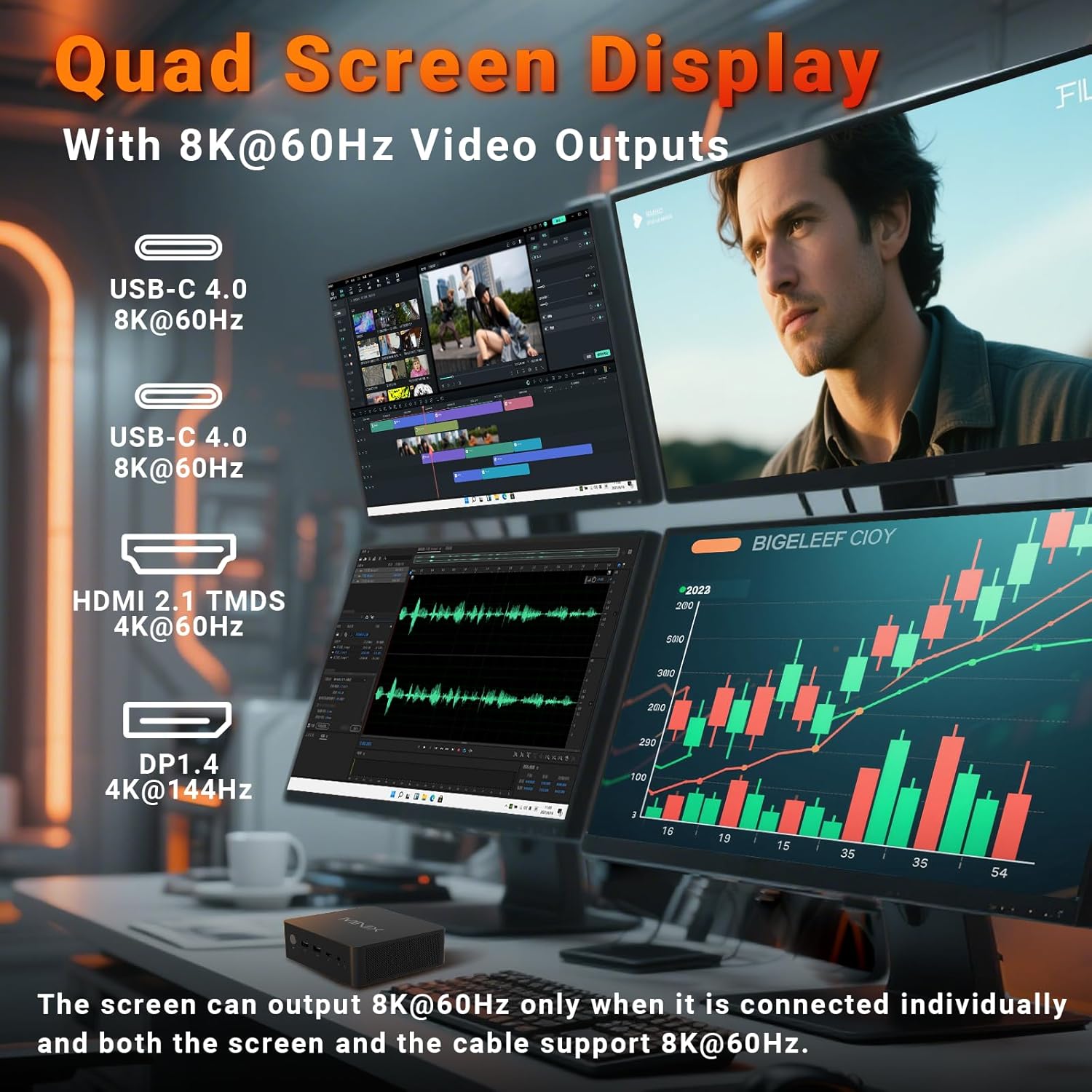
Image 4.1: The Mini PC supporting a quad-display setup, demonstrating its capability for enhanced productivity and immersive viewการสร้างประสบการณ์
5. คู่มือการใช้งาน
5.1. การทำงานพื้นฐาน
The MINIX NR774 functions as a standard Windows 11 Pro desktop computer. Utilize the connected keyboard and mouse for navigation and interaction with the operating system and applications.
5.2. การเชื่อมต่อเครือข่าย
- ไวไฟ 6E: For wireless internet access, connect to your Wi-Fi network through Windows settings. The device supports 2.4GHz, 5GHz, and 6GHz bands for high-speed wireless communication.
- พอร์ต LAN 2.5G สองพอร์ต: For wired network connections, plug Ethernet cables into the two 2.5G RJ-45 ports on the rear. This provides stable and high-speed multi-gigabit networking.
- Bluetooth 5.2: Pair Bluetooth devices such as headphones, speakers, or game controllers through Windows Bluetooth settings.

ภาพที่ 5.1: ด้านหลัง view of the Mini PC highlighting the dual 2.5G Ethernet ports, alongside other connectivity options.
5.3. USB4.0 Functionality
The two USB-C 4.0 ports on the front support data transfer speeds up to 40Gbps and can be used for external GPUs, high-speed storage, or additional display output (up to 8K@60Hz).
5.4. การใช้งานที่หลากหลาย
The MINIX NR774 is suitable for various uses, including:
- งานออฟฟิศ: Efficiently handle productivity applications and multitasking.
- โฮมเธียเตอร์ : Enjoy high-resolution streaming and media playback.
- การตัดต่อวิดีโอ: Process and render video content with its powerful processor and ampความทรงจำ
- การเล่นเกม: Capable of running many games, especially at 1080p or 720p resolutions with appropriate settings.

Image 5.2: A user engaged in gaming, demonstrating the Mini PC's capability for entertainment.
6. การบำรุงรักษา
Regular maintenance helps ensure the optimal performance and longevity of your Mini PC.
6.1. การดูแลทั่วไป
- ควรเก็บอุปกรณ์ไว้ในที่สะอาดและแห้ง หลีกเลี่ยงแสงแดดโดยตรงและอุณหภูมิที่สูงหรือต่ำเกินไป
- Avoid blocking the ventilation holes to ensure proper airflow.
- ทำความสะอาดภายนอกด้วยผ้านุ่มและแห้ง ห้ามใช้น้ำยาทำความสะอาดชนิดน้ำ
6.2. Storage and Memory Upgrades
The Mini PC supports upgrades for both RAM and SSD. It features two M.2 slots for storage and two DDR5 memory slots.
- แรม : The device comes with 32GB DDR5 memory and can be upgraded up to 256GB (not included). For optimal performance, especially in gaming, ensure dual-channel memory configuration.
- เอสดีเอสดี: A 1TB PCIe 4.0 SSD is pre-installed. Storage can be expanded up to 8TB (not included) using additional M.2 PCIe 4.0 SSDs.
Consult a qualified technician for hardware upgrades to avoid damaging the device or voiding the warranty.

ภาพที่ 6.1: ภายใน view of the Mini PC, illustrating the dual DDR5 RAM slots and M.2 PCIe 4.0 SSD slots for potential upgrades.
6.3. ระบบระบายความร้อน
The Mini PC incorporates an advanced dual-fan cooling system with a heatsink to maintain optimal operating temperatures and minimize noise.

ภาพที่ 6.2: แผนภาพแสดงasing the active cooling design of the Mini PC, featuring dual fans for efficient heat dissipation.
7 การแก้ไขปัญหา
If you encounter issues with your MINIX NR774 Mini PC, refer to the following common solutions:
- ไม่มีจอแสดงผล:
- Ensure the monitor is powered on and the correct input source is selected.
- Check that video cables (HDMI, DisplayPort, USB-C) are securely connected to both the Mini PC and the monitor.
- ลองใช้สายวิดีโอหรือจอภาพอื่นเพื่อตรวจสอบว่าอุปกรณ์มีปัญหาหรือไม่
- ไม่มีไฟฟ้า:
- ตรวจสอบให้แน่ใจว่าได้เสียบอะแดปเตอร์แปลงไฟเข้ากับมินิพีซีและเต้ารับไฟฟ้าที่ใช้งานได้ถูกต้องแล้ว
- ตรวจสอบให้แน่ใจว่าได้กดปุ่มเปิด/ปิดอย่างแน่นหนา
- ปัญหาการเชื่อมต่อเครือข่าย:
- For Wi-Fi, check if the Wi-Fi adapter is enabled in Windows settings and ensure you are connected to the correct network.
- For wired LAN, ensure Ethernet cables are properly connected and your router/modem is functioning.
- รีสตาร์ทเราเตอร์/โมเด็มและมินิพีซีของคุณ
- Windows Not Loading/Operating System Issues:
- If Windows fails to load, try restarting the device.
- If issues persist, consider using Windows recovery options (accessible during boot by pressing F8 or Shift + Restart).
- ตรวจสอบให้แน่ใจว่าไดร์เวอร์ทั้งหมดได้รับการอัปเดตแล้ว
- ความร้อนสูงเกินไป:
- Ensure the Mini PC's ventilation holes are clear and not obstructed.
- ใช้งานอุปกรณ์ในบริเวณที่มีการระบายอากาศดี
If these steps do not resolve the issue, please contact MINIX customer support.
8. ข้อมูลจำเพาะ
Detailed technical specifications for the MINIX NR774 Mini PC.
| คุณสมบัติ | ข้อมูลจำเพาะ |
|---|---|
| ยี่ห้อ | มินิกซ์ |
| หมายเลขรุ่น | NGC NR774 |
| ระบบปฏิบัติการ | วินโดวส์ 11 โปร |
| โปรเซสเซอร์ | AMD Ryzen 7 8745HS (8 Cores/16 Threads, up to 4.9 GHz) |
| โคโปรเซสเซอร์กราฟิก | การ์ดจอ AMD Radeon 780M (แบบรวมในตัว) |
| แรม | 32GB DDR5 (ขยายได้สูงสุด 256GB) |
| ฮาร์ดไดรฟ์ | 1TB PCIe 4.0 SSD (Expandable up to 8TB) |
| ความละเอียดหน้าจอสูงสุด | 7680x4320 (8K) |
| ประเภทไร้สาย | WiFi 6E (802.11ax), บลูทูธ 5.2 |
| อีเธอร์เน็ต | LAN 2.5G คู่ |
| พอร์ต USB | 2x USB-A 3.0, 2x USB-A 2.0, 2x USB-C 4.0 |
| เอาท์พุตวิดีโอ | HDMI, DisplayPort, 2x USB-C 4.0 (Quad Display Support) |
| น้ำหนักสินค้า | 1.62 ปอนด์ |
| ขนาดสินค้า | 5.45 x 5.17 x 2.05 นิ้ว |
9. ข้อมูลการรับประกัน
MINIX products typically come with a standard manufacturer's warranty. For specific details regarding the warranty period and terms for your MINIX NR774 Mini PC, please refer to the warranty card included in your product packaging or visit the official MINIX webไซต์นี้ โปรดเก็บหลักฐานการซื้อไว้เพื่อใช้ยืนยันการรับประกัน
10. การสนับสนุนลูกค้า
For technical assistance, troubleshooting, or any inquiries regarding your MINIX NR774 Mini PC, please use the following contact methods:
- การสนับสนุนทางออนไลน์: Log in to your Amazon account, navigate to 'Your Orders', and select 'Ask Product Question' for the MINIX NR774.
- เป็นทางการ Webเว็บไซต์: เยี่ยมชม MINIX อย่างเป็นทางการ website for offline maintenance services and additional support resources.