
1. บทนำ
This manual provides detailed instructions for the setup, operation, maintenance, and troubleshooting of your Transformers TF-Crystal 85 Keys Mechanical Keyboard. Please read this manual thoroughly before using the product to ensure proper functionality and longevity.
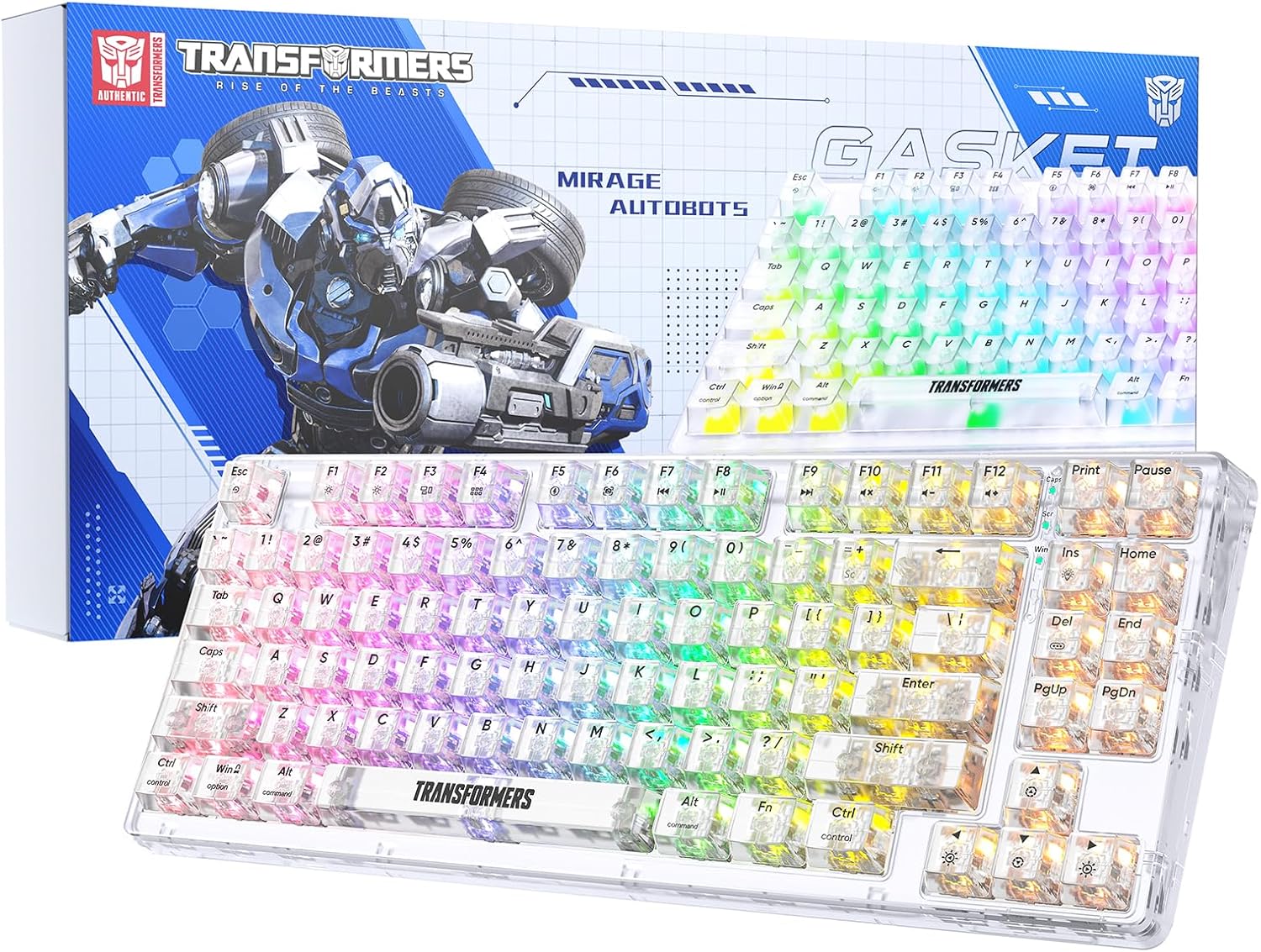
Image 1.1: Transformers TF-Crystal 85 Keys Mechanical Keyboard with its packaging, showcasing the transparent design and RGB lighting.
2. สินค้าหมดview
2.1 คุณสมบัติหลัก
- รูปแบบ 85 คีย์: Compact 75% design retaining essential functions, arrow, and navigation keys.
- การเชื่อมต่อสามโหมด: รองรับ Bluetooth 5.0, ไร้สาย 2.4GHz และการเชื่อมต่อแบบมีสาย USB-C
- แผงวงจรพิมพ์แบบ Hot-Swappable: Compatible with most 3-pin and 5-pin mechanical switches, allowing for easy customization and replacement.
- Linear Switches: Pre-lubricated switches with a 50 million keystroke lifespan for durability and smooth operation.
- โครงสร้างปะเก็น: Incorporates high-quality gasket materials and a silicone pad to absorb vibrations and reduce typing noise.
- ไฟแบ็คไลท์ RGB ที่ปรับแต่งได้: Features 20 built-in backlight modes, 16.8 million color options, and dynamic music rhythm effects.
- Programmable Driver: Enables macro customization, key function remapping, and advanced lighting control.
- อายุการใช้งานแบตเตอรี่ยาวนาน: Equipped with a 4000mAh battery, providing up to 240 hours of continuous use in 2.4GHz mode without backlighting.
- ความเข้ากันได้กว้าง: Supports Mac, Windows, iOS, Android, PC, Laptop, Smartphone, Tablet, Switch, Xbox, and PlayStation.
- การออกแบบที่โปร่งใส: Features transparent keycaps and base for enhanced aesthetic appeal.
3. การตั้งค่า
3.1 การชาร์จคีย์บอร์ด
Before initial use, fully charge the keyboard. Connect the provided USB-C cable to the keyboard's USB-C port and the other end to a powered USB port (e.g., computer, wall adapter). The charging indicator will show the charging status.
3.2 การเชื่อมต่อผ่านโหมดไร้สาย 2.4GHz
- ค้นหาตัวรับสัญญาณ USB 2.4GHz ซึ่งโดยปกติจะอยู่ในช่องเก็บของบนแป้นพิมพ์
- เสียบตัวรับสัญญาณ USB เข้ากับพอร์ต USB ที่พร้อมใช้งานบนคอมพิวเตอร์ของคุณ
- Toggle the mode switch on the keyboard to the 2.4จี ตำแหน่ง.
- The keyboard will automatically connect to your device.
3.3 การเชื่อมต่อผ่านโหมดบลูทูธ 5.0
- Toggle the mode switch on the keyboard to the BT ตำแหน่ง.
- กดค้างไว้ fn+1 (หรือ fn+2, fn+3) for 3-5 seconds until the indicator light flashes rapidly, indicating pairing mode.
- บนอุปกรณ์ของคุณ (คอมพิวเตอร์ แท็บเล็ต สมาร์ทโฟน) เปิดใช้งาน Bluetooth และค้นหาอุปกรณ์ใหม่
- Select "TF-Crystal 85" from the list of available devices to pair.
- Once paired, the indicator light will stop flashing and remain solid. You can pair up to three Bluetooth devices using fn+1, fn+2, และ fn+3.
3.4 การเชื่อมต่อผ่านโหมดสาย USB-C
- เชื่อมต่อสาย USB-C ที่ให้มาเข้ากับพอร์ต USB-C ของแป้นพิมพ์
- เชื่อมต่อปลายอีกด้านหนึ่งของสาย USB-C เข้ากับพอร์ต USB ที่ว่างอยู่บนคอมพิวเตอร์ของคุณ
- The keyboard will automatically switch to wired mode and function without battery power.

Image 3.1: Diagram illustrating the three connection modes: Bluetooth 5.0, 2.4GHz wireless, and USB-C wired, compatible with various devices.
4. คู่มือการใช้งาน
4.1 การสลับโหมด
Use the physical switch located on the keyboard to select between BT (บลูทู ธ), 2.4จี (2.4GHz wireless), and ยูเอสบี-ซี (wired) modes.
4.2 การควบคุมไฟแบ็คไลท์ RGB
คีย์บอร์ดนี้มีไฟแบ็คไลท์ RGB ที่ปรับแต่งได้ ใช้การกดปุ่มต่อไปนี้เพื่อปรับแต่ง:
- Fn + อิน: Cycle through 20 different backlight effects.
- Fn + เดล: Switch backlight colors within certain modes.
- Fn + ↑ / ↓: ปรับความสว่างของไฟแบ็คไลท์ได้ 5 ระดับ
- Fn + ← / →: Adjust backlight effect speed (5 levels).
- Fn + Esc (hold for 3s): Reset backlight settings to default.

Image 4.1: Visual guide for controlling RGB backlight effects, brightness, and speed using Fn key combinations.
4.3 Programmable Driver Usage
The keyboard includes a programmable driver for advanced customization. This driver allows you to:
- การแก้ไขมาโคร: Record and edit complex key sequences.
- การกำหนดนิยามใหม่ที่สำคัญ: Customize the function of individual keys.
- RGB Effect Customization: Fine-tune lighting modes, colors, and speeds, including music rhythm lighting effects.
Refer to the software's dedicated user interface for detailed instructions on using these features.

Image 4.2: Screenshot of the programmable driver interface, showing options for macro editing, RGB effects, and key redefinition.
4.4 สวิตช์แบบถอดเปลี่ยนได้ขณะทำงาน
The TF-Crystal 85 keyboard features a hot-swappable PCB, allowing you to change mechanical switches without soldering. This supports most 3-pin and 5-pin mechanical switches.
- ปิดแป้นพิมพ์หรือตัดการเชื่อมต่อจากอุปกรณ์ของคุณ
- ใช้ตัวดึงคีย์แคปที่ให้มาเพื่อถอดคีย์แคปที่ต้องการออกอย่างระมัดระวัง
- Use the provided switch puller to gently grip the switch from its top and bottom clips, then pull it straight up to remove it.
- จัดตำแหน่งขาของสวิตช์ใหม่ให้ตรงกับรูบน PCB ตรวจสอบให้แน่ใจว่าขาตั้งตรง
- กดสวิตช์ใหม่เบาๆ จนกระทั่งคลิกเข้าที่ อย่าฝืนแรง
- เปลี่ยนปุ่มคีย์แคป

Image 4.3: Illustration of the hot-swappable feature, showing how to remove and insert 3-pin/5-pin switches and the linear switch specifications.
5. การบำรุงรักษา
5.1 การทำความสะอาดแป้นพิมพ์
- ถอดปลั๊กแป้นพิมพ์ออกจากแหล่งจ่ายไฟทั้งหมดก่อนทำความสะอาด
- ใช้ผ้านุ่มไม่เป็นขุยเช็ดเล็กน้อยampชุบน้ำหรือน้ำยาทำความสะอาดอ่อนๆ เพื่อเช็ดปุ่มและตัวเครื่อง
- สำหรับฝุ่นละอองและเศษต่างๆ ระหว่างคีย์ ให้ใช้ลมอัดหรือแปรงขนาดเล็ก
- Avoid using harsh chemicals or abrasive materials that could damage the keyboard's surface.
5.2 การดูแลแบตเตอรี่
- หลีกเลี่ยงการปล่อยแบตเตอรี่จนหมดบ่อยครั้ง
- เก็บแป้นพิมพ์ไว้ในที่แห้งและเย็นเมื่อไม่ได้ใช้งานเป็นเวลานาน
- If the keyboard will not be used for a long time, charge it to about 50% before storage.
6 การแก้ไขปัญหา
| ปัญหา | สาเหตุที่เป็นไปได้ | สารละลาย |
|---|---|---|
| แป้นพิมพ์ไม่ตอบสนองในโหมดไร้สาย | Low battery, incorrect mode selected, receiver not connected, Bluetooth not paired. | Charge the keyboard. Ensure the mode switch is set correctly (2.4G or BT). Re-insert the 2.4G receiver. Re-pair Bluetooth. |
| กุญแจไม่ลงทะเบียนหรือพิมพ์ซ้ำ | สวิตช์เสีย, มีเศษสิ่งสกปรกใต้ปุ่มกด, ปัญหาซอฟต์แวร์ | Clean under the keycap. Try hot-swapping the switch with a known working one. Restart your computer. |
| RGB backlight not working or incorrect. | Backlight turned off, incorrect settings, software conflict. | ปรับความสว่างโดยใช้ Fn + ↑. Cycle modes with Fn + อิน. Reset backlight with Fn + Esc (hold 3s). Check programmable driver settings. |
| คีย์บอร์ดชาร์จไฟไม่เข้า | Faulty USB-C cable, power source issue, keyboard port damage. | Try a different USB-C cable. Use a different USB port or power adapter. Ensure the cable is fully inserted. |
7. ข้อมูลจำเพาะ
| คุณสมบัติ | รายละเอียด |
|---|---|
| หมายเลขรุ่น | TF-Crystal 85 |
| เค้าโครงคีย์ | 85 คีย์ (ขนาดกะทัดรัด 75%) |
| การเชื่อมต่อ | บลูทูธ 5.0, ไร้สาย 2.4GHz, USB-C แบบมีสาย |
| ประเภทสวิตซ์ | Pre-lubricated Linear Mechanical Switches |
| เปลี่ยนอายุการใช้งาน | การกดแป้น 50 ล้านครั้ง |
| Hot-Swapable | ใช่ (ใช้งานได้ทั้งแบบ 3 พินและ 5 พิน) |
| แสงไฟแบ็คไลท์ | RGB (20 โหมด, 16.8 ล้านสี) |
| ความจุของแบตเตอรี่ | 4000mAh |
| Battery Life (2.4G, no light) | นานถึง 240 ชั่วโมง |
| Battery Life (Backlit ON) | ประมาณ 22 ชั่วโมง |
| ขนาด (กว้าง x ยาว x สูง) | 34.7 ซม. x 14 ซม. x 4.5 ซม. |
| ความเข้ากันได้ | Mac, Windows, iOS, Android, PC, Laptop, Smartphone, Tablet, Switch, Xbox, PlayStation |

Image 7.1: Visual representation of the keyboard's battery life: 240 hours with backlight off, 22 hours with backlight on, powered by a 4000mAh battery.
8. การรับประกันและการสนับสนุน
Transformers is committed to providing exceptional customer service. If you encounter any problems with your TF-Crystal 85 Keys Mechanical Keyboard, our after-sales support team is available to assist you. This includes technical support, exchanges, or installation guidance.
Please contact our customer service for assistance. We guarantee a hassle-free service experience.