การแนะนำ
This manual provides detailed instructions for the setup, operation, and maintenance of your KYSONA 57° Ergonomic Wireless Tower Mouse. Please read this manual thoroughly before using the product to ensure proper functionality and a comfortable user experience.
คุณสมบัติผลิตภัณฑ์
- การออกแบบแนวตั้งตามหลักสรีรศาสตร์: Features a 57° tilt to promote a natural wrist and forearm position, reducing strain and tension during extended use.
- Silent Switch: Equipped with quiet click buttons for a disturbance-free work or entertainment environment.
- การเชื่อมต่อโหมดคู่: Supports both Bluetooth (BT 3.0/5.0) and 2.4G wireless connections for versatile compatibility across multiple devices.
- DPI ที่ปรับได้: Offers 5 adjustable DPI settings (800/1200/1600/2400/4000) for precise cursor control.
- Smart Auto-Sleep Mode: Automatically enters sleep mode during inactivity to conserve battery life, providing up to 12 months of use.
- ความเข้ากันได้: Works with Windows, macOS, iPadOS, laptops, and PCs.
เนื้อหาแพ็คเกจ
- KYSONA 57° Ergonomic Wireless Tower Mouse
- ตัวรับสัญญาณ USB (สำหรับการเชื่อมต่อไร้สาย 2.4G)
- คู่มือการใช้งาน
- หมายเหตุ: ต้องใช้แบตเตอรี่ AAA 2 ก้อน (ไม่ได้รวมอยู่ในชุด)
คำแนะนำการตั้งค่า
1. ติดตั้งแบตเตอรี่
Open the battery compartment on the underside of the mouse. Insert two AAA batteries, ensuring correct polarity. Close the compartment securely.
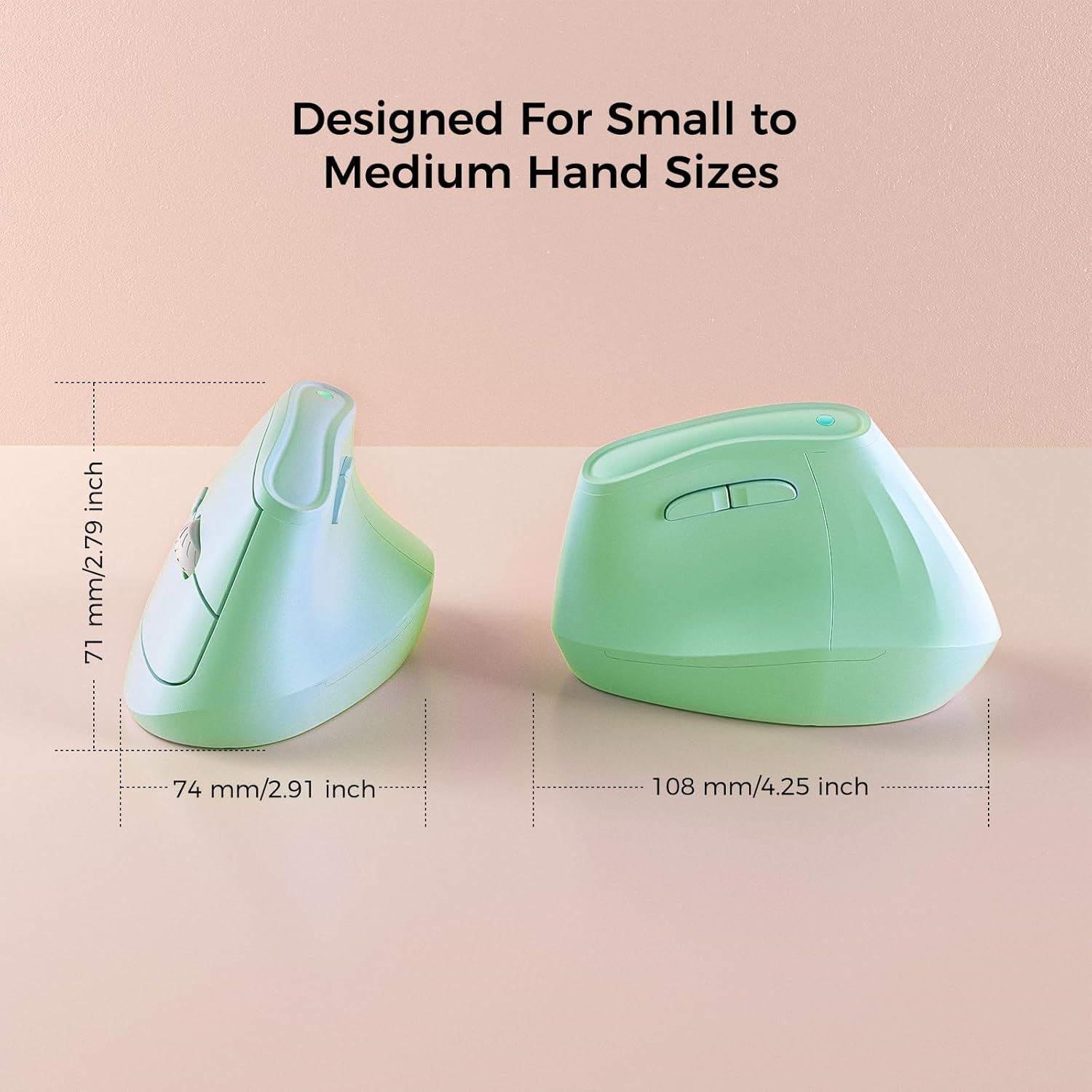
Image: Underside of the mouse with battery compartment visible.
2. เปิดเครื่อง
หาปุ่มเปิด/ปิดที่ด้านล่างของเมาส์ แล้วเลื่อนไปที่ตำแหน่ง "เปิด"
3. เชื่อมต่อกับอุปกรณ์
Your KYSONA mouse offers two connectivity options:
3.1. การเชื่อมต่อไร้สาย 2.4G (ผ่านตัวรับสัญญาณ USB)
- ถอดตัวรับสัญญาณ USB ออกจากช่องเก็บที่ด้านล่างของเมาส์
- เสียบตัวรับสัญญาณ USB เข้ากับพอร์ต USB ที่พร้อมใช้งานบนคอมพิวเตอร์ของคุณ
- The mouse should automatically connect. If not, press the "Mode Switch" button on the bottom of the mouse until the indicator light shows 2.4G mode (usually green or blue).
3.2. การเชื่อมต่อบลูทูธ (BT 3.0/5.0)
- Press the "Mode Switch" button on the bottom of the mouse to cycle through modes until the indicator light shows Bluetooth mode (usually blue).
- On your device (Windows, macOS, iPadOS), go to Bluetooth settings.
- ค้นหา new devices and select "KYSONA Mouse" (or similar) from the list.
- ปฏิบัติตามคำแนะนำบนหน้าจอเพื่อดำเนินการจับคู่ให้เสร็จสมบูรณ์
- The mouse can connect to up to three Bluetooth devices. Use the "Mode Switch" button to toggle between paired devices.

Image: Mouse demonstrating dual-mode connectivity with a laptop and tablet.
คำแนะนำการใช้งาน
1. Hand Position
Place your hand on the mouse so that your wrist and forearm are in a natural, handshake-like position. The 57° vertical design is intended to reduce pronation of the forearm.

Image: Proper hand placement on the ergonomic mouse.
2. ปุ่มฟังก์ชัน
- คลิกซ้าย: การเลือกมาตรฐาน
- คลิกขวา: เมนูบริบท
- ล้อเลื่อน: Scroll up/down. Pressing the scroll wheel acts as a middle click.
- ปุ่มเดินหน้า/ถอยหลัง: ปุ่มเหล่านี้อยู่ทางด้านนิ้วโป้ง ช่วยให้สามารถนำทางได้อย่างรวดเร็ว web เบราว์เซอร์หรือ file นักสำรวจ
- ปุ่ม DPI: Located near the scroll wheel, press to cycle through DPI settings.
3. การปรับ DPI
The mouse features 5 adjustable DPI levels: 800, 1200, 1600, 2400, and 4000. Press the DPI button to cycle through these settings. A higher DPI setting results in faster cursor movement, while a lower DPI provides more precise control.

Image: Visual representation of DPI settings.
ข้อมูลแบตเตอรี่
- ต้องใช้แบตเตอรี่ AAA 2 ก้อน (ไม่รวม)
- The smart auto-sleep mode helps extend battery life up to 12 months, depending on usage.
- Replace batteries when cursor movement becomes erratic or the mouse stops responding.
การซ่อมบำรุง
- ทำความสะอาดเมาส์เป็นประจำด้วยผ้าแห้งนุ่ม
- หลีกเลี่ยงการใช้สารเคมีรุนแรงหรือน้ำยาทำความสะอาดที่มีฤทธิ์กัดกร่อน
- รักษาความสะอาดของเซ็นเซอร์แสงที่อยู่ด้านล่างของเมาส์ เพื่อประสิทธิภาพการติดตามที่ดีที่สุด
- Store the USB receiver in its designated slot on the mouse when not in use to prevent loss.
การแก้ไขปัญหา
| ปัญหา | สารละลาย |
|---|---|
| เมาส์ไม่ตอบสนอง |
|
| การเคลื่อนไหวของเคอร์เซอร์ที่ผิดปกติ |
|
| ไม่สามารถจับคู่ผ่านบลูทูธได้ |
|
ข้อมูลจำเพาะ
- แบบอย่าง: เอ็ม9
- การเชื่อมต่อ: Bluetooth (BT 3.0/5.0) & 2.4G Wireless
- การตั้งค่า DPI: 800/1200/1600/2400/4000
- ปุ่ม: 5 (Left, Right, Scroll Wheel/Middle, Forward, Backward, DPI)
- แหล่งพลังงาน: 2 x แบตเตอรี่ AAA (ไม่รวม)
- ขนาด : 10.7 x 7.4 x 7.1 ซม. (4.2 x 2.9 x 2.8 นิ้ว)
- น้ำหนัก: 4.2 ออนซ์
- ความเข้ากันได้: Windows, macOS, iPadOS, Laptop, PC
การรับประกันและการสนับสนุน
For warranty information or technical support, please refer to the contact details provided on the product packaging or visit the official KYSONA webไซต์นี้ โปรดเก็บใบเสร็จรับเงินที่ซื้อไว้เพื่อใช้เรียกร้องการรับประกัน