
สินค้าเกินview
The Insta360 Connect is an advanced AI conference room system designed to enhance virtual meetings. It integrates dual 4K cameras, a 14-microphone array, and intelligent AI features to provide a seamless and engaging conferencing experience. Certified for Zoom Rooms and compatible with various platforms, it is ideal for small to medium-sized meeting spaces.

Image: The Insta360 Connect AI Conference Room System, highlighting its dual 4K cameras and sleek design.
มีอะไรอยู่ในกล่อง
- 1x Insta360 Connect Unit
- 1x รีโมทคอนโทรล
- 1x Desk Stand
- 2x 1.8 Meter HDMI Cables
- 1x 1.8 Meter USB-C Cable
- อะแดปเตอร์ไฟฟ้า 1x
การตั้งค่าและการเชื่อมต่อ
การตั้งค่าทางกายภาพ
Place the Insta360 Connect unit on its included desk stand or mount it securely in your conference room. Ensure it has a clear line of sight to all participants and any whiteboards you intend to use.
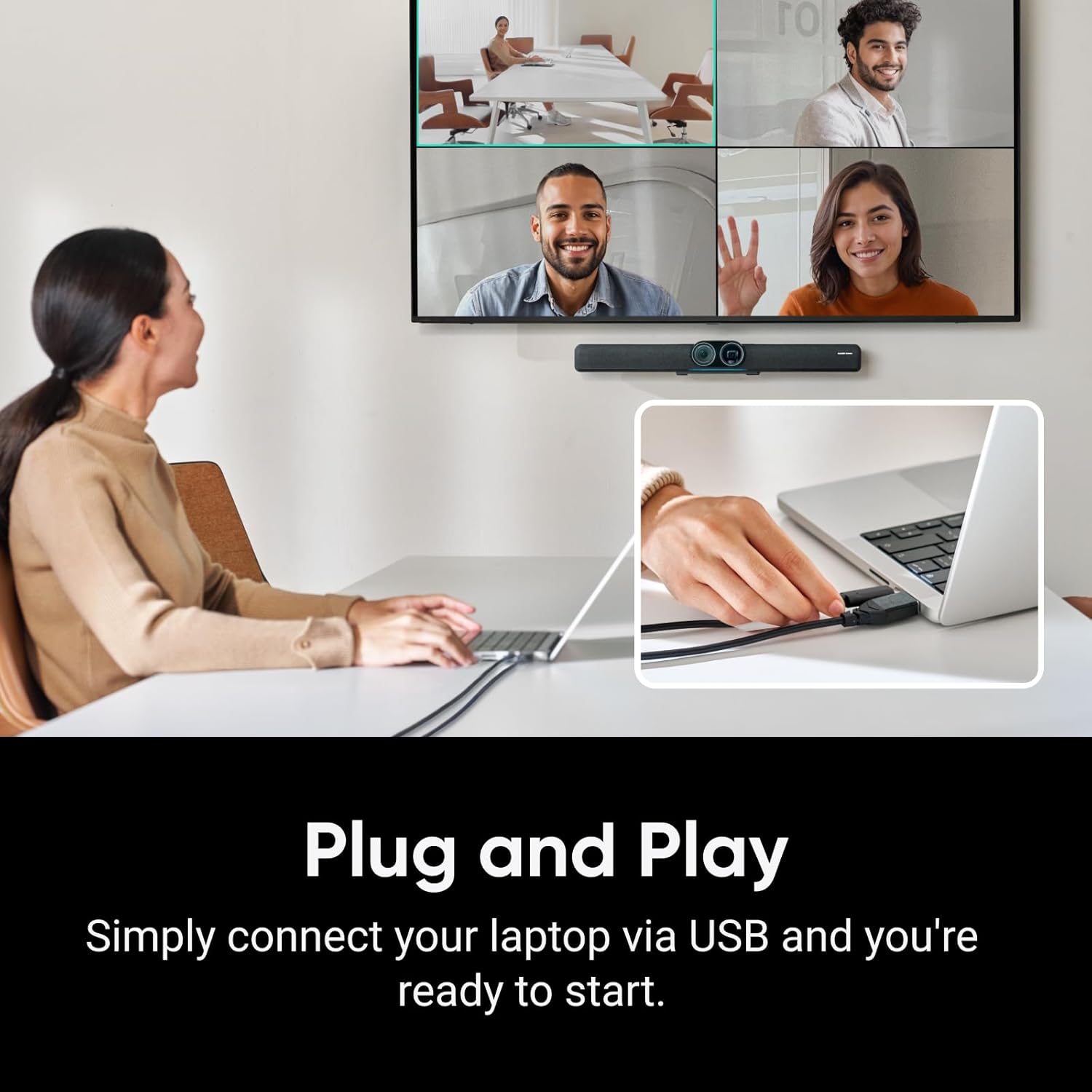
Image: The Insta360 Connect connected to a laptop via USB, illustrating the plug-and-play setup.
วิธีการเชื่อมต่อ
The Insta360 Connect offers two primary connection methods:
- HDMI Direct Connection: Connect the Insta360 Connect via HDMI to your TV. Use the included remote control to initiate or join meetings directly. For this method, the device requires an internet connection via Ethernet or Wi-Fi (Ethernet recommended).
- BYOD (Bring Your Own Device) Mode: Connect the HDMI-OUT port on the Insta360 Connect to an HDMI input on your TV. Then, connect an HDMI cable and a USB-C cable from your PC/laptop to the HDMI-IN and USB-C-IN ports on the Insta360 Connect. In BYOD mode, the device does not require an internet connection. The PC/laptop's HDMI signal passes through the Connect, which can overlay its interface or informational messages on the TV. The webcam, speaker, and microphone functions are recognized by your operating system via the USB-C cable.
คำแนะนำการใช้งาน
Dual 4K Cameras
The Insta360 Connect features a dual-camera system with a 1/1.3" CMOS sensor wide-angle camera and a telephoto gimbal camera. These cameras work in tandem to deliver high-quality 4K visuals, capturing both wide group views and individual close-ups.
Image: Close-up of the Insta360 Connect's dual 4K cameras, emphasizing its Zoom certification.
AI กรอบ
The advanced AI framing technology ensures all participants are clearly visible. You can choose between:
- การจัดกรอบแบบกลุ่ม: Automatically detects and frames all individuals in the room, adjusting zoom to keep everyone in view.
- โหมดแกลเลอรี่: Provides individual windows for each participant, making online meetings more engaging.

Image: A conference room setup demonstrating the Intelligent AI Framing feature, displaying multiple participants in individual windows on a large screen.
การติดตามผู้พูด
Utilizing voice, facial, and body recognition, the AI technology precisely tracks the active speaker, keeping them centered in the frame. This feature ensures the focus remains on the person speaking, enhancing meeting dynamics.

Image: A person speaking in a conference room, with a highlighted close-up frame demonstrating the Speaker Tracking functionality.
โหมดไวท์บอร์ด
The dedicated Whiteboard Mode enhances presentations by automatically squaring off and optimizing the view of a whiteboard. It can even make presenters semi-transparent when they block the camera, ensuring the whiteboard content remains visible.

Image: A person presenting at a whiteboard, with the Whiteboard Mode feature ensuring the content is clear and visible, even when partially obscured.
คุณสมบัติด้านเสียง
- อาร์เรย์ไมโครโฟน 14 ตัว: Captures crystal-clear audio with voice pickup up to 33 feet away.
- เสียงที่ปรับเปลี่ยนได้: Intelligent noise reduction technology eliminates unwanted sounds and echoes, ensuring interruption-free meetings.
- โหมดลำโพงโทรศัพท์: Provides professional audio for conference calls with easy Bluetooth connectivity.
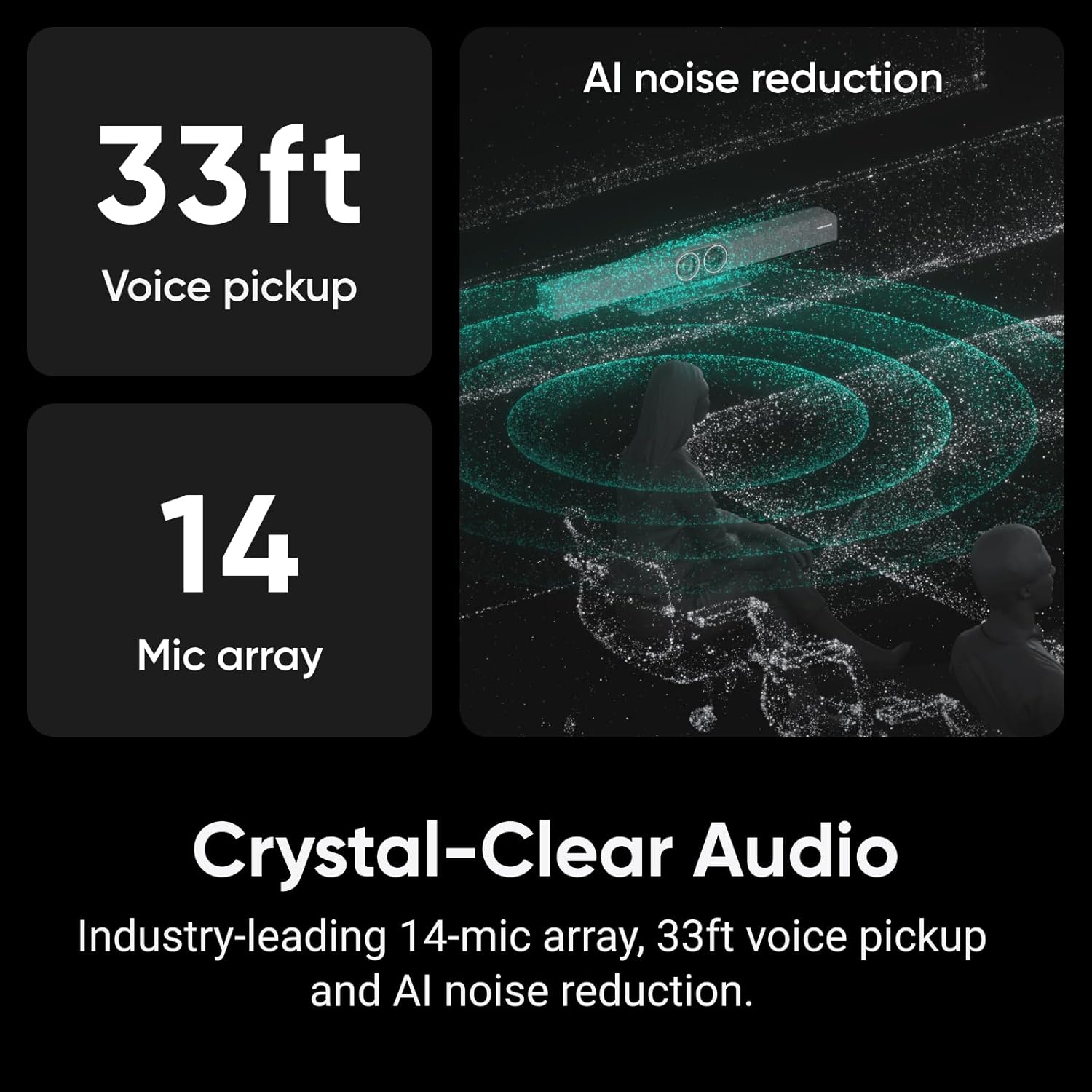
Image: Infographic detailing the Crystal-Clear Audio capabilities of the Insta360 Connect, including 33ft voice pickup, a 14-microphone array, and AI noise reduction.
โหมดความเป็นส่วนตัว
Protect your privacy with a single slide that conceals the lens and mutes the microphone, ensuring confidentiality when needed.
วิดีโอผลิตภัณฑ์อย่างเป็นทางการ
วิดีโอ: ผลิตภัณฑ์อย่างเป็นทางการเสร็จสิ้นview of the Insta360 Connect Dual-camera AI video bar, showcasing คุณสมบัติและฟังก์ชันการทำงานของมัน
ข้อมูลจำเพาะ
| คุณสมบัติ | รายละเอียด |
|---|---|
| ยี่ห้อ | อินสตา360 |
| หมายเลขรุ่น | CINSAABA |
| ความละเอียดในการจับภาพวิดีโอ | 4K |
| เทคโนโลยีโฟโต้เซนเซอร์ | ซีมอส |
| ขนาดเซนเซอร์ภาพ | 1/2.8" |
| ประเภทเลนส์ | Telephoto, Wide Angle |
| ซูมออปติคอล | 3x |
| คุณสมบัติพิเศษ | AI Framing, Speaker Tracking, Whiteboard Mode, Advanced Audio Capabilities |
| เทคโนโลยีการเชื่อมต่อ | HDMI, ยูเอสบี |
| ระบบปฏิบัติการ | แอนดรอยด์ |
| จำนวนของลำโพง | 1 |
| อุปกรณ์ที่รองรับ | Laptop, Microphone, Personal Computer, Tablet |
| สี | สีดำ |
| GTIN / UPC | 842126111273 |
การแก้ไขปัญหา
If you encounter any issues with your Insta360 Connect, please refer to the following common troubleshooting steps:
- ไม่มีสัญญาณภาพ/เสียงออก: Ensure all cables (HDMI, USB-C) are securely connected. Verify that the correct input source is selected on your display. Check your computer's sound and camera settings to ensure Insta360 Connect is selected as the default device.
- ฟีเจอร์ AI บางตัวใช้งานไม่ได้: Confirm that the device firmware is up to date. Ensure the room is adequately lit and there are no obstructions blocking the camera's view.
- คุณภาพเสียงไม่ดี: Check for excessive background noise. Ensure participants are within the 33ft voice pickup range. Verify that Adaptive Audio (noise reduction) is enabled.
- ไม่รู้จักอุปกรณ์: Try connecting the USB-C cable to a different port on your computer. Restart your computer and the Insta360 Connect unit.
การซ่อมบำรุง
To ensure the longevity and optimal performance of your Insta360 Connect, follow these maintenance guidelines:
- การทำความสะอาด: Use a soft, dry cloth to clean the camera lenses and the device's exterior. Avoid using harsh chemicals or abrasive materials.
- พื้นที่จัดเก็บ: เมื่อไม่ใช้งาน ให้เก็บอุปกรณ์ไว้ในที่แห้งและเย็น ห่างจากแสงแดดโดยตรงและอุณหภูมิที่สูงหรือต่ำเกินไป
- อัพเดตเฟิร์มแวร์: Regularly check for and install firmware updates to ensure you have the latest features and performance improvements.
การรับประกันและการสนับสนุน
The Insta360 Connect comes with a รับประกัน 2 ปี. For technical support, warranty claims, or additional assistance, please visit the official Insta360 support webเว็บไซต์หรือติดต่อฝ่ายบริการลูกค้าของพวกเขา