
1. สินค้าหมดview
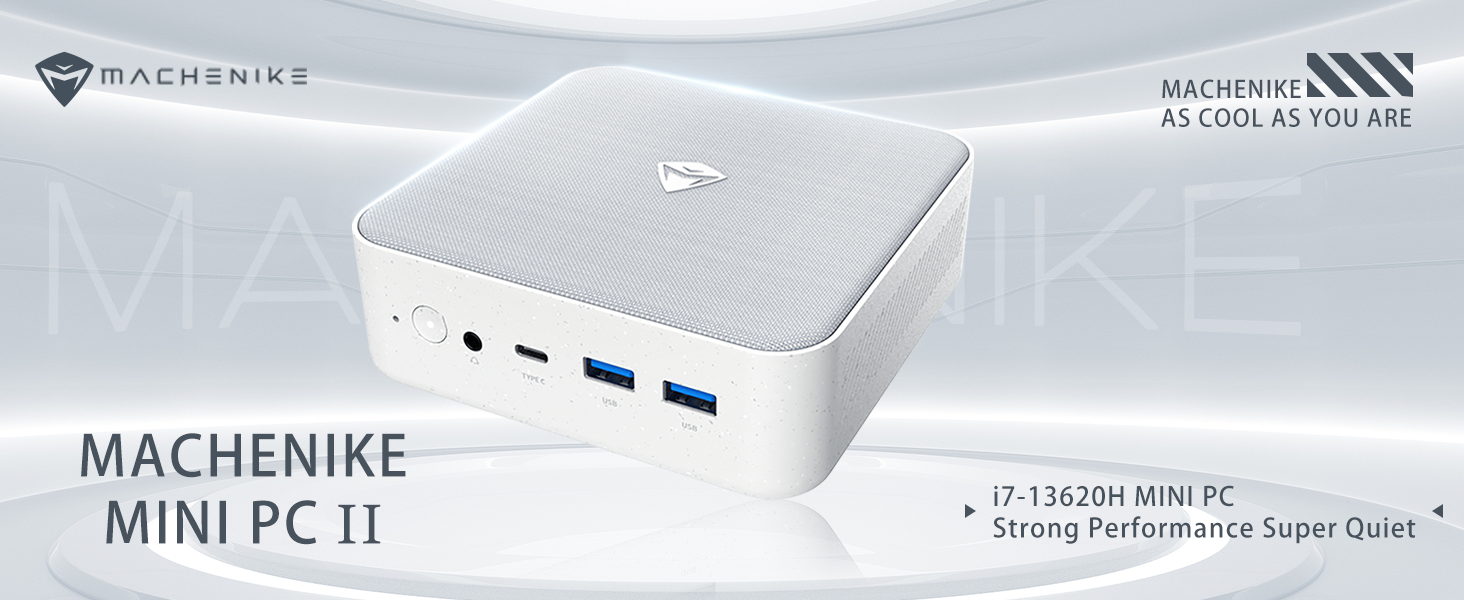
The Machenike Machcreator Mini Desktop, Model 4762H, is a compact and powerful computing solution designed for various applications, from business to everyday use. It features a 13th Gen Intel Core i7-13620H processor, 16GB DDR5 RAM, and a 512GB PCIe M.2 SSD, providing high-speed performance and efficient multitasking capabilities. This mini PC supports 4K dual monitor output and comes pre-installed with Windows 11 Pro.
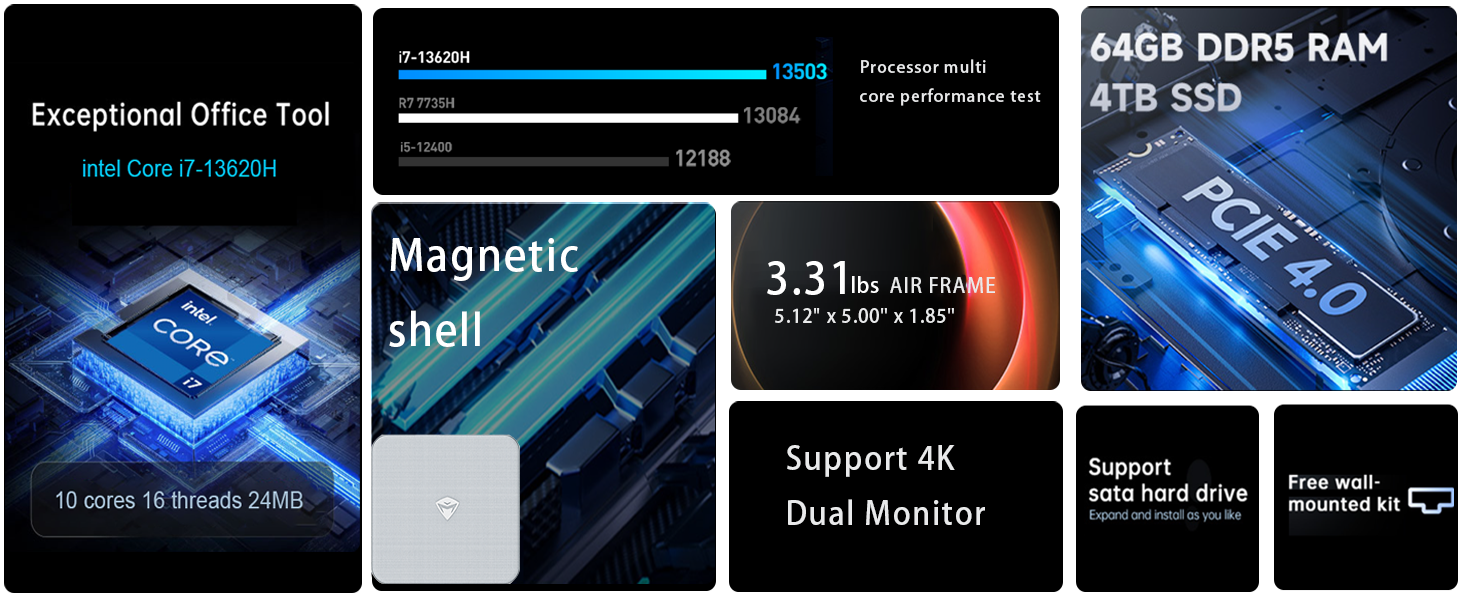
ภาพ: เหนือview of the Intel Core i7 processor, highlighting 10 Cores, 16 Threads, 4.90 GHz Max Turbo Frequency, and 24 MB L3 Cache.
คุณสมบัติหลัก:
- โปรเซสเซอร์: โปรเซสเซอร์ Intel Core i7-13620H (10 คอร์, 16 เธรด, ความเร็วสูงสุด 4.9 GHz)
- หน่วยความจำ: 16GB DDR5 SODIMM RAM (expandable up to 64GB)
- พื้นที่จัดเก็บ: 512GB PCIe M.2 Solid State Drive (supports dual M.2 expansion)
- ระบบปฏิบัติการ: วินโดวส์ 11 โปร
- กราฟิก: Integrated Intel UHD Graphics, supporting 4K dual monitor output via HDMI 2.0 and DisplayPort 1.4
- การเชื่อมต่อ: Wi-Fi 6, Bluetooth, 2 x RJ45 Ethernet, USB 3.2 Gen2 Type-A, USB Type-C
- ระบบระบายความร้อน : พัดลมระบายความร้อนแบบเทอร์ไบน์คู่ พร้อมหม้อน้ำทองแดงคุณภาพสูง
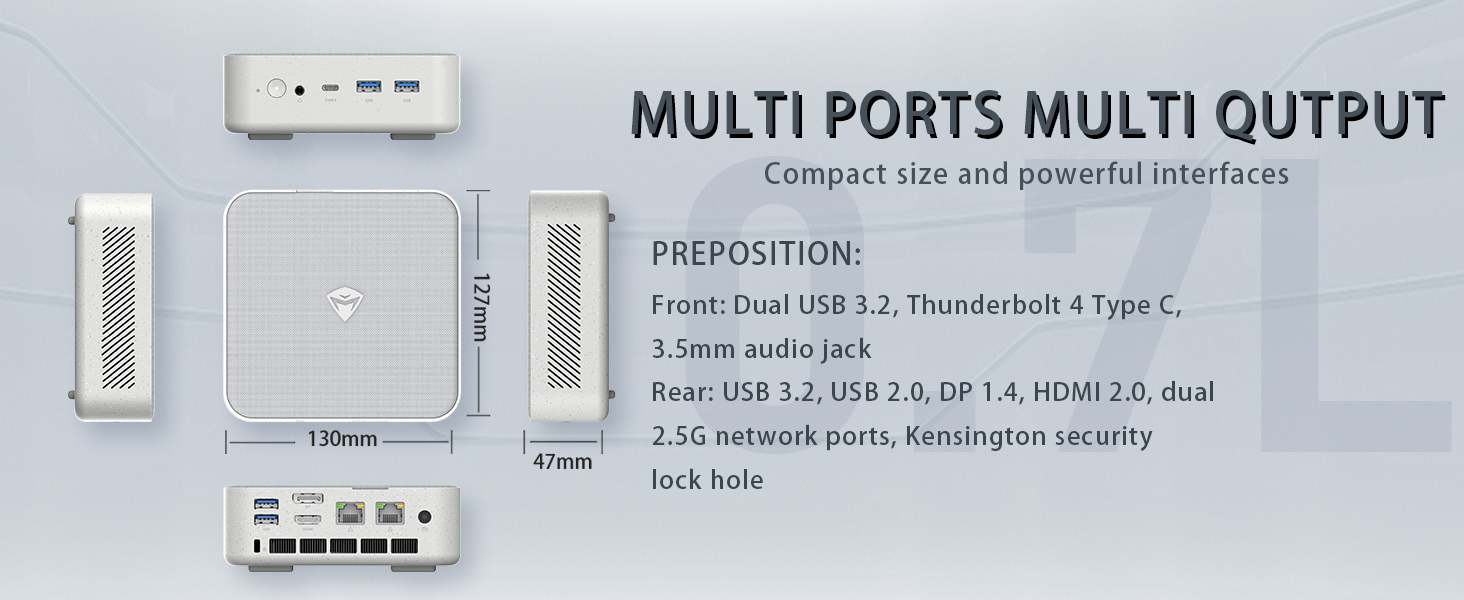
Image: Illustration of PCIe 4.0 SSD and memory slots, indicating support for up to 64GB DDR5 RAM and up to 4TB PCIe SSD expansion.
2. คู่มือการติดตั้ง
2.1 การแกะกล่องอุปกรณ์
นำส่วนประกอบทั้งหมดออกจากบรรจุภัณฑ์อย่างระมัดระวัง ตรวจสอบให้แน่ใจว่ามีส่วนประกอบต่อไปนี้:
- Machenike Machcreator Mini Desktop (Model 4762H)
- อะแดปเตอร์แปลงไฟ
- คู่มือการใช้งาน (เอกสารนี้)
- (Optional) VESA Mount Kit
2.2 การเชื่อมต่ออุปกรณ์ต่อพ่วง
ก่อนเปิดเครื่อง โปรดเชื่อมต่ออุปกรณ์ต่อพ่วงที่จำเป็นทั้งหมด:
- แสดง: Connect your monitor(s) to the HDMI 2.0 or DisplayPort 1.4 ports on the rear of the mini PC. The USB Type-C port also supports video output.
- คีย์บอร์ดและเมาส์: Connect your USB keyboard and mouse to any of the available USB 3.2 Gen2 Type-A ports.
- เครือข่าย: For a wired connection, connect an Ethernet cable to one of the RJ45 ports. For wireless, ensure your Wi-Fi network is available.
- พลัง: ต่ออะแดปเตอร์แปลงไฟเข้ากับพอร์ต DC-in บนมินิพีซี จากนั้นเสียบอะแดปเตอร์เข้ากับเต้ารับไฟฟ้า
ภาพ: รายละเอียด view of the mini PC's front and rear ports, including USB 3.2 Gen2 Type-A, USB Type-C, 3.5mm Audio Jack, HDMI 2.0, DisplayPort 1.4, and RJ45 Ethernet ports. Dimensions are also shown.
2.3 Initial Boot-up and Windows 11 Pro Setup
- กดปุ่มเปิด/ปิดเครื่องที่อยู่ด้านหน้าของมินิพีซี
- The system will boot into the Windows 11 Pro setup wizard. Follow the on-screen instructions to configure your language, region, network, and user account.
- Once setup is complete, your mini PC is ready for use.
3. คู่มือการใช้งาน
3.1 เปิด/ปิดเครื่อง
- เปิดเครื่อง: กดปุ่มเปิด/ปิดหนึ่งครั้ง
- ปิดระบบ: คลิกปุ่มเริ่มใน Windows จากนั้นเลือกเปิด/ปิดเครื่อง > ปิดเครื่อง
- เริ่มต้นใหม่อีกครั้ง: คลิกปุ่มเริ่มใน Windows จากนั้นเลือกเปิด/ปิดเครื่อง > เริ่มระบบใหม่
- นอน: คลิกปุ่มเริ่มใน Windows จากนั้นเลือกเปิด/ปิดเครื่อง > โหมดสลีป
3.2 การกำหนดค่าการแสดงผล
The mini PC supports up to two 4K displays simultaneously. To configure display settings:
- คลิกขวาบนเดสก์ท็อปและเลือก "การตั้งค่าการแสดงผล"
- Here you can detect multiple displays, arrange them, change resolution, and adjust scaling.
3.3 การเชื่อมต่อเครือข่าย
- ไวไฟ : คลิกไอคอนเครือข่ายในแถบงาน เลือกเครือข่าย Wi-Fi ของคุณ ป้อนรหัสผ่าน แล้วเชื่อมต่อ
- อีเธอร์เน็ต: หากเสียบสายอีเธอร์เน็ต ระบบควรจะสร้างการเชื่อมต่อเครือข่ายแบบใช้สายโดยอัตโนมัติ
3.4 Cooling System Modes
The mini PC features an advanced cooling system with adjustable modes via the BIOS to optimize performance and noise levels. These modes include:
- โหมดเงียบ: Prioritizes quiet operation, suitable for light tasks.
- โหมดสมดุล: Offers a good balance between performance and noise.
- โหมดการทำงาน: Maximizes performance (up to 65W power release), ideal for demanding applications.
To change these settings, access the BIOS during startup (typically by pressing เดล or F2 repeatedly after powering on) and navigate to the relevant power or performance settings.
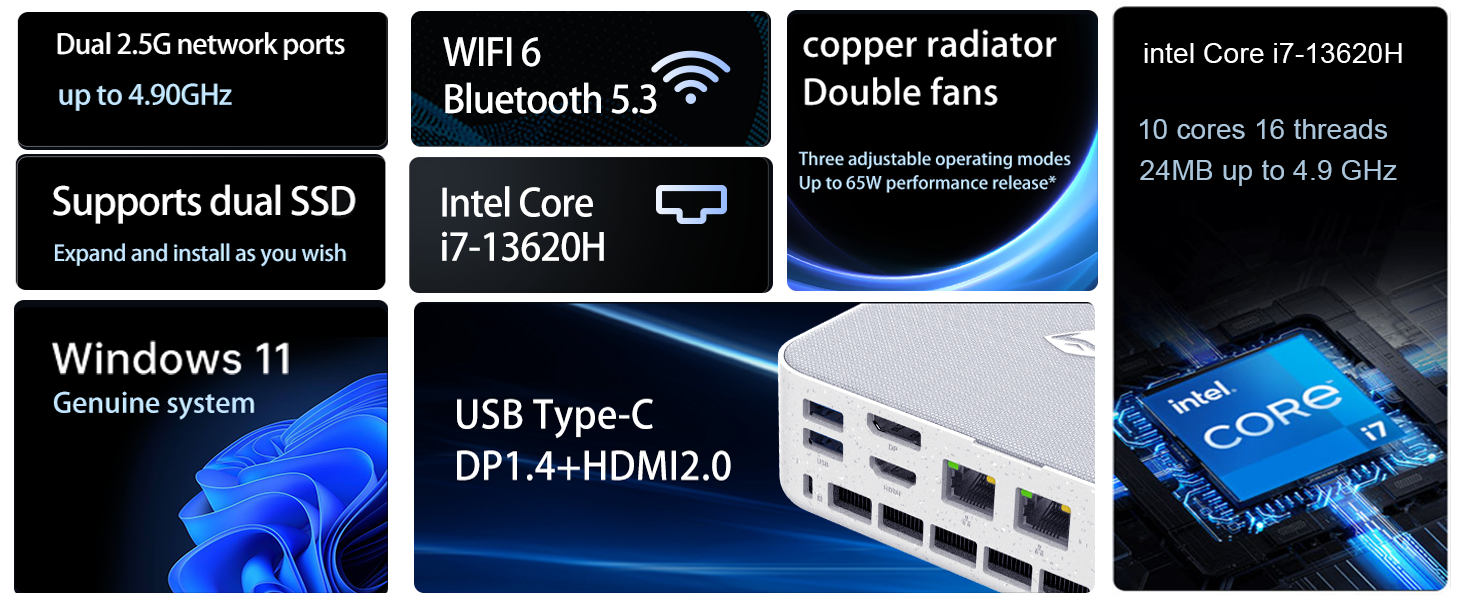
Image: Illustration of the twin turbine cooling fan and deluxe all-copper radiator, explaining how it prevents slowdowns due to overheating and offers silence, balance, and performance modes.
4. การบำรุงรักษา
4.1 การทำความสะอาดเครื่อง
To ensure optimal performance and longevity, regularly clean your mini PC:
- Power off the device and disconnect it from the power outlet.
- ใช้ผ้าแห้งนุ่มเช็ดภายนอก
- Use compressed air to gently clear dust from ventilation openings. Do not insert any objects into the vents.
4.2 การอัปเดตซอฟต์แวร์
Keep your Windows 11 Pro operating system and drivers updated to ensure security and performance:
- การอัปเดต Windows: Go to Start > Settings > Windows Update and check for updates.
- การอัปเดตไดรเวอร์: Visit the Machenike official webเว็บไซต์นี้รวบรวมไดร์เวอร์เวอร์ชั่นล่าสุดสำหรับรุ่นรถของคุณ
4.3 การขยายพื้นที่จัดเก็บข้อมูลและหน่วยความจำ
The Machenike Machcreator Mini Desktop supports upgrades for both RAM and storage:
- แรม : The device has 2 SODIMM slots and supports up to 64GB DDR5 RAM.
- พื้นที่จัดเก็บ: It supports dual PCIe M.2 SSDs, allowing for significant storage expansion up to 4TB.
บันทึก: Opening the device for upgrades may void your warranty. Consult a qualified technician or refer to specific upgrade guides from Machenike if available.
5 การแก้ไขปัญหา
ส่วนนี้จะกล่าวถึงปัญหาทั่วไปที่คุณอาจพบ สำหรับปัญหาที่ซับซ้อนมากขึ้น โปรดติดต่อฝ่ายสนับสนุนลูกค้า
5.1 ไม่มีไฟฟ้า
- ตรวจสอบให้แน่ใจว่าอะแดปเตอร์ไฟฟ้าเชื่อมต่อกับมินิพีซีและเต้ารับไฟฟ้าที่ใช้งานได้แน่นหนา
- ตรวจสอบว่าเต้ารับไฟฟ้าใช้งานได้โดยเสียบอุปกรณ์อื่น
- ตรวจสอบอะแดปเตอร์ไฟฟ้าเพื่อดูว่ามีร่องรอยความเสียหายที่มองเห็นได้หรือไม่
5.2 ไม่มีการแสดงผล
- Confirm that the monitor is powered on and the correct input source is selected.
- Ensure the HDMI or DisplayPort cable is securely connected to both the mini PC and the monitor.
- ลองใช้สายจอภาพหรือจอภาพอื่นหากมี
- หากใช้จอแสดงผลหลายจอ ให้ลองเชื่อมต่อทีละจอเท่านั้น
5.3 ปัญหาการเชื่อมต่อเครือข่าย
- แบบมีสาย (อีเธอร์เน็ต): Check if the Ethernet cable is properly connected to both the mini PC and the router/modem. Verify router/modem status.
- ไร้สาย (Wi-Fi): Ensure Wi-Fi is enabled in Windows settings. Restart your router/modem. Check if other devices can connect to the Wi-Fi network.
- Run Windows Network Troubleshooter (Start > Settings > Network & internet > Advanced network settings > Network troubleshooter).
6. ข้อมูลจำเพาะ
Detailed technical specifications for the Machenike Machcreator Mini Desktop, Model 4762H:
| คุณสมบัติ | ข้อมูลจำเพาะ |
|---|---|
| ยี่ห้อ | มาเชนิเก |
| หมายเลขรุ่น | 4762ห |
| ระบบปฏิบัติการ | วินโดวส์ 11 โปร |
| รุ่นซีพียู | อินเทล คอร์ i7-13620H |
| ความเร็วซีพียู | Up to 4.9 GHz (Max Turbo Frequency) |
| ขนาดหน่วยความจำ RAM ที่ติดตั้ง | 16 GB DDR5 (Expandable to 64 GB) |
| ความเร็วสัญญาณนาฬิกาหน่วยความจำ | 4800 เมกะเฮิรตซ์ |
| มีช่องหน่วยความจำให้เลือก | 2 |
| ความจุของหน่วยความจำ | 512 GB PCIe M.2 SSD (Supports dual M.2, up to 4TB) |
| โคโปรเซสเซอร์กราฟิก | กราฟิก Intel UHD (รวม) |
| อินเทอร์เฟซเอาท์พุตวิดีโอ | HDMI 2.0, DisplayPort 1.4, USB Type-C |
| ความละเอียดการแสดงผลสูงสุด | 3840x2160 (4K) |
| ฮาร์ดแวร์อินเตอร์เฟซ | 3.5mm Audio, Bluetooth, DisplayPort, Ethernet (2x RJ45), HDMI, USB, USB Type C |
| การเชื่อมต่อแบบไร้สาย | Wi-Fi 6 (802.11ax), บลูทูธ |
| ขนาดรายการ (LxWxH) | 5.12 x 5 x 1.85 นิ้ว |
| น้ำหนักสินค้า | 49.8 ปอนด์ (Note: This weight may be a data entry error; actual weight for a mini PC is typically much less.) |
| ยูพีซี | 193200587317 |
7. การรับประกันและการสนับสนุน
7.1 ข้อมูลการรับประกัน
Machenike products typically come with a limited manufacturer's warranty. Please refer to the warranty card included with your purchase or visit the official Machenike webเข้าชมเว็บไซต์เพื่อดูรายละเอียดข้อกำหนดและเงื่อนไขการรับประกันที่เฉพาะเจาะจงสำหรับภูมิภาคและรุ่นผลิตภัณฑ์ของคุณ เก็บหลักฐานการซื้อไว้เพื่อใช้ในการเรียกร้องการรับประกัน
7.2 การสนับสนุนลูกค้า
For technical assistance, troubleshooting beyond this manual, or warranty inquiries, please contact Machenike customer support:
- การสนับสนุนทางออนไลน์: เยี่ยมชมเว็บไซต์อย่างเป็นทางการของ Machenike webงาน (www.machenike.com - exampลิงก์ต้นฉบับอาจแตกต่างกันไป) และไปที่ส่วนการสนับสนุน
- การสนับสนุนทางอีเมล์: โปรดดูเอกสารประกอบผลิตภัณฑ์เพื่อดูที่อยู่อีเมลสำหรับติดต่อฝ่ายสนับสนุนโดยเฉพาะ
- การสนับสนุนทางโทรศัพท์: Check the Machenike webเว็บไซต์สำหรับหมายเลขโทรศัพท์ฝ่ายสนับสนุนทางโทรศัพท์ประจำภูมิภาค
When contacting support, please have your product model number (4762H) and serial number ready.