
H3C H3C Magic NX15-UK
คู่มือผู้ใช้เราเตอร์ Wi-Fi 6 แบบ Dual Band Gigabit รุ่น H3C Magic NX15 AX1500
Model: H3C Magic NX15-UK
1. บทนำ
The H3C Magic NX15 is a high-performance Gigabit Wi-Fi 6 router designed to provide a fast and reliable internet experience. Featuring a vertical design, full gigabit network ports, and Wi-Fi 6 (802.11ax) technology on the 5GHz band, it ensures high-speed connectivity. Equipped with four high-gain external antennas and EasyMesh compatibility, it offers wide and flexible network signal coverage. Enhanced security is provided through WPA3 encryption. This manual provides essential information for setting up, operating, and maintaining your H3C Magic NX15 router.
2. เนื้อหาบรรจุภัณฑ์
โปรดตรวจสอบสิ่งของภายในบรรจุภัณฑ์อย่างละเอียด หากมีสินค้าใดสูญหายหรือเสียหาย โปรดติดต่อผู้ค้าปลีกของคุณ
- H3C Magic NX15 AX1500 Dual Band Gigabit Wi-Fi 6 Router
- อะแดปเตอร์แปลงไฟ
- สายเคเบิลอีเทอร์เน็ต
- คู่มือการติดตั้งด่วน (คู่มือนี้)
3. สินค้าหมดview
Familiarize yourself with the components and interfaces of your H3C Magic NX15 router.
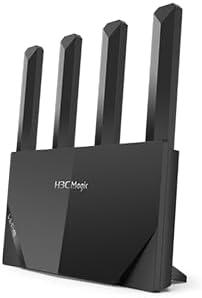
รูปที่ 3.1: ด้านหน้า view of the H3C Magic NX15 router, showcasing its vertical design and four external antennas.
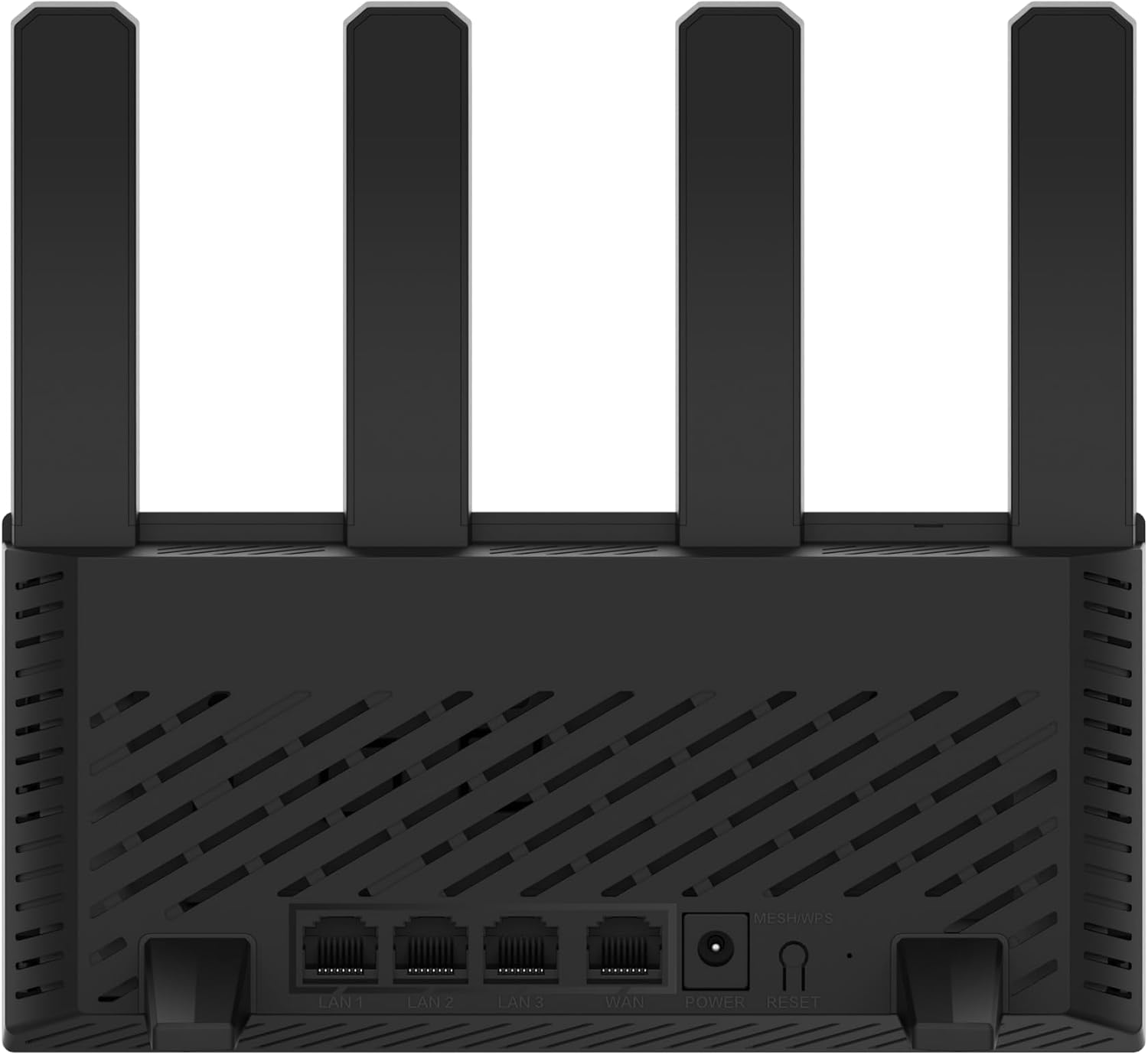
รูปที่ 3.2: หลัง view of the H3C Magic NX15 router, displaying the LAN ports, WAN port, power input, and Reset/WPS button.

รูปที่ 3.3: สูงสุด view of the H3C Magic NX15 router, highlighting the ventilation design for heat dissipation.

รูปที่ 3.4: ด้านข้าง view of the H3C Magic NX15 router, showing the sleek profile and additional ventilation slots.
Port and Button Descriptions:
- พอร์ต WAN: เชื่อมต่อกับโมเด็มหรือเครือข่ายของผู้ให้บริการอินเทอร์เน็ต (ISP) ของคุณ
- พอร์ต LAN (LAN1, LAN2, LAN3): เชื่อมต่อกับอุปกรณ์แบบใช้สาย เช่น คอมพิวเตอร์ เครื่องเล่นเกม หรือสมาร์ททีวี
- พอร์ตไฟ: เชื่อมต่อกับอะแดปเตอร์ไฟฟ้าที่ให้มา
- ปุ่มรีเซ็ต/WPS:
- Press briefly to activate WPS (Wi-Fi Protected Setup) for easy connection of compatible devices.
- Press and hold for approximately 5-10 seconds to restore the router to factory default settings.
- เสาอากาศ: Four high-gain external antennas for optimal Wi-Fi signal coverage.
4. คู่มือการติดตั้ง
Follow these steps to set up your H3C Magic NX15 router for the first time.
- แกะกล่องเราเตอร์: ถอดเราเตอร์และอุปกรณ์เสริมทั้งหมดออกจากบรรจุภัณฑ์อย่างระมัดระวัง
- ตำแหน่งเราเตอร์: วางเราเตอร์ไว้ในตำแหน่งที่อยู่ตรงกลางบ้านหรือที่ทำงานของคุณ ห่างจากสิ่งกีดขวางและแหล่งกำเนิดสัญญาณรบกวน (เช่น ไมโครเวฟ โทรศัพท์ไร้สาย) และตรวจสอบให้แน่ใจว่ามีการระบายอากาศที่ดี
- เชื่อมต่อกับพลังงาน: Connect the included power adapter to the router's power port and then plug the adapter into a power outlet. Wait for the router to power on and its indicator lights to stabilize.
- เชื่อมต่อกับโมเด็ม: Connect one end of the provided Ethernet cable to the WAN port on your H3C Magic NX15 router and the other end to your modem's LAN port.
- เชื่อมต่ออุปกรณ์ (ทางเลือก): For wired connections, connect an Ethernet cable from one of the router's LAN ports to your computer or other network device.
- เชื่อมต่อกับ Wi-Fi:
- ค้นหาเครือข่าย Wi-Fi ที่พร้อมใช้งานบนคอมพิวเตอร์หรืออุปกรณ์พกพาของคุณ
- เลือกชื่อเครือข่าย Wi-Fi (SSID) ที่พิมพ์อยู่บนฉลากด้านล่างของเราเตอร์ของคุณ
- Enter the Wi-Fi password (also printed on the router's label) when prompted.
- หน้าการจัดการเราเตอร์เข้าถึง:
- เปิด web เบราว์เซอร์ (เช่น Chrome, Firefox, Edge)
- พิมพ์ที่อยู่ IP เริ่มต้น (โดยปกติ
192.168.1.1orh3cmagic.com) into the address bar and press Enter. Refer to the router's label for the exact address. - Follow the on-screen instructions to complete the initial setup, including setting a new administrator password and configuring your internet connection type (e.g., PPPoE, DHCP, Static IP).
5. คู่มือการใช้งาน
This section details the key features and how to operate your H3C Magic NX15 router.
5.1 การทำงาน Wi-Fi แบบดูอัลแบนด์
The H3C Magic NX15 supports dual-band Wi-Fi (2.4GHz and 5GHz) for optimal performance. It features intelligent band steering, which automatically directs your devices to the best available band (2.4GHz for wider coverage, 5GHz for higher speeds) without manual selection.
- ย่านความถี่ 2.4GHz: Provides wider coverage and better penetration through walls, suitable for general browsing and devices further from the router.
- ย่านความถี่ 5GHz: Offers higher speeds and lower latency, ideal for streaming 4K video, online gaming, and high-bandwidth applications, typically for devices closer to the router.
5.2 Intelligent Management via Mobile App
Manage your router conveniently using the dedicated H3C mobile application. The app allows for easy network settings configuration, network speed optimization, and various other operations.
- ดาวน์โหลดแอป: ค้นหา the "H3C Magic" app in your device's app store (Google Play Store for Android or Apple App Store for iOS).
- ติดตั้งและเปิดตัว: ติดตั้งแอปและเปิดใช้งาน
- เข้าสู่ระบบ: Use your router's administrator credentials to log in to the app.
- จัดการการตั้งค่า: จากแอปคุณสามารถ:
- เปลี่ยนชื่อและรหัสผ่าน Wi-Fi
- ตรวจสอบอุปกรณ์ที่เชื่อมต่ออยู่
- ตั้งค่าการควบคุมโดยผู้ปกครอง
- Configure guest Wi-Fi networks.
- Optimize network performance.
5.3 EasyMesh for Whole-Home Wi-Fi
The H3C Magic NX15 supports EasyMesh technology, allowing you to expand your Wi-Fi coverage by adding additional compatible H3C mesh units. This creates a seamless whole-home Wi-Fi network, eliminating dead zones in large or complex house types.
- Refer to the EasyMesh setup guide provided with your additional mesh units for detailed instructions on expanding your network.
- Ensure all mesh units are compatible with the EasyMesh standard.
5.4 คุณสมบัติการรักษาความปลอดภัยเครือข่าย
The router includes multiple functions to enhance your private network's security:
- การเข้ารหัส WPA3: Provides the latest and strongest Wi-Fi security protocol.
- Access Allowlist/Denylist: Control which devices can connect to your network based on their MAC addresses.
- Wi-Fi สำหรับแขก: สร้างเครือข่าย Wi-Fi แยกต่างหากสำหรับแขกเพื่อรักษาเครือข่ายหลักของคุณให้ปลอดภัยและเป็นส่วนตัว
- การควบคุมโดยผู้ปกครอง: Manage internet access times and block inappropriate content for specific devices.
These security features can be configured via the router's web management interface or the H3C mobile app.
6. การบำรุงรักษา
Proper maintenance ensures the longevity and optimal performance of your H3C Magic NX15 router.
- การจัดวาง: Keep the router in a well-ventilated area, away from direct sunlight, heat sources, and moisture. The stereoscopic heat dissipation design with a large metal heat sink helps maintain stable operation.
- การทำความสะอาด: Regularly dust the router's exterior and ventilation slots with a soft, dry cloth. Do not use liquid cleaners or aerosols.
- อัพเดตเฟิร์มแวร์: ตรวจสอบและติดตั้งการอัพเดตเฟิร์มแวร์ผ่านเราเตอร์เป็นระยะ web management interface or the mobile app. Firmware updates often include performance improvements, new features, and security patches.
- การรีบูต: หากคุณพบปัญหาเกี่ยวกับเครือข่าย ให้ลองรีบูตเราเตอร์โดยถอดปลั๊กอะแดปเตอร์ไฟออกเป็นเวลา 10 วินาที แล้วเสียบกลับเข้าไปใหม่
- ความปลอดภัย: Regularly change your Wi-Fi password and router administrator password to strong, unique combinations.
7 การแก้ไขปัญหา
หัวข้อนี้จะกล่าวถึงปัญหาทั่วไปที่คุณอาจพบเจอและเสนอวิธีแก้ไข
| ปัญหา | สาเหตุที่เป็นไปได้ | สารละลาย |
|---|---|---|
| ไม่มีการเข้าถึงอินเตอร์เน็ต |
|
|
| Wi-Fi Signal Weak or Unstable |
|
|
| ไม่สามารถเข้าถึงหน้าการจัดการเราเตอร์ได้ |
|
|
| Forgot Router Administrator Password | รหัสผ่านหาย | Press and hold the Reset/WPS button on the router for 5-10 seconds to restore factory default settings. You will then need to reconfigure the router. |
8. ข้อมูลจำเพาะ
Detailed technical specifications for the H3C Magic NX15 router.
| คุณสมบัติ | รายละเอียด |
|---|---|
| ชื่อรุ่น | H3C Magic NX15 |
| หมายเลขรุ่นสินค้า | H3C Magic NX15-UK |
| ยี่ห้อ | H3ซี |
| ไร้มาตรฐาน | 802.11ax (ไวไฟ 6) |
| ระดับย่านความถี่ | ดูอัลแบนด์ (2.4GHz และ 5GHz) |
| เสาอากาศ | เสาอากาศภายนอกกำลังขยายสูง 4 ตัว |
| พอร์ต | Gigabit WAN, Gigabit LAN (x3) |
| คุณสมบัติพิเศษ | Access Point Mode, EasyMesh, WPA3 Security, Parental Control, Guest Wi-Fi, App Management |
| ขนาด (แพ็คเกจ) | 21 x 19.4 x 6.3 ซม. |
| น้ำหนัก (แพ็คเกจ) | 500 กรัม |
| ผู้ผลิต | H3ซี |
| ประเทศต้นกำเนิด | จีน |
| วันที่พร้อมใช้งานครั้งแรก | 24 สิงหาคม 2024 |
9. การรับประกันและการสนับสนุน
The H3C Magic NX15 router comes with a standard manufacturer's warranty. For specific warranty terms and conditions, please refer to the warranty card included in your product packaging or visit the official H3C webเว็บไซต์.
การสนับสนุนด้านเทคนิค:
If you encounter any issues or have questions regarding your H3C Magic NX15 router, please contact H3C technical support.
- การสนับสนุนทางออนไลน์: Visit the official H3C support webเว็บไซต์นี้รวบรวมคำถามที่พบบ่อย คู่มือการแก้ไขปัญหา และไฟล์ดาวน์โหลดไดรเวอร์/เฟิร์มแวร์
- ข้อมูลติดต่อ: Refer to the H3C website or your product documentation for regional contact numbers and email support.
Please have your product model number (H3C Magic NX15-UK) and serial number ready when contacting support.
Ask a question about this manual
Ask about setup, troubleshooting, compatibility, parts, safety, or missing instructions. Manuals+ will review the question and use this page’s manual context to help answer it.