
1. สินค้าหมดview
The XunFox K90 is a compact 66-key mechanical keyboard designed for efficient and responsive input. It features adjustable RGB backlighting and a durable construction. The ergonomic design aims to provide a comfortable typing experience, with keys engineered for smooth and responsive keystrokes.
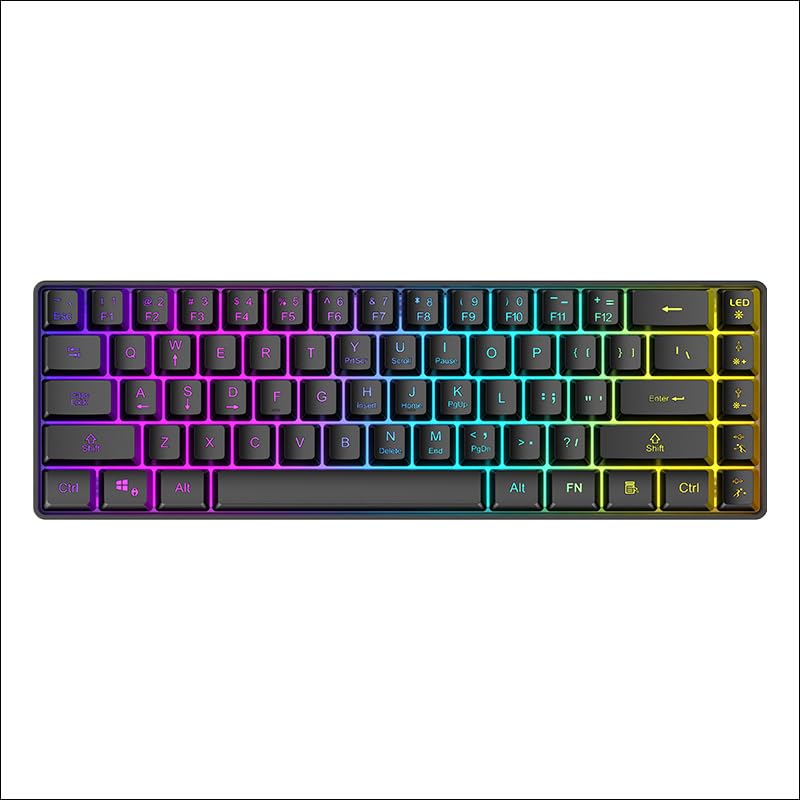
รูปที่ 1: จากบนลงล่าง view of the XunFox K90 RGB Gaming Keyboard, showcasinด้วยดีไซน์กะทัดรัด 66 ปุ่ม และแสงไฟ RGB ที่สดใส
คุณสมบัติหลัก:
- Compact 66-Key Design: A minimalist layout for enhanced typing comfort and portability.
- Adjustable RGB Backlighting: ปรับแต่งเอฟเฟ็กต์แสงได้ตามต้องการ เพื่อปรับแต่งการจัดวางของคุณให้เป็นเอกลักษณ์
- โครงสร้างทนทาน: Crafted with sturdy materials for reliable performance.
- การเชื่อมต่อ USB แบบใช้สาย: ช่วยให้การเชื่อมต่อเสถียรและไม่มีอาการหน่วง
- ความเข้ากันได้ที่หลากหลาย: Compatible with Windows and other popular operating systems.
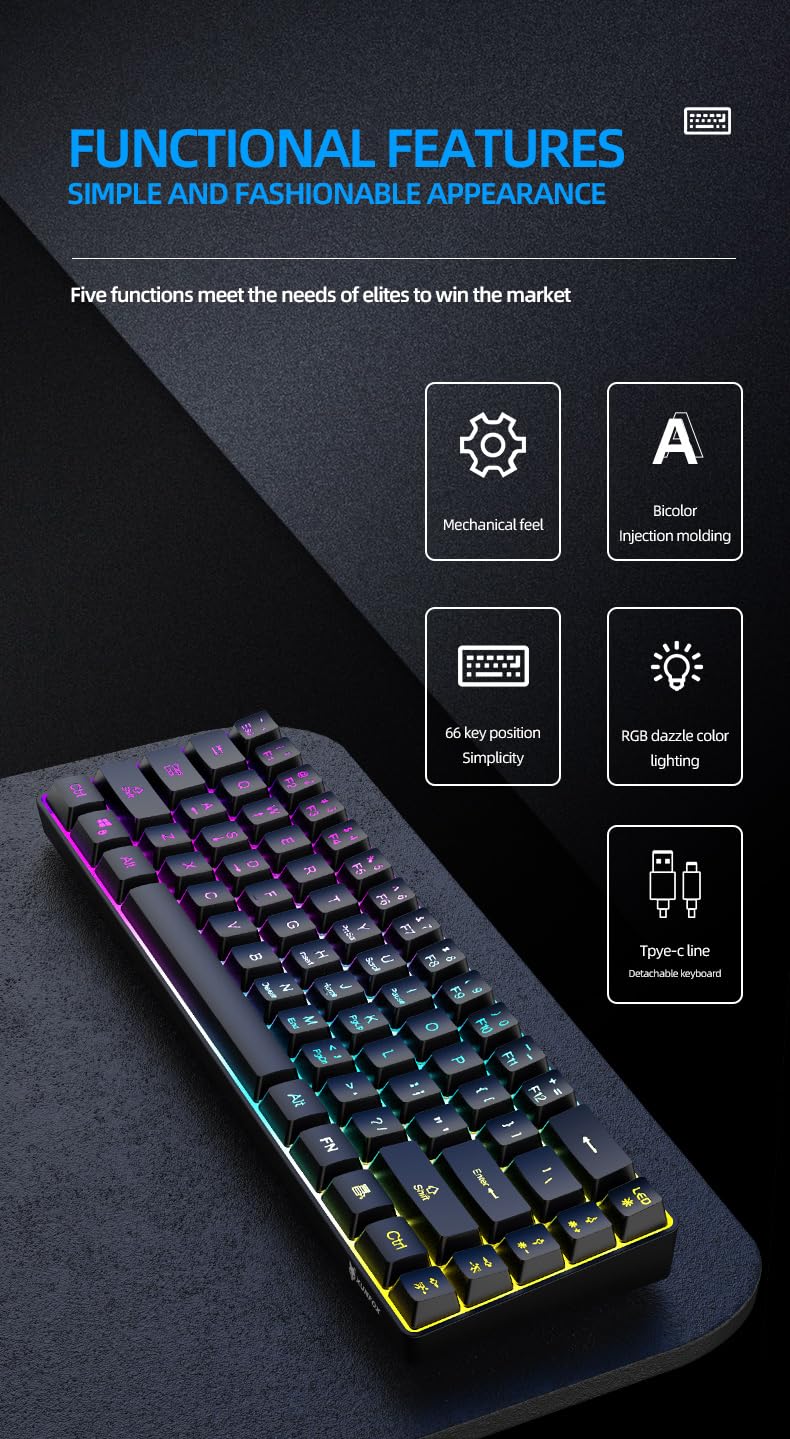
รูปที่ 2: เกินview of the XunFox K90 keyboard's functional features, including mechanical feel, bicolor injection molding, 66-key simplicity, RGB lighting, and detachable Type-C cable.
2. คำแนะนำในการตั้งค่า
เนื้อหาแพ็คเกจ:
- XunFox K90 RGB Gaming Keyboard
- สาย USB (Type-C ถึง USB-A)
การเชื่อมต่อแป้นพิมพ์:
- Locate the USB Type-C port on the back or side of the XunFox K90 keyboard.
- Connect the Type-C end of the provided USB cable to the keyboard's port.
- Connect the USB-A end of the cable to an available USB port on your computer or laptop.
- The keyboard will automatically be recognized by your operating system (e.g., Windows 10). No additional drivers are typically required.

รูปที่ 3: Image showing the detachable Type-C cable connecting to the keyboard, illustrating the wired USB connectivity.
3. คู่มือการใช้งาน
การใช้งานพื้นฐาน:
The XunFox K90 keyboard functions as a standard 66-key input device. Simply plug it into your computer, and it will be ready for use.
การควบคุมแสงไฟ RGB:
The keyboard features adjustable RGB backlighting with multiple effects. Use the FN (Function) key in combination with specific keys to control the lighting.
- FN + LED Key (usually next to F12): Cycles through various lighting modes, including endless stream, colorful horse running, circular breathing, solid comet tailing, monochrome, multicolor diffusion, and backlight color impact diffusion.
- FN + ↑ (ลูกศรขึ้น): เพิ่มความสว่างของแสงไฟแบ็คไลท์
- FN + ↓ (ลูกศรลง): ลดความสว่างของแสงไฟด้านหลัง
- FN + → (ลูกศรขวา): เพิ่มความเร็วของเอฟเฟกต์แสง
- FN + ← (ลูกศรซ้าย): ลดความเร็วของเอฟเฟกต์แสงลง

รูปที่ 4: Diagram illustrating the key combinations for controlling RGB lighting modes, intensity, and speed on the XunFox K90 keyboard.
4. การบำรุงรักษา
การทำความสะอาดคีย์บอร์ด:
- ถอดแป้นพิมพ์ออกจากคอมพิวเตอร์ของคุณก่อนทำความสะอาด
- ใช้ผ้านุ่มไม่เป็นขุยเช็ดเล็กน้อยampชุบน้ำหรือน้ำยาทำความสะอาดอ่อนๆ เพื่อเช็ดปุ่มและพื้นผิว
- หลีกเลี่ยงการฉีดของเหลวลงบนแป้นพิมพ์โดยตรง
- สำหรับฝุ่นละอองและเศษต่างๆ ระหว่างคีย์ ให้ใช้ลมอัด
- ห้ามใช้สารเคมีรุนแรงหรือวัสดุขัดถู เพราะอาจทำให้พื้นผิวเสียหายได้
พื้นที่จัดเก็บ:
- เก็บแป้นพิมพ์ไว้ในที่แห้งและเย็น หลีกเลี่ยงแสงแดดโดยตรงและอุณหภูมิที่สูงหรือต่ำเกินไป
- If storing for an extended period, consider using the original packaging or a protective cover to prevent dust accumulation.
5 การแก้ไขปัญหา
แป้นพิมพ์ไม่ตอบสนอง:
- ตรวจสอบการเชื่อมต่อ USB: ตรวจสอบให้แน่ใจว่าสาย USB เชื่อมต่อกับทั้งคีย์บอร์ดและคอมพิวเตอร์อย่างแน่นหนา ลองใช้พอร์ต USB อื่น
- รีสตาร์ทคอมพิวเตอร์: บางครั้งการรีสตาร์ทระบบอย่างง่ายก็สามารถแก้ไขปัญหาการเชื่อมต่อได้
- ทดสอบบนคอมพิวเตอร์เครื่องอื่น: ถ้าเป็นไปได้ ให้ลองทดสอบแป้นพิมพ์กับคอมพิวเตอร์เครื่องอื่นเพื่อตรวจสอบว่าปัญหาเกิดจากแป้นพิมพ์หรือการตั้งค่าของคอมพิวเตอร์เครื่องเดิม
RGB Lights Not Working or Incorrect:
- Check FN Key Combinations: Refer to the "RGB Backlight Control" section (Section 3) to ensure you are using the correct key combinations to adjust lighting modes, brightness, and speed.
- Reconnect Keyboard: ถอดและเชื่อมต่อสาย USB ใหม่
6. ข้อมูลจำเพาะ
| คุณสมบัติ | รายละเอียด |
|---|---|
| ยี่ห้อ | XunFox |
| ชื่อรุ่น | เค90 |
| ประเภทแป้นพิมพ์ | แป้นพิมพ์สำหรับเล่นเกมแบบเครื่องกล |
| เค้าโครงคีย์ | 66-Key Compact |
| การเชื่อมต่อ | Wired USB (Type-C detachable cable) |
| การแบ็คไลท์ | RGB with adjustable breathing lamp ผลกระทบ |
| คุณสมบัติพิเศษ | Backlit, Ergonomic design |
| ระบบปฏิบัติการที่รองรับ | Windows 10 and other popular operating systems |
| อุปกรณ์ที่รองรับ | แล็ปท็อปพีซี |
| ขนาดสินค้า (กxยxส) | 38 x 12 x 4 ซม. |
| น้ำหนักสินค้า | 600 กรัม |
| สี | สีดำ |
7. ข้อมูลการรับประกัน
The XunFox K90 RGB Gaming Keyboard comes with a รับประกัน 2 ปี นับจากวันที่ซื้อ การรับประกันนี้ครอบคลุมข้อบกพร่องในการผลิตและปัญหาต่างๆ ที่เกิดขึ้นจากการใช้งานตามปกติ แต่ไม่ครอบคลุมความเสียหายที่เกิดจากการใช้งานผิดวิธี อุบัติเหตุ การดัดแปลงโดยไม่ได้รับอนุญาต หรือการบำรุงรักษาที่ไม่เหมาะสม
โปรดเก็บหลักฐานการซื้อของคุณไว้เพื่อเรียกร้องการรับประกัน
8. การสนับสนุน
For technical assistance, warranty claims, or any other inquiries regarding your XunFox K90 RGB Gaming Keyboard, please contact customer support:
- การดูแลลูกค้า: +91 9906910066
- ผู้นำเข้า/ผู้บรรจุ: NJ Infotech, India