
การแนะนำ
This manual provides essential information for the proper setup, operation, and maintenance of your ONN 24-inch FHD Gaming Monitor, model 100027813. Please read this manual thoroughly before using the product to ensure optimal performance and safety. This monitor is designed to deliver a high-quality gaming experience with its 1080p resolution, 165Hz refresh rate, 1ms response time, and FreeSync technology.
ข้อมูลด้านความปลอดภัย
โปรดปฏิบัติตามข้อควรระวังด้านความปลอดภัยต่อไปนี้เสมอ เพื่อป้องกันความเสียหายต่อจอภาพและเพื่อความปลอดภัยของผู้ใช้งาน:
- ห้ามให้จอภาพโดนฝนหรือความชื้น เพื่อหลีกเลี่ยงอันตรายจากไฟไหม้หรือไฟฟ้าช็อต
- อย่าเปิดจอภาพcasinก. ไม่มีชิ้นส่วนใดที่ผู้ใช้สามารถซ่อมบำรุงเองได้ภายใน แนะนำให้ช่างผู้ชำนาญการซ่อมบำรุงนำชิ้นส่วนทั้งหมดไปซ่อม
- วางจอภาพบนพื้นผิวที่มั่นคงและเรียบเพื่อป้องกันไม่ให้ตก
- ตรวจสอบให้แน่ใจว่ามีการระบายอากาศที่เหมาะสมรอบ ๆ จอภาพ อย่าปิดกั้นช่องระบายอากาศ
- ใช้เฉพาะอะแดปเตอร์ไฟฟ้าที่ให้มาพร้อมกับจอภาพเท่านั้น
- ถอดปลั๊กจอภาพออกจากเต้าเสียบไฟฟ้าในระหว่างที่มีพายุฝนฟ้าคะนองหรือเมื่อไม่ได้ใช้งานเป็นเวลานาน
เนื้อหาแพ็คเกจ
ตรวจสอบว่ามีรายการทั้งหมดอยู่ในแพ็คเกจ:
- ONN 24-inch FHD Gaming Monitor
- ขาตั้งจอมอนิเตอร์ (ฐานและคอ)
- อะแดปเตอร์แปลงไฟ
- DisplayPort Cable (6 ft)
- สาย HDMI (ยาว 6 ฟุต)
- คู่มือการใช้งาน (เอกสารนี้)

Image: Retail box of the ONN 24-inch Gaming Monitor, highlighting key features like 165Hz, 1ms response time, DisplayPort, HDMI, and Adaptive-Sync.
การตั้งค่า
1. การประกอบขาตั้ง
- ถอดส่วนประกอบของจอภาพและขาตั้งออกจากบรรจุภัณฑ์อย่างระมัดระวัง
- Attach the stand neck to the stand base. Secure it with the provided screw, if applicable.
- Align the assembled stand with the mounting slot on the back of the monitor. Gently push until it clicks into place or secure with screws as per the design.
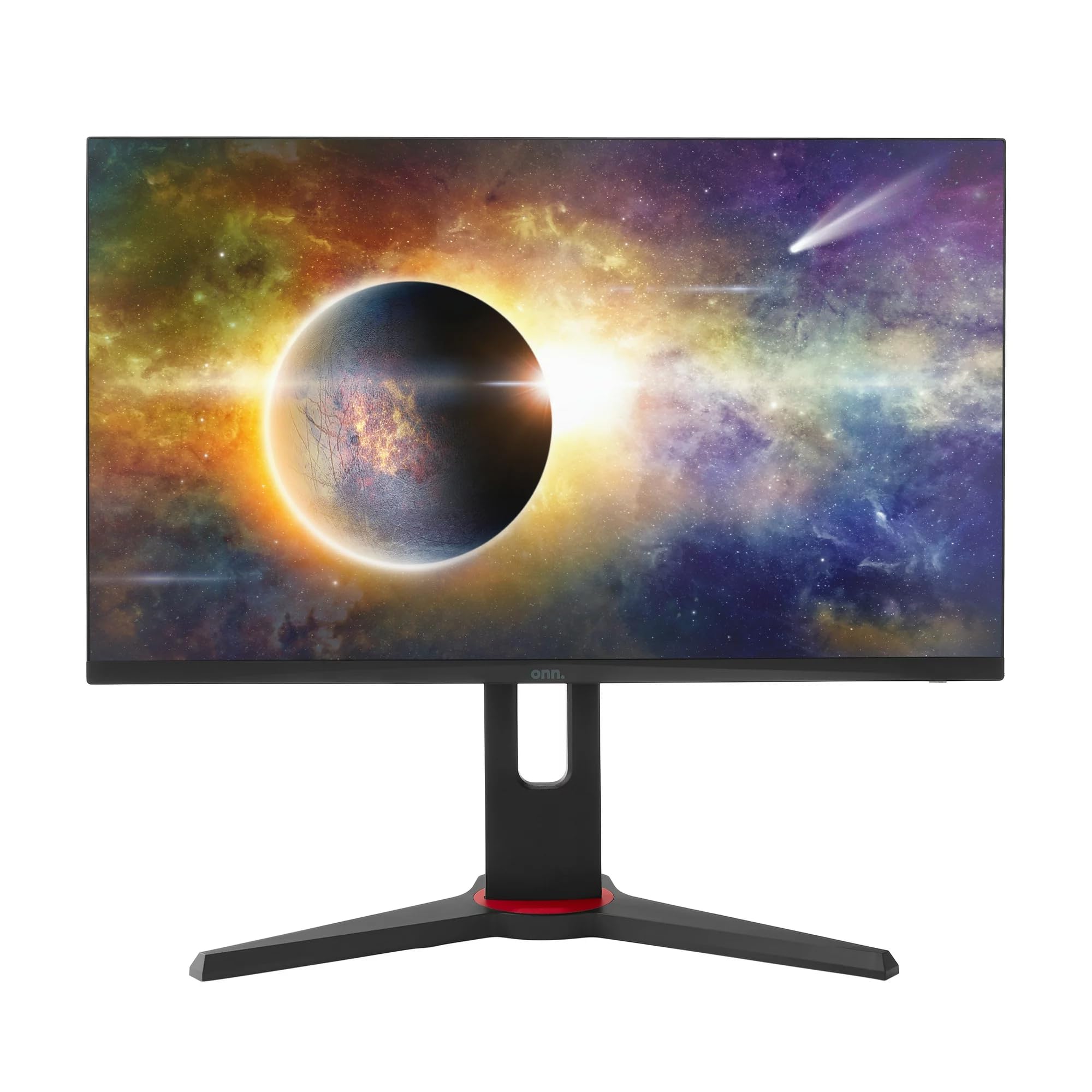
ภาพ: ด้านหน้า view of the ONN 24-inch Gaming Monitor, fully assembled with its stand.

ภาพ: ด้านหลัง view of the ONN 24-inch Gaming Monitor, illustrating the stand attachment and cable management area.
2. การเชื่อมต่อสายเคเบิล
Locate the input ports on the back of your monitor:
- พลัง: เชื่อมต่ออะแดปเตอร์แปลงไฟเข้ากับช่องเสียบสายไฟของจอภาพ จากนั้นเสียบเข้ากับเต้ารับไฟฟ้า
- อินพุตวิดีโอ: Connect one end of the provided DisplayPort or HDMI cable to the corresponding port on your computer's graphics card and the other end to the monitor. The monitor supports 2 HDMI inputs and 1 DisplayPort input.
- เอาท์พุตเสียง (ตัวเลือก): If your monitor has a 3.5mm audio jack, you can connect external speakers or headphones.

ภาพ: ระยะใกล้ view of the monitor's rear ports, including HDMI 1, HDMI 2, DisplayPort (DP), and power input.
3. การเปิดเครื่องครั้งแรก
- ตรวจสอบให้แน่ใจว่าสายเคเบิลทั้งหมดเชื่อมต่ออย่างแน่นหนา
- Press the power button on the monitor (usually located on the back or bottom right).
- The monitor should display the ONN logo and then search for an input signal.
- If no image appears, ensure your computer is powered on and the correct input source is selected on the monitor (see Operating section).
การดำเนินงาน
1. เปิด/ปิดเครื่อง
Press the power button to turn the monitor on or off. The power indicator light will show the monitor's status (e.g., blue for on, amber for standby).
2. การนำทางเมนูการแสดงผลบนหน้าจอ (OSD)
Your monitor features an OSD menu for adjusting various settings. Typically, buttons on the back or bottom of the monitor control the OSD:
- ปุ่มเมนู: เปิดเมนู OSD
- ปุ่มนำทาง (ขึ้น/ลง/ซ้าย/ขวา): ใช้สำหรับนำทางไปยังตัวเลือกเมนู
- ปุ่มเลือก/ป้อน: ยืนยันการเลือกหรือเข้าสู่เมนูย่อย
- ปุ่มออก: ออกจากเมนูหรือ OSD ปัจจุบัน
3. การปรับการตั้งค่า
การตั้งค่าหลักที่คุณสามารถปรับได้ผ่านเมนู OSD ได้แก่:
- ความสว่าง/คอนทราสต์: ปรับความสว่างโดยรวมและความแตกต่างระหว่างบริเวณสว่างและบริเวณมืด
- การตั้งค่าสี: ปรับเปลี่ยนอุณหภูมิสี แกมมา และระดับ RGB แต่ละระดับ
- แหล่งสัญญาณเข้า: เลือกอินพุตด้วยตนเองระหว่าง HDMI 1, HDMI 2 หรือ DisplayPort
- อัตราการรีเฟรช: Ensure your graphics card and monitor are set to 165Hz for the smoothest experience. This is usually configured in your operating system's display settings.
- เวลาตอบสนอง: Adjust the monitor's response time setting (e.g., 1ms) for reduced motion blur in fast-paced games.
- เทคโนโลยี FreeSync: Enable FreeSync in the OSD menu and in your AMD graphics card settings to synchronize the monitor's refresh rate with your GPU's frame rate, eliminating screen tearing and stuttering.
- โหมดภาพ: Select from preset modes optimized for different content (e.g., Standard, Game, Movie, Text).

Image: The ONN 24-inch Gaming Monitor displayed in a typical desk setup, connected to a laptop with gaming peripherals.
การซ่อมบำรุง
การทำความสะอาดจอภาพ
- ถอดปลั๊กจอภาพทุกครั้งก่อนทำความสะอาด
- ใช้ผ้านุ่มไม่เป็นขุยค่อยๆ งampเคลือบด้วยน้ำหรือน้ำยาทำความสะอาดหน้าจอชนิดอ่อนที่ไม่กัดกร่อน
- อย่าฉีดน้ำยาลงบนหน้าจอโดยตรง ให้ฉีดลงบนผ้าก่อน
- หลีกเลี่ยงการใช้สารเคมีรุนแรง แผ่นขัด หรือตัวทำละลาย
พื้นที่จัดเก็บ
หากต้องเก็บรักษาจอภาพเป็นเวลานาน ให้ถอดสายเคเบิลทั้งหมดออก บรรจุลงในบรรจุภัณฑ์เดิม (ถ้ามี) และเก็บไว้ในที่แห้งและเย็น หลีกเลี่ยงแสงแดดโดยตรงและอุณหภูมิที่สูงหรือต่ำเกินไป
การแก้ไขปัญหา
หากคุณพบปัญหาเกี่ยวกับจอภาพของคุณ โปรดดูปัญหาทั่วไปและวิธีแก้ไขต่อไปนี้:
| ปัญหา | วิธีแก้ปัญหาที่เป็นไปได้ |
|---|---|
| ไม่มีภาพบนหน้าจอ |
|
| Image is flickering or distorted |
|
| No sound (if using monitor speakers/audio out) |
|
| จอภาพไม่สามารถแสดงผลที่ 165Hz ได้ |
|
ข้อมูลจำเพาะ
Detailed technical specifications for the ONN 24-inch FHD Gaming Monitor (Model 100027813):
| คุณสมบัติ | ข้อมูลจำเพาะ |
|---|---|
| หมายเลขรุ่น | 100027813 |
| ขนาดหน้าจอ | 24 นิ้ว |
| ปณิธาน | FHD 1080p (1920x1080) |
| อัตราการรีเฟรช | 165 เฮิรตซ์ |
| เวลาตอบสนอง | 1 มิลลิวินาที |
| เทคโนโลยีการแสดงผล | ไอพีเอส |
| การซิงค์แบบปรับตัว | ฟรีซิงค์ |
| อัตราส่วนภาพ | 16:9 น. |
| อัตราส่วนคอนทราสต์ | 2000:1 น. |
| พื้นผิวหน้าจอ | Matte, Anti-glare with low blue light setting |
| การเชื่อมต่อ | พอร์ต HDMI 2 ช่อง, DisplayPort 1 ช่อง |
| ขนาดสินค้า (ลึก x กว้าง x สูง) | 61.3 x 11.3 x 37.3 ซม. |
| น้ำหนักสินค้า | 6.1 กก. |
| สี | สีดำ |
| ประเภทการติดตั้ง | โต๊ะเมาท์ |
| การใช้งานเฉพาะ | Entertainment, Gaming |
การรับประกัน
This ONN 24-inch FHD Gaming Monitor is a renewed product. Warranty terms and conditions for renewed products may vary. Please refer to the specific warranty information provided by the seller or retailer at the time of purchase. It is recommended to retain your proof of purchase for any warranty claims.
สนับสนุน
For technical assistance, troubleshooting beyond this manual, or warranty inquiries, please contact the retailer or the Amazon Renewed support channel where the product was purchased. Have your model number (100027813) and proof of purchase ready when contacting support.