
สินค้าเกินview
The TP-Link Archer MR505 is a 4G+ Cat6 AC1200 Wireless Dual Band Gigabit Router designed to provide reliable internet connectivity. This router supports dual-band Wi-Fi (2.4 GHz and 5 GHz) and features Gigabit Ethernet ports for high-speed wired connections. It is compatible with 4G+ Cat6 networks, offering mobile broadband access.

รูปที่ 1 : ด้านหน้า view of the Archer MR505 router.
รูปที่ 2: ด้านข้าง view of the Archer MR505 router.
เนื้อหาแพ็คเกจ
ตรวจสอบว่ามีรายการทั้งหมดอยู่ในแพ็คเกจของคุณ:
- เราเตอร์ TP-Link Archer MR505
- อะแดปเตอร์แปลงไฟ
- คู่มือการติดตั้งแบบด่วน
- สายเคเบิล RJ45 Ethernet

Figure 3: Key features and components of the Archer MR505.
คำแนะนำการตั้งค่า
Follow these steps to set up your Archer MR505 router:
- ใส่ซิมการ์ด: Locate the SIM card slot on the router. Insert your 4G/LTE SIM card into the slot until it clicks into place. Ensure the SIM card is a normal data SIM for optimal compatibility. Some data-only SIM cards may require specific configurations or may not be fully compatible.
- เชื่อมต่อพลังงาน: Connect the provided power adapter to the router's power port and then plug it into a power outlet. The router will power on automatically.
- รอการเริ่มต้น: Allow a few minutes for the router to boot up and establish a connection to the 4G/LTE network. The LED indicators on the front panel will show the connection status.
- การเชื่อมต่อ Wi-Fi เบื้องต้น:
- Find the default Wi-Fi network name (SSID) and password printed on the label at the bottom of the router.
- เชื่อมต่อคอมพิวเตอร์หรืออุปกรณ์มือถือของคุณเข้ากับเครือข่าย Wi-Fi นี้
- การจัดการเราเตอร์การเข้าถึง:
- เปิด web เบราว์เซอร์และป้อนที่อยู่การจัดการเริ่มต้น (เช่น http://tplinkwifi.net or http://192.168.1.1).
- เข้าสู่ระบบโดยใช้ชื่อผู้ใช้และรหัสผ่านเริ่มต้น (โดยปกติ) แอดมิน/แอดมิน or specified on the label).
- กำหนดค่าการตั้งค่าเครือข่าย: Follow the on-screen Quick Setup wizard to configure your internet connection, change the Wi-Fi network name (SSID), and set a strong, unique password for both your Wi-Fi and router management interface.
- Tether App Setup (Optional): Download the TP-Link Tether app from your device's app store. The app provides an intuitive way to manage your router settings from your smartphone or tablet.
- เสาอากาศภายนอก (อุปกรณ์เสริม): If using external antennas (not included), connect them to the designated ports on the back of the router. You may need to manually enable external antenna usage through the router's web อินเทอร์เฟซหรือแอป Tether
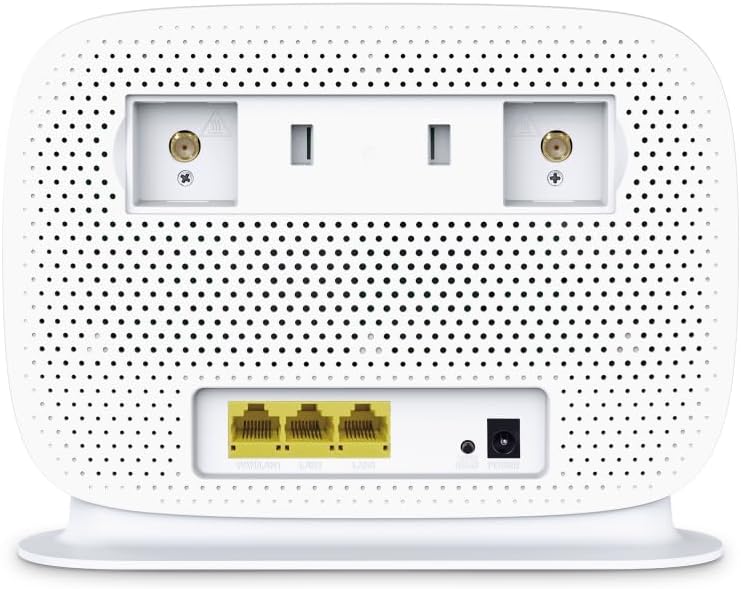
Figure 4: Rear panel of the Archer MR505 with ports and SIM slot.

Figure 5: Archer MR505 in various usage scenarios.
คำแนะนำการใช้งาน
The Archer MR505 provides robust wireless and wired connectivity:
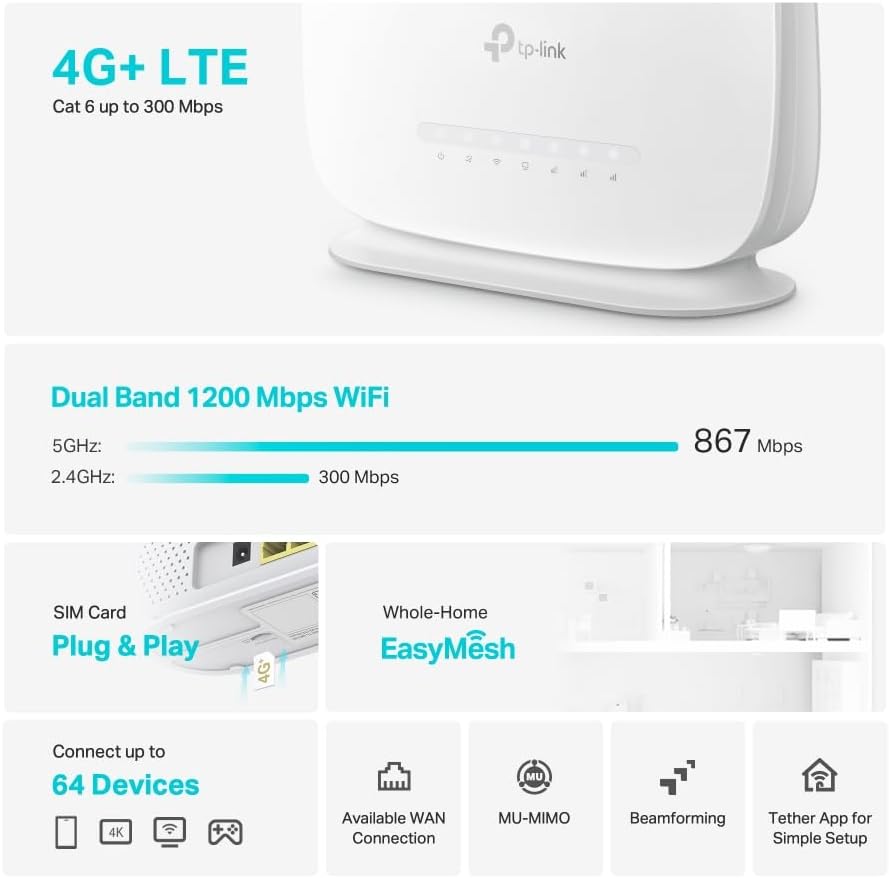
- Wi-Fi ดูอัลแบนด์: The router operates on both 2.4 GHz and 5 GHz bands, offering speeds up to 300 Mbps and 867 Mbps respectively, for a total of AC1200 Wi-Fi.
- 4G+ Cat6 Connectivity: Enjoy mobile broadband speeds up to 300 Mbps download and 300 Mbps upload (maximum upstream data transfer rate).
- พอร์ต Gigabit Ethernet: Four Gigabit LAN ports (1000 Mbps) are available for high-speed wired connections to devices like computers, gaming consoles, or smart TVs. One port can also function as a WAN port for traditional broadband connections.
- ความจุอุปกรณ์: The router can support connectivity for up to 64 devices simultaneously.
- การเชื่อมต่ออัจฉริยะ: This feature automatically assigns devices to the best available Wi-Fi band (2.4 GHz or 5 GHz) for optimized performance.
- ความเข้ากันได้ของ EasyMesh: The Archer MR505 is compatible with TP-Link EasyMesh, allowing you to create a seamless whole-home mesh Wi-Fi network by adding compatible range extenders.
- เทคโนโลยีขั้นสูง: Features like MU-MIMO and Beamforming enhance Wi-Fi efficiency and range, especially for multiple connected devices.
- ความปลอดภัย: The router supports WPA3 encryption for enhanced network security.

Figure 6: Versatile connectivity and speed capabilities.

Figure 7: Whole-Home EasyMesh integration.
การซ่อมบำรุง
To ensure optimal performance and security of your router:
- อัพเดตเฟิร์มแวร์: ตรวจสอบและติดตั้งเฟิร์มแวร์เวอร์ชั่นล่าสุดจากเว็บไซต์ทางการของ TP-Link เป็นประจำ website or via the Tether app. Firmware updates often include security patches and performance improvements.
- รหัสผ่านที่ปลอดภัย: Use strong, unique passwords for your Wi-Fi network and router management interface. Change them periodically.
- การจัดวางทางกายภาพ: วางเราเตอร์ไว้ในตำแหน่งที่อยู่ตรงกลาง ห่างจากสิ่งกีดขวางและแหล่งกำเนิดสัญญาณรบกวน (เช่น ไมโครเวฟ โทรศัพท์ไร้สาย) เพื่อให้ครอบคลุมสัญญาณ Wi-Fi ได้มากที่สุด
- การทำความสะอาด: Keep the router clean and free from dust. Ensure ventilation holes are not blocked.
- เริ่มใหม่เป็นระยะ: Restarting the router occasionally can help resolve minor network issues and improve performance.
การแก้ไขปัญหา
If you encounter issues with your Archer MR505 router, consider the following:
- No Internet Connection via 4G/LTE:
- ตรวจสอบให้แน่ใจว่าคุณใส่และเปิดใช้งานซิมการ์ดอย่างถูกต้อง
- Verify that your SIM card is a normal data SIM. Some data-only SIM cards may require specific APN settings or might not be fully compatible. Contact your mobile service provider for details.
- Check the 4G/LTE signal strength indicated by the router's LEDs. If the signal is weak, try repositioning the router or consider using external antennas (if supported and configured).
- รีสตาร์ทเราเตอร์และอุปกรณ์ที่เชื่อมต่อทั้งหมด
- ปัญหาการเชื่อมต่อ Wi-Fi:
- Ensure your device is within the router's Wi-Fi range.
- ตรวจสอบว่าคุณกำลังใช้รหัสผ่าน Wi-Fi ที่ถูกต้อง
- If a device frequently connects and disconnects, try restarting that specific device.
- ตรวจสอบการรบกวนจากอุปกรณ์อิเล็กทรอนิกส์อื่นๆ
- ความเร็วอินเตอร์เน็ตช้า:
- Check your 4G/LTE signal strength. Weak signal can significantly reduce speed.
- ตรวจสอบให้แน่ใจว่าไม่มีแอปพลิเคชันหรืออุปกรณ์อื่นกำลังใช้แบนด์วิดท์มากเกินไป
- If using Wi-Fi, try connecting to the 5 GHz band for faster speeds, if your device supports it.
- ดำเนินการทดสอบความเร็วเพื่อยืนยันความเร็วจริงที่คุณได้รับ
- ไม่สามารถเข้าถึงหน้าการจัดการเราเตอร์ได้:
- ตรวจสอบให้แน่ใจว่าอุปกรณ์ของคุณเชื่อมต่อกับเครือข่ายของเราเตอร์แล้ว (ไม่ว่าจะผ่าน Wi-Fi หรือสาย Ethernet)
- Verify you are entering the correct management address (e.g., http://tplinkwifi.net).
- ลองล้างแคชเบราว์เซอร์ของคุณหรือใช้เบราว์เซอร์อื่น
ข้อมูลจำเพาะ
| ยี่ห้อ | ทีพี ลิงค์ |
| ชื่อรุ่น | อาร์เชอร์ MR505 |
| ไร้มาตรฐาน | 802.11ac (ไวไฟ 5) |
| ระดับย่านความถี่ | ดูอัลแบนด์ (2.4 GHz และ 5 GHz) |
| อัตราข้อมูล Wi-Fi | Up to 300 Mbps (2.4 GHz), Up to 867 Mbps (5 GHz) - AC1200 Total |
| 4G+ Cat6 Speed | Up to 300 Mbps Download, Up to 300 Mbps Upload |
| พอร์ตอีเทอร์เน็ต | 4 x Gigabit LAN Ports (1000 Mbps), 1 x WAN/LAN Port |
| ประเภทเสาอากาศ | Internal (External antenna support available) |
| โปรโตคอลความปลอดภัย | WPA3 |
| วิธีการควบคุม | App (TP-Link Tether) |
| อุปกรณ์ที่รองรับ | Laptop, Personal Computer, Smart Television, Smartphone, Tablet |
| กำลังไฟเข้า | 12 โวลต์ |
| น้ำหนักสินค้า | 0.93 กิโลกรัม |
| ส่วนประกอบที่รวมอยู่ | Archer MR505, Power Adapter, Quick Installation Guide, RJ45 Ethernet Cable |
การรับประกันและการสนับสนุน
For warranty information, please refer to the warranty card included with your product or visit the official TP-Link website for your region. Support resources, including FAQs, firmware downloads, and contact information, are available on the TP-Link support website and through the TP-Link Tether app.
TP-Link อย่างเป็นทางการ Webเว็บไซต์: https://www.tp-link.com
แอป TP-Link Tether: Available on iOS App Store and Google Play Store.