
การแนะนำ
This manual provides detailed instructions for setting up, operating, and maintaining your Ajazz AK820MAX 75% Mechanical Keyboard. Please read this manual thoroughly before using the product to ensure optimal performance and longevity.
คุณสมบัติผลิตภัณฑ์
- TFT Smart Display & Knob: Features a high-definition TFT color screen displaying time, connectivity modes, battery status, and custom GIF animations. The integrated knob allows for quick adjustments.
- โครงสร้างปะเก็นและการเจาะช่องกุญแจเดี่ยวบน PCB: Designed with a gasket structure and 1.2mm thick PCB single key slotting for enhanced resilience, stability, and a softer, more elastic typing feel. Multiple internal fillings reduce noise for a pure and pleasant sound.
- การเชื่อมต่อสามโหมด: Supports wireless connectivity via Bluetooth 5.1, 2.4GHz, or a wired Type-C USB cable. Easily switch between modes for efficient multitasking across various devices.
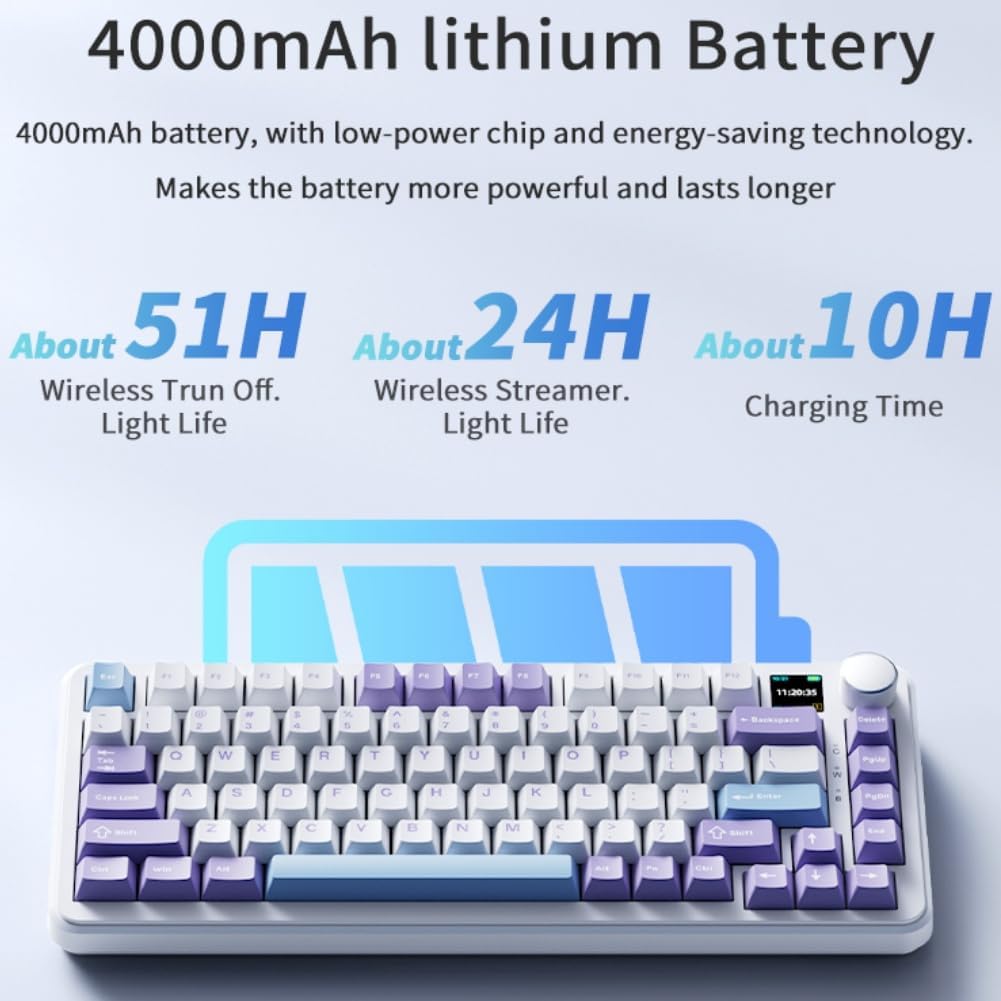
- แบตเตอรี่ใช้งานได้ยาวนาน: Equipped with an 8000mAh battery for extended use without frequent recharging.
- RGB Backlighting with Music Rhythm: Offers 20 customizable backlighting effects, including a mode that synchronizes with music playback.
- 75% Hot-Swappable Layout: A compact 75% layout saves desktop space. The 3/5-pin PCB mounting design allows for easy hot-swapping of mechanical switches, enabling customization of typing preferences.
เนื้อหาแพ็คเกจ
เมื่อแกะกล่องโปรดตรวจสอบให้แน่ใจว่ามีสิ่งของทั้งหมดต่อไปนี้:
- Ajazz AK820MAX Mechanical Keyboard
- สายเคเบิล USB Type-C
- คู่มือการใช้งาน

Image: The Ajazz AK820MAX keyboard, USB-C cable, and user manual as they appear when unboxed.
การตั้งค่า
- การชาร์จคีย์บอร์ด: Connect the provided USB Type-C cable to the keyboard's Type-C port and the other end to a USB power source (e.g., computer, wall adapter). The TFT display will indicate charging status.
- Adjusting Keyboard Angle: Flip the keyboard over and extend the adjustable feet on the underside to achieve your preferred typing angle.
- Selecting Connectivity Mode:
- โหมดสาย: Connect the USB Type-C cable to your computer. The keyboard will automatically switch to wired mode.
- โหมดไร้สาย 2.4GHz: Locate the 2.4GHz receiver (usually stored in a slot on the keyboard's underside). Plug the receiver into an available USB port on your computer. Switch the mode selector on the keyboard to 2.4G.
- โหมดบลูทู ธ : Switch the mode selector on the keyboard to BT. On your device (PC, laptop, tablet), search for Bluetooth devices and select "AK820MAX" to pair.

ภาพ: ด้านข้าง view of the keyboard highlighting the USB-C port and switches for selecting wired, 2.4G, or Bluetooth connectivity modes.

Image: The keyboard displaying battery life information on its TFT screen, indicating approximate usage times for wireless with lights off and wireless streamer light life, along with charging time.
คำแนะนำการใช้งาน
TFT Smart Display and Knob Functions
The integrated TFT color screen and multi-function knob provide quick access to various settings:
- การหมุนปุ่ม: Rotate the knob to navigate through menu options or adjust values (e.g., brightness, speed).
- การกดปุ่ม: กดปุ่มหมุนเพื่อยืนยันการเลือกหรือเข้าสู่เมนู
- ข้อมูลการแสดงผล: The screen shows current time, active connectivity mode (wired, 2.4G, BT), and battery level.
- ภาพเคลื่อนไหว GIF แบบกำหนดเอง: The display supports custom colorful GIF animations. Refer to the software for customization options.

Image: A close-up of the keyboard's 0.85-inch TFT color screen, illustrating its capability to display settings such as backlight brightness, speed, color, and effect modes.
การควบคุมไฟแบ็คไลท์ RGB
The keyboard features 20 backlighting effects. Use the knob or dedicated function keys (refer to the keyboard's keycap legends or software) to:
- Change lighting effects.
- ปรับระดับความสว่าง
- ปรับความเร็วของแอนิเมชั่น
- Select specific colors.
- Activate music rhythm mode, where lighting fluctuates with audio.
สวิตช์แบบถอดเปลี่ยนได้ขณะทำงาน
The AK820MAX supports hot-swappable mechanical switches, allowing you to change switches without soldering.
- ถอดคีย์แคปออกอย่างระมัดระวังโดยใช้เครื่องมือถอดคีย์แคป
- ใช้เครื่องมือถอดสวิตช์เพื่อถอดสวิตช์ออกจากแผงวงจรพิมพ์อย่างเบามือ
- จัดตำแหน่งขาของสวิตช์ใหม่ให้ตรงกับรูบนแผงวงจรพิมพ์ (PCB) แล้วกดให้แน่นจนกระทั่งล็อกเข้าที่ ตรวจสอบให้แน่ใจว่าขาไม่งอ
- เปลี่ยนปุ่มคีย์แคป
ภาพ: ภาพระยะใกล้ view of the keyboard's hot-swappable key switches, demonstrating the ease with which switches can be changed to customize typing preferences.

ภาพ: รายละเอียด view of the keyboard's PCB, showcasing the 1.2mm thick single key slot design for improved switch stability and feel.

Image: A diagram illustrating the internal gasket structure of the keyboard, which contributes to a softer and more elastic typing experience.

Image: A cross-section diagram detailing the five-layer internal filling, including silicone bottom pad, IXPE switch pad, and PET voice actor pad, designed to reduce noise and produce a pure sound.
การซ่อมบำรุง
- การทำความสะอาด: Use a soft, dry cloth to wipe the keyboard surface. For deeper cleaning, remove keycaps and use compressed air to clear debris.
- การดูแลสวิตช์: Avoid spilling liquids on the keyboard. If a switch feels inconsistent, it may need to be replaced or lubricated.
- พื้นที่จัดเก็บ: เก็บแป้นพิมพ์ไว้ในที่แห้งและเย็น หลีกเลี่ยงแสงแดดโดยตรงและอุณหภูมิที่สูงหรือต่ำเกินไป
การแก้ไขปัญหา
- แป้นพิมพ์ไม่ตอบสนอง:
- ตรวจสอบให้แน่ใจว่าแป้นพิมพ์มีประจุไฟแล้ว
- Check the connectivity mode switch (wired, 2.4G, BT) matches your connection type.
- สำหรับความถี่ 2.4GHz โปรดตรวจสอบให้แน่ใจว่าได้เสียบตัวรับสัญญาณเข้ากับปลั๊กอย่างถูกต้องแล้ว
- สำหรับการเชื่อมต่อบลูทูธ โปรดตรวจสอบให้แน่ใจว่าได้จับคู่คีย์บอร์ดแล้วและอยู่ในระยะทำการ ลองทำการจับคู่ใหม่อีกครั้ง
- ลองเชื่อมต่อผ่านสาย USB-C เพื่อตัดปัญหาเรื่องไร้สาย
- ไฟ RGB ไม่ทำงาน/แสดงผลผิดปกติ:
- Check brightness settings using the knob or software.
- Ensure the keyboard software is up to date.
- Reset lighting effects to default via software or keyboard shortcuts (refer to specific key combinations if available).
- กุญแจไม่ลงทะเบียน:
- If a specific key is not working, try hot-swapping the switch with a known working one to determine if the switch or PCB socket is faulty.
- ตรวจสอบให้แน่ใจว่าปุ่มกดเข้าที่อย่างถูกต้อง
ข้อมูลจำเพาะ
| คุณสมบัติ | รายละเอียด |
|---|---|
| หมายเลขรุ่น | AK820MAX |
| เค้าโครง | 75% (81 คีย์) |
| การเชื่อมต่อ | บลูทูธ 5.1, ไร้สาย 2.4GHz, แบบมีสาย USB Type-C |
| ประเภทสวิตซ์ | Hot-swappable Mechanical (Avocado Switch) |
| การแบ็คไลท์ | RGB (20 effects, music rhythm) |
| แสดง | 0.85-inch TFT Color Smart Display |
| ความจุของแบตเตอรี่ | ลิเธียมโพลิเมอร์ 8000mAh (ชาร์จไฟได้) |
| อุปกรณ์ที่รองรับ | พีซี แล็ปท็อป แท็บเล็ต |
| ขนาด | 15.75 x 6.89 x 2.71 นิ้ว |
| น้ำหนักสินค้า | 2.75 ปอนด์ |
| ผู้ผลิต | ออดพาลทอย |
การรับประกันและการสนับสนุน
For warranty information and technical support, please refer to the warranty card included with your product or contact the manufacturer directly. You can also visit the official Ajazz webไซต์สำหรับคำถามที่พบบ่อยและแหล่งข้อมูลเพิ่มเติม
Manufacturer: Odpaltoy
Contact: Please refer to the contact information provided in the product packaging or on the manufacturer's official webเว็บไซต์สำหรับสอบถามข้อมูลด้านการสนับสนุน