
jelkuz T309S-B+64G
User Manual for jelkuz 10.26'' Wireless CarPlay Screen with Dash Cam
Model: T309S-B+64G
1. บทนำ
This manual provides detailed instructions for the installation, operation, and maintenance of your jelkuz 10.26'' Wireless CarPlay Screen with 2.5K Dash Cam and Backup Camera. Please read this manual thoroughly before using the device to ensure proper functionality and safety.
1.1 ผลิตภัณฑ์เกินview
The jelkuz portable car stereo integrates a 10.26-inch display with wireless Apple CarPlay and Android Auto capabilities, a 2.5K front dash camera, and a 1080P backup camera. It offers features such as GPS navigation, Bluetooth connectivity, AirPlay, AUX/FM audio output, and Siri/Google Assistant voice control. The front camera can rotate 180° for versatile recording, and the system supports simultaneous front and rear recording with a 64GB memory card included.

Figure 1: jelkuz 10.26 inch Wireless CarPlay Screen with Dash Cam and Backup Camera, showing the main unit, front camera, rear camera, and included accessories like the 64GB memory card and 33ft cable.
1.2 อะไรอยู่ในกล่อง
- 1 x 10.26-inch Wireless CarPlay Screen Unit
- 1 x Rear Camera (1080P, waterproof)
- 1 x การ์ดหน่วยความจำ 64GB
- 1 x ขาตั้งแบบดูดติดกระจก
- 1 x Sticker Bracket
- เครื่องชาร์จในรถยนต์ 1 ชิ้น
- สาย 1 x AUX
- สายเคเบิลกล้องด้านหลัง 1 x 33 ฟุต
- 1 x คู่มือผู้ใช้

Figure 2: Diagram illustrating the contents of the product package and various vehicle types compatible with the device.
2. ข้อมูลด้านความปลอดภัย
- Do not operate the device or adjust settings while driving. Always pull over safely before making any adjustments.
- Ensure all cables are securely connected and do not obstruct the driver's view หรือระบบควบคุมยานพาหนะ
- The device is compatible with vehicles from 7-36V. Using it with incompatible voltage อาจทำให้เกิดความเสียหาย
- ควรเก็บอุปกรณ์ให้ห่างจากอุณหภูมิที่สูงจัด แสงแดดโดยตรงเป็นเวลานาน และความชื้น
- อย่าพยายามถอดประกอบหรือซ่อมแซมอุปกรณ์ด้วยตนเอง โปรดติดต่อช่างผู้ชำนาญการ
- The rear camera is waterproof, but ensure all connections are sealed to prevent water ingress.
3. การตั้งค่าและการติดตั้ง
3.1 การติดตั้งจอแสดงผล
The display unit can be mounted using either the self-adhesive bracket or the suction mount. Choose a location on your dashboard or windshield that does not obstruct your view หรืออาจไปรบกวนการทำงานของถุงลมนิรภัย
- ทำความสะอาดพื้นผิวติดตั้งให้สะอาด
- Attach the chosen bracket to the display unit.
- Secure the bracket to the desired location. For the suction mount, press firmly and engage the lever. For the adhesive bracket, peel off the protective film and press firmly for 30 seconds.
- Adjust the angle of the display for optimal viewing. The brackets allow for 360° rotation.

Figure 3: Illustration of the suction cup and sticker brackets, showing their 360° adjustability and examples of various mounting positions in a car. Also depicts the wide range of compatible vehicles.
3.2 การต่อสายไฟ
Connect the provided car charger to the display unit's power input and then plug the charger into your vehicle's cigarette lighter socket.
3.3 Installing the Cameras
- กล้องหน้า: The front camera is integrated into the display unit and can be rotated 180° to record the front, side, or inside of the car. Adjust its angle as needed.
- กล้องหลัง:
- Mount the 1080P waterproof rear camera at the back of your vehicle, typically above the license plate or near the rear window.
- Route the 33ft rear camera cable from the rear camera to the main display unit, ensuring it does not interfere with vehicle components or passenger movement.
- Connect the rear camera cable to the designated input on the display unit.
- (Optional) For automatic reverse guidelines, connect the rear camera's red wire to your vehicle's reverse light power supply.

Figure 4: Demonstrates the 180° rotation capability of the front camera, allowing it to record the front view, ด้านข้าง view, or inside the car, useful for monitoring children in the back seat.

Figure 5: Illustrates the dual recording capability (2.5K front, 1080P rear) and the adjustable reverse guideline feature for parking assistance.
4. คู่มือการใช้งาน
4.1 การเปิดเครื่องครั้งแรกและการตั้งค่า
Once powered, the device will boot up. Follow any on-screen prompts for initial language and time settings.
4.2 Wireless Apple CarPlay / Android Auto Connection
The device supports wireless connection to Apple CarPlay and Android Auto for seamless smartphone integration.
- On the display unit, select the "CarPlay" or "Android Auto" icon.
- บนสมาร์ทโฟนของคุณ เปิดใช้งาน Bluetooth และ Wi-Fi
- ค้นหา the device's Bluetooth name (e.g., "TF781BT_xxxxxx") in your phone's Bluetooth settings and pair.
- ยืนยันรหัสจับคู่บนอุปกรณ์ทั้งสอง
- Once paired via Bluetooth, the device will automatically prompt you to use CarPlay or Android Auto via Wi-Fi. Confirm the connection.
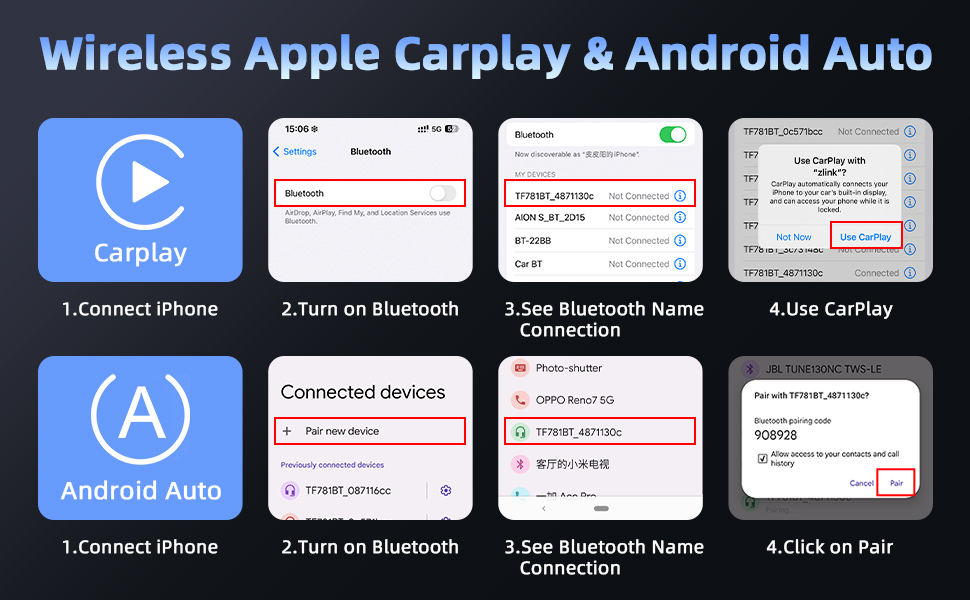
Figure 6: Step-by-step guide showing how to connect an iPhone to the device for Wireless Apple CarPlay and Android Auto via Bluetooth pairing.

รูปที่ 7: เกินview of the wireless connectivity options including Apple CarPlay, Android Auto, and Mirror Link, with examples of their interfaces on the display.
4.3 Dash Cam Recording Functions
The device supports simultaneous 2.5K front and 1080P rear camera recording.
- การบันทึกแบบวนซ้ำ: ฟูtage is recorded in continuous loops. When the memory card is full, the oldest fileข้อมูลจะถูกเขียนทับโดยอัตโนมัติ
- จีเซ็นเซอร์: In case of a sudden impact or collision, the G-sensor will automatically lock the current video file เพื่อป้องกันไม่ให้ถูกเขียนทับ
- การมองเห็นตอนกลางคืน: ความสามารถในการบันทึกภาพในที่แสงน้อยที่ได้รับการปรับปรุง ช่วยให้ได้ภาพที่คมชัดtagแม้ในสภาพแสงน้อยก็ตาม
- การเล่นวิดีโอ: Access recorded videos directly on the display unit or by removing the 64GB memory card and viewอยู่บนคอมพิวเตอร์
- การเชื่อมต่อแอพมือถือ: Use the dedicated mobile app (via 5G WiFi) to preview, play, and download recorded files in real-time on your smartphone.
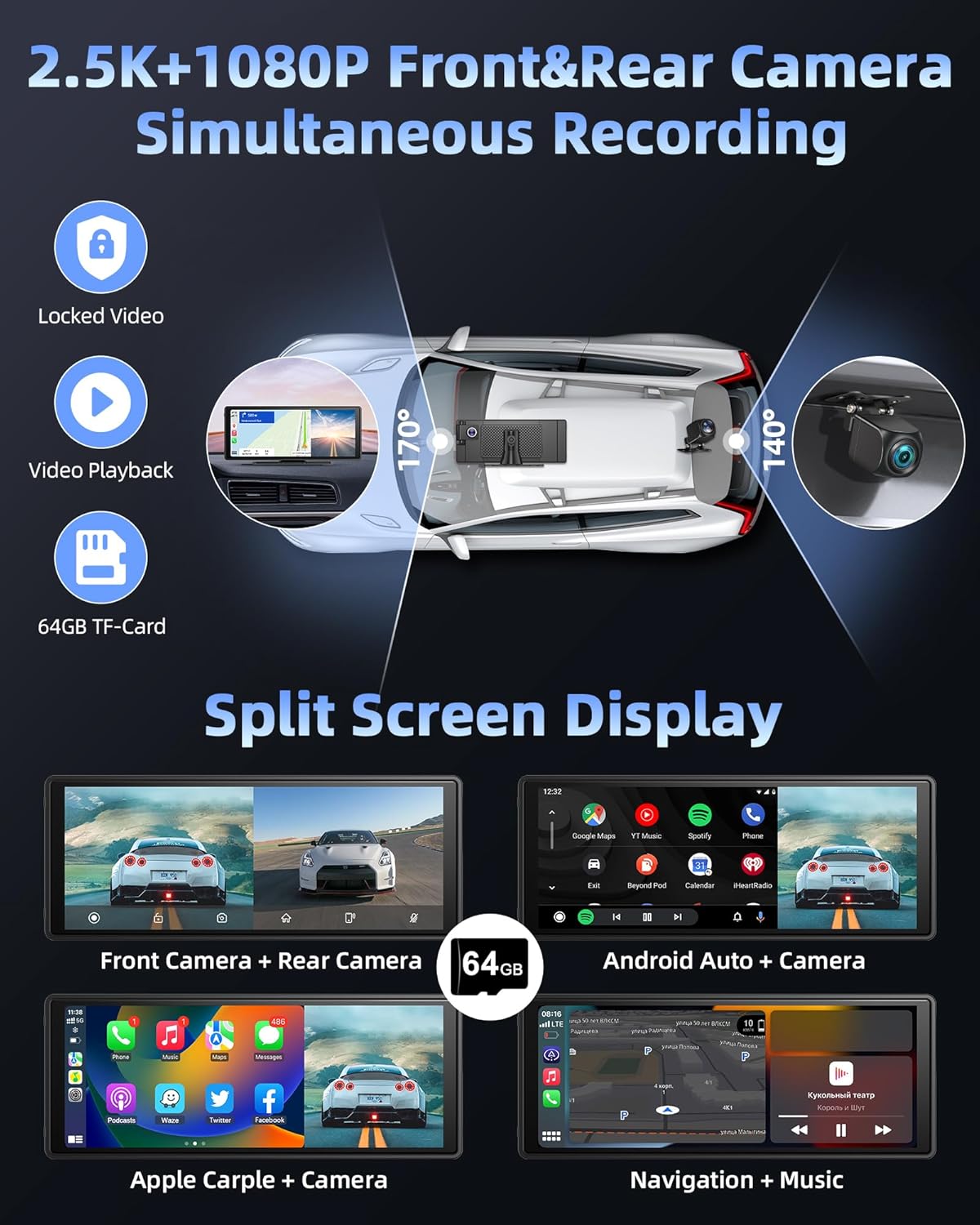
Figure 8: Shows the dual recording feature with 2.5K front and 1080P rear cameras, along with examples of split-screen display modes for viewing camera feeds and applications simultaneously.
4.4 การแสดงผลแบบแยกหน้าจอ
อุปกรณ์นี้รองรับโหมดแบ่งหน้าจอหลายแบบ ทำให้คุณสามารถ... view camera feeds and applications simultaneously.
- Front Camera + Rear Camera
- Android Auto + Camera
- Apple CarPlay + Camera
- Navigation + Music
- Phone + Front/Rear Camera

Figure 9: Various split-screen configurations, including front camera with rear camera, Android Auto with camera, Apple CarPlay with camera, and navigation with music.
4.5 ตัวเลือกเอาต์พุตเสียง
The device offers multiple ways to output audio to your car's sound system.
- บลูทูธ: Connect the device to your car's original Bluetooth system for audio playback and hands-free calling. The dual Bluetooth 5.0 design enhances stability.
- FM Transmitter: Transmit audio wirelessly to your car's FM radio by setting both the device and your car radio to the same FM frequency.
- เอาต์พุต AUX: Connect the provided AUX cable from the device's AUX output to your car's AUX input for a wired audio connection.
- ลำโพงในตัว: อุปกรณ์นี้มีลำโพงในตัวสำหรับส่งสัญญาณเสียงโดยตรง

Figure 10: Visual representation of the four audio output methods: Bluetooth, FM transmission, built-in speaker, and AUX connection.
4.6 การควบคุมด้วยเสียง (Siri/Google Assistant)
ใช้คำสั่งเสียงเพื่อใช้งานแบบแฮนด์ฟรีผ่าน Siri (สำหรับ Apple CarPlay) หรือ Google Assistant (สำหรับ Android Auto)
- Activate voice control by saying "Hey Siri" or "Hey Google" (if configured on your phone) or by tapping the voice assistant icon on the screen.
- Examples of commands: "Navigate to [address]", "Call [contact name]", "Play [song/artist]", "What's the weather today?".

Figure 11: Depicts the voice control functionality with examples of commands and the mobile app connection for real-time video preview และดาวน์โหลด
4.7 Auto Dimming Function
The display features an auto-dimming function to adjust screen brightness based on ambient light, reducing glare during night driving.
- Access the display settings to configure auto-dimming preferences, including brightness levels and scheduled dimming times.

Figure 12: Highlights advanced features such as auto-dimming, intelligent voice control, customizable reverse guidelines, and the ability to flip camera views (up/down/left/right).
5. การบำรุงรักษา
- การทำความสะอาด: Use a soft, dry cloth to clean the display screen and device body. Do not use abrasive cleaners or solvents.
- การ์ดหน่วยความจำ: Periodically format the 64GB memory card (at least once a month) to ensure optimal recording performance and prevent data corruption. Back up any important footage ก่อนการจัดรูปแบบ
- ฟิล์มป้องกัน: The product surface may have a removable protective film. If scratches or dirt appear, this film can be peeled off.
- อัพเดตเฟิร์มแวร์: ตรวจสอบของผู้ผลิต webหรือติดต่อฝ่ายสนับสนุนเพื่อขอรับการอัปเดตเฟิร์มแวร์ที่มีให้ใช้งาน เพื่อปรับปรุงประสิทธิภาพและเพิ่มคุณสมบัติใหม่ๆ
6 การแก้ไขปัญหา
| ปัญหา | สาเหตุที่เป็นไปได้ | สารละลาย |
|---|---|---|
| อุปกรณ์ไม่เปิดเครื่อง | No power from cigarette lighter; loose connection; faulty charger. | Check cigarette lighter fuse; ensure charger is fully inserted; try another power source if available. |
| CarPlay/Android Auto เชื่อมต่อแบบไร้สายไม่ได้ | ปิดบลูทูธ/ไวไฟในโทรศัพท์; การจับคู่ไม่ถูกต้อง; สัญญาณรบกวน | Ensure Bluetooth and Wi-Fi are enabled on your phone; forget device in phone's Bluetooth settings and re-pair; restart both devices. |
| No video from rear camera. | สายเคเบิลหลวม กล้องมีปัญหา | Check the rear camera cable connection at both ends; ensure the camera is properly powered (if applicable). |
| Poor audio quality via FM. | FM frequency interference; weak signal. | Try a different, clear FM frequency on both the device and your car radio. |
| Memory card error / Recording issues. | Corrupted card; full card; incompatible card. | Format the memory card (backup data first); ensure it's a high-speed card (Class 10 or higher); replace if necessary. |
7. ข้อมูลจำเพาะ
| คุณสมบัติ | รายละเอียด |
|---|---|
| ชื่อรุ่น | T309S-B+64G |
| ขนาดจอแสดงผล | 10.26 นิ้ว |
| ความละเอียดของกล้องหน้า | 2.5K |
| ความละเอียดกล้องหลัง | 1080พ |
| ทุ่งแห่ง View | ด้านหน้า: 170°, ด้านหลัง: 140° |
| การเชื่อมต่อ | Wireless CarPlay, Wireless Android Auto, Mirror Link, Bluetooth 5.0 (Dual), 5G WiFi, AUX, FM Transmitter |
| แหล่งจ่ายไฟ | 7-36V (ไฟแช็กบุหรี่) |
| การ์ดหน่วยความจำที่ให้มาด้วย | 64GB |
| น้ำหนักสินค้า | 2.57 ปอนด์ |
| ขนาดแพ็คเกจ | 10.87 x 5.59 x 4.09 นิ้ว |
| ประเภทการติดตั้ง | Suction Mount, Sticker Bracket |
8. การรับประกันและการสนับสนุน
Jelkuz offers a บริการหลังการขาย 1 ปี for this product. If you encounter any questions during installation or use, or require technical support, please refer to the contact information provided on the instruction manual included in your product package.
For customized boot icon service, please contact the after-sale address specified in the instruction manual.
Ask a question about this manual
Ask about setup, troubleshooting, compatibility, parts, safety, or missing instructions. Manuals+ will review the question and use this page’s manual context to help answer it.