
IPEVO CDCU-06IP
คู่มือผู้ใช้กล้อง IPEVO VC-Z4K UHD 4K PTZ
รุ่น: CDCU-06IP
แบรนด์: IPEVO
1. บทนำ
This user manual provides comprehensive instructions for the setup, operation, and maintenance of your IPEVO VC-Z4K UHD 4K PTZ Camera. The VC-Z4K is designed to enhance educational and worship spaces with its 4K UHD resolution and 8.29-MP Sony CMOS sensor. It features advanced pan-tilt-zoom capabilities, AI auto-tracking, and a powerful 12X Optical + 15X Digital Zoom, making it ideal for capturing detailed and engaging remote sessions. Its AI functionality helps minimize the need for additional personnel, and its easy setup allows seamless integration with popular platforms like YouTube, OBS, and Zoom.
2. ข้อมูลด้านความปลอดภัย
Please read and understand all safety instructions before using the IPEVO VC-Z4K camera to prevent injury or damage to the device. Keep this manual for future reference.
- แหล่งพลังงาน: Use only the provided power adapter. Ensure the power outlet meets the camera's voltagข้อกำหนดอี
- การระบายอากาศ : Do not block ventilation openings. Ensure adequate airflow around the camera to prevent overheating.
- สิ่งแวดล้อม: Avoid exposing the camera to water, moisture, extreme temperatures, or direct sunlight. Operate in a clean, dry environment.
- การจัดการ: โปรดใช้งานกล้องอย่างระมัดระวัง อย่าทำตกหรือทำให้กล้องสั่นสะเทือนอย่างรุนแรง
- การทำความสะอาด: ถอดปลั๊กไฟออกก่อนทำความสะอาด ใช้ผ้านุ่มและแห้ง ห้ามใช้น้ำยาทำความสะอาดชนิดน้ำหรือสเปรย์
- การบริการ: อย่าพยายามถอดประกอบหรือซ่อมแซมกล้องด้วยตนเอง โปรดติดต่อช่างผู้ชำนาญเพื่อขอรับบริการ
3. เนื้อหาบรรจุภัณฑ์
ตรวจสอบว่ารายการทั้งหมดที่ระบุไว้ด้านล่างนี้รวมอยู่ในแพ็คเกจของคุณ:
- กล้อง IPEVO VC-Z4K
- อะแดปเตอร์แปลงไฟ (8.2 ฟุต / 2.5 เมตร)
- สาย USB 3.0 (ยาว 4.9 ฟุต / 1.5 เมตร)
- สายเคเบิล RS232 (6.5 ฟุต / 2 เมตร)
- รีโมทคอนโทรล (ไม่รวมแบตเตอรี่)
- คู่มือการใช้งาน (เอกสารนี้)
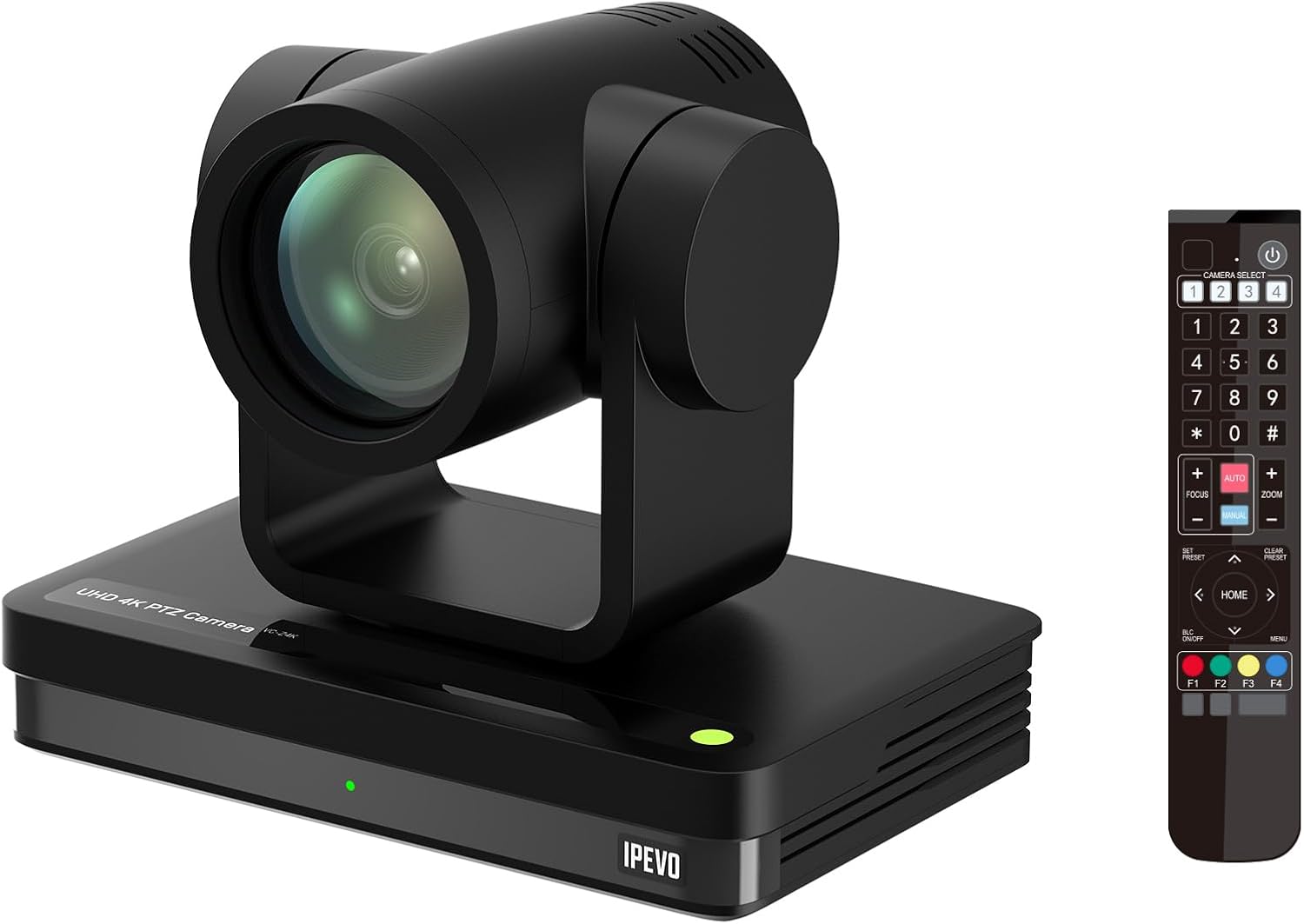
Image: The IPEVO VC-Z4K camera unit shown alongside its remote control, illustrating the main components included in the package.
4. สินค้าหมดview
4.1 คุณสมบัติหลัก
- ความละเอียด 4K Ultra HD: Equipped with a 1/2.8" HD CMOS sensor for stunning 4K video output.
- ซูมแบบออปติคอล 12 เท่า: Provides clear, detailed close-ups without loss of quality.
- ระบบติดตามอัตโนมัติด้วย AI: Automatically follows speakers or presenters, ensuring they remain in frame.
- การเชื่อมต่อแบบยืดหยุ่น: Features HDMI, USB-C, LAN (PoE), and SDI outputs for versatile integration.
- Wide Pan and Tilt Range: Offers 340° pan and 120° tilt for comprehensive room coverage.
- การลดเสียงรบกวนขั้นสูง: 2D/3D noise reduction ensures clear video in various lighting conditions.
4.2 Camera Components and Ports

ภาพ: ด้านหลัง view of the IPEVO VC-Z4K camera showing its various connectivity ports including USB 3.0, HDMI, SDI, LAN (PoE), and power input.
The VC-Z4K camera features a range of ports for diverse connectivity options:
- เอาท์พุต HDMI: For high-definition video output to displays or capture devices.
- พอร์ต USB-C: For direct connection to computers for video and control.
- พอร์ต LAN (PoE): For network connectivity and Power over Ethernet, simplifying installation.
- SDI เอาท์พุต: สำหรับงานตัดต่อวิดีโอระดับมืออาชีพที่ต้องการใช้สายเคเบิลยาว
- พอร์ต RS232: For serial control via external control systems.
- กำลังไฟเข้า: สำหรับเชื่อมต่ออะแดปเตอร์ไฟฟ้าที่ให้มา
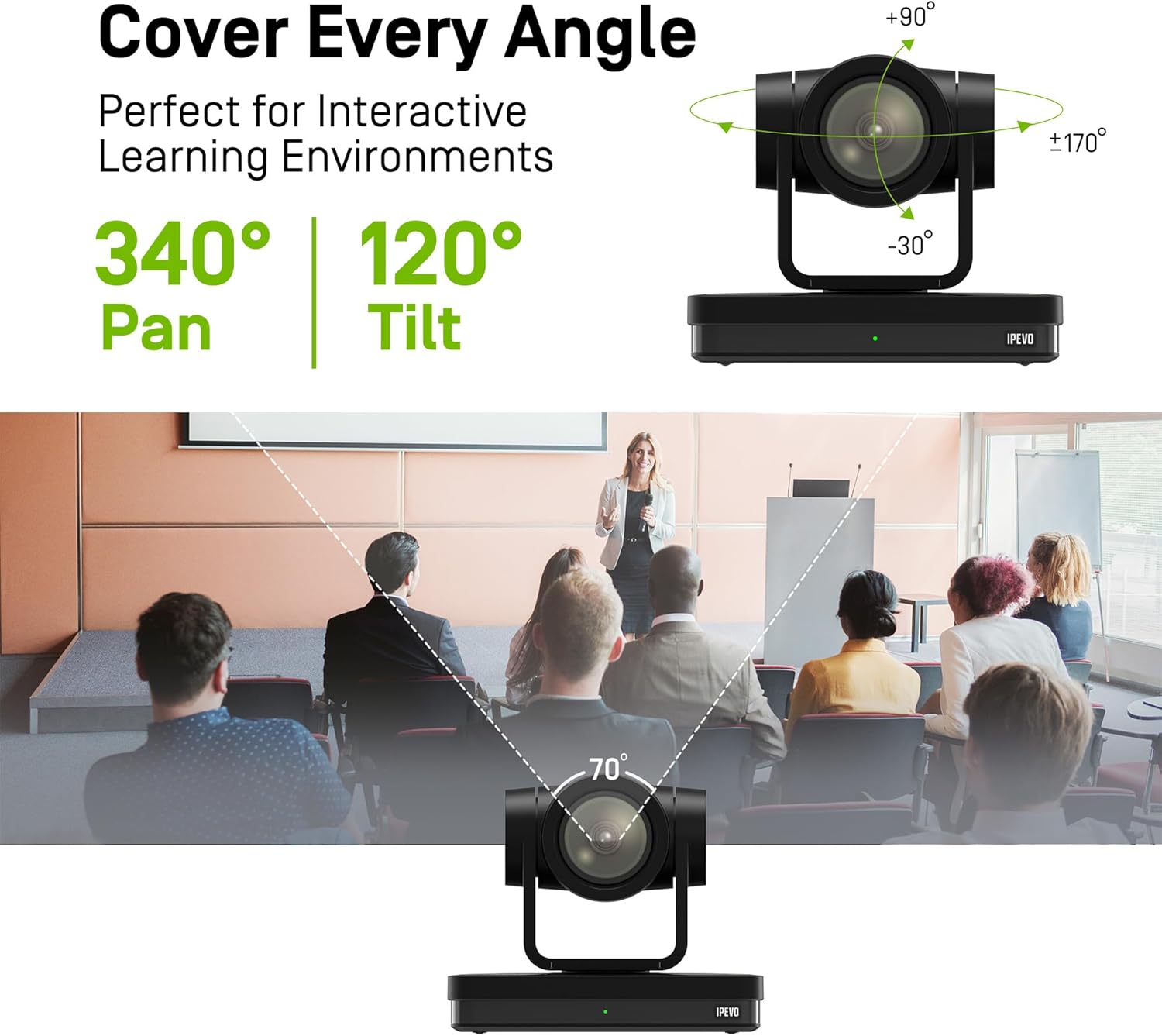
Image: Diagram illustrating the IPEVO VC-Z4K camera's pan (340°) and tilt (120°) ranges, highlighting its ability to cover a wide area.
The camera's motorized head allows for precise pan and tilt movements, enabling comprehensive coverage of your space. The pan range is 340 degrees, and the tilt range is 120 degrees (-30° to +90°).
5. การตั้งค่า
Follow these steps for the initial setup of your IPEVO VC-Z4K camera:
- การจัดวาง: Choose a stable surface or mount the camera securely in your desired location. Ensure it has a clear line of sight to the area you wish to capture.
- การเชื่อมต่อไฟฟ้า:
- การใช้ตัวแปลงไฟ: Connect the provided power adapter to the camera's power input port and then plug it into a wall outlet.
- การใช้ PoE (Power over Ethernet): If your network switch supports PoE, connect an Ethernet cable from the PoE-enabled switch to the camera's LAN (PoE) port. This will provide both power and network connectivity.
- Video Output Connection (Choose one or more):
- ช่องต่อ HDMI: Connect an HDMI cable from the camera's HDMI output to a display, projector, or video capture card.
- ยูเอสบี-C: Connect the USB 3.0 cable from the camera's USB-C port to a USB 3.0 port on your computer. This enables the camera as a webกล้องสำหรับการใช้งานการประชุมทางวิดีโอ
- LAN: Connect an Ethernet cable from the camera's LAN port to your network router or switch for IP streaming and control.
- เอสดีไอ: Connect an SDI cable from the camera's SDI output to a professional video switcher or recorder.
- การตั้งค่ารีโมทคอนโทรล: Insert two AAA batteries (not included) into the remote control. The remote control is essential for initial configuration and operation.
- เปิดเครื่อง: Once all connections are secure, power on the camera. The indicator light will illuminate.
6. คู่มือการใช้งาน
6.1 Basic Camera Control (via Remote Control)
- แพน/เอียง: Use the directional arrows on the remote control to move the camera horizontally (pan) and vertically (tilt).
- ซูม: Use the 'ZOOM +' and 'ZOOM -' buttons to adjust the optical zoom.
- จุดสนใจ: Press 'AUTO FOCUS' for automatic focus. Use 'FOCUS +' and 'FOCUS -' for manual adjustment if needed.
- ค่าที่ตั้งล่วงหน้า: The camera supports up to 255 presets. You can save and recall up to 10 presets directly from the remote control using the number buttons (0-9). To save a preset, position the camera, then press 'PRESET' followed by a number (e.g., '1'). To recall, press the number button.

Image: The IPEVO VC-Z4K camera demonstrating its 12X optical zoom capability, highlighting its 8.29-MP Sony CMOS sensor for high-quality video.
6.2 ระบบติดตามอัตโนมัติด้วย AI
The VC-Z4K features advanced AI auto-tracking to keep a presenter or subject automatically in frame.
- Enabling Tracking: Refer to the remote control or camera's web interface for specific buttons or settings to activate AI tracking.
- การติดตามโซน: Configure specific zones within the camera's view where tracking should occur.
- การติดตามผู้นำเสนอ: The camera can identify and follow a designated presenter as they move within the defined area.

Image: A visual representation of the IPEVO VC-Z4K's AI auto-tracking and auto-focus features, showing how it maintains focus on a moving subject in a classroom setting.
6.3 Integration with Platforms
The VC-Z4K seamlessly integrates with various video conferencing and streaming platforms:
- การเชื่อมต่อ USB: When connected via USB-C, the camera will be recognized as a standard webcam by applications like Zoom, OBS Studio, Microsoft Teams, Google Meet, GoTo Meeting, and Skype. Select "IPEVO VC-Z4K" as your video input device within the application settings.
- LAN/IP Streaming: For advanced streaming setups, use the LAN connection to stream video via RTSP/RTMP protocols to platforms like YouTube Live or OBS Studio. Refer to the camera's web interface for IP configuration and streaming settings.
7. การบำรุงรักษา
Proper maintenance ensures the longevity and optimal performance of your IPEVO VC-Z4K camera.
- การทำความสะอาดเลนส์: ใช้ผ้าเนื้อนุ่ม ปราศจากขน ที่ออกแบบมาสำหรับเลนส์แว่นตาโดยเฉพาะ เช็ดเลนส์เบาๆ เพื่อขจัดฝุ่นหรือคราบสกปรก หลีกเลี่ยงการใช้วัสดุที่มีฤทธิ์กัดกร่อนหรือสารเคมีรุนแรง
- ทำความสะอาดร่างกาย: เช็ดตัวกล้องด้วยผ้านุ่มและแห้ง สำหรับคราบสกปรกฝังแน่น ให้เช็ดเบาๆampen the cloth with water, then wipe dry immediately. Do not allow liquids to enter the camera.
- พื้นที่จัดเก็บ: เมื่อไม่ได้ใช้งานเป็นเวลานาน ควรเก็บกล้องไว้ในที่แห้งและเย็น หลีกเลี่ยงแสงแดดโดยตรงและอุณหภูมิที่สูงหรือต่ำเกินไป
- อัพเดตเฟิร์มแวร์: ตรวจสอบเว็บไซต์อย่างเป็นทางการของ IPEVO เป็นระยะ webเว็บไซต์สำหรับอัปเดตเฟิร์มแวร์ การอัปเดตเฟิร์มแวร์ของกล้องให้เป็นเวอร์ชันล่าสุดจะช่วยเพิ่มประสิทธิภาพและเพิ่มคุณสมบัติใหม่ๆ ได้
8 การแก้ไขปัญหา
If you encounter issues with your IPEVO VC-Z4K camera, refer to the following common problems and solutions:
| ปัญหา | สาเหตุที่เป็นไปได้ | สารละลาย |
|---|---|---|
| ไม่มีไฟ/กล้องไม่เปิด | Power adapter not connected or faulty; no PoE connection. | Ensure power adapter is securely connected and plugged into a working outlet. If using PoE, verify the network switch is PoE-enabled and the Ethernet cable is functional. |
| ไม่มีวิดีโอเอาท์พุต | Incorrect cable connection; wrong input selected on display; software issue. | Check HDMI, USB-C, LAN, or SDI cable connections. Ensure the display is set to the correct input source. Restart the computer/application if connected via USB. |
| รีโมตคอนโทรลไม่ทำงาน | แบตเตอรี่หมดหรือใส่ไม่ถูกต้อง เซ็นเซอร์ IR ถูกบล็อก | Replace batteries (AAA). Ensure batteries are inserted with correct polarity. Point the remote directly at the camera's IR receiver. |
| AI tracking not functioning | Tracking feature not enabled; subject out of tracking range; poor lighting. | Activate AI tracking via remote or web interface. Ensure the subject is within the optimal tracking area. Improve lighting conditions if too dark. |
| Poor video quality (blurry, noisy) | Lens is dirty; focus issue; low light conditions; network bandwidth. | Clean the lens. Adjust focus manually or use auto-focus. Ensure adequate lighting. For IP streaming, check network bandwidth and camera's streaming settings. |
9. ข้อมูลจำเพาะ
Detailed technical specifications for the IPEVO VC-Z4K UHD 4K PTZ Camera:
| ขนาดสินค้า | 7.1 x 5.9 x 4.5 นิ้ว |
| น้ำหนักสินค้า | 2.64 ปอนด์ |
| หมายเลขรุ่นสินค้า | ซีดีซียู-06ไอพี |
| เทคโนโลยีโฟโต้เซนเซอร์ | CMOS (เซ็นเซอร์ CMOS HD ขนาด 1/2.8 นิ้ว) |
| ความละเอียดในการจับภาพวิดีโอ | 4K ยูเอชดี |
| ซูมออปติคอล | 12X |
| ซูมดิจิตอล | 15X |
| รูรับแสงสูงสุด | 2.8 มิลลิเมตร |
| เทคโนโลยีการเชื่อมต่อ | USB, HDMI, LAN (PoE), SDI, RS232 |
| คุณสมบัติพิเศษ | AI Tracking and Auto Focus, Low Noise and High SNR, Multiple Presets (up to 255) |
| สี | สีดำ |
| ผู้ผลิต | ipevo |
10. การรับประกันและการสนับสนุน
IPEVO products are designed for reliability and performance. For warranty information, technical support, or service inquiries, please visit the official IPEVO webหรือติดต่อฝ่ายสนับสนุนลูกค้าโดยตรง โปรดเก็บใบเสร็จรับเงินไว้เป็นหลักฐานการซื้อสำหรับการเรียกร้องการรับประกัน
หากต้องการความช่วยเหลือเพิ่มเติม โปรดไปที่: www.ipevo.com
Ask a question about this manual
Ask about setup, troubleshooting, compatibility, parts, safety, or missing instructions. Manuals+ will review the question and use this page’s manual context to help answer it.