
1. สินค้าหมดview
The Ruijie Reyee RG-EW1200R, also known as RAP1261, is an AX3000 Wi-Fi 6 dual-band Gigabit in-wall Access Point (AP) designed to extend and enhance wireless network coverage. It features built-in antennas and supports both 2.4GHz (300Mbps) and 5GHz (867Mbps) dual-radio frequencies, adhering to 802.11a/b/g/n/ac Wave1/Wave2/ax protocols. This device includes a 10/100/1000 Base-T port and supports both AP and routing modes, along with layer 2 and layer 3 roaming capabilities. Management is facilitated through Reyee unified networking and the Ruijie Cloud app.
The unit is designed for wall-mounted installation and supports 802.3at Power over Ethernet (PoE) input, with a maximum power consumption of less than 18W. When using a non-standard PoE adapter, it is essential to configure the "PoE settings" to "IEEE 802.3at" via the device's web interface to ensure proper operation.
2. การตั้งค่าและการติดตั้ง
This section outlines the general steps for installing and setting up your Ruijie Reyee RAP1261 in-wall AP. Professional installation by a qualified technician is recommended due to the in-wall nature of the device and its power requirements.
2.1 การแกะกล่องและส่วนประกอบ
ตรวจสอบว่ามีส่วนประกอบทั้งหมดอยู่ในแพ็คเกจ:
- Ruijie Reyee RAP1261 In-wall AP unit
- Mounting hardware (if included, typically for in-wall installation)
- คู่มือเริ่มต้นใช้งานฉบับย่อ (ดูคำแนะนำโดยละเอียดในคู่มือนี้)
2.2 การติดตั้งทางกายภาพ
The RAP1261 is designed for in-wall installation. This typically involves:
- Power Source Preparation: Ensure a suitable 802.3at PoE-enabled network switch or injector is available to provide power to the AP. The power supply output must exceed the AP's maximum power consumption of 18W.
- การติดตั้งบนผนัง: Carefully follow the provided mounting instructions to secure the AP within a standard wall outlet box.
- การเชื่อมต่อเครือข่าย: Connect an Ethernet cable from your PoE source to the WAN/PoE port on the back of the RAP1261.
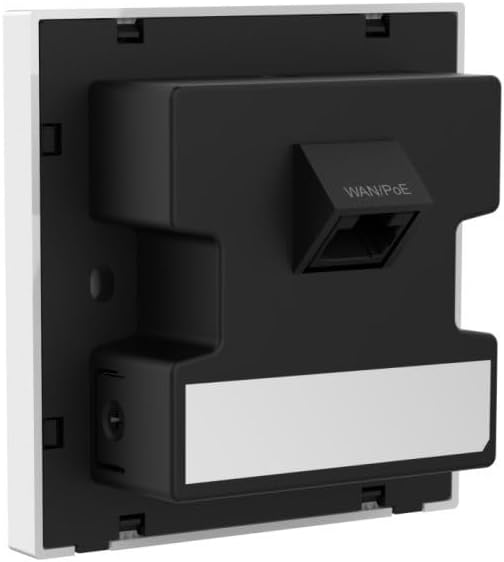
รูปที่ 1: หลัง view of the Ruijie Reyee RAP1261 In-wall AP. This image displays the back panel of the device, highlighting the WAN/PoE Ethernet port for network and power connection, and the mounting tabs for in-wall installation. A label area is also visible at the bottom.
2.3 การกำหนดค่าเริ่มต้น
After physical installation and power-up:
- เปิดเครื่อง: The device will power on automatically when connected to a PoE source. Observe the LED indicators for status.
- การเข้าถึงเครือข่าย: Connect a device (e.g., laptop, smartphone) to the default Wi-Fi network broadcast by the AP (SSID and password typically found on a label on the device or in the quick start guide).
- Web การเข้าถึงอินเทอร์เฟซ: เปิด web browser and navigate to the default IP address of the AP (e.g., 192.168.1.1 or similar, refer to the quick start guide). Log in using the default credentials.
- PoE Settings (if applicable): If using a non-standard PoE adapter, navigate to the "PoE settings" in the web interface and set the "PoE mode" to "IEEE 802.3at".
- Basic Wi-Fi Configuration: Configure your desired Wi-Fi network name (SSID), password, and security settings for both 2.4GHz and 5GHz bands.
- โหมดการทำงาน: Select between AP mode or routing mode based on your network requirements.
- การจัดการแอพ: Download the Ruijie Cloud app or Reyee Router App from your device's app store. Follow the in-app instructions to add and manage your RAP1261.
3. คู่มือการใช้งาน
The Ruijie Reyee RAP1261 offers various functionalities to optimize your wireless network.
3.1 การเชื่อมต่อ Wi-Fi
- การทำงานแบบดูอัลแบนด์: The AP broadcasts Wi-Fi on both 2.4GHz and 5GHz frequencies. Connect your devices to the appropriate band for optimal performance. The 5GHz band offers higher speeds but shorter range, while 2.4GHz provides wider coverage.
- ฟังก์ชันการทำงานของ Mesh: If deployed as part of a Reyee Mesh network, the AP will seamlessly integrate to provide extended and unified Wi-Fi coverage.
3.2 Management via Reyee App / Ruijie Cloud
The dedicated mobile application provides comprehensive control over your AP:
- การตรวจสอบเครือข่าย: View connected devices, network traffic, and AP status.
- การเปลี่ยนแปลงการกำหนดค่า: Modify Wi-Fi settings, operating modes, and other network parameters.
- อัพเดตเฟิร์มแวร์: Check for and apply the latest firmware to ensure optimal performance and security.
- การควบคุม LED: Adjust or disable the LED indicators on the device for discreet operation.
คุณสมบัติขั้นสูง 3.3 ประการ
Depending on your configuration and network setup, the RAP1261 supports:
- โหมด AP: Functions as a wireless access point, extending an existing wired network wirelessly.
- โหมดการกำหนดเส้นทาง: Can act as a basic router for smaller networks.
- Layer 2 and Layer 3 Roaming: Facilitates seamless transitions for wireless clients between multiple APs in a larger network.
4. การบำรุงรักษา
Regular maintenance ensures the longevity and optimal performance of your Ruijie Reyee RAP1261.
- รักษาความสะอาด: Gently wipe the exterior of the device with a soft, dry cloth. Avoid using liquid cleaners or aerosols.
- อัพเดตเฟิร์มแวร์: Periodically check for and install firmware updates via the Ruijie Cloud app or web อินเทอร์เฟซ การอัปเดตเฟิร์มแวร์มักจะรวมถึงการปรับปรุงประสิทธิภาพ แพตช์ความปลอดภัย และคุณสมบัติใหม่ๆ
- สภาพแวดล้อม : ตรวจสอบให้แน่ใจว่าอุปกรณ์ทำงานอยู่ในช่วงอุณหภูมิและความชื้นที่กำหนดไว้ เพื่อป้องกันความร้อนสูงเกินไปหรือความเสียหาย
5 การแก้ไขปัญหา
This section addresses common issues you might encounter with your RAP1261.
5.1 ไม่มีพลังงาน / อุปกรณ์ไม่เปิด
- ตรวจสอบการเชื่อมต่อ PoE: Ensure the Ethernet cable is securely connected to the WAN/PoE port and to a functioning 802.3at PoE source.
- ตรวจสอบแหล่งจ่ายไฟ PoE: Confirm that your PoE switch or injector is powered on and providing sufficient power (output > 18W).
- Non-Standard PoE: If using a non-standard PoE adapter, ensure the "PoE mode" is set to "IEEE 802.3at" in the device's web อินเทอร์เฟซ
5.2 No Wi-Fi Signal or Connectivity Issues
- ตรวจสอบไฟ LED แสดงสถานะ: Refer to the device's LED status lights (if visible) to determine its operational state. Consult the quick start guide for LED meanings.
- ตรวจสอบการตั้งค่า: เข้าสู่ระบบ web interface or Ruijie Cloud app to ensure Wi-Fi settings (SSID, password, security type) are correctly configured and enabled.
- รีสตาร์ทอุปกรณ์: Power cycle the AP by disconnecting and reconnecting the PoE cable.
- การรบกวน: Ensure there are no major sources of interference (e.g., microwaves, cordless phones) near the AP.
5.3 ความเร็ว Wi-Fi ช้า
- การเลือกวงดนตรี: Ensure high-bandwidth devices are connected to the 5GHz band if possible.
- การรบกวนช่องสัญญาณ: Use the Ruijie Cloud app or web interface to perform a channel scan and select less congested Wi-Fi channels.
- เฟิร์มแวร์: Ensure the AP has the latest firmware installed.
- โหลดเครือข่าย: Check if other devices on your network are consuming significant bandwidth.
5.4 ไม่สามารถเข้าถึงได้ Web อินเทอร์เฟซหรือแอป
- ที่อยู่ IP: Confirm you are using the correct IP address for the AP. If the AP is in routing mode, its IP might be different from the default.
- การเชื่อมต่อเครือข่าย: Ensure your device is connected to the AP's network (either wired or wirelessly).
- ไฟร์วอลล์/โปรแกรมป้องกันไวรัส: ปิดใช้งานไฟร์วอลล์หรือซอฟต์แวร์ป้องกันไวรัสบนคอมพิวเตอร์ของคุณชั่วคราว ซึ่งอาจบล็อกการเข้าถึงอยู่
- รีเซ็ต: As a last resort, perform a factory reset (refer to the quick start guide for the reset procedure). This will revert all settings to default.
6. ข้อมูลจำเพาะ
| คุณสมบัติ | รายละเอียด |
|---|---|
| ยี่ห้อ | รุ่ยเจี๋ย |
| ชื่อรุ่น | RAP1261 (RG-EW1200R Series) |
| ไร้มาตรฐาน | 802.11ax (Wi-Fi 6), 802.11a/b/g/n/ac Wave1/Wave2 |
| ระดับย่านความถี่ | ดูอัลแบนด์ (2.4 GHz, 5 GHz) |
| อัตราการถ่ายโอนข้อมูล | ความเร็วสูงสุด 1200 Mbps (300 Mbps ที่ความถี่ 2.4GHz, 867 Mbps ที่ความถี่ 5GHz) |
| ประเภทเสาอากาศ | ภายใน |
| ประเภทขั้วต่อ | Ethernet (WAN/PoE) |
| จำนวนพอร์ต | 1 (WAN/PoE) |
| กำลังไฟเข้า | 802.3at PoE-in (57 Volts DC) |
| การใช้พลังงานสูงสุด | <18วัตต์ |
| คุณสมบัติพิเศษ | Access Point Mode, Routing Mode, Mesh Wi-Fi, LED Control, Reyee App Management |
| อุปกรณ์ที่รองรับ | Gaming Console, Personal Computer, Printer, Security Camera, Smart Television, Smart Thermostat, Smartphone, Tablet |
| ขนาดสินค้า | 8.6 x 0.16 x 4.24 ซม. |
| น้ำหนักสินค้า | 160 กรัม |
| Operating System (Internal) | Cisco IOS (Note: This refers to the internal operating system, not user-facing) |
7. การรับประกันและการสนับสนุน
For warranty information, please refer to the documentation provided with your purchase or contact your reseller. Support resources, including FAQs and further technical assistance, may be available through the Ruijie official website or the Reyee Cloud app.