
1. บทนำ
The URANT Dual-Band Mesh WiFi System is designed to provide seamless, reliable, and fast wireless internet coverage throughout your entire home. This system replaces traditional routers and extenders by creating a unified mesh network, ensuring strong signal and eliminating dead zones. With dual-band technology, it supports both 2.4GHz and 5GHz frequencies for optimized performance across various devices. This manual will guide you through the installation, operation, and maintenance of your new mesh WiFi system.
2. เนื้อหาบรรจุภัณฑ์
โปรดตรวจสอบว่าสินค้าทั้งหมดมีอยู่ในแพ็คเกจของคุณ:
- 2 x URANT Mesh WiFi Units (1 Main Router, 1 Satellite)
- 2 x อะแดปเตอร์ไฟฟ้า
- 1 x Ethernet Cable
- 1 x Quick Installation Guide (This Manual)
3. สินค้าหมดview
Familiarize yourself with the components of your URANT Mesh WiFi units.

ภาพ: ด้านหน้าและด้านหลัง view of the URANT Mesh WiFi units. The rear view displays the power port, two LAN/WAN Ethernet ports, and a reset button.
ส่วนประกอบของหน่วย:
- ไฟแสดงสถานะ LED: Located on the front, indicates system status (e.g., power, internet connection, mesh status).
- พอร์ตไฟ: เชื่อมต่อกับอะแดปเตอร์ไฟ
- พอร์ต LAN/WAN: Gigabit Ethernet ports for connecting to your modem or wired devices. One port typically functions as WAN (for internet input) on the main router, and both can function as LAN (for wired devices) on all units.
- ปุ่มรีเซ็ต: Used to restore the unit to factory default settings.
4. คู่มือการติดตั้ง
Follow these steps for a quick and easy setup of your URANT Mesh WiFi System.
Step 1: Connect the Main Router Unit
- Unpack one of the URANT Mesh WiFi units. This will be your main router.
- Connect one end of the provided Ethernet cable to the WAN/LAN port (usually labeled 'WAN' or '1') on the main router unit.
- ต่อปลายอีกด้านของสายอีเธอร์เน็ตเข้ากับพอร์ต LAN ของโมเด็ม
- Connect the power adapter to the main router unit's power port and plug it into a power outlet.
- Wait for the LED indicator on the main router unit to turn solid blue, indicating a successful internet connection.
Step 2: Position and Connect the Satellite Unit
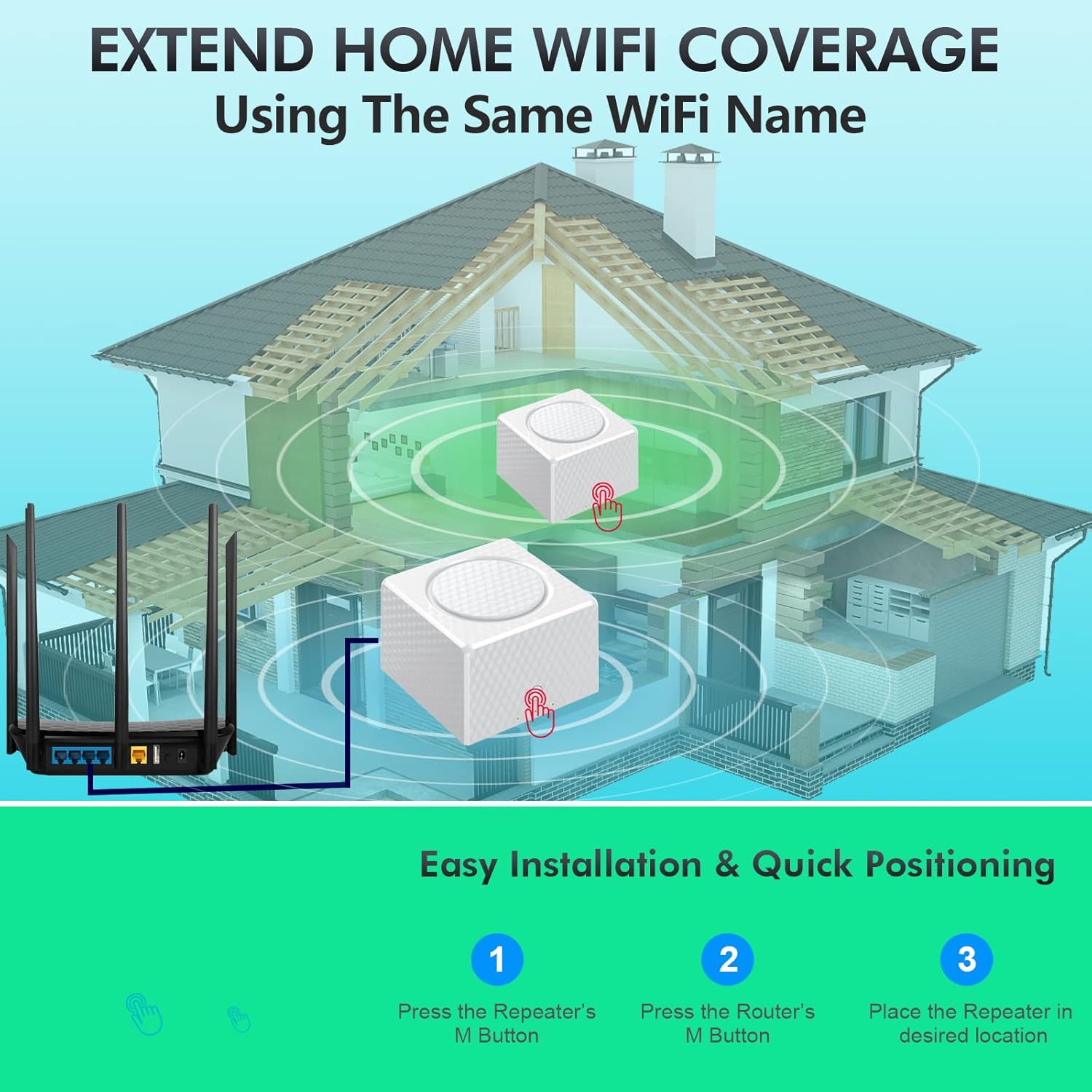
Image: A diagram illustrating the three steps for easy installation and quick positioning: 1. Press the Repeater's M Button, 2. Press the Router's M Button, 3. Place the Repeater in desired location.
- Place the second URANT Mesh WiFi unit (satellite) in a central location within your home, ideally halfway between the main router and the area needing improved coverage. Ensure it is within range of the main router.
- Connect the power adapter to the satellite unit's power port and plug it into a power outlet.
- Wait for the LED indicator on the satellite unit to turn on.
Step 3: Pair the Units (One-Key Network)

Image: A hand pressing the 'M' button on a URANT Mesh WiFi unit, symbolizing the one-key automatic network pairing process.
- On the main router unit, press the 'M' button (or WPS button) once. The LED indicator may start blinking.
- Within two minutes, press the 'M' button (or WPS button) on the satellite unit once.
- The units will automatically attempt to pair. Once successfully paired, the LED indicator on the satellite unit will turn solid blue (or green, depending on model), indicating a strong connection to the main router. If it's orange or red, reposition the satellite unit closer to the main router.
ขั้นตอนที่ 4: เชื่อมต่ออุปกรณ์ของคุณ
Your mesh WiFi network is now active. You can connect your devices (smartphones, laptops, tablets, etc.) to the new WiFi network using the SSID (network name) and password found on the label at the bottom of your URANT Mesh WiFi units.
5. คู่มือการใช้งาน
The URANT Mesh WiFi System provides seamless roaming and robust connectivity.

Image: A visual representation of seamless roaming, showing a single WiFi name (MayWiFi) covering an entire home layout, in contrast to traditional setups with multiple distinct WiFi networks (Home Wifi, WiFi 2).
การโรมมิ่งแบบไร้รอยต่อ:
The system creates a single, unified WiFi network name (SSID) and password for your entire home. As you move around, your devices will automatically connect to the strongest available mesh unit, ensuring an uninterrupted connection without manual switching.
การควบคุมโดยผู้ปกครอง:
The URANT Mesh WiFi System includes parental control features. Refer to the manufacturer's website or the accompanying mobile application (if available) for detailed instructions on how to set up and manage parental controls, including scheduling internet access and blocking specific webเว็บไซต์
เครือข่ายแขก:
For enhanced security, you can create a separate guest network. This allows visitors to access the internet without gaining access to your main network and connected devices. Consult the product's online resources for steps to enable and configure a guest network.
Prioritizing Devices:
Some mesh systems allow you to prioritize certain devices for faster speeds, which is useful for activities like online gaming or 4K video streaming. Check the system's management interface or mobile app for Quality of Service (QoS) settings.
6. การบำรุงรักษา
Regular maintenance helps ensure the longevity and optimal performance of your mesh WiFi system.
- อัพเดตเฟิร์มแวร์: ตรวจสอบผู้ผลิตเป็นระยะ website for firmware updates. Updates often include performance improvements, security patches, and new features. Follow the instructions provided by the manufacturer for safe firmware upgrades.
- การทำความสะอาด: รักษาตัวเครื่องให้สะอาดและปราศจากฝุ่น ใช้ผ้านุ่มและแห้งเช็ดทำความสะอาดภายนอก ห้ามใช้น้ำยาทำความสะอาดหรือสเปรย์
- การระบายอากาศ : Ensure the units are placed in well-ventilated areas, away from direct sunlight or heat sources, to prevent overheating.
- การเริ่มต้นใหม่: If you experience connectivity issues, try restarting your mesh units by unplugging them from the power outlet for 10 seconds and then plugging them back in.
7 การแก้ไขปัญหา
ต่อไปนี้คือวิธีแก้ปัญหาทั่วไปที่คุณอาจพบเจอ
| ปัญหา | สาเหตุที่เป็นไปได้ | สารละลาย |
|---|---|---|
| ไม่มีการเชื่อมต่ออินเตอร์เน็ต | Modem issue, incorrect cable connection, or ISP outage. | Check modem status. Ensure Ethernet cable is securely connected from modem to main router's WAN port. Contact your Internet Service Provider (ISP) if necessary. |
| Satellite Unit Not Connecting | Too far from main router, pairing failed. | Move satellite unit closer to the main router. Repeat the pairing process (Section 4, Step 3). |
| ความเร็ว WiFi ช้า | สัญญาณรบกวน อุปกรณ์มากเกินไป เฟิร์มแวร์ล้าสมัย | Ensure units are away from obstructions and other electronics. Limit simultaneous high-bandwidth activities. Check for and install firmware updates. |
| Cannot Access Admin Interface | Incorrect IP address or network issue. | Ensure your device is connected to the URANT WiFi network. Try accessing the default IP address (e.g., 192.168.1.1) or the URL provided in the quick start guide. Restart the main router. |
| Forgotten WiFi Password | ลืมรหัสผ่าน | The default password is on the unit's label. If changed, you may need to reset the unit to factory defaults (using the reset button) and reconfigure. |
8. ข้อมูลจำเพาะ
Technical details of the URANT Dual-Band Mesh WiFi System.

Image: Illustration of the dual-band capability, indicating support for both 2.4GHz (up to 300Mbps) and 5GHz (up to 867Mbps) frequencies, totaling 1200Mbps.
- ชื่อรุ่น : ยูเอ็มเอส16
- ขนาด : 3.54 x 3.54 x 2.76 นิ้ว (ต่อหน่วย)
- น้ำหนักสินค้า: 7.2 ออนซ์ (ต่อหน่วย)
- คลาสย่านความถี่: ดูอัลแบนด์ (2.4GHz และ 5GHz)
- มาตรฐานการสื่อสารไร้สาย: 802.11ac
- เทคโนโลยีการเชื่อมต่อ: ไวไฟ
- ประเภทเสาอากาศ: ภายใน
- คุณสมบัติพิเศษ: WPS (การตั้งค่าการป้องกัน Wi-Fi)
- อุปกรณ์ที่รองรับ: Personal Computer, Smartphones, Tablets, Smart Home Devices
- การใช้ที่แนะนำ: บ้าน
- พื้นที่ครอบคลุม: Up to 3820 square feet (with 2 units)
- อุปกรณ์ที่เชื่อมต่อ: Supports up to 200 connected devices
9. การรับประกันและการสนับสนุน
For warranty information and technical support, please refer to the warranty card included with your product or visit the official URANT website. You can also contact URANT customer service through the contact details provided on their website for assistance with setup, troubleshooting, or product inquiries.
URANT Store: Visit the URANT Store on Amazon