
ADKIDO V60XL
ADKIDO PTZ Camera User Manual
Model: V60XL
1. บทนำ
The ADKIDO PTZ Camera is a versatile and high-performance camera designed for various applications including live streaming, conferences, educational broadcasts, and worship services. It features advanced optical zooming, Power over Ethernet (PoE) support, and multiple output options including IP, 3G-SDI, HDMI, and USB. This manual provides essential information for setting up, operating, and maintaining your camera.

Figure 1: ADKIDO PTZ Camera, Remote Control, and Wall Mount Bracket.
2. อะไรอยู่ในกล่อง
Upon unboxing your ADKIDO PTZ Camera, please verify that all the following components are included:
- 1 x กล้อง PTZ
- 1 x รีโมทคอนโทรล
- สายไฟ 1 เส้น
- สาย USB 1 เส้น
- 1 x วงเล็บยึดผนัง
- 1 x อะแดปเตอร์ไฟ AC
- 1 x RS232 สายเคเบิล
- 1 x คู่มือผู้ใช้ (เอกสารนี้)

รูปที่ 2: ส่วนประกอบทั้งหมดที่รวมอยู่ในบรรจุภัณฑ์ผลิตภัณฑ์
3. คุณสมบัติของผลิตภัณฑ์
The ADKIDO PTZ Camera incorporates several advanced features to enhance your video production and streaming experience:
- การเชื่อมต่อที่หลากหลาย: Supports synchronous 3G-SDI, IP, USB, and HDMI outputs. This allows for flexible integration with various professional and consumer-grade equipment.
- จ่ายไฟผ่านอีเทอร์เน็ต (PoE): Simplifies installation by allowing both power supply and video streaming through a single network cable when connected to a PoE-enabled LAN.
- Advanced AI Tracking: Features human tracking based on advanced AI algorithms. The camera can automatically track and focus on a subject, enabling automatic framing and unmanned operation, ideal for educational recording and broadcasting.
- ซูมแบบออปติคอล 20 เท่า: Equipped with a Japanese imported lens offering 20x optical zoom, capable of capturing high-quality 1080p/60fps video. The camera supports various video formats including 1080P60/50, 1080P30/25, 720P60/50, and 720P30/25.
- Rich Interface and Low Latency: High-tech components ensure low latency, smooth, and clear connections, compatible with software such as vMix, OBS, Zoom, and Skype.
- ตัวเลือกการควบคุมหลายรายการ: Easily control pan, tilt, and zoom functions via infrared remote control, RS232, RS485 (serial joystick), or IP (IP joystick) motion, with an effective control distance of up to 150 meters.
- คุณภาพของภาพที่เหนือกว่า: Reproduces realistic colors and beautiful picture quality, even in low-light environments, with minimal noise. Supports H.264/H.265 video compression and IP stream protocols like RTSP, RTMP, SRT, and HTML5.

Figure 3: Connectivity options for the ADKIDO PTZ Camera.
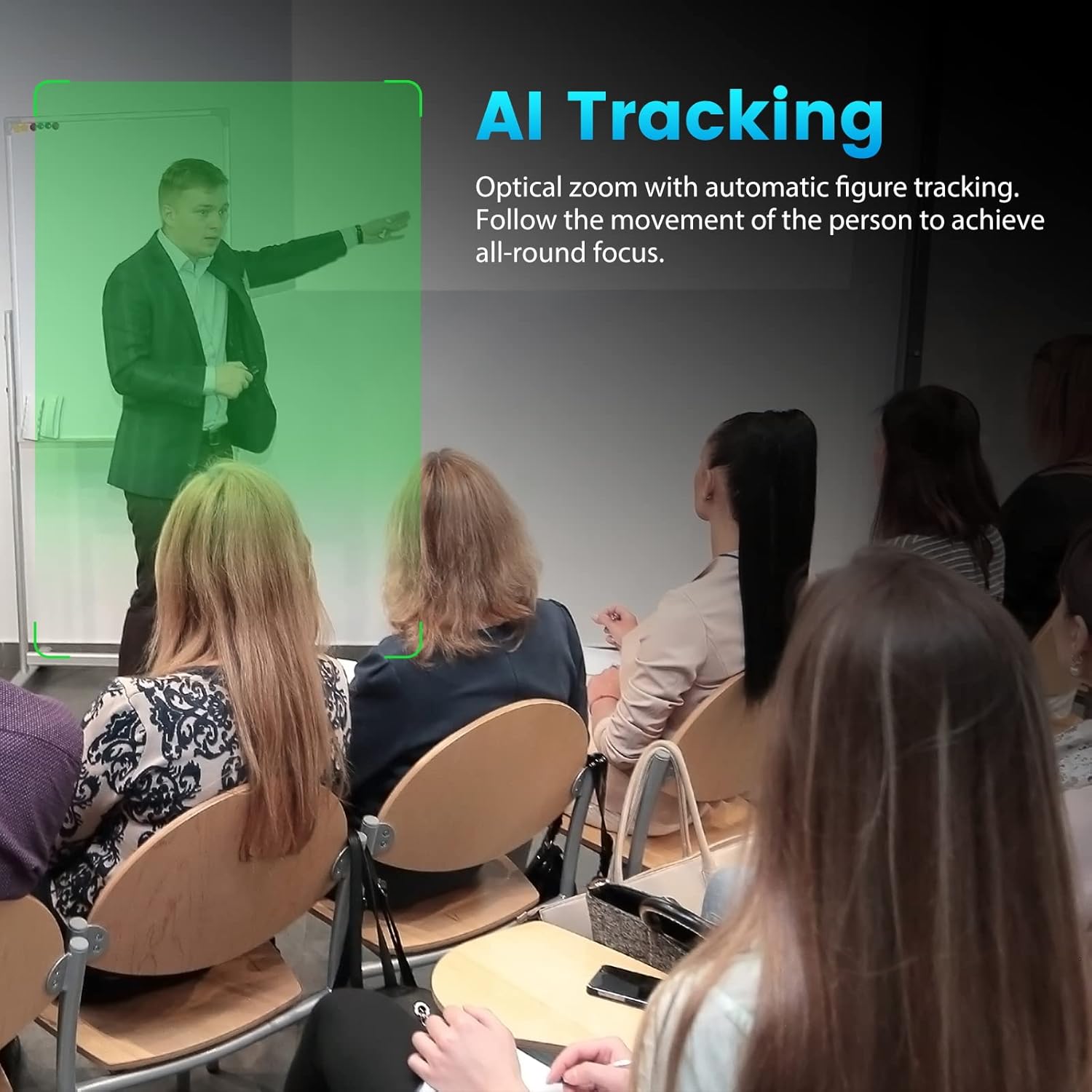
Figure 4: Demonstration of AI Tracking capability.

Figure 5: Visual representation of 20X optical zoom.
4. การตั้งค่า
4.1 การติดตั้งทางกายภาพ
- การติดตั้ง: Use the provided wall mount bracket to securely install the camera in your desired location. Ensure the mounting surface is stable and can support the camera's weight.
- การเชื่อมต่อไฟฟ้า: Connect the AC power adapter to the camera's DC 12V input. Alternatively, if using a PoE-enabled network switch, connect a single Ethernet cable to the LAN port for both power and data.
- เอาท์พุตวิดีโอ: Connect the camera to your display or capture device using one of the available output ports:
- ช่องต่อ HDMI: For direct connection to a monitor or capture card.
- 3G-SDI: สำหรับการส่งสัญญาณวิดีโอทางไกลระดับมืออาชีพ
- ยูเอสบี 3.0: For direct connection to a computer for use as a webcam or capture device.
- LAN (IP Streaming): For network-based video streaming.
- อินพุต/เอาต์พุตเสียง: Connect external microphones or audio devices to the "LINE IN" or "LINE OUT" ports as needed.
4.2 Network Configuration (for IP Streaming)
For IP streaming and control, the camera requires network configuration. The camera typically defaults to DHCP to obtain an IP address automatically. It is important to verify the actual IP address assigned to the camera on your network.
- Finding the IP Address: Connect the camera to a monitor via HDMI or SDI. Use the remote control's MENU button to navigate to the network settings and view the camera's assigned IP address. This address is crucial for accessing the camera's web อินเทอร์เฟซ
- การเข้าถึง Web อินเทอร์เฟซ: เปิด web browser on a computer connected to the same network and enter the camera's IP address.
- ข้อมูลการเข้าสู่ระบบ: The default username is typically "admin". For the password, please refer to the specific instructions provided with your camera or try leaving it blank, as some units may have an empty default password. If issues persist, consult the official ADKIDO support resources.
5. คู่มือการใช้งาน
5.1 การควบคุมกล้องขั้นพื้นฐาน
The camera can be controlled using the included infrared remote control, or via RS232/RS485 serial commands, or through its IP interface.
- แพน/เอียง: Use the directional arrows on the remote control or control software to move the camera horizontally (pan) and vertically (tilt). The horizontal rotation range is ±170° and the vertical rotation range is -30° to +90°.
- ซูม: Use the ZOOM +/- buttons on the remote or control interface to adjust the optical zoom. The camera features 20x optical zoom.
- จุดสนใจ: Adjust focus using the AUTO/FAR/NEAR buttons on the remote or through the web interface. The camera supports advanced auto-focusing technology.
- ค่าที่ตั้งล่วงหน้า: Save and recall camera positions using the preset buttons (1-9) on the remote. The camera supports up to 255 preset positions.

Figure 6: The ADKIDO PTZ Camera is ideal for diverse applications including worship services, live events, business meetings, and educational environments.
5.2 AI Tracking Function
The AI tracking feature allows the camera to automatically follow a designated subject. This is particularly useful for presentations, lectures, or worship services where a speaker moves around.
- การเปิดใช้งาน: Refer to the camera's on-screen menu or web interface for specific instructions on how to activate and configure AI tracking.
- ผลงาน: The camera uses advanced AI algorithms to recognize and track human shapes, ensuring the subject remains in focus and within the frame.
5.3 Live Streaming and Software Integration
The ADKIDO PTZ Camera is designed for seamless integration with popular live streaming and video conferencing software.
- ความเข้ากันได้ของซอฟต์แวร์: The camera is compatible with vMix, OBS, Zoom, Skype, and other similar platforms.
- Connection via USB: For direct connection to a computer, use the USB 3.0 port. The camera will be recognized as a standard webลูกเบี้ยว.
- Connection via IP: For network streaming, configure the camera's IP settings and use the RTSP, RTMP, SRT, or HTML5 protocols within your streaming software.
Video 1: Official ADKIDO PTZ Camera demonstration showcasing 1080P60 FULL HD and Auto-Tracking features. This video highlights the camera's smooth pan, tilt, and zoom movements, as well as its ability to automatically track subjects, making it suitable for dynamic live productions.
6. การบำรุงรักษา
Proper maintenance ensures the longevity and optimal performance of your ADKIDO PTZ Camera:
- การทำความสะอาด: ใช้ผ้าแห้งนุ่มเช็ดทำความสะอาดตัวกล้อง สำหรับเลนส์ ให้ใช้ผ้าและน้ำยาทำความสะอาดเลนส์โดยเฉพาะ หลีกเลี่ยงวัสดุที่มีฤทธิ์กัดกร่อนหรือสารเคมีรุนแรง
- สิ่งแวดล้อม: Operate the camera in a clean, dry environment. Avoid excessive dust, humidity, or extreme temperatures.
- อัพเดตเฟิร์มแวร์: Periodically check the official ADKIDO website for firmware updates. Keeping the firmware updated can improve performance, add new features, and resolve potential issues.
7 การแก้ไขปัญหา
This section addresses common issues you might encounter with your ADKIDO PTZ Camera:
| ปัญหา | สาเหตุที่เป็นไปได้ | สารละลาย |
|---|---|---|
| กล้องไม่สามารถเปิดได้ | Power cable loose or disconnected; power adapter faulty; no power from PoE. | Ensure all power connections are secure. Verify the power adapter is working. If using PoE, confirm the network switch provides PoE. |
| No video output / Blurry image. | Incorrect cable connection; wrong input selected on display; lens dirty; focus issue; incorrect resolution settings. | Check all video cables (HDMI, SDI, USB) are correctly connected. Select the correct input source on your monitor/capture device. Clean the lens. Adjust the camera's focus. Verify output resolution settings match your display's capabilities. |
| Cannot access camera web interface / IP control. | Incorrect IP address; network connectivity issue; incorrect login credentials. |
|
| รีโมทคอนโทรลไม่ทำงาน | Batteries low/dead; line of sight blocked; remote sensor on camera obstructed. | Replace batteries. Ensure clear line of sight between remote and camera. Check for obstructions in front of the camera's IR sensor. |
8. ข้อมูลจำเพาะ
| ข้อมูลจำเพาะ | รายละเอียด |
|---|---|
| หมายเลขรุ่น | V60XL |
| ขนาดสินค้า | 6.65 x 6.61 x 5.75 นิ้ว |
| น้ำหนักสินค้า | 3.31 ปอนด์ |
| เทคโนโลยีโฟโต้เซนเซอร์ | ซีมอส |
| ความละเอียดในการจับภาพวิดีโอ | 1080p |
| ความยาวโฟกัสสูงสุด | 34 มิลลิเมตร |
| รูรับแสงสูงสุด | 1.4 ฟ. |
| ประเภทหน่วยความจำแฟลช | SD |
| รูปแบบการจับภาพวิดีโอ | MJPEG, MP4 |
| รูปแบบเสียงที่รองรับ | เอเอซี |
| ขนาดหน้าจอ | 2.8 นิ้ว |
| เทคโนโลยีการเชื่อมต่อ | USB/SDI/LAN/HDMI |
9. การรับประกันและการสนับสนุน
All ADKIDO products come with a รับประกัน 3 ปี. For any issues, questions, or support needs, please contact ADKIDO customer service. You can also refer to the official User Manual PDF for more detailed information.
คู่มือผู้ใช้อย่างเป็นทางการ (PDF): ดาวน์โหลดที่นี่
Ask a question about this manual
Ask about setup, troubleshooting, compatibility, parts, safety, or missing instructions. Manuals+ will review the question and use this page’s manual context to help answer it.