
การแนะนำ
This manual provides detailed instructions for the installation, operation, and maintenance of your EZoneTronics Android 11 Car Stereo. Please read this manual thoroughly before using the product to ensure proper function and safety. This unit is designed for Peugeot 308 and 408 models manufactured between 2010 and 2016.
เนื้อหาแพ็คเกจ
ตรวจสอบว่ารายการทั้งหมดที่ระบุไว้ด้านล่างนี้รวมอยู่ในแพ็คเกจของคุณ:
- 1 x EZoneTronics Android Player
- เสาอากาศ GPS 1 เส้น
- 1 x สายรัดไฟฟ้า
- สายเคเบิล RCA สำหรับอินพุต/เอาต์พุต 1 เส้น
- อะแดปเตอร์ USB 2 ตัว
- 1 x สายอินพุตกล้อง
- 1 x คู่มือผู้ใช้ (เอกสารนี้)
การติดตั้งและการตั้งค่า
The EZoneTronics Android 11 Car Stereo is designed for plug-and-play installation in compatible Peugeot 308/408 models. Professional installation is recommended.
การตรวจสอบก่อนการติดตั้ง
- ตรวจสอบให้แน่ใจว่ากุญแจรถปิดอยู่และถอดแบตเตอรี่ออกก่อนเริ่มการติดตั้ง
- Confirm compatibility with your vehicle's make, model, and year (Peugeot 308/408, 2010-2016).
ขั้นตอนการติดตั้ง
- Carefully remove the original car stereo unit from your vehicle's dashboard. Refer to your vehicle's service manual for specific instructions.
- Connect the provided Power Harness to the vehicle's wiring harness. Ensure all connections are secure.
- Connect the GPS Antenna. Position the antenna in a location with a clear view ของท้องฟ้าเพื่อการรับสัญญาณที่ดีที่สุด
- Connect the RCA Input/Output Cable, USB Adapters, and Camera Input Cable as needed for external devices (e.g., rear camera, USB drives).
- Carefully slide the EZoneTronics Android Player into the dashboard opening. Ensure all cables are tucked away and not pinched.
- Secure the unit in place using the appropriate mounting brackets or screws.
- Reconnect the vehicle's battery and turn on the ignition to test the unit.
บันทึก: Minor modifications to the vehicle's frame (e.g., removing plastic tabs) may be required for a perfect fit. Consult online resources or a professional if unsure.
คำแนะนำการใช้งาน
Your EZoneTronics Android 11 Car Stereo features a 9-inch TFT Capacitive Touch Screen and an Octa Core CPU for a responsive user experience.
การนำทางพื้นฐาน
- เปิด/ปิดเครื่อง: กดปุ่มเปิด/ปิดบนตัวเครื่องค้างไว้หรือใช้สวิตช์กุญแจของรถ
- หน้าจอสัมผัส: Navigate through menus and applications by tapping, swiping, and pinching on the screen.
- หน้าจอหลัก: Access frequently used apps and widgets. Customize by long-pressing on empty areas.
- การตั้งค่า: Access system settings, network configurations, display options, and more.

Image: The Android 11 interface with various application icons, highlighting the Octa Core processor for smooth operation.
การเชื่อมต่อบลูทูธ 5.0
The unit features built-in Bluetooth 5.0 for hands-free calling and audio streaming (A2DP).
- ไปที่การตั้งค่าบลูทูธบนเครื่องเสียงรถยนต์
- เปิดใช้งานบลูทูธบนโทรศัพท์มือถือของคุณและค้นหาอุปกรณ์ที่มีอยู่
- Select the car stereo (e.g., "EZoneTronics Car Stereo") from your phone's list and pair.
- Once paired, you can make/receive calls and stream music directly from your phone.

Image: The Bluetooth 5.0 interface displaying options for call history, dialing, hanging up, and playing music from a connected phone.
CarPlay และ Android Auto
Integrated CarPlay and Android Auto allow seamless smartphone integration via USB (wired) or wirelessly.
- Connect your iPhone (for CarPlay) or Android phone (for Android Auto) to one of the USB ports.
- Follow the on-screen prompts to initiate CarPlay or Android Auto.
- Once connected, you can access navigation, music, messages, and calls through the car stereo interface.
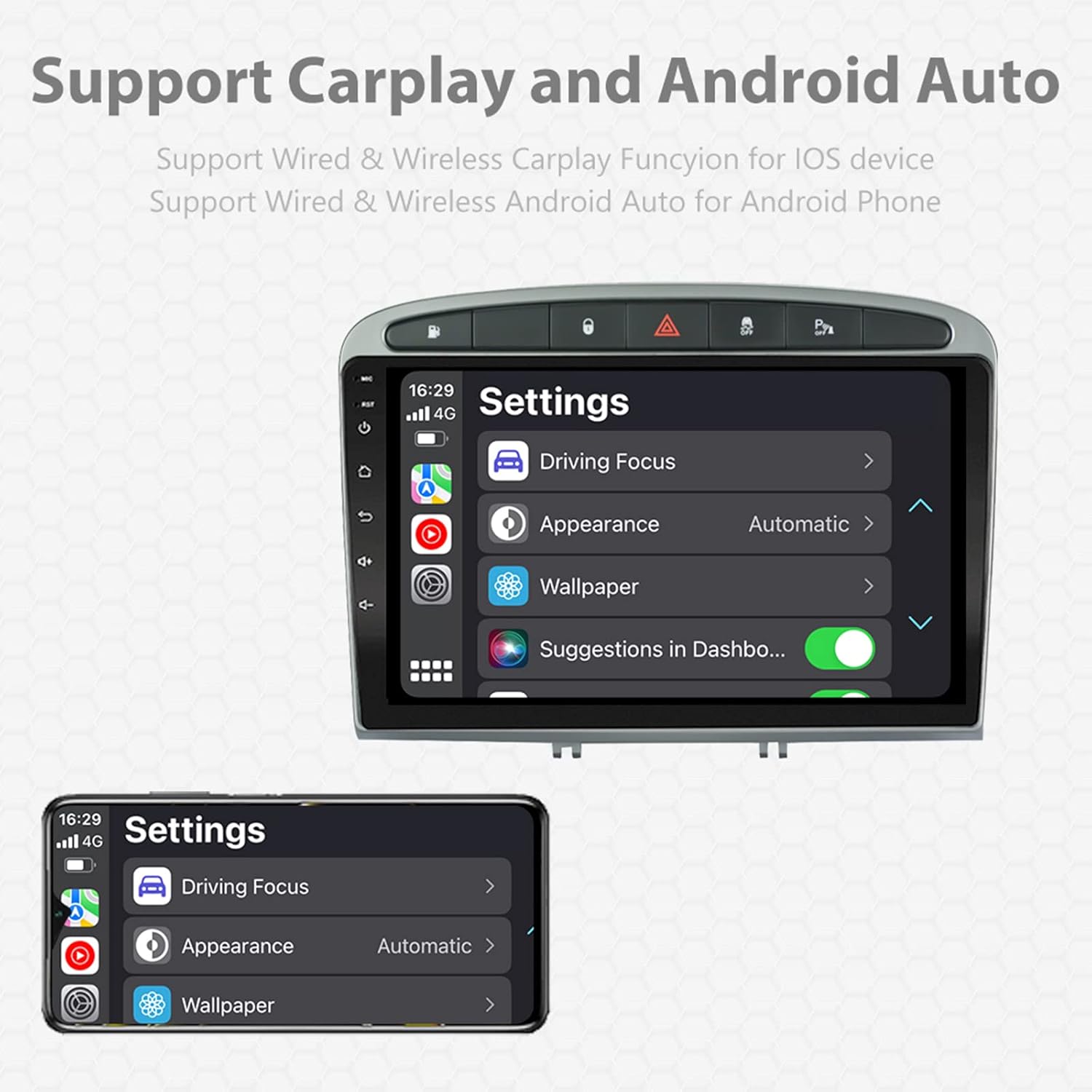
Image: A screen capture showing the settings menu for CarPlay and Android Auto, indicating support for both wired and wireless connections.
ฟังก์ชันแยกหน้าจอ
The Android 11 system supports multi-tasking, allowing two applications to run side-by-side.
- To activate, open an application, then swipe up from the bottom of the screen (or use the recent apps button) and drag another app to one side of the screen.
- This enables simultaneous use of navigation and music playback, or browsing while listening to the radio.
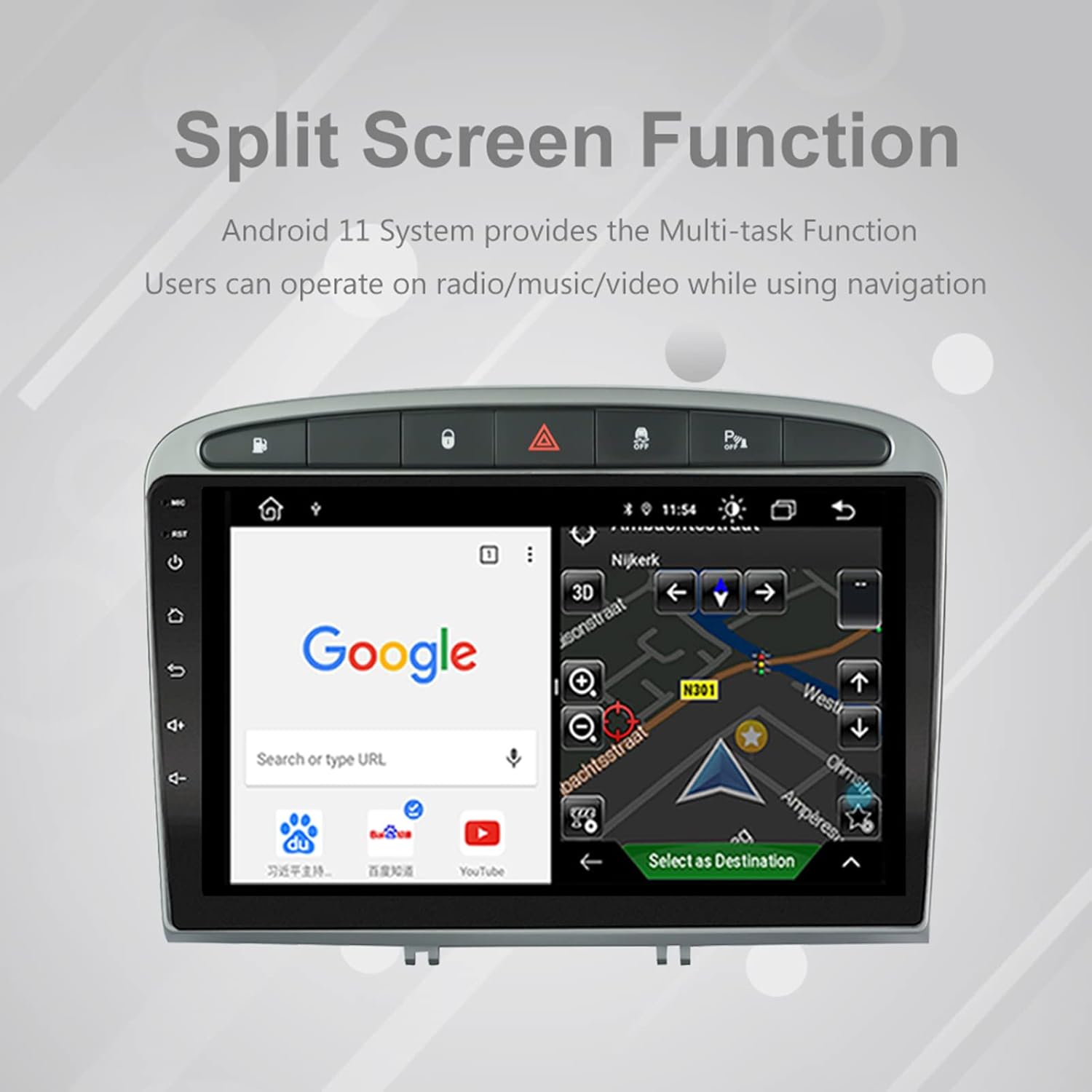
Image: The split-screen feature in action, displaying a Google search interface on one side and a navigation map on the other.
Radio (AM/FM/RDS)
The unit includes an automotive-grade chipset for optimal radio signal reception.
- เลือกแอปพลิเคชัน 'วิทยุ' จากหน้าจอหลัก
- ใช้ปุ่มควบคุมบนหน้าจอเพื่อค้นหาสถานี ปรับจูนด้วยตนเอง หรือเลือกสถานีที่ตั้งไว้ล่วงหน้า
- RDS (Radio Data System) provides additional information like station name and program type where available.
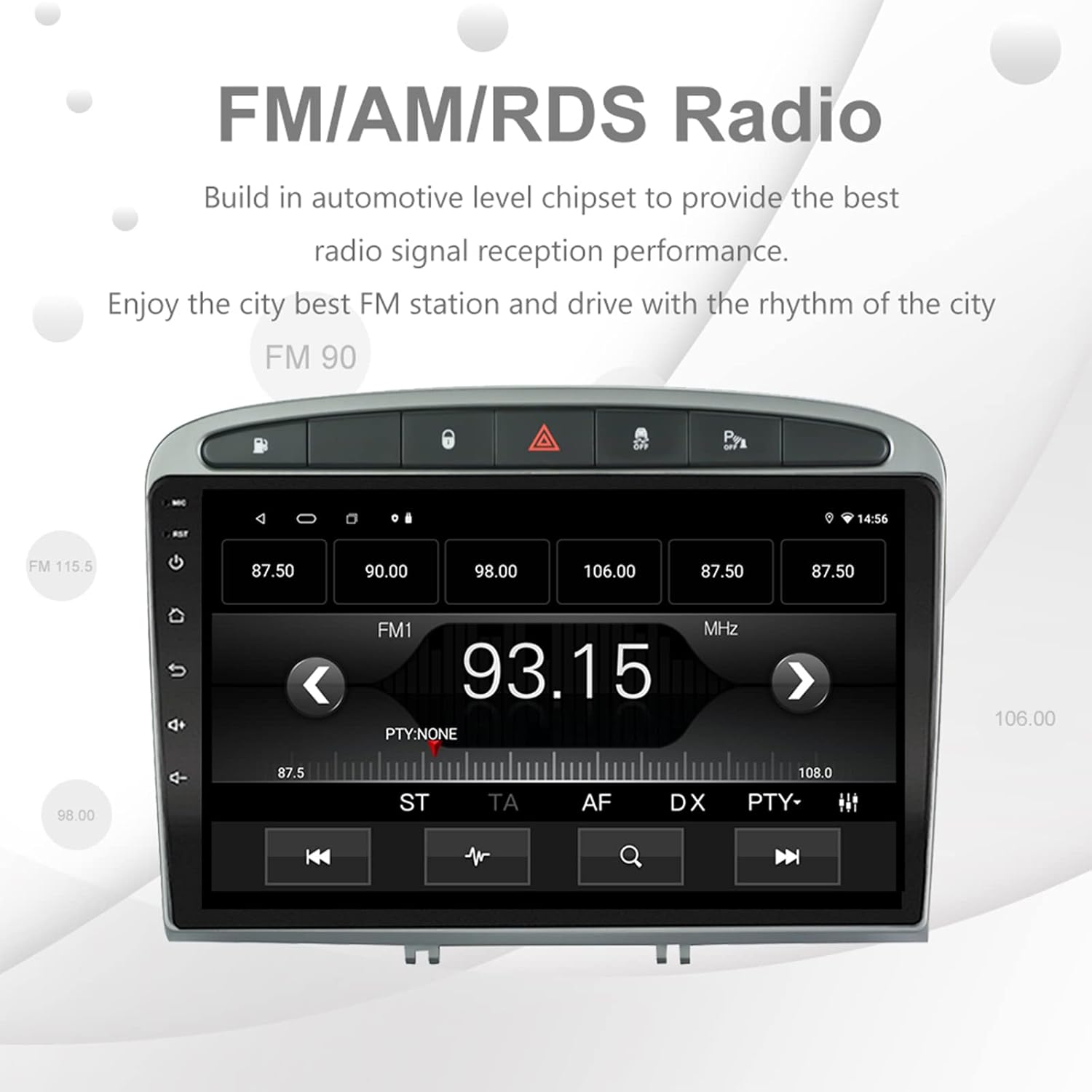
Image: The FM/AM/RDS radio interface, showing frequency display, tuning controls, and preset options.
โปรเซสเซอร์เสียงดิจิตอล (DSP)
The built-in 32-band DSP allows for precise audio customization to match your preferences and vehicle acoustics.
- Access the 'EQ' or 'DSP' application from the home screen.
- Adjust individual frequency bands, fader, balance, treble, and bass settings.
- Select from preset EQ modes or create and save your custom profiles.

Image: The DSP system interface, illustrating the multi-band equalizer with adjustable frequency sliders for sound customization.
Multimedia Playback (Music & Video)
The unit supports various multimedia formats for music and 1080P HD video playback.
- Connect USB drives to the rear USB inputs for media files.
- Use the 'Music' or 'Video' applications to browse and play your media.
- Stream music from your mobile phone via Bluetooth or compatible apps like Spotify (requires internet connection).

Image: The multimedia player displaying a high-definition scenic image, demonstrating its capability for 1080P video and music playback.
อินพุตกล้องย้อนกลับ
The unit supports a reverse camera input for enhanced parking safety. An AHD camera (optional) provides superior clarity compared to standard CVBS cameras.
- Connect a compatible reverse camera to the 'Camera Input' cable.
- หน้าจอจะสลับไปที่ภาพจากกล้องโดยอัตโนมัติ view เมื่อเข้าเกียร์ถอยหลัง
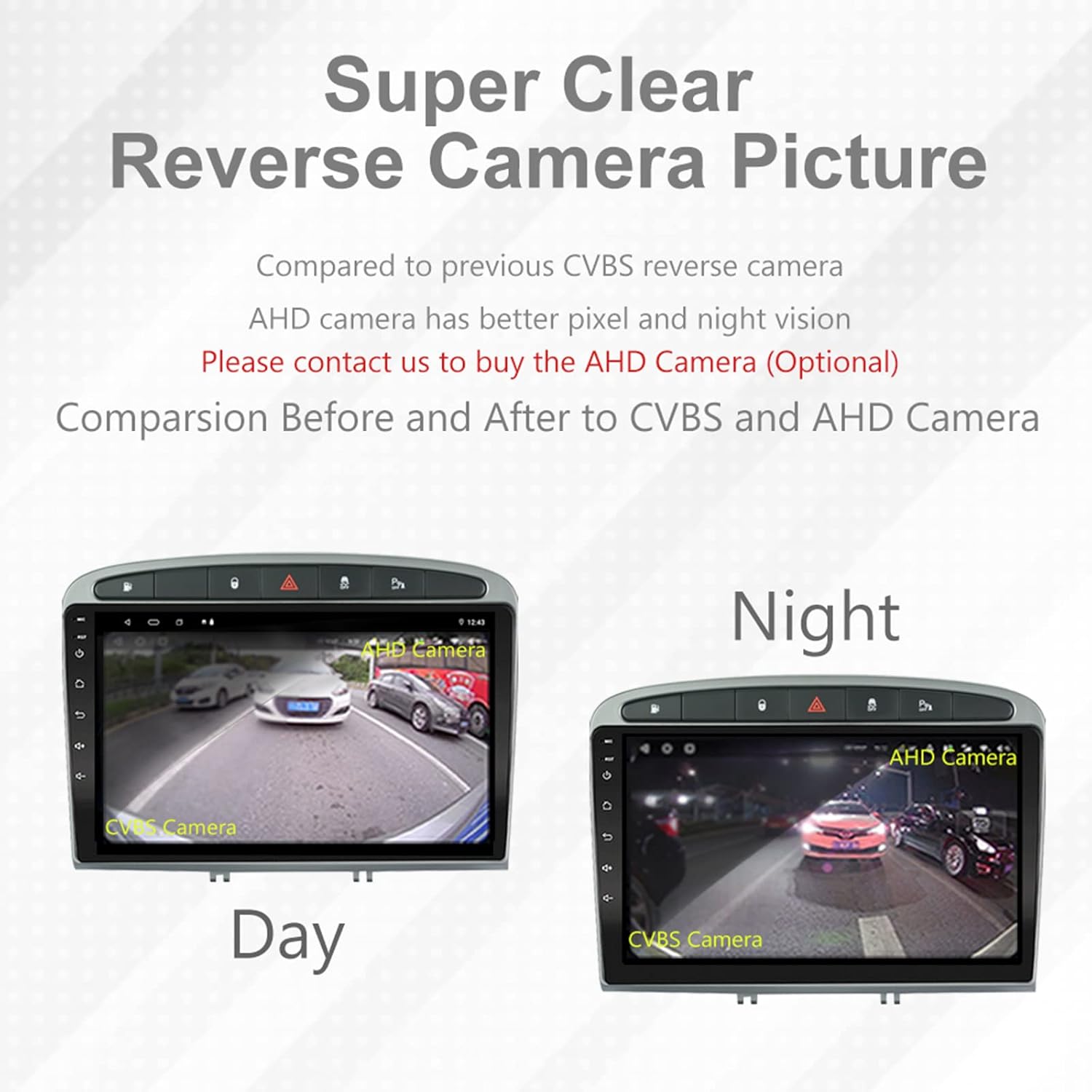
Image: A visual comparison demonstrating the clear reverse camera picture, highlighting the improved clarity of an AHD camera during both day and night conditions.
การซ่อมบำรุง
การบำรุงรักษาอย่างถูกต้องจะช่วยให้เครื่องเสียงในรถยนต์ของคุณมีอายุการใช้งานยาวนานและมีประสิทธิภาพเหมาะสมที่สุด
- การทำความสะอาดหน้าจอ: ใช้ผ้านุ่มไม่เป็นขุยเช็ดหน้าจอสัมผัสเบาๆ หลีกเลี่ยงน้ำยาทำความสะอาดหรือตัวทำละลายที่มีฤทธิ์กัดกร่อน
- การอัปเดตซอฟต์แวร์: Periodically check for system software updates to ensure optimal performance and access to new features. Updates can usually be found in the system settings or on the manufacturer's webเว็บไซต์.
- อุณหภูมิ: หลีกเลี่ยงการวางเครื่องไว้ในอุณหภูมิที่สูงเกินไป
การแก้ไขปัญหา
หากคุณพบปัญหา โปรดดูปัญหาทั่วไปและวิธีแก้ไขต่อไปนี้:
| ปัญหา | สาเหตุที่เป็นไปได้ | สารละลาย |
|---|---|---|
| เครื่องไม่เปิด | การเชื่อมต่อไฟฟ้าหลวม ฟิวส์ขาด แบตเตอรี่รถยนต์มีปัญหา | Check power harness connections. Inspect vehicle fuses. Ensure vehicle battery is charged. |
| ไม่มีเสียง | ระดับเสียงต่ำเกินไป, เปิดใช้งานโหมดปิดเสียง, ปัญหาการเดินสายลำโพง, การตั้งค่าเอาต์พุตเสียงไม่ถูกต้อง | Increase volume. Check mute status. Verify speaker connections. Adjust audio settings in DSP/EQ. |
| สัญญาณ GPS อ่อนหรือไม่แม่นยำ | เสาอากาศ GPS ติดตั้งไม่ถูกต้องหรือหลุด การรบกวนจากสภาพแวดล้อม | ตรวจสอบให้แน่ใจว่าเสาอากาศ GPS มีสัญญาณที่ชัดเจน view of the sky and is securely connected. Avoid placing near metal objects. |
| ปัญหาการจับคู่บลูทูธ | Bluetooth not enabled on unit or phone, incorrect pairing procedure, device interference. | Ensure Bluetooth is enabled on both devices. Restart both devices. Follow pairing instructions carefully. |
| CarPlay/Android Auto ใช้งานไม่ได้ | Faulty USB cable, phone software issue, app not installed/updated. | Try a different USB cable. Ensure your phone's OS and CarPlay/Android Auto apps are updated. Restart phone and stereo. |
| เครื่องทำงานช้าหรือไม่ตอบสนอง | มีแอปพลิเคชันทำงานอยู่เบื้องหลังมากเกินไป พื้นที่เก็บข้อมูลเหลือน้อย ความผิดพลาดของซอฟต์แวร์ | Close unnecessary applications. Clear cache. Perform a system restart. If persistent, a factory reset might be needed (backup data first). |
สำหรับปัญหาที่ไม่ได้กล่าวถึงที่นี่ โปรดติดต่อฝ่ายสนับสนุนลูกค้า
ข้อมูลจำเพาะ
- หมายเลขรุ่น: RMS8-PGT-408-08-2G32
- ระบบปฏิบัติการ: แอนดรอยด์ 11
- ขนาดหน้าจอ: 9 นิ้ว
- ประเภทจอภาพ: TFT Capacitive Touch Screen
- ปณิธาน: 1280 x 720 pixels (Note: Some documentation may state 1024x600, but 1280x720 is the primary specification)
- ซีพียู: Octa Core with 1.6GHz Cortex A55
- แรม : แรม 2GB DDR3
- พื้นที่เก็บข้อมูลภายใน: หน่วยความจำแฟลช 32GB
- บลูทูธ: Version 5.0 (A2DP, Hands-Free, Phonebook)
- การเชื่อมต่อ: Built-in WiFi, 4G SIM Card Compatible (requires external module/dongle for 4G), RCA, USB
- จีพีเอส: Built-in receiver, compatible with Waze/Navfree/Yandex Map etc.
- วิทยุ: AM/FM/RDS with Auto Memory Store/Preset Scan
- เอาต์พุตเสียง: 4 x 45W Power Output, 4.1 Channel RCA/Sub Output
- การประมวลผลเสียง: 32 Band DSP, Multi EQ Settings, Volume/Fader/Balance/Treble/Bass Control
- อินพุตวิดีโอ: 1 Channel Video Input, Back Camera Input
- อินพุตเสียง: อินพุตเสียง 2 ช่อง
- อุปกรณ์ที่รองรับ: Smartphone (for CarPlay/Android Auto, Bluetooth)
- บริการอินเทอร์เน็ตที่รองรับ: สปอติฟาย
- ภาษา: English, French, Italian, German, Spanish, Portuguese, Chinese, Japanese, and more.
- ขนาดแพ็คเกจ: 31.3 x 21.6 x 11.9 ซม.
- น้ำหนักแพ็คเกจ: 1.51 กก.
การรับประกันและการสนับสนุน
Your EZoneTronics car stereo comes with a รับประกัน 1 ปี ตั้งแต่วันที่ซื้อสินค้า
For technical assistance, warranty claims, or any inquiries, please contact our customer support team:
- อีเมล: sales2@rhythmhk.com
Please provide your model number (RMS8-PGT-408-08-2G32) and a detailed description of the issue when contacting support.