
1. บทนำ
This manual provides comprehensive instructions for the installation, setup, and operation of your GHome Smart Light Switch SW5. This single-pole Wi-Fi smart switch allows you to control your lighting remotely via an app or voice commands through compatible smart home assistants.

Figure 1: GHome Smart Light Switch SW5 Product Overview
2. ข้อมูลด้านความปลอดภัยที่สำคัญ
- อันตรายจากไฟฟ้า: การติดตั้งจำเป็นต้องทำงานกับแรงดันไฟฟ้าสูงtage. Always disconnect power at the circuit breaker before installation or servicing. If you are unsure about electrical wiring, consult a qualified electrician.
- ต้องการลวดเป็นกลาง: This smart switch requires a neutral wire for proper operation. If your house was built or remodeled before the mid-1980s, it may not have a neutral wire. Verify your wiring before installation.
- ความเข้ากันได้ของ Wi-Fi: This device operates only on a 2.4GHz Wi-Fi network. It is not compatible with 5GHz Wi-Fi networks.
- ประเภทสวิตช์: This is a single-pole switch. It is not designed for use as a 3-way or dimmer switch.
- ความเข้ากันได้ของโหลด: Not compatible with smart bulbs.
- ใบรับรอง: The GHome Smart Light Switch is UL and FCC certified, ensuring quality and safety standards.

Figure 2: Compatibility and Wiring Type Overview
3. อะไรอยู่ในกล่อง
- GHome Smart Light Switch (2 units)
- Installation Kit (wire nuts, screws)
- คู่มือการใช้งาน
4. ข้อมูลจำเพาะ
| คุณสมบัติ | รายละเอียด |
|---|---|
| หมายเลขรุ่น | SW5 |
| อินพุต/เอาท์พุต | 120V/60Hz, 15A Max |
| แม็กซ์ วัตtage | 1800วัตต์ |
| บริการ Wi-Fi มาตรฐาน | 2.4GHz (802.11b/g/n) |
| อุณหภูมิในการทำงาน | -10°C ถึง 40°C |
| ขนาดผลิตภัณฑ์ (ฝาครอบ) | 4.72" x 2.76" x 0.34" (120 x 70 x 8.7 มม.) |
| Internal Dimensions (without cover) | 4.09"H x 1.77"W x 1.18"D (104 x 45 x 30mm) |
| การรับรอง | ยูแอล, เอฟซีซี |

Figure 3: Detailed Dimensions of the Smart Switch
5. การตั้งค่า
5.1. การติดตั้งระบบไฟฟ้า
- ตัดการเชื่อมต่อไฟฟ้า: Before starting, turn off the power to the light switch at your circuit breaker to prevent electrical shock.
- ถอดสวิตช์เก่าออก: Carefully remove the existing wall plate and unscrew the old switch from the wall box.
- ระบุสายไฟ: Identify the following wires in your wall box:
- Live Wire (Hot): มักจะเป็นสีดำ
- สายโหลด: เชื่อมต่อเข้ากับโคมไฟ
- สายนิวทรัล: Usually white. (Required for this switch)
- สายดิน: โดยทั่วไปจะเป็นสีเขียวหรือสีทองแดงเปลือย
- เชื่อมต่อสวิตช์ใหม่: Connect the wires from the wall box to the corresponding wires on the GHome Smart Light Switch using the provided wire nuts.
- เชื่อมต่อ เป็นกลาง wire from the wall box to the white wire on the smart switch.
- เชื่อมต่อ สด wire from the wall box to the black wire on the smart switch.
- เชื่อมต่อ โหลด wire from the wall box to the red wire on the smart switch.
- เชื่อมต่อ พื้น wire from the wall box to the green wire on the smart switch.
- สวิตช์ความปลอดภัย: Gently push the wired smart switch into the wall box and secure it with screws. Attach the new faceplate.
- คืนค่าพลัง: Turn the power back on at the circuit breaker. The indicator light on the switch should begin blinking, indicating it's ready for app pairing.
Video 1: GHome Smart Switch Wi-Fi Light Switch Overview and Installation Tips. This video demonstrates the physical installation process and highlights key features of the smart switch.
5.2 การติดตั้งและการจับคู่แอป
The GHome Smart Light Switch can be controlled via the GHome app. Ensure your mobile device is connected to a 2.4GHz Wi-Fi network before proceeding.
5.2.1 Download the GHome App
- ค้นหา "GHome" in your mobile device's app store (App Store for iOS or Google Play Store for Android).
- Download and install the GHome app.
- เปิดแอปและลงทะเบียนหรือเข้าสู่ระบบบัญชีของคุณ

Figure 4: GHome App Interface
5.2.2 Pairing in EZ Mode (Recommended)
- Ensure the smart switch is powered on and the indicator light is rapidly blinking. If not, press and hold the reset button on the switch for 5 seconds until it blinks rapidly.
- In the GHome app, tap the "+" icon on the top right corner to add a device.
- Select "Switch (Wi-Fi)" from the device list under the Electrician category.
- Confirm your 2.4GHz Wi-Fi network and enter its password.
- Select "EZ Mode" (usually the default) and confirm the indicator is rapidly blinking.
- The app will begin searching for the device. Once found, it will be added to your account.
- You can rename the switch for easier identification.
Video 2: How to connect GHome Smart Switch with APP in EZ Mode. This video guides you through the EZ Mode pairing process using the GHome app.
5.2.3 Pairing in AP Mode (Alternative)
If EZ Mode fails, you can try AP Mode:
- Ensure the smart switch is powered on and the indicator light is slowly blinking. If not, press and hold the reset button for 5 seconds until it blinks rapidly, then press and hold again for 5 seconds until it blinks slowly.
- In the GHome app, tap the "+" icon, select "Switch (Wi-Fi)", and then choose "AP Mode" from the top right corner.
- Confirm your 2.4GHz Wi-Fi network and enter its password.
- Go to your phone's Wi-Fi settings (WLAN) and connect to the hotspot named "SmartLife-xxxx".
- Return to the GHome app and wait for the device to connect.
- You can rename the switch for easier identification.
Video 3: How to connect GHome Smart Switch with APP in AP Mode. This video demonstrates the AP Mode pairing process for the GHome app.
5.2.4 Connecting with Google Home
- Ensure your GHome Smart Light Switch is already paired with the GHome app.
- เปิดแอป Google Home บนโทรศัพท์ของคุณ
- Tap "Get Started" and sign in with your Google account.
- Go to "Settings" and tap "Add device".
- Use the search function to find "GHome" and select the GHome app.
- Click "Agree and link" to link your GHome account with Google Home.
- Select your GHome Smart Light Switch from the list of devices to add it to Google Home.
Video 4: How to connect GHome Smart Switch with Google Home. This video demonstrates the steps to integrate your smart switch with Google Home for voice control.
5.2.5 การเชื่อมต่อกับ Amazon Alexa
- Ensure your GHome Smart Light Switch is already paired with the GHome app.
- Open the Amazon Alexa app on your phone and sign in.
- แตะ "เพิ่มเติม" > "ทักษะและเกม" > ปุ่ม "ค้นหา"
- Type "GHome" and select the GHome skill.
- Tap "ENABLE TO USE" and then "Agree and link" to link your GHome account with Alexa.
- Alexa will discover your device. You can then control it using voice commands.
Video 5: How to connect GHome Smart Switch with Alexa. This video demonstrates the steps to integrate your smart switch with Amazon Alexa for voice control.
6. การใช้งานสวิตช์อัจฉริยะของคุณ
6.1 การควบคุมด้วยเสียง
Once connected to Alexa or Google Assistant, you can control your lights with simple voice commands:
- "Alexa เปิด [ชื่อไฟ]"
- "เฮ้ กูเกิล ปิด [ชื่อหลอดไฟ] หน่อย"

รูปที่ 5: การควบคุมด้วยเสียงในการใช้งานจริง
6.2 การควบคุมระยะไกลผ่านแอป
Control your lights from anywhere using the GHome app:
- View the real-time status of your lights.
- เปิดหรือปิดไฟจากระยะไกล
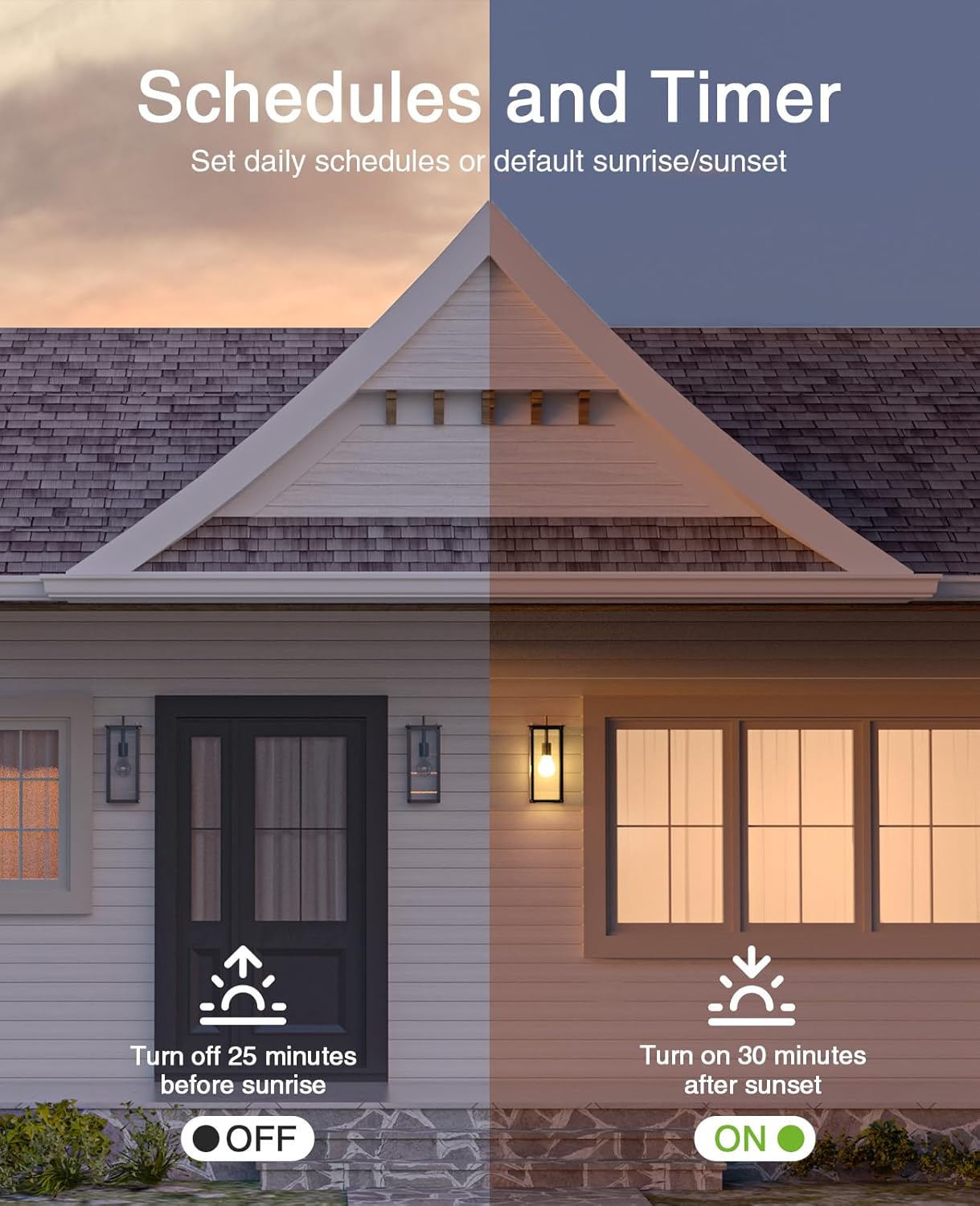
Figure 6: Remote Control via GHome App
6.3 Schedule and Timer Functions
ปรับระบบไฟให้เข้ากับกิจวัตรประจำวันของคุณโดยอัตโนมัติ:
- Set daily schedules for lights to turn on/off at specific times.
- Utilize sunrise/sunset automation (e.g., porch lights on 30 minutes after sunset, off 25 minutes before sunrise).

Figure 7: Scheduling and Timer Features
6.4 การควบคุมกลุ่ม
Manage multiple smart switches simultaneously by creating groups within the GHome app.

Figure 8: Group Control Functionality
7. การบำรุงรักษา
การอัปเดตเฟิร์มแวร์ 7.1 รายการ
GHome regularly releases firmware updates to optimize stability and user experience. It is recommended to upgrade the firmware to the latest version (e.g., V1.1.3 or newer) by following the prompts in the GHome app.
7.2 การทำความสะอาด
To clean the smart switch, ensure power is disconnected at the circuit breaker. Use a soft, dry cloth. Avoid using harsh chemicals or abrasive cleaners.
8 การแก้ไขปัญหา
- สวิตช์ไม่ตอบสนอง:
- ตรวจสอบว่าเบรกเกอร์วงจรเปิดอยู่หรือไม่
- Ensure the switch is properly wired (especially the neutral wire).
- Verify your Wi-Fi network is 2.4GHz and stable.
- Try resetting the switch by holding the reset button for 5 seconds.
- ไม่สามารถเชื่อมต่อกับ Wi-Fi:
- Confirm your router is broadcasting a 2.4GHz signal.
- ตรวจสอบให้แน่ใจว่าโทรศัพท์ของคุณเชื่อมต่อกับเครือข่าย 2.4GHz ในระหว่างการจับคู่
- เลื่อนสวิตช์ให้ใกล้กับเราเตอร์ Wi-Fi มากขึ้น
- Try both EZ Mode and AP Mode pairing methods.
- ตรวจสอบรหัสผ่าน Wi-Fi ของคุณอีกครั้ง
- การควบคุมด้วยเสียงไม่ทำงาน:
- Ensure the GHome skill/service is enabled and linked in your Alexa or Google Home app.
- Verify the device name in the GHome app matches the name used in voice commands.
- Check the internet connection of your smart assistant device.
9. การรับประกันและการสนับสนุน
9.1 การรับประกัน
GHome Smart Light Switches typically come with a 12-month warranty from the date of purchase. Please retain your proof of purchase for warranty claims.
Video 6: Smart Light Switch features and benefits. This video highlights various smart features and mentions the 12-month warranty.
9.2 การสนับสนุนลูกค้า
For further assistance or technical support, please refer to the GHome Smart official website or contact their customer service directly. Contact information can usually be found on the product packaging or the GHome Smart webเว็บไซต์.