
การแนะนำ
This user manual provides detailed instructions for the installation, operation, maintenance, and troubleshooting of your Xprinter XP-K200L 80mm Thermal Receipt Printer. Please read this manual thoroughly before using the printer to ensure proper function and to extend the product's lifespan. Keep this manual for future reference.
ข้อมูลด้านความปลอดภัย
- ควรใช้อะแดปเตอร์แปลงไฟที่มาพร้อมกับเครื่องพิมพ์เสมอ
- อย่าให้เครื่องพิมพ์โดนน้ำหรือความชื้น
- ควรหลีกเลี่ยงการวางเครื่องพิมพ์ไว้ในที่ที่มีแสงแดดส่องโดยตรง หรือใกล้แหล่งความร้อน
- ตรวจสอบให้แน่ใจว่ามีการระบายอากาศที่เหมาะสมรอบๆ เครื่องพิมพ์
- อย่าพยายามถอดประกอบหรือซ่อมแซมเครื่องพิมพ์ด้วยตนเอง โปรดติดต่อช่างผู้ชำนาญการ
- เก็บให้พ้นจากมือเด็ก
เนื้อหาแพ็คเกจ
โปรดตรวจสอบสิ่งของในกล่องเมื่อแกะสินค้า หากมีสิ่งใดขาดหายหรือเสียหาย โปรดติดต่อผู้ขาย
- Xprinter XP-K200L Thermal Receipt Printer
- อะแดปเตอร์แปลงไฟ
- สายไฟ
- สาย USB
- ม้วนกระดาษความร้อน (ม้วนเริ่มต้น)
- สายลิ้นชักเก็บเงิน
- คู่มือการใช้งาน (เอกสารนี้)
สินค้าเกินview
Familiarize yourself with the main components of your Xprinter XP-K200L thermal receipt printer.

รูปที่ 1: ด้านข้าง view of the Xprinter XP-K200L thermal receipt printer. On the right, the power switch is visible, and on the left, a button to open the paper cover is present.
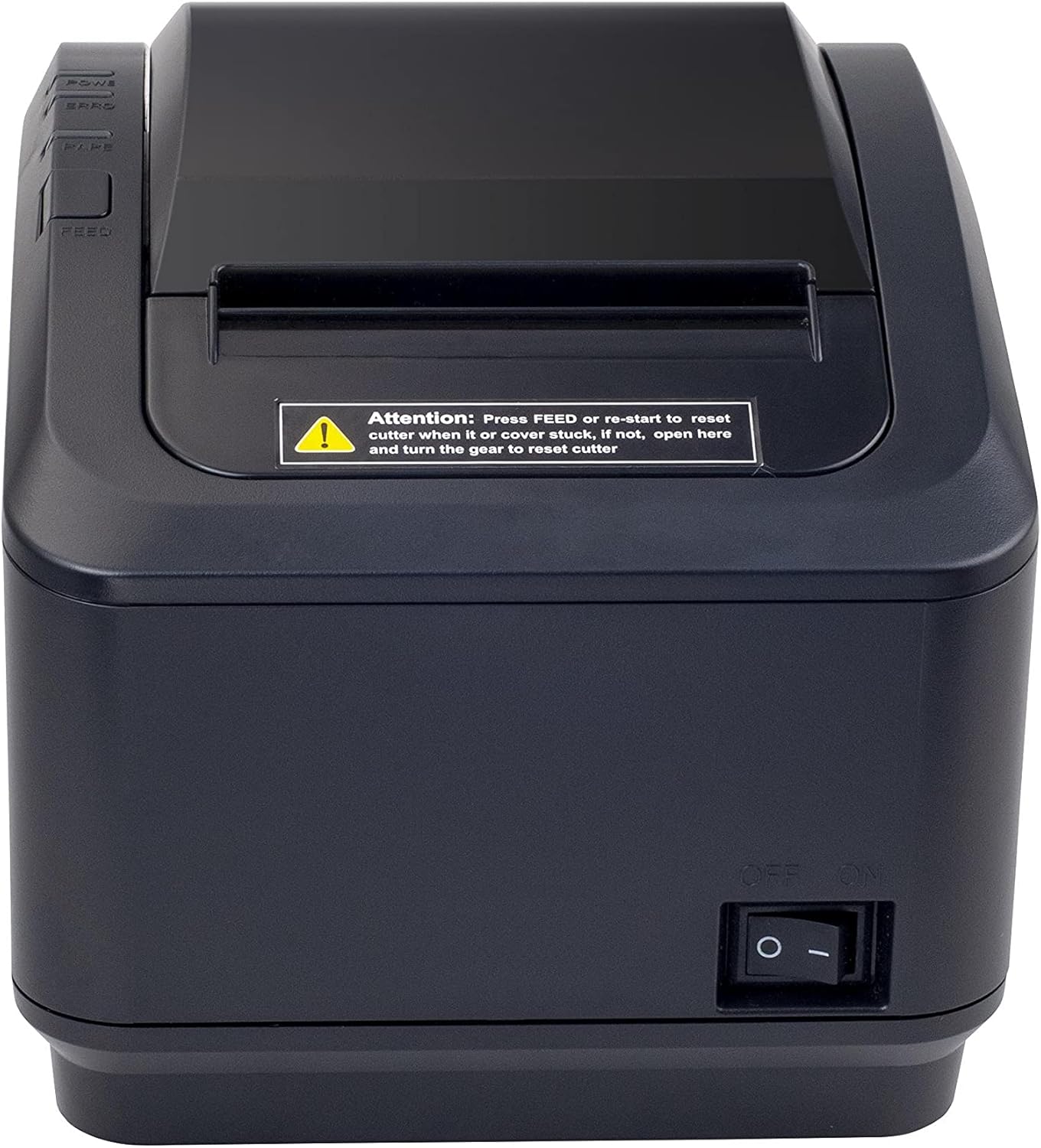
รูปที่ 2: ด้านหน้า view of the Xprinter XP-K200L thermal receipt printer. The paper output slot is at the top, and below it are control buttons for functions like feed and error reset. A warning label is also visible.

Figure 3: This image displays the Xprinter XP-K200L thermal receipt printer with its top cover open, showing the internal compartment where the thermal paper roll is loaded. The print head mechanism is also visible.
การตั้งค่า
1. การเชื่อมต่อแหล่งจ่ายไฟ
- Ensure the printer's power switch is in the ปิด ตำแหน่ง.
- ต่ออะแดปเตอร์แปลงไฟเข้ากับพอร์ตจ่ายไฟของเครื่องพิมพ์
- เสียบสายไฟเข้ากับเต้ารับไฟฟ้าที่เหมาะสม
2. การใส่กระดาษความร้อน
- Press the cover open button (refer to Figure 1) to open the top cover of the printer.
- Insert a new 80mm thermal paper roll into the compartment, ensuring the paper feeds from the bottom and the leading edge extends slightly out of the printer.
- Close the top cover firmly until it clicks into place. Ensure there is no slack in the paper roll.
3. Connecting to a Computer/Network
The XP-K200L printer supports both USB and LAN (Ethernet) connectivity.
การเชื่อมต่อ USB:
- เชื่อมต่อปลายด้านหนึ่งของสาย USB เข้ากับพอร์ต USB ของเครื่องพิมพ์
- เชื่อมต่อปลายอีกด้านหนึ่งของสาย USB เข้ากับพอร์ต USB ที่ว่างอยู่บนคอมพิวเตอร์ของคุณ
- Install the printer drivers. Drivers are typically provided on a CD or can be downloaded from the manufacturer's webไซต์ ทำตามคำแนะนำบนหน้าจอเพื่อการติดตั้ง
การเชื่อมต่อ LAN (อีเธอร์เน็ต):
- Connect one end of an Ethernet cable to the printer's LAN port.
- เชื่อมต่อปลายอีกด้านของสายอีเธอร์เน็ตเข้ากับเราเตอร์เครือข่ายหรือสวิตช์ของคุณ
- Configure the printer's network settings (e.g., IP address) if necessary. This usually involves printing a self-test page to get the current IP address and then accessing the printer's web interface or using a utility tool provided by the manufacturer.
- Install the printer drivers on your computer, selecting the network connection option during setup.
4. Connecting a Cash Drawer
- เชื่อมต่อสายเคเบิลลิ้นชักเก็บเงินเข้ากับพอร์ตเฉพาะสำหรับลิ้นชักเก็บเงินบนเครื่องพิมพ์
- Ensure your POS software is configured to send commands to open the cash drawer via the printer.
คำแนะนำการใช้งาน
การเปิด/ปิดเครื่อง
- To power on the printer, flip the power switch (refer to Figure 1) to the ON ตำแหน่ง.
- To power off the printer, flip the power switch to the ปิด ตำแหน่ง.
การพิมพ์ขั้นพื้นฐาน
Once the printer is connected and drivers are installed, you can print receipts from your POS software or any application that supports printing.
- Ensure the printer is powered on and has paper loaded.
- From your application, select the print option.
- Choose the "Xprinter XP-K200L" from the list of available printers.
- Confirm print settings and click "Print".
Self-Test Page
To print a self-test page, which provides information about the printer's settings and status:
- Ensure the printer is powered off and the paper roll is loaded.
- กดปุ่มค้างไว้ ให้อาหาร ปุ่ม.
- ขณะที่ถือ ให้อาหาร button, turn the power switch to ON.
- ปล่อยตัว ให้อาหาร button after the printer starts printing.
การซ่อมบำรุง
การทำความสะอาดเครื่องพิมพ์
- หัวพิมพ์: ใช้สำลีเช็ดเบาๆampened with isopropyl alcohol to gently wipe the thermal print head. Allow it to dry completely before use. Clean regularly to ensure print quality.
- เครื่องตัด: If the cutter becomes jammed or dirty, carefully clean it with a soft brush or cloth.
- ภายนอก: เช็ดทำความสะอาดภายนอกเครื่องพิมพ์ด้วยผ้าแห้งเนื้อนุ่ม ห้ามใช้สารทำความสะอาดที่มีฤทธิ์กัดกร่อนหรือตัวทำละลาย
การเปลี่ยนกระดาษความร้อน
When the paper roll is depleted or near its end, replace it following the steps in the "Loading Thermal Paper" section under Setup.
การแก้ไขปัญหา
| ปัญหา | สาเหตุที่เป็นไปได้ | สารละลาย |
|---|---|---|
| เครื่องพิมพ์ไม่เปิดใช้งาน | Power cord or adapter not connected properly; power outlet issue. | ตรวจสอบการเชื่อมต่อสายไฟทั้งหมด ลองใช้ปลั๊กไฟอื่นดู |
| ห้ามพิมพ์ | No paper; paper loaded incorrectly; printer offline; driver issue; incorrect connection. | Load paper correctly. Check printer status. Reinstall drivers. Verify USB/LAN connection. |
| คุณภาพการพิมพ์ไม่ดี | Dirty print head; low quality thermal paper. | Clean the print head (see Maintenance). Use recommended thermal paper. |
| Paper jam or cutter error. | Paper loaded incorrectly; debris in cutter mechanism. | As per printer label: กด ให้อาหาร or re-start to reset cutter. If the issue persists, open the top cover and carefully turn the gear to reset the cutter mechanism. Ensure paper is loaded correctly and remove any obstructions. |
| ลิ้นชักเก็บเงินเปิดไม่ได้ | Cable not connected; POS software not configured. | Check cash drawer cable connection. Verify POS software settings for cash drawer trigger. |
ข้อมูลจำเพาะ
| คุณสมบัติ | รายละเอียด |
|---|---|
| ยี่ห้อ | เอ็กซ์ปรินเตอร์ |
| ชื่อรุ่น | XP-K200L |
| เทคโนโลยีเครื่องพิมพ์ | เทอร์มอล |
| เทคโนโลยีการเชื่อมต่อ | ยูเอสบี, แลน (อีเธอร์เน็ต) |
| คุณสมบัติพิเศษ | เครือข่ายพร้อม |
| สี | สีดำ |
| เอาท์พุตเครื่องพิมพ์ | เอกรงค์ |
| น้ำหนักสินค้า | 1.5 กก. |
| ขนาดสินค้า (ลxกxส) | 19.5 ซม. x 14 ซม. x 13.8 ซม. |
| Compatible OS/Controller Type | Android (and typically Windows/Linux via drivers) |
| สื่อสิ่งพิมพ์ | Plain Thermal Paper |
| พิมพ์สี | สีดำ |
| ปณิธาน | 576 x 512 dots per inch (or dots per line) |
| Max Print Resolution B/W | 576 จุดต่อนิ้ว |
| ฟังก์ชันเครื่องพิมพ์เพิ่มเติม | พิมพ์เท่านั้น |
| วิธีการควบคุม | ระยะไกล |
| ขนาดสื่อสูงสุด | 80 มม. |
| ขนาดกระดาษ | 79.5 มม. |
| พลัง | 60 วัตต์ |
| ส่วนประกอบที่รวมอยู่ | Power adapter, Cash drawer cable |
| ชุด | XP-K |
| การใช้งานเฉพาะ | Restaurants, bars, cinemas, garages, transportation, hospitals, clinics |
| พอร์ต USB รวม | 1 |
การรับประกันและการสนับสนุน
For warranty information and technical support, please refer to the documentation provided with your purchase or contact your vendor directly. Keep your proof of purchase for warranty claims.
For driver downloads and further support resources, visit the official Xprinter webเว็บไซต์.