
1. บทนำ
The Energizer Connect Smart WiFi Plug allows you to control your electronic devices remotely using a mobile application or voice commands. This smart plug connects directly to your home's 2.4GHz Wi-Fi network, eliminating the need for a separate hub. It is compatible with Amazon Alexa, Google Assistant, and Siri for convenient voice control. This manual provides detailed instructions for setting up, operating, maintaining, and troubleshooting your smart plug.
2. ข้อมูลด้านความปลอดภัย
โปรดอ่านและทำความเข้าใจคำแนะนำด้านความปลอดภัยทั้งหมดก่อนใช้ผลิตภัณฑ์นี้ การไม่ปฏิบัติตามคำแนะนำเหล่านี้อาจส่งผลให้เกิดไฟฟ้าช็อต ไฟไหม้ หรือความเสียหายต่อทรัพย์สิน
- สำหรับใช้ภายในอาคารเท่านั้น
- ไม่เกินโหลดสูงสุด 15 Amps (120 Volts).
- Do not immerse the plug in water or expose it to moisture.
- อย่าพยายามถอดประกอบหรือดัดแปลงอุปกรณ์
- เก็บให้พ้นจากมือเด็ก
- ตรวจสอบให้แน่ใจว่าเสียบปลั๊กเข้ากับเต้ารับติดผนังจนสุดแล้ว
- ถอดปลั๊กอุปกรณ์ออกจากเต้าเสียบก่อนทำความสะอาด
3. เนื้อหาบรรจุภัณฑ์
- 1 x Energizer Connect Smart WiFi Plug
- 1 x คู่มือผู้ใช้ (เอกสารนี้)
4. สินค้าหมดview
The Energizer Connect Smart WiFi Plug features a compact design that allows access to the second outlet. It includes a power button and an LED indicator for status.

ภาพที่ 4.1: The Energizer Connect Smart WiFi Plug shown with its retail packaging, highlighting key features like 15 Amps of power, grouping, voice control, and Wi-Fi connectivity. The plug itself is white and compact.

ภาพที่ 4.2: ภาพระยะใกล้ด้านหน้า view of the Energizer Connect Smart WiFi Plug, showing the standard Type B electrical outlet configuration (two vertical slots and a round ground hole).

ภาพที่ 4.3: This image displays the compact dimensions of the Energizer Connect Smart WiFi Plug. The side view shows a depth of 1.0625 inches, and the front view indicates a diameter of 1.125 inches, illustrating its mini size.
4.1 ส่วนประกอบ
- ปุ่มเปิด/ปิด: Press to manually turn the connected device on or off. Press and hold for 5 seconds to initiate pairing mode (LED will blink rapidly).
- ไฟแสดงสถานะ LED:
- ของแข็งสีฟ้า: อุปกรณ์เปิดอยู่
- ปิด: อุปกรณ์ปิดอยู่
- สีน้ำเงินกะพริบเร็ว: โหมดจับคู่
- สีฟ้ากะพริบช้าๆ: ตัดการเชื่อมต่อจาก Wi-Fi
5. คำแนะนำในการตั้งค่า
Follow these steps to set up your Energizer Connect Smart WiFi Plug.
5.1. ข้อกำหนดของระบบ
- A stable 2.4GHz Wi-Fi network (5GHz networks are not supported).
- A smartphone or tablet running iOS 10.0 or higher, or Android 6.0 or higher.
- Access to the Apple App Store or Google Play Store.
5.2. การดาวน์โหลดและติดตั้งแอป
- ดาวน์โหลด Energizer Connect App จาก Apple App Store หรือ Google Play Store ค้นหา "Energizer Connect".
- เปิดแอปและทำตามคำแนะนำบนหน้าจอเพื่อสร้างบัญชีหรือเข้าสู่ระบบ

ภาพที่ 5.1: A smartphone displaying the Energizer Connect App interface, showing the smart plug in an "ON" state. The image also includes the physical smart plug and icons for downloading the app from the App Store and Google Play.
5.3. Pairing the Smart Plug
- Plug the Energizer Connect Smart WiFi Plug into a standard 120V wall outlet.
- The LED indicator on the plug should begin blinking rapidly, indicating it is in pairing mode. If not, press and hold the power button on the side of the plug for 5 seconds until it blinks rapidly.
- Open the Energizer Connect App.
- Tap the "+" icon (or "Add Device") to add a new device.
- เลือก "เต้ารับไฟฟ้า" หรือ "ปลั๊กอัจฉริยะ" จากรายการอุปกรณ์
- Confirm that the indicator light is blinking rapidly in the app.
- Enter your 2.4GHz Wi-Fi network name and password. Ensure your phone is connected to the same 2.4GHz network.
- The app will attempt to connect to the smart plug. This may take a few moments.
- Once successfully paired, the LED indicator on the plug will turn solid blue, and the app will confirm the connection.
- You can then rename your smart plug within the app for easier identification (e.g., "Living Room Lamp"เครื่องชงกาแฟ"

ภาพที่ 5.2: A visual guide showing the three easy steps for setting up the Energizer Connect Smart WiFi Plug: download the app, install the device, and set up and control via the app or voice assistants. The image also features the Energizer bunny mascot.
6. คู่มือการใช้งาน
Control your smart plug using the Energizer Connect App or compatible voice assistants.
6.1. การควบคุมด้วยตนเอง
Press the power button on the side of the smart plug to manually turn the connected device on or off.
6.2. การควบคุมแอป
- เปิด/ปิด: Open the Energizer Connect App, select your smart plug, and tap the power icon to toggle its state.
- การกำหนดตารางเวลา: Set custom schedules for your plug to turn on or off automatically at specific times or days. This is useful for lights, coffee makers, or other appliances.
- ตัวจับเวลา: ตั้งเวลาถอยหลังเพื่อให้ปลั๊กปิดเองหลังจากผ่านไประยะเวลาที่กำหนด
- การเข้าถึงระยะไกล: Control your smart plug from anywhere with an internet connection, even when you are away from home.
- การจัดกลุ่ม: Group multiple Energizer Connect smart plugs together to control them simultaneously with a single command.
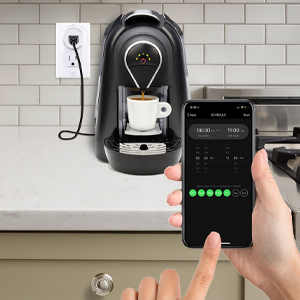
ภาพที่ 6.1: A hand holding a smartphone displaying the Energizer Connect App's scheduling interface, set to turn on a coffee maker at a specific time. The smart plug is visible in the background, connected to the coffee machine.

ภาพที่ 6.2: A person using a smartphone to remotely control a smart plug, demonstrating the ability to turn devices on or off from any location. The image shows a split view of the person and a living room with a lamp connected to a smart plug.
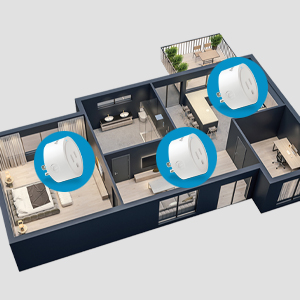
ภาพที่ 6.3: An overhead diagram of a home showing multiple Energizer Connect Smart WiFi Plugs placed in different rooms, illustrating the concept of grouping and controlling several devices simultaneously.
6.3. การควบคุมด้วยเสียง
The Energizer Connect Smart WiFi Plug is compatible with Amazon Alexa, Google Assistant, and Siri. To enable voice control:
- Ensure your smart plug is successfully paired with the Energizer Connect App.
- Open your Amazon Alexa, Google Home, or Apple Home app.
- Follow the app's instructions to link the "Energizer Connect" skill or service. You will need to log in with your Energizer Connect account credentials.
- เมื่อเชื่อมโยงแล้ว คุณสามารถใช้คำสั่งเสียง เช่น:
- "Alexa, turn on [Plug Name]."
- "Hey Google, turn off [Plug Name]."
- "Hey Siri, turn on [Plug Name]." (Requires setting up Siri Shortcuts in the Energizer Connect App)

ภาพที่ 6.4: A living room scene demonstrating voice control capabilities. The image shows a smart plug connected to a fan, with icons for Google Assistant, Alexa, and Siri Shortcuts, indicating compatibility with these voice assistants.
7. การบำรุงรักษา
To ensure optimal performance and longevity of your smart plug:
- การทำความสะอาด: ถอดปลั๊กอัจฉริยะออกจากเต้ารับไฟฟ้าก่อนทำความสะอาด ใช้ผ้านุ่มและแห้งเช็ดพื้นผิว ห้ามใช้น้ำยาทำความสะอาดหรือสเปรย์
- พื้นที่จัดเก็บ: When not in use, store the smart plug in a cool, dry place away from direct sunlight and moisture.
- สภาพแวดล้อม : Avoid exposing the plug to extreme temperatures or humidity.
8 การแก้ไขปัญหา
If you encounter issues with your Energizer Connect Smart WiFi Plug, refer to the following solutions:
| ปัญหา | สาเหตุที่เป็นไปได้ | สารละลาย |
|---|---|---|
| Plug not connecting to Wi-Fi / LED blinking slowly | Incorrect Wi-Fi password, 5GHz network selected, plug too far from router, network interference. |
|
| App cannot find the plug during pairing | Plug not in pairing mode, incorrect app used, network issues. |
|
| การควบคุมด้วยเสียงไม่ทำงาน | Voice assistant not linked, incorrect device name, internet connectivity issues. |
|
| Plug unresponsive | พลังแห่งโอtage. อุปกรณ์ทำงานผิดปกติ |
|
9. ข้อมูลจำเพาะ
| คุณสมบัติ | รายละเอียด |
|---|---|
| หมายเลขรุ่น | B0929DFGZY |
| ยูพีซี | 805106871352 |
| อินพุต Voltage | 120 โวลต์ |
| โหลดสูงสุดในปัจจุบัน | 15 Amps |
| ความถี่ไวไฟ | 2.4GHz (IEEE 802.11 b/g/n) |
| ความเข้ากันได้ | Amazon Alexa, Google Assistant, Siri (via Shortcuts) |
| การรับรอง | FCC Certified, ETL Certified |
| วัสดุ | พลาสติก, ยาง |
| สี | สีขาว |
| น้ำหนักสินค้า | 2.89 ออนซ์ |
| Dimensions (Approx. Plug Body) | 1.125" (Diameter) x 1.0625" (Depth from outlet face) |
10. การรับประกันและการสนับสนุน
For warranty information and technical support, please contact the manufacturer or seller directly. The manufacturer of this product is Jem Accessories, and the brand is Energizer Connect (distributed by XTREME DIGITAL LIFESTYLE ACCESSORIES).
โปรดเก็บหลักฐานการซื้อของคุณไว้เพื่อเรียกร้องการรับประกัน
For further assistance, visit the Energizer Connect webไซต์หรือดูข้อมูลการติดต่อที่ให้มาพร้อมกับบรรจุภัณฑ์ผลิตภัณฑ์ของคุณ