
1. บทนำ
This user manual provides detailed instructions for the proper use and maintenance of your Zebra DS8178 Wireless 2D/1D Barcode Scanner. Please read this manual thoroughly before operating the device to ensure optimal performance and safety. The DS8178 is designed for efficient and reliable barcode scanning in various environments, offering both 1D and 2D barcode reading capabilities with wireless connectivity.
2. ข้อมูลด้านความปลอดภัย
โปรดปฏิบัติตามข้อควรระวังด้านความปลอดภัยต่อไปนี้เพื่อป้องกันการบาดเจ็บหรือความเสียหายต่ออุปกรณ์:
- Do not expose the scanner or cradle to extreme temperatures, moisture, or corrosive substances.
- Avoid direct eye exposure to the scanner's light source.
- ใช้เฉพาะอะแดปเตอร์แปลงไฟและสาย USB ที่ระบุไว้สำหรับการชาร์จเท่านั้น
- อย่าพยายามถอดประกอบหรือดัดแปลงอุปกรณ์ แนะนำให้ส่งช่างผู้ชำนาญเข้ารับบริการทั้งหมด
- เก็บอุปกรณ์ให้ห่างจากสนามแม่เหล็กแรงสูง
3. เนื้อหาบรรจุภัณฑ์
ตรวจสอบว่ามีรายการทั้งหมดอยู่ในแพ็คเกจของคุณ:
- Zebra DS8178 Wireless Barcode Scanner
- USB Communication/Charging Cradle
- สาย USB
- คู่มือเริ่มต้นใช้งานฉบับย่อ (ไม่รวมอยู่ในคู่มือนี้)
4. สินค้าหมดview
Familiarize yourself with the components of your Zebra DS8178 scanner and its cradle.

รูปที่ 4.1: ด้านข้าง view of the Zebra DS8178 Wireless Barcode Scanner, showing its ergonomic design.

รูปที่ 4.2: ด้านหน้า view of the Zebra DS8178 Wireless Barcode Scanner, highlighting the scanning window and trigger button.

รูปที่ 4.3: ด้านหน้า view of the USB Communication/Charging Cradle, featuring the pairing button.
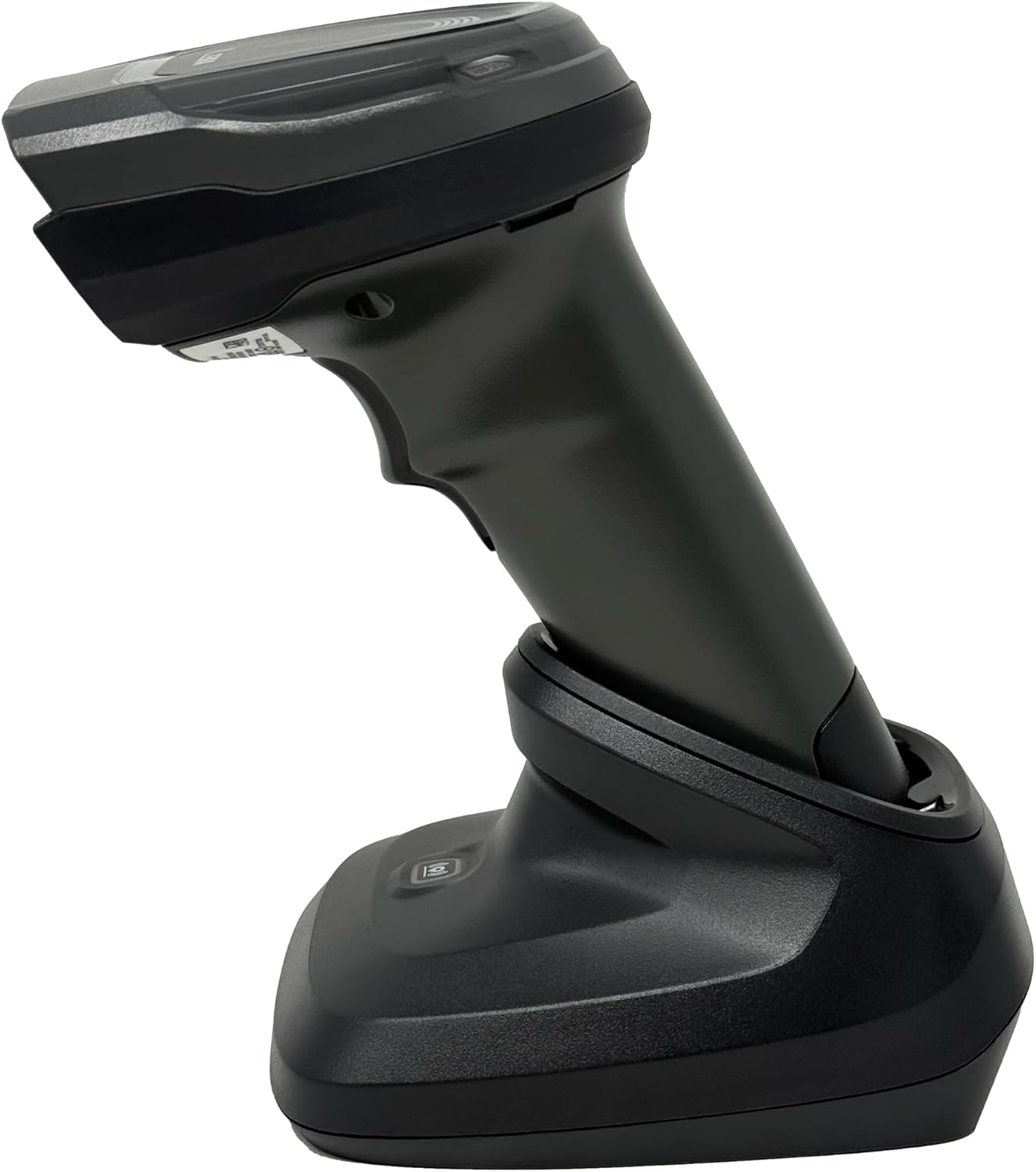
รูปที่ 4.4: The Zebra DS8178 scanner securely docked in its USB cradle, ready for charging or communication.
4.1 ส่วนประกอบของเครื่องสแกนเนอร์
- หน้าต่างสแกน: Area through which barcodes are read.
- สิ่งกระตุ้น: เปิดใช้งานลำแสงสแกน
- ไฟ LED แสดงสถานะ: Provide status feedback (e.g., battery, scan success).
- ช่องใส่แบตเตอรี่: Houses the removable/rechargeable battery.
4.2 Cradle Components
- Scanner Slot: Where the scanner docks for charging and communication.
- พอร์ต USB: Connects the cradle to a host device (PC, laptop).
- ปุ่มจับคู่: Initiates Bluetooth pairing with the scanner.
- ไฟ LED แสดงสถานะ: Show cradle status (e.g., power, connection).
5. การตั้งค่า
5.1 การชาร์จเครื่องสแกน
- Connect the USB cable to the cradle's USB port.
- เชื่อมต่อปลายอีกด้านหนึ่งของสาย USB เข้ากับพอร์ต USB ที่มีไฟฟ้าบนคอมพิวเตอร์ของคุณหรืออะแดปเตอร์ติดผนัง USB
- Place the DS8178 scanner into the cradle. Ensure it is seated correctly.
- The scanner's LED indicator will show charging status. A full charge typically takes approximately 3-4 hours.
5.2 Connecting the Cradle to a Host Device
The cradle connects to your computer via a standard USB cable.
- Plug the USB cable into the USB port on the back of the cradle.
- Connect the other end of the USB cable to an available USB port on your desktop or laptop computer.
- ระบบปฏิบัติการควรตรวจจับและติดตั้งไดรเวอร์ที่จำเป็นโดยอัตโนมัติ
5.3 การจับคู่บลูทูธ
The DS8178 offers two primary Bluetooth pairing methods: via the cradle or direct to a host device.
5.3.1 Pairing via Cradle (Recommended for PC/Laptop)
- Ensure the cradle is connected to your host device (PC/Laptop) via USB.
- Place the DS8178 scanner into the cradle.
- The scanner will automatically pair with the cradle. Once paired, the scanner can be removed from the cradle and will communicate wirelessly with the host device through the cradle.
- A successful connection is indicated by a specific LED pattern on both the scanner and cradle (refer to the scanner's LED guide for details).
5.3.2 Direct Bluetooth Pairing (for Phones/Tablets or PC/Laptop without cradle)
- Power on the DS8178 scanner.
- Scan the "Pairing Barcode" (usually found in a quick start guide or on the scanner itself) to put the scanner into discoverable mode. Alternatively, press and hold the Bluetooth pairing button on the scanner (if available) or scan a specific Bluetooth pairing configuration barcode.
- On your phone, tablet, or computer, navigate to the Bluetooth settings.
- ค้นหา available devices. The DS8178 should appear in the list (e.g., "Zebra DS8178").
- Select the scanner to initiate pairing. You may be prompted to confirm a passkey or scan a pairing barcode displayed on your screen.
- Once paired, the scanner's LED will indicate a successful connection.
6. การดำเนินการ
6.1 การสแกนบาร์โค้ด
- Point the scan window of the DS8178 scanner at the barcode you wish to read.
- กดปุ่มไกปืนค้างไว้ รูปแบบการเล็งสีแดงจะปรากฏขึ้น
- Center the aiming pattern over the barcode. For 1D barcodes, the aiming line should cross the entire barcode. For 2D barcodes, the aiming pattern should encompass the entire code.
- Once the barcode is successfully read, the scanner will emit an audible beep and/or the LED indicator will flash green.
- ปล่อยไกปืน
6.2 Cordless Range
The Zebra DS8178 offers a cordless range of up to 330 feet (100 meters) from its cradle or directly paired host device, depending on environmental conditions and line of sight. Obstructions such as walls or other electronic devices may reduce the effective range.
6.3 โหมดการสแกน
- โหมดทริกเกอร์: The scanner reads a barcode only when the trigger is pressed.
- Presentation Mode (Hands-Free): When placed in the presentation cradle, the scanner can be configured to automatically detect and read barcodes placed within its field of view without requiring a trigger press. This mode is ideal for high-volume scanning applications.
7. การบำรุงรักษา
7.1 การทำความสะอาดสแกนเนอร์
To maintain optimal scanning performance, keep the scan window clean.
- ใช้ผ้าเนื้อนุ่ม สะอาด และไม่เป็นขุยเช็ดampened with water or a mild cleaning solution (e.g., isopropyl alcohol).
- เช็ดทำความสะอาดช่องสแกนและภายนอกเครื่องสแกนอย่างเบามือ
- ห้ามใช้น้ำยาทำความสะอาดที่มีฤทธิ์กัดกร่อน ตัวทำละลาย หรือสารเคมีรุนแรง
- โปรดตรวจสอบให้แน่ใจว่าได้ปิดเครื่องสแกนเนอร์ก่อนทำการทำความสะอาด
7.2 การดูแลแบตเตอรี่
The DS8178 features a 2500mAh removable and rechargeable battery. Proper battery care extends its lifespan.
- ชาร์จแบตเตอรี่ให้เต็มก่อนใช้งานครั้งแรก
- ควรหลีกเลี่ยงการปล่อยให้แบตเตอรี่หมดเกลี้ยงเป็นประจำ
- เก็บสแกนเนอร์ไว้ในที่แห้งและเย็นเมื่อไม่ได้ใช้งานเป็นเวลานาน
- If the battery performance significantly degrades, it may need replacement. Contact support for genuine replacement batteries.
8 การแก้ไขปัญหา
| ปัญหา | สาเหตุที่เป็นไปได้ | สารละลาย |
|---|---|---|
| สแกนเนอร์ไม่เปิดเครื่อง | แบตเตอรี่ต่ำหรือหมด | Charge the scanner using the USB cradle and cable. |
| เครื่องสแกนไม่สามารถเชื่อมต่อผ่านบลูทูธได้ | Not in pairing mode; out of range; interference; host device Bluetooth off. | Ensure scanner is in pairing mode. Check host device Bluetooth settings. Move closer to the host device. Reduce interference. |
| เครื่องสแกนไม่สามารถอ่านบาร์โค้ดได้ | Barcode damaged/poor quality; scan window dirty; incorrect symbology enabled; scanner not aimed correctly. | Try scanning a different barcode. Clean the scan window. Ensure correct aiming. Check scanner configuration for enabled symbologies. |
| ไม่มีข้อมูลถูกส่งไปยังโฮสต์ | Not paired; application not in focus; incorrect interface settings. | Confirm successful Bluetooth pairing. Ensure the target application (e.g., text editor, POS software) is active and ready to receive input. |
9. ข้อมูลจำเพาะ
| คุณสมบัติ | รายละเอียด |
|---|---|
| แบบอย่าง | DS8178 |
| ยี่ห้อ | Zebra (formerly Symbol) |
| เทคโนโลยีการเชื่อมต่อ | บลูทูธ, สาย USB, ไร้สาย |
| อุปกรณ์ที่รองรับ | Desktop, Laptop, Phones, Tablets |
| แหล่งพลังงาน | Battery Powered, Corded Electric, Rechargeable |
| ความจุของแบตเตอรี่ | 2500mAh (Removable/Rechargeable) |
| Cordless Range | สูงถึง 330 ฟุต (100 เมตร) |
| ความสามารถในการสแกน | บาร์โค้ด 1 มิติ และ 2 มิติ |
| มุมจริงของ View | 17 องศา |
| UPC / GTIN | 649661651499 |
10. การรับประกันและการสนับสนุน
This Zebra DS8178 Barcode Scanner comes with a รับประกันจำกัด 90 วัน. This warranty covers defects in materials and workmanship under normal use. It does not cover damage caused by misuse, accidents, unauthorized modifications, or external causes.
For technical support, warranty claims, or to purchase genuine replacement parts (such as batteries), please contact your reseller or visit the official Zebra support website. Please have your model number (DS8178) and any purchase information ready when contacting support.