
1. บทนำ
This manual provides comprehensive instructions for the installation, operation, and maintenance of the JEYI SK4 NVMe PCI-E Adapter with Warship iStorm Cooler. This product is designed to allow M.2 NVMe SSDs (PCIe protocol) to be used in a standard PCI Express X4, X8, or X16 slot, enhancing system performance with its PCIe 3.0 GEN3 full-speed design and integrated high-speed signal amplification technology. It is equipped with a cooling solution to maintain optimal SSD temperatures.
2. ข้อมูลด้านความปลอดภัย
- ถอดปลั๊กไฟออกจากคอมพิวเตอร์ทุกครั้งก่อนทำการติดตั้งหรือถอดชิ้นส่วนภายในใดๆ
- สวมสายรัดข้อมือป้องกันไฟฟ้าสถิตย์หรือสัมผัสวัตถุโลหะที่ต่อสายดินบ่อยๆ เพื่อป้องกันความเสียหายจากการคายประจุไฟฟ้าสถิตย์ (ESD) ต่อส่วนประกอบต่างๆ
- Handle the adapter and SSD by their edges to avoid touching sensitive components.
- ตรวจสอบให้แน่ใจว่ามีการระบายอากาศที่เหมาะสมภายในเคสคอมพิวเตอร์ของคุณเพื่อป้องกันความร้อนสูงเกินไป
- Do not attempt to modify the product. Unauthorized modifications may void the warranty and pose safety risks.
- เก็บให้พ้นจากมือเด็ก
3. เนื้อหาบรรจุภัณฑ์
ตรวจสอบว่ามีรายการทั้งหมดอยู่ในแพ็คเกจ:
- 1x JEYI PCIE 3.0 X4 NVMe Adapter Card
- 1x JEYI Warship iStorm Cooler with Fan
- Mounting screws and accessories (e.g., thermal pads, screwdriver if included)
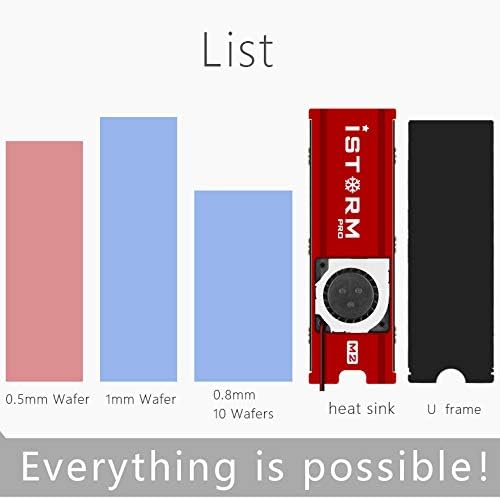
รูปที่ 3.1: Included components. This image illustrates the heat sink, U frame, and different thicknesses of thermal pads (0.5mm, 1mm, 0.8mm) that are part of the package.
4. ข้อมูลจำเพาะ
| คุณสมบัติ | คำอธิบาย |
|---|---|
| ยี่ห้อ | เจยี |
| แบบอย่าง | SK4+Warship iStorm |
| การอ้างอิงผู้ผลิต | N27361-G |
| ฮาร์ดแวร์อินเตอร์เฟซ | PCI Express 3.0 X4 |
| Compatible PCIe Slots | PCIe X4, X8, X16 |
| SSD ที่รองรับ | NVMe M.2 SSDs (PCIe protocol) |
| Unsupported SSDs | M.2 NGFF disks (SATA protocol) |
| การทำให้เย็น | Integrated Warship iStorm Cooler with Fan |
| แหล่งจ่ายไฟ | SATA 15-Pin 5V (for cooler fan) |
| คุณสมบัติ | JEYI high-speed signal enhancement technology, PCIe 3.0 GEN3 full-speed design, large capacity tantalum capacitor for stable voltagอี การกรอง |
| ยูพีซี | 761882095002 |
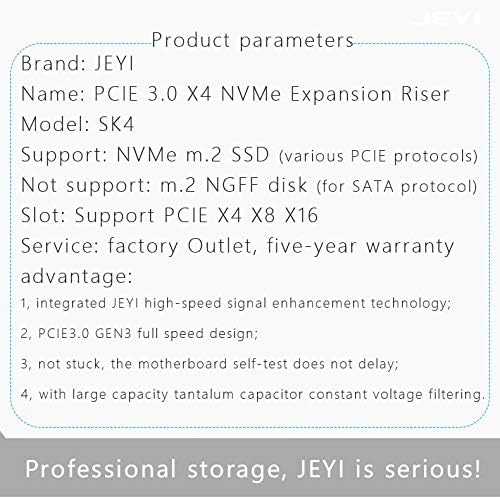
รูปที่ 4.1: Detailed product parameters. This image provides a summary of the product's key specifications, including its name, model, supported SSD types, and PCIe slot compatibility.
5. การตั้งค่า
5.1. Installing the M.2 NVMe SSD
- Carefully align your M.2 NVMe SSD with the M.2 slot on the JEYI SK4 adapter. The adapter supports various M.2 SSD lengths (2230, 2242, 2260, 2280).
- Insert the SSD into the slot at an angle and gently push it down until it is parallel with the adapter board.
- Secure the SSD with the provided screw or movable copper stud at the appropriate length. The adapter includes movable copper studs to accommodate different M.2 SSD lengths.

รูปที่ 5.1: M.2 SSD length compatibility. This image illustrates how the adapter supports various M.2 SSD lengths (2230, 2242, 2260, 2280) using movable copper studs.
5.2. Installing the Warship iStorm Cooler
- Apply the thermal pads to the M.2 NVMe SSD. Ensure good contact between the SSD chips and the thermal pads.
- Place the Warship iStorm cooler assembly over the SSD and adapter, aligning the mounting holes.
- Secure the cooler to the adapter using the provided screws. Do not overtighten.
5.3. Installing the Adapter into a PCIe Slot
- Power off your computer and disconnect the power cable.
- เปิดเคสคอมพิวเตอร์ของคุณ
- Locate an available PCI Express X4, X8, or X16 slot on your motherboard.
- ถอดฝาครอบช่องขยายที่สอดคล้องกันออกจากเคสคอมพิวเตอร์ของคุณ
- Carefully insert the JEYI SK4 adapter into the chosen PCIe slot, ensuring it is fully seated.
- Secure the adapter to the computer case with a screw.
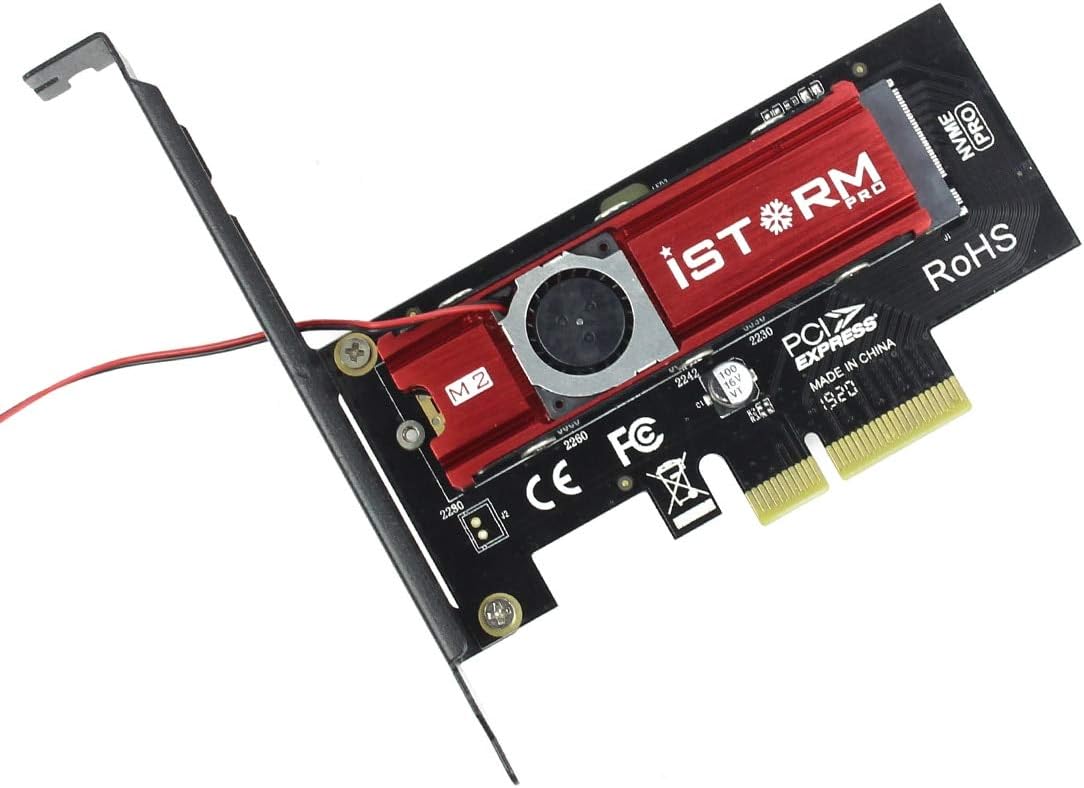
รูปที่ 5.2: Assembled adapter card. This image shows the JEYI SK4 adapter with the Warship iStorm cooler and an M.2 NVMe SSD installed, ready to be inserted into a PCIe slot.
5.4. การเชื่อมต่อสายไฟ
- Locate the small power cable extending from the Warship iStorm cooler.
- Connect the SATA 15-Pin 5V connector of this cable to an available SATA power connector from your power supply unit (PSU). This connection is essential for the cooling fan to operate.
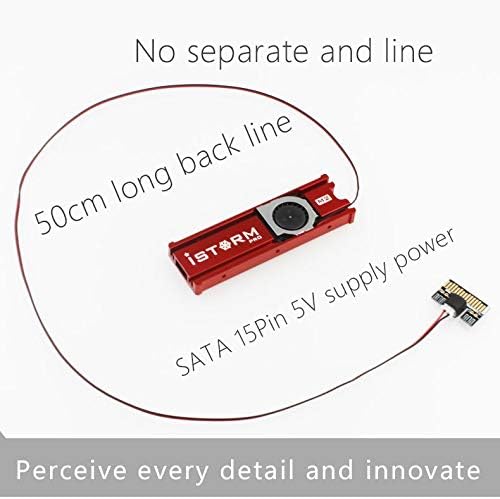
รูปที่ 5.3: Cooler power connection. This image highlights the 50cm long SATA 15-Pin 5V power cable that connects the cooler fan to the power supply unit.
6. ปฏิบัติการ
After successful installation, close your computer case, reconnect the power cable, and power on your computer.
- การติดตั้งไดร์เวอร์: Most modern operating systems (Windows 10/11, Linux kernels 4.0+, macOS) have native support for NVMe SSDs and typically do not require additional drivers. If the SSD is not detected, check your motherboard's BIOS/UEFI settings to ensure PCIe slots are configured correctly and NVMe support is enabled.
- SSD Initialization: For a new SSD, you may need to initialize it and create partitions using your operating system's disk management tools before it can be used.
- ประสิทธิภาพการทำความเย็น: The integrated Warship iStorm cooler with its fan will automatically operate to dissipate heat from the NVMe SSD, helping to maintain optimal performance and prevent thermal throttling.
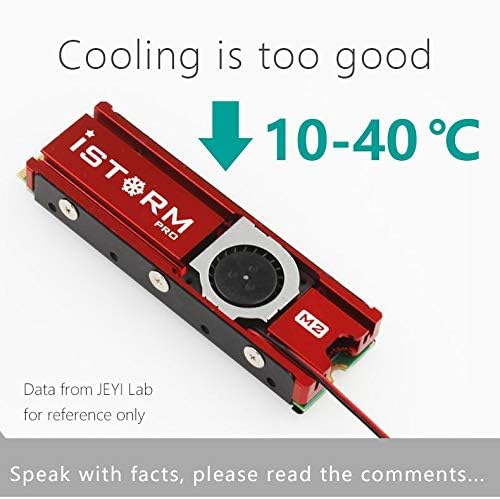
รูปที่ 6.1: Cooling performance indication. This image suggests that the iStorm Pro cooler can reduce SSD temperatures by 10-40°C, contributing to stable operation.
7. การบำรุงรักษา
- การทำความสะอาด: Periodically inspect the cooler fan and heatsink for dust accumulation. Use compressed air or a soft brush to gently remove dust. Ensure the computer is powered off and unplugged before cleaning.
- ตรวจสอบการเชื่อมต่อ: Occasionally verify that the adapter is securely seated in the PCIe slot and that the SATA power cable for the cooler is firmly connected.
- แผ่นระบายความร้อน: If you need to remove and re-install the SSD or cooler, inspect the thermal pads. Replace them if they appear damaged or have lost their adhesive properties to ensure effective heat transfer.

รูปที่ 7.1: Cooling design. This image shows the double-sided copper holes on the adapter, which are designed to enhance heat dissipation and improve overall cooling efficiency.
8 การแก้ไขปัญหา
| ปัญหา | สาเหตุที่เป็นไปได้ | สารละลาย |
|---|---|---|
| SSD not detected by the system. |
|
|
| Cooling fan not spinning. |
|
|
| SSD overheating or thermal throttling. |
|
|
9. การรับประกันและการสนับสนุน
9.1. ข้อมูลการรับประกัน
The JEYI SK4 NVMe PCI-E Adapter with Warship iStorm Cooler comes with a รับประกันห้าปี นับจากวันที่ซื้อสินค้า การรับประกันนี้ครอบคลุมถึงข้อบกพร่องในวัสดุและฝีมือการผลิตภายใต้การใช้งานปกติ ไม่ครอบคลุมถึงความเสียหายที่เกิดจากการใช้งานผิดวิธี อุบัติเหตุ การดัดแปลงโดยไม่ได้รับอนุญาต หรือการติดตั้งที่ไม่ถูกต้อง โปรดเก็บหลักฐานการซื้อไว้เพื่อใช้ในการเรียกร้องการรับประกัน
9.2. การสนับสนุนด้านเทคนิค
For technical assistance, troubleshooting, or warranty inquiries, please contact JEYI customer support through their official webไซต์หรือผู้ค้าปลีกที่คุณซื้อผลิตภัณฑ์มา