
1. บทนำ
The Audiolab 6000N Play is a wireless audio streaming player designed to integrate high-resolution music streaming into your home audio system. It utilizes DTS Play-Fi technology, allowing for seamless streaming over your wireless network and supporting multi-room audio configurations. This device enables streaming from various sources, including smartphones, tablets, PCs, and Network Attached Storage (NAS) drives.
2. สินค้าหมดview
2.1 คุณสมบัติหลัก
- Wireless audio streaming via DTS Play-Fi.
- High-resolution audio support up to 192kHz/24bit.
- Multi-room audio capability.
- Integrated Digital-to-Analog Converter (DAC).
- Compatibility with various streaming services and local network sources.
2.2 แผงควบคุมด้านหน้า
The front panel of the Audiolab 6000N Play features essential controls for basic operation.

รูปที่ 1: ด้านหน้า view of the Audiolab 6000N Play. This image displays the sleek black chassis with the "6000N Play" branding on the left, six preset buttons (1-6) in the center, and the power button on the right, along with the "audiolab" logo.
- ปุ่มเปิด/ปิด: Located on the right side, used to turn the unit on or off.
- ปุ่มตั้งค่าล่วงหน้า (1-6): Allow for quick access to pre-saved radio stations or playlists.
2.3 การเชื่อมต่อแผงด้านหลัง
The rear panel provides all necessary input and output connections for integrating the 6000N Play into your audio system.
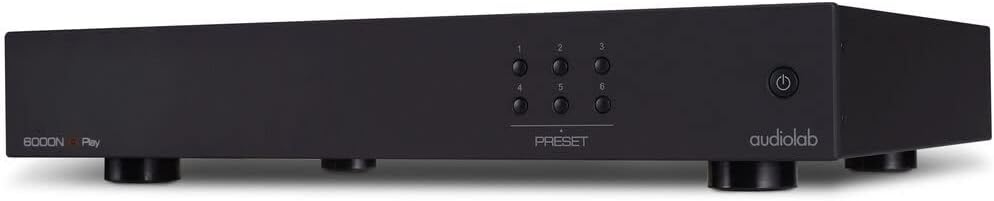
รูปที่ 2: มุม view of the Audiolab 6000N Play, showing the front panel and a glimpse of the side. This perspective highlights the compact design and the arrangement of the preset and power buttons.
- เอาต์พุตแบบอนาล็อก (RCA): สำหรับการเชื่อมต่อกับ ampลิฟเวอร์หรือพรีampชีวิต.
- Digital Outputs (Coaxial, Optical): For connecting to an external DAC or AV receiver.
- พอร์ตอีเธอร์เน็ต: สำหรับการเชื่อมต่อเครือข่ายแบบใช้สาย
- Wi-Fi Antenna Connector: สำหรับการเชื่อมต่อเครือข่ายไร้สาย
- กำลังไฟเข้า: สำหรับเชื่อมต่อสายไฟ
3. การตั้งค่า
3.1 การแกะและการจัดวาง
Carefully remove the 6000N Play from its packaging. Place the unit on a stable, level surface away from direct heat sources and excessive moisture. Ensure adequate ventilation around the unit.
3.2 การเชื่อมต่อกับระบบเสียงของคุณ
- การเชื่อมต่อแบบอะนาล็อก: Connect the RCA analog outputs of the 6000N Play to an available analog input on your ampลิฟเวอร์หรือพรีampเครื่องขยายเสียงที่ใช้สาย RCA คุณภาพสูง
- การเชื่อมต่อดิจิทัล (ทางเลือก): If using an external DAC or AV receiver, connect the Coaxial or Optical digital output of the 6000N Play to the corresponding digital input on your external device.
3.3 การเชื่อมต่อเครือข่าย
The 6000N Play requires a network connection for streaming.
- การเชื่อมต่อแบบมีสาย: Connect an Ethernet cable from your router or network switch to the Ethernet port on the rear panel of the 6000N Play.
- การเชื่อมต่อแบบไร้สาย: Attach the supplied Wi-Fi antenna to the connector on the rear panel. The wireless setup will be completed via the DTS Play-Fi app.
3.4 การเชื่อมต่อสายไฟ
Connect the supplied power cable to the power input on the rear panel of the 6000N Play, then plug the other end into a suitable AC power outlet (100V—120V~50/60Hz).
4. คู่มือการใช้งาน
4.1 การเปิด/ปิดเครื่อง
Press the power button on the front panel to turn the unit on or off. The unit will enter standby mode when powered off.
4.2 DTS Play-Fi App Installation
To control the 6000N Play and access streaming services, you must install the DTS Play-Fi app on your smartphone, tablet, or PC.
- Download the "DTS Play-Fi" app from your device's app store (Apple App Store, Google Play Store, Amazon Appstore, or Windows Store).
- Launch the app and follow the on-screen instructions to set up your Audiolab 6000N Play on your network. This includes connecting to Wi-Fi if you chose a wireless setup.
4.3 สตรีมมิ่งเพลง
Once the 6000N Play is connected to your network and configured with the Play-Fi app:
- Open the DTS Play-Fi app.
- Select your desired music source (e.g., Amazon Music, Deezer, Spotify, or local media server).
- Choose the Audiolab 6000N Play as the playback device.
- Begin playback.
4.4 การใช้ค่าที่ตั้งไว้ล่วงหน้า
The six preset buttons on the front panel can be configured via the Play-Fi app to quickly access your favorite internet radio stations or playlists.
- In the DTS Play-Fi app, navigate to the desired content you wish to save as a preset.
- Look for an option to "Save as Preset" or similar within the app interface.
- Assign it to one of the six available preset numbers.
- Once saved, pressing the corresponding preset button on the 6000N Play's front panel will initiate playback of the saved content.
5. การบำรุงรักษา
5.1 การทำความสะอาด
To clean the unit, disconnect it from the power supply. Use a soft, dry, lint-free cloth to wipe the surfaces. Avoid using abrasive cleaners, solvents, or chemical sprays, as these can damage the finish.
5.2 การอัปเดตซอฟต์แวร์
Periodically check the DTS Play-Fi app or the Audiolab website for firmware updates. Updates can improve performance, add new features, or resolve issues. Follow the instructions provided by the app or website for performing updates.
6 การแก้ไขปัญหา
If you encounter issues with your Audiolab 6000N Play, refer to the following common troubleshooting steps:
- ไม่มีไฟฟ้า:
- Ensure the power cable is securely connected to both the unit and the power outlet.
- ตรวจสอบว่าเต้ารับไฟฟ้าใช้งานได้
- ไม่มีเสียง:
- Check all audio cable connections between the 6000N Play and your amplifier/เครื่องรับ.
- โปรดตรวจสอบให้แน่ใจว่าได้เลือกข้อมูลป้อนเข้าที่ถูกต้องแล้ว amplifier/เครื่องรับ.
- Verify the volume level on both the 6000N Play (via app) and your amplifier/เครื่องรับ.
- Confirm that music is actively playing in the DTS Play-Fi app.
- ปัญหาการเชื่อมต่อเครือข่าย:
- For Wi-Fi, ensure the antenna is securely attached.
- Restart your router and the 6000N Play.
- ตรวจสอบให้แน่ใจว่าเครือข่าย Wi-Fi ของคุณเปิดใช้งานอยู่และอยู่ในระยะ
- หากใช้การเชื่อมต่อแบบใช้สาย โปรดตรวจสอบสายอีเธอร์เน็ต
- Re-run the network setup process in the DTS Play-Fi app.
- DTS Play-Fi App Problems:
- ตรวจสอบให้แน่ใจว่าแอปได้รับการอัปเดตเป็นเวอร์ชั่นล่าสุด
- รีสตาร์ทแอปหรืออุปกรณ์มือถือของคุณ
- หากปัญหายังคงอยู่ ให้ลองถอนการติดตั้งแอปใหม่
If these steps do not resolve the issue, please contact Audiolab customer support for further assistance.
7. ข้อมูลจำเพาะ
| คุณสมบัติ | ข้อมูลจำเพาะ |
|---|---|
| Digital Output Level | 500 +/- 50mVpp |
| ความละเอียดสูงสุด | 192kHz/24บิต |
| ความเพี้ยนฮาร์มอนิกรวม (THD) | <0.003% (1kHz @0dBFS BW=20-20kHz) |
| ความต้องการด้านพลังงาน | 100V—120V~50/60Hz |
| น้ำหนักสุทธิ | 10.78 ปอนด์ (4.89 กก.) |
| ขนาดสินค้า (กว้าง x ลึก x สูง) | 17.8 x 12.52 x 2.62 นิ้ว (45.2 x 31.8 x 6.65 ซม.) |
| เทคโนโลยีการเชื่อมต่อ | ไวไฟ, อีเทอร์เน็ต |
| บริการอินเทอร์เน็ตที่รองรับ | Amazon Music, Deezer, Spotify (via DTS Play-Fi app) |
| ประเภทขั้วต่อ | RCA (Analog Out), Coaxial (Digital Out), Optical (Digital Out) |
8. การรับประกันและการสนับสนุน
Audiolab products are designed and manufactured to the highest quality standards. For detailed warranty information, please refer to the warranty card included with your product or visit the official Audiolab website. For technical support, product registration, or service inquiries, please contact your local Audiolab dealer or distributor, or visit the Audiolab support page online.
Official Audiolab Webเว็บไซต์: www.audiolab.co.uk