
1. บทนำ
Thank you for choosing the Wendry Ergonomic Vertical USB Wired Mouse. This manual provides essential information for setting up, operating, and maintaining your new mouse. Designed for left-handed users, this vertical mouse promotes a natural hand and wrist posture, aiming to reduce strain and discomfort during extended computer use. Its ergonomic design, adjustable DPI settings, and programmable buttons enhance productivity and comfort for various tasks, including office work, graphic design, and gaming.
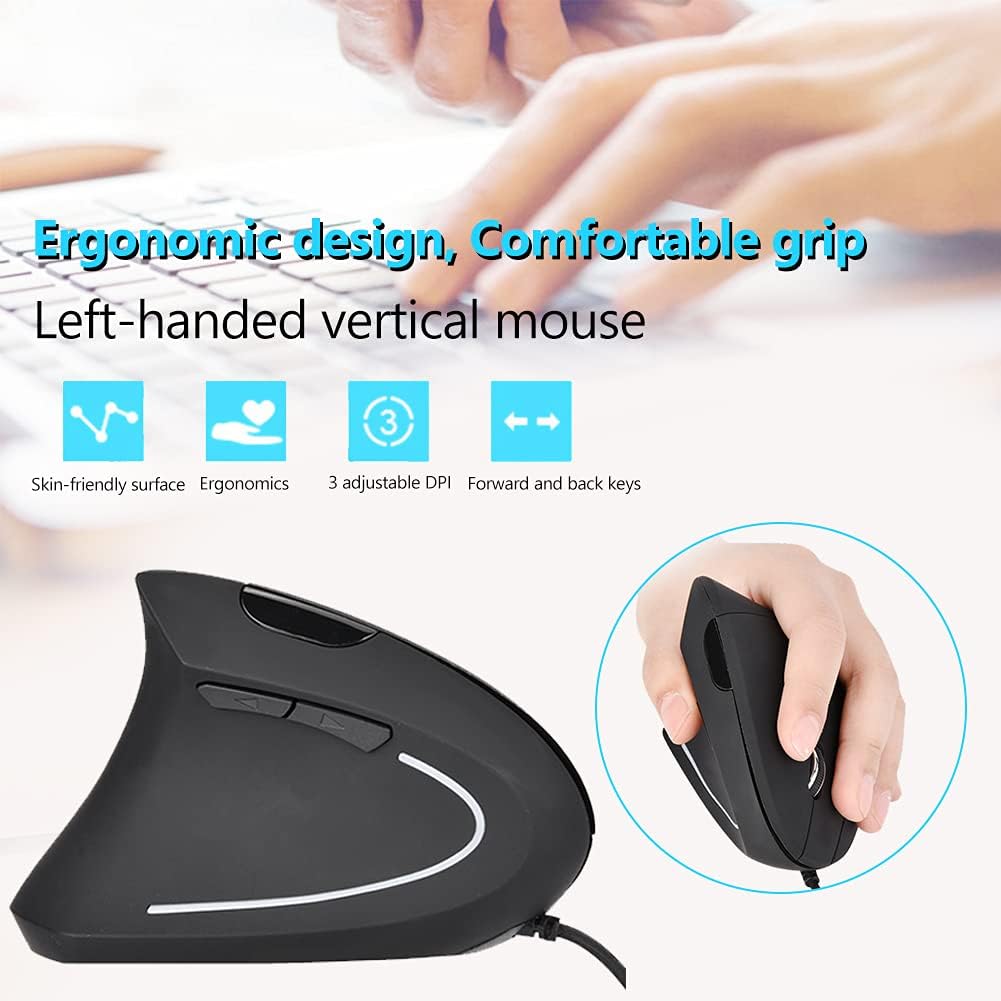
Image 1: The Wendry Ergonomic Vertical USB Wired Mouse, showcasing its design features including a skin-friendly surface, ergonomic shape, 3 adjustable DPI settings, and dedicated forward/back keys.
2. สินค้าหมดview
The Wendry Ergonomic Vertical USB Wired Mouse is engineered to provide a comfortable and efficient user experience. Key features include:
- การออกแบบตามหลักสรีรศาสตร์: Vertical orientation to relieve wrist tension through comfortable thumb and pinky support, and contoured palm support.
- Left-Handed Specific: Tailored for left-handers to align with palm and wrist muscles.
- DPI ที่ปรับได้: Three levels of DPI settings (800/1200/1600) for precise cursor control.
- ปุ่มตั้งโปรแกรมได้ 6 ปุ่ม: Customize functions for enhanced workflow.
- Web Switch Keys: Dedicated forward and back buttons for easy web การนำทางหน้า
- เทคโนโลยีการติดตามด้วยแสง: Premium optical engine for quicker response, smoother tracking, and higher precision.
- ความเข้ากันได้กว้าง: Supports most operating systems including Windows 2000, 7, 8, 98, Vista, ME, and OS.
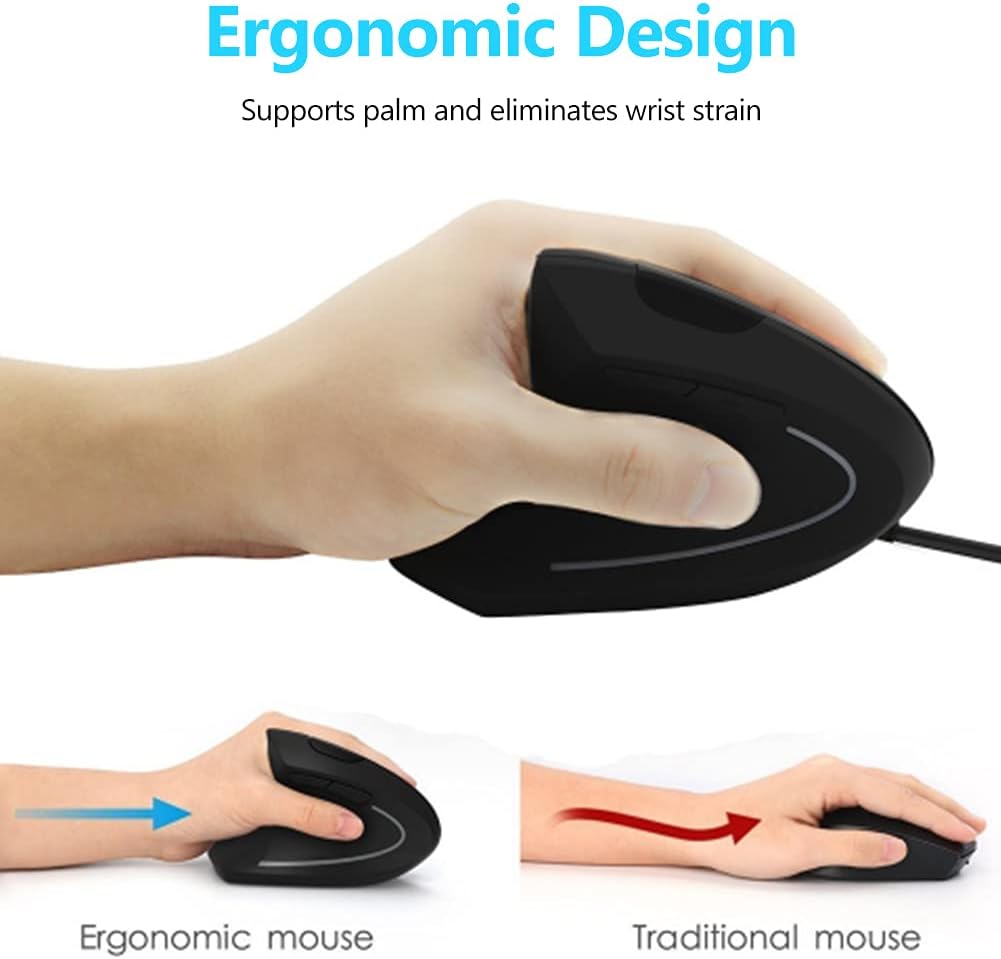
Image 2: A visual comparison demonstrating the ergonomic advantage of the vertical mouse, showing how it supports the palm and reduces wrist strain compared to a traditional horizontal mouse.
3. คำแนะนำในการตั้งค่า
Setting up your Wendry Ergonomic Vertical USB Wired Mouse is a simple plug-and-play process:
- เชื่อมต่อสาย USB: Locate an available USB port on your computer (laptop, desktop, notebook, PC, etc.).
- เสียบขั้วต่อ USB ของเมาส์เข้ากับพอร์ต USB ให้แน่น
- การติดตั้งไดร์เวอร์: The mouse is plug-and-play and typically does not require any additional driver installation. Your operating system should automatically detect and configure the device.
- พร้อมใช้งาน: เมื่อเชื่อมต่อแล้ว เมาส์ก็พร้อมใช้งานได้ทันที

ภาพที่ 3: รายละเอียด view of the USB connector, which is used to connect the mouse to your computer.
4. คู่มือการใช้งาน
Familiarize yourself with the various buttons and functions of your vertical mouse for optimal control:
- ปุ่มซ้าย: ฟังก์ชั่นคลิกซ้ายมาตรฐาน
- ปุ่มขวา: ฟังก์ชั่นคลิกขวามาตรฐาน
- ล้อเลื่อน: เลื่อนขึ้นหรือลงผ่านเอกสารและ web หน้าต่างๆ สามารถคลิกเพื่อใช้งานฟังก์ชันคลิกกลางได้เช่นกัน
- ปุ่ม DPI: Located on the top of the mouse, press this button to cycle through the 3 adjustable DPI settings (800/1200/1600). This allows you to adjust cursor sensitivity to your preference.
- ปุ่มเดินหน้า/ถอยหลัง: Located on the side, these buttons allow for quick navigation between web pages or folders (e.g., going back or forward in your browser history).

Image 4: An illustration detailing the location and labels of the six programmable buttons on the vertical mouse, including the DPI button, left/right click, scroll wheel, and forward/backward buttons.

Image 5: A visual guide to using the forward and back buttons, highlighting their convenience for navigating web หน้าและ files with a single click.
วิดีโอผลิตภัณฑ์อย่างเป็นทางการ
Video 1: An official product video from Wendryer demonstrating the Ergonomic Vertical USB Wired Mouse in use, highlighting its design and functionality.
5. การบำรุงรักษา
To ensure the longevity and optimal performance of your mouse, follow these simple maintenance tips:
- การทำความสะอาด: ใช้ผ้านุ่มและแห้งเช็ดพื้นผิวของเมาส์ สำหรับสิ่งสกปรกฝังแน่น ให้เช็ดเบาๆampชุบผ้าด้วยน้ำหรือน้ำยาทำความสะอาดอ่อนๆ หลีกเลี่ยงสารเคมีรุนแรงหรือสารกัดกร่อน
- ออปติคัลเซนเซอร์: Periodically check the optical sensor on the underside of the mouse for dust or debris. Use a cotton swab or compressed air to gently clean it.
- การดูแลสายเคเบิล: Avoid sharply bending or pulling the USB cable to prevent damage. Store the cable neatly when not in use.
6 การแก้ไขปัญหา
If you encounter any issues with your mouse, refer to the following troubleshooting steps:
- เมาส์ไม่ตอบสนอง:
- ตรวจสอบให้แน่ใจว่าเสียบสาย USB เข้ากับพอร์ต USB ที่ใช้งานได้บนคอมพิวเตอร์ของคุณอย่างแน่นหนา
- ลองเสียบเมาส์เข้ากับพอร์ต USB อื่น
- รีสตาร์ทเครื่องคอมพิวเตอร์ของคุณ
- Inaccurate or Jerky Cursor Movement:
- ทำความสะอาดเซ็นเซอร์ออปติคัลที่อยู่ใต้เมาส์
- Ensure you are using the mouse on a suitable surface (e.g., a mouse pad or a non-reflective, uniform surface).
- ปรับการตั้งค่า DPI โดยใช้ปุ่ม DPI เพื่อดูว่าความไวที่แตกต่างกันจะช่วยปรับปรุงประสิทธิภาพได้หรือไม่
- ปุ่มใช้งานไม่ได้:
- ตรวจสอบให้แน่ใจว่าเชื่อมต่อเมาส์อย่างถูกต้อง
- ทดสอบเมาส์บนคอมพิวเตอร์เครื่องอื่นเพื่อตรวจสอบว่าปัญหาอยู่ที่เมาส์หรือการตั้งค่าของคอมพิวเตอร์
7. ข้อมูลจำเพาะ
Detailed specifications for your Wendry Ergonomic Vertical USB Wired Mouse:
| คุณสมบัติ | ข้อมูลจำเพาะ |
|---|---|
| ขนาดสินค้า | 4.92 x 2.95 x 2.44 นิ้ว |
| น้ำหนักสินค้า | 4.9 ออนซ์ |
| หมายเลขรุ่นสินค้า | Wendrymcb5iqnw3g |
| เทคโนโลยีการเชื่อมต่อ | USB, มีสาย |
| คุณสมบัติพิเศษ | การออกแบบตามหลักสรีรศาสตร์ |
| เทคโนโลยีตรวจจับการเคลื่อนไหว | ออฟติคอล |
| ระดับ DPI ที่ปรับได้ | 800/1200/1600 |
| จำนวนปุ่ม | 6 |
| สี | สีดำ |
| ผู้ผลิต | Wendry |
| วันที่พร้อมใช้งานครั้งแรก | 28 พฤษภาคม 2019 |
8. การรับประกันและการสนับสนุน
For any product inquiries, technical assistance, or warranty claims, please contact Wendry customer support through the retailer's platform or the official brand webไซต์ โปรดเก็บหลักฐานการซื้อไว้เพื่อยืนยันการรับประกัน