
การแนะนำ
The Xfinity HD 720p Wireless Indoor/Outdoor Home Security Camera allows you to monitor your home environment with live video accessible from anywhere. Designed for both indoor and outdoor use, this camera provides essential security features to keep you informed.
มีอะไรอยู่ในกล่อง
- Xfinity HD 720p Wireless Security Camera (Model: SCHC2AEW)
- อะแดปเตอร์แปลงไฟ
- สาย USB
- อุปกรณ์สำหรับติดตั้ง (สกรูและพุก)

Image: Xfinity Home Security Camera and accessories neatly packaged in its box.
คู่มือการติดตั้ง
- การเชื่อมต่อไฟฟ้า: Connect the camera to the power adapter using the provided USB cable, then plug the adapter into a standard electrical outlet.
- ดาวน์โหลดแอป: Download the official Xfinity Home app from your smartphone's app store (iOS App Store or Android Google Play).
- การจับคู่อุปกรณ์: Open the Xfinity Home app and follow the on-screen instructions to add a new device. You will typically need to scan a QR code on the camera or manually enter its details to pair it with your home Wi-Fi network. Ensure your Wi-Fi network is 2.4 GHz for compatibility.

Image: The Xfinity Home Security Camera placed on a surface, ready for setup.
คำแนะนำการใช้งาน
สด View และการควบคุมพื้นฐาน
Once paired, access the live video feed through the Xfinity Home app. The app provides controls for:
- ถ่ายทอดสด: View ฟูแบบเรียลไทม์tage จากกล้องของคุณ
- การบันทึก: Manually record video clips.
- ภาพหน้าจอ: จับภาพนิ่งจากฟีดสด
- เสียงสองทาง: Speak through the camera's speaker and hear audio from its microphone.
การมองเห็นตอนกลางคืน
The camera features night vision capabilities for clear monitoring in low-light conditions. This feature automatically activates when ambient light is insufficient, providing a black-and-white image. Some models may offer color night vision depending on ambient light and settings.
การตรวจจับการเคลื่อนไหวและการแจ้งเตือน
Configure motion detection settings within the Xfinity Home app to receive alerts on your smartphone when activity is detected. You can customize sensitivity levels and notification preferences.
ตัวเลือกการจัดเก็บข้อมูล
The camera supports local storage via a MicroSD card (not included). Insert a compatible MicroSD card into the designated slot to store recorded video clips directly on the device. Cloud storage options may also be available through your Xfinity Home service subscription.
การติดตั้งและการติดตั้ง
The Xfinity Home Security Camera can be placed on a flat surface or mounted to a wall. Use the included mounting hardware for secure wall installation. Ensure the camera is positioned to cover the desired monitoring area.
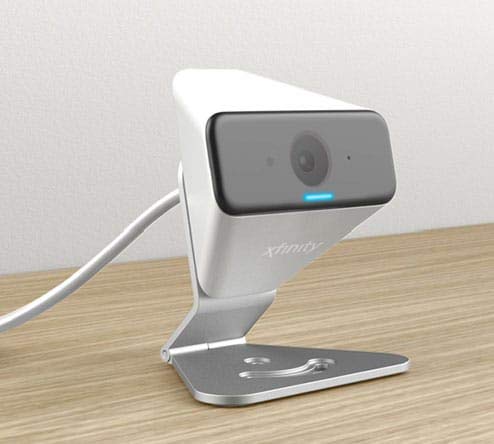
Image: The Xfinity Home Security Camera positioned on a desk, demonstrating its compact design.
ข้อมูลจำเพาะผลิตภัณฑ์
| คุณสมบัติ | รายละเอียด |
|---|---|
| หมายเลขรุ่น | SCHC2AEW |
| ความละเอียดในการจับภาพวิดีโอ | 720p |
| เทคโนโลยีการเชื่อมต่อ | ไร้สาย (Wi-Fi) |
| โปรโตคอลการเชื่อมต่อ | Wi-Fi (2.4 GHz compatible) |
| การใช้งานภายใน/ภายนอกอาคาร | ในร่ม, กลางแจ้ง |
| คุณสมบัติพิเศษ | เซ็นเซอร์ตรวจจับความเคลื่อนไหว, ระบบมองเห็นในเวลากลางคืน |
| แหล่งพลังงาน | DC (12 Volts, 1 Watt) |
| ขนาด (กว้าง x ยาว x สูง) | 3 x 3 x 2 นิ้ว |
| น้ำหนักสินค้า | 1.57 ปอนด์ |
| การให้คะแนนการคุ้มครองระหว่างประเทศ | IP65 |
การแก้ไขปัญหา
- ไม่มีไฟฟ้า: ตรวจสอบให้แน่ใจว่าได้เสียบอะแดปเตอร์แปลงไฟเข้ากับกล้องและเต้ารับไฟฟ้าที่ใช้งานได้สนิทแล้ว
- ปัญหาการเชื่อมต่อ: Verify your Wi-Fi network is 2.4 GHz. Restart your router and the camera. Ensure the camera is within range of your Wi-Fi signal.
- แอปไม่ตอบสนอง: Close and reopen the Xfinity Home app. If the issue persists, try reinstalling the app.
- คุณภาพวิดีโอไม่ดี: ตรวจสอบความแรงของสัญญาณ Wi-Fi ตรวจสอบให้แน่ใจว่าเลนส์กล้องสะอาดและไม่มีสิ่งกีดขวาง
การรับประกันและการสนับสนุนลูกค้า
For warranty information, please refer to the documentation included with your purchase or visit the official Xfinity support website. For technical assistance or customer service, please contact Xfinity customer support directly.