
1. тамомview
The GetPairr Vista 11-inch Portable Display Audio Android Navigation System is designed to enhance your in-car entertainment and navigation experience. Featuring a built-in Android system, it supports wireless connectivity for popular smartphone integration platforms and offers versatile audio output options.
Хусусиятҳои асосӣ:
- Integrated Android System: Equipped with a 4-core CPU, 2GB RAM, and 32GB ROM, allowing direct access to streaming applications like YouTube, Netflix, and Spotify via Wi-Fi tethering.
- CarPlay бесим/Android Auto: Seamlessly connect your smartphone via Bluetooth for wireless access to navigation, music, messaging, and calls, eliminating cable clutter.
- Smart Split Screen (PIP Function): The 11-inch wide display supports a 5:5 split-screen ratio, enabling simultaneous viewing of navigation and other Android applications.
- Пайвасти дугонаи Bluetooth: Allows simultaneous connection to your smartphone for input and your car's audio system for wireless output to car speakers.
- Намоиши баландсифат: An 11-inch screen with 1920x720 resolution provides clear visuals for maps, videos, and applications, improving visibility and operational ease while driving.

2. Танзимот
2.1 Мундариҷаи баста
Боварӣ ҳосил кунед, ки ҳама ашё дар баста мавҷуд аст:
- Portable Display Audio Main Unit
- Истед
- Кабели AUX
- Cigarette Lighter Plug Adapter
- Дастури корбар (ин ҳуҷҷат)

2.2 Насбкунӣ
- Монтажи агрегат: Attach the provided stand to the main unit. Secure the stand to your dashboard using the 3M tape. Ensure the unit is placed in a location that does not obstruct your view ё ба ронандагӣ халал расонанд.
- Пайвасти барқ: Connect the cigarette lighter plug adapter to the main unit's 5V power cable. Insert the cigarette lighter plug into your vehicle's accessory socket. The unit supports both 12V and 24V vehicle systems.
- Фаъолсозии ибтидоӣ: Once connected, the unit will power on automatically when the vehicle's ignition is turned on.


3. Дастурҳои истифодабарӣ
3.1 Android System and App Usage
The GetPairr Vista unit runs on an Android operating system, allowing you to install and use various applications.
- Пайвастшавӣ Wi-Fi: To access online services and download apps, connect the unit to a Wi-Fi network. This can be done via your smartphone's tethering function or an in-car Wi-Fi hotspot.
- Насби барнома: Use the pre-installed app store or other compatible methods to download and install applications like YouTube, Netflix, Spotify, etc.
- Навигатсия: Utilize navigation apps directly on the unit or through connected CarPlay/Android Auto.

3.2 Пайвастшавии бесими CarPlay / Android Auto
Connect your smartphone wirelessly to access CarPlay or Android Auto features.
- Ҷуфт кардан: On your smartphone, enable Bluetooth and search for the GetPairr Vista unit. Pair the devices.
- Пайвасти худкор: Once paired, CarPlay or Android Auto will automatically connect when the unit powers on.
- Функсия: Access your phone's navigation, music, messages, and make calls directly from the unit's display.
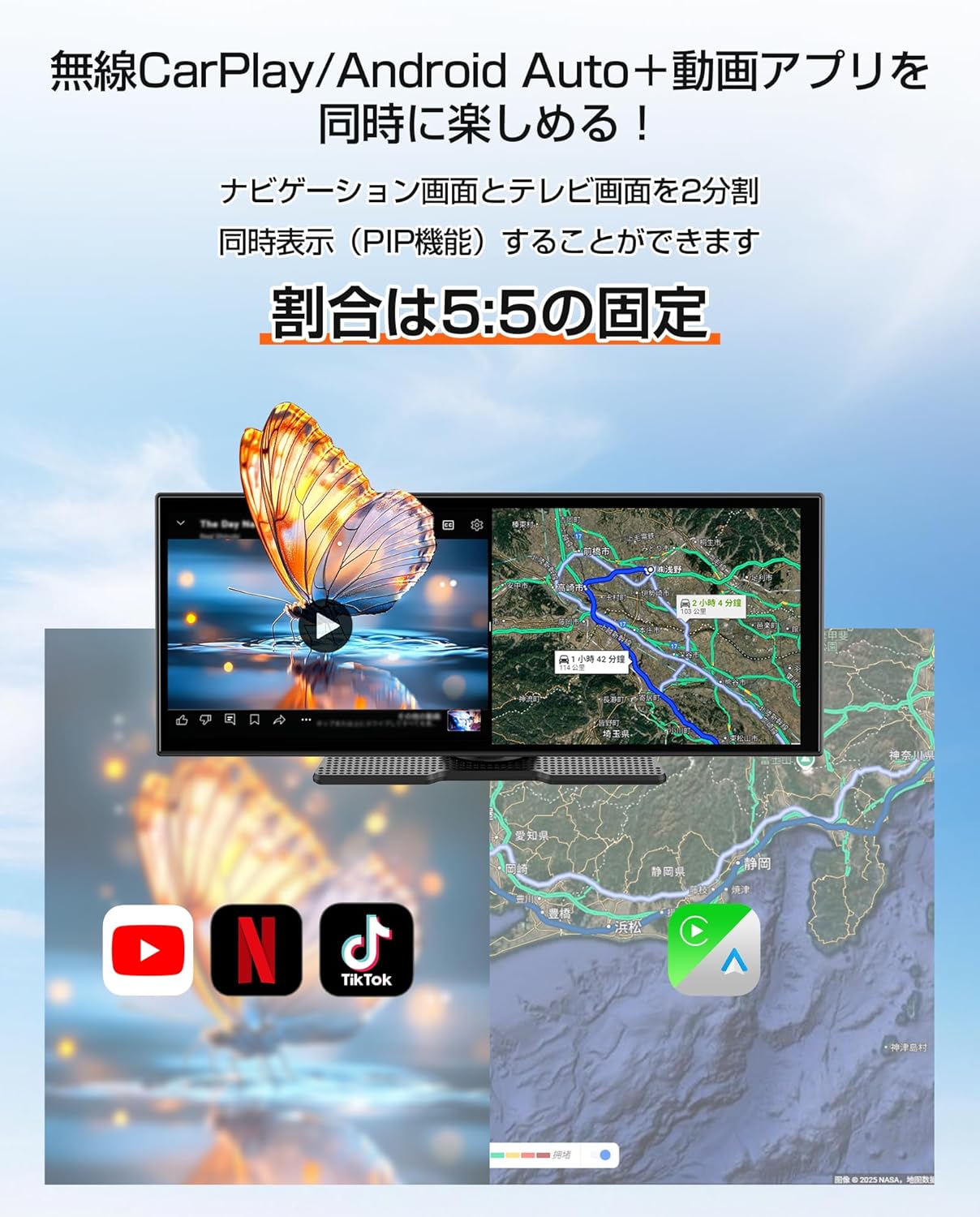
3.3 Split Screen Function (PIP)
The 11-inch display supports a 5:5 split-screen mode, allowing two applications to run side-by-side.
- Фаъолсозӣ: Refer to the on-screen interface for activating split-screen mode.
- Истифода: Барои мисолample, display navigation on one half (via CarPlay/Android Auto) and a video streaming app (via the built-in Android system) on the other.

3.4 Имконоти баромади аудио
The unit offers multiple ways to output audio to your car's speakers.
- Dual Bluetooth: The unit can receive audio from your smartphone via Bluetooth and transmit it to your car's audio system (if it supports Bluetooth audio input).
- Кабели AUX: Connect the provided AUX cable from the unit to your car's AUX input for a wired audio connection.
- Интиқолдиҳандаи FM: The unit can transmit audio via an FM frequency, which you can tune into on your car's radio.
- Баландгӯяки дарунсохт: The unit has a small built-in speaker for basic audio output. For optimal sound quality, connecting to your car's audio system is recommended.

4. Нигоҳдорӣ
4.1 Тозакунӣ
To maintain the display's clarity and unit's appearance:
- Экранро бо матои мулоим ва бе пахта нарм тоза кунед. Барои доғҳои якрав, каме гampматоъро бо об ё тозакунандаи барои экран бехатар.
- Avoid using abrasive cleaners, solvents, or aerosol sprays directly on the unit.
- Бандарҳоро аз чанг ва хошок тоза нигоҳ доред.
4.2 Нигоҳдорӣ
Ҳангоми дар муддати тӯлонӣ истифода нашудан:
- Дастгоҳро аз манбаи барқ ҷудо кунед.
- Дастгоҳро дар ҷои хунук ва хушк, дур аз нури бевоситаи офтоб ва ҳарорати аз ҳад зиёд нигоҳ доред.
5. Баррасии мушкилот
If you encounter issues with your GetPairr Vista unit, refer to the following common solutions:
- Не қудрат: Ensure the cigarette lighter adapter is securely plugged into both the unit and the vehicle's accessory socket. Check if the vehicle's accessory socket is receiving power.
- Овоз нест: Verify the audio output method selected (Bluetooth, AUX, FM). Ensure your car's audio system is set to the correct input source. Adjust volume on both the unit and your car's audio system.
- CarPlay/Android Auto пайваст нест: Ensure Bluetooth is enabled on your smartphone and the unit. Try unpairing and re-pairing the devices. Check for any software updates for your smartphone or the unit.
- Slow Performance/App Freezing: Close unused applications. Ensure a stable Wi-Fi connection for online activities. Restart the unit if necessary.
- Экран беҷавоб: Perform a soft reset by holding the power button (if available) or disconnecting and reconnecting power.
Агар мушкилот идома ёбад, лутфан бо дастгирии муштариён тамос гиред.
6. Мушаххасоти
| Хусусият | Тафсилот |
|---|---|
| Андозаи экран | 11 инч |
| Навъи намоиш | LCD |
| Резолюция | 1920х720 |
| Низоми амал | Android, Wireless Apple CarPlay, Wireless Android Auto |
| ВПМ - Воҳиди Пардозиши Марказӣ | 4 ядро |
| RAM | 2 ГБ |
| Абзори ёддошткунандаи доимӣ | 32 ГБ |
| Пайвастшавӣ | Bluetooth, USB, Wi-Fi |
| Ҳолати баромади аудио | Стерео |
| Навъи васлкунӣ | Навори 3M |
| Андозаҳои маҳсулот | 26 см (Л) x 2.7 см (В) x 10.5 см (Н) |
| Вазн | 1 кг |
| Вуруди нерӯ | DC 12V/24V (тавассути адаптери оташгирандаи сигор) |
| Компонентҳои дохилшуда | AUX Cable, Cigarette Plug Adapter, Portable Display Audio Main Unit, User Manual |
7. Кафолат ва дастгирӣ
7.1 Маълумот дар бораи кафолат
The GetPairr Vista unit comes with a Кафолати 1-солаи истеҳсолкунанда from the date of purchase. In the event of any defects or malfunctions, the manufacturer offers exchange or refund services.
7.2 Дастгирии муштариён
For inquiries or support, please contact us via the official LINE account: @getpairr.