
పరిచయం
This user guide provides essential information for the HP OfficeJet Pro 8125e printer. It covers initial setup, connecting to networks, performing print, scan, and copy functions, routine maintenance, and troubleshooting common issues. Follow these instructions to ensure optimal performance and longevity of your device.
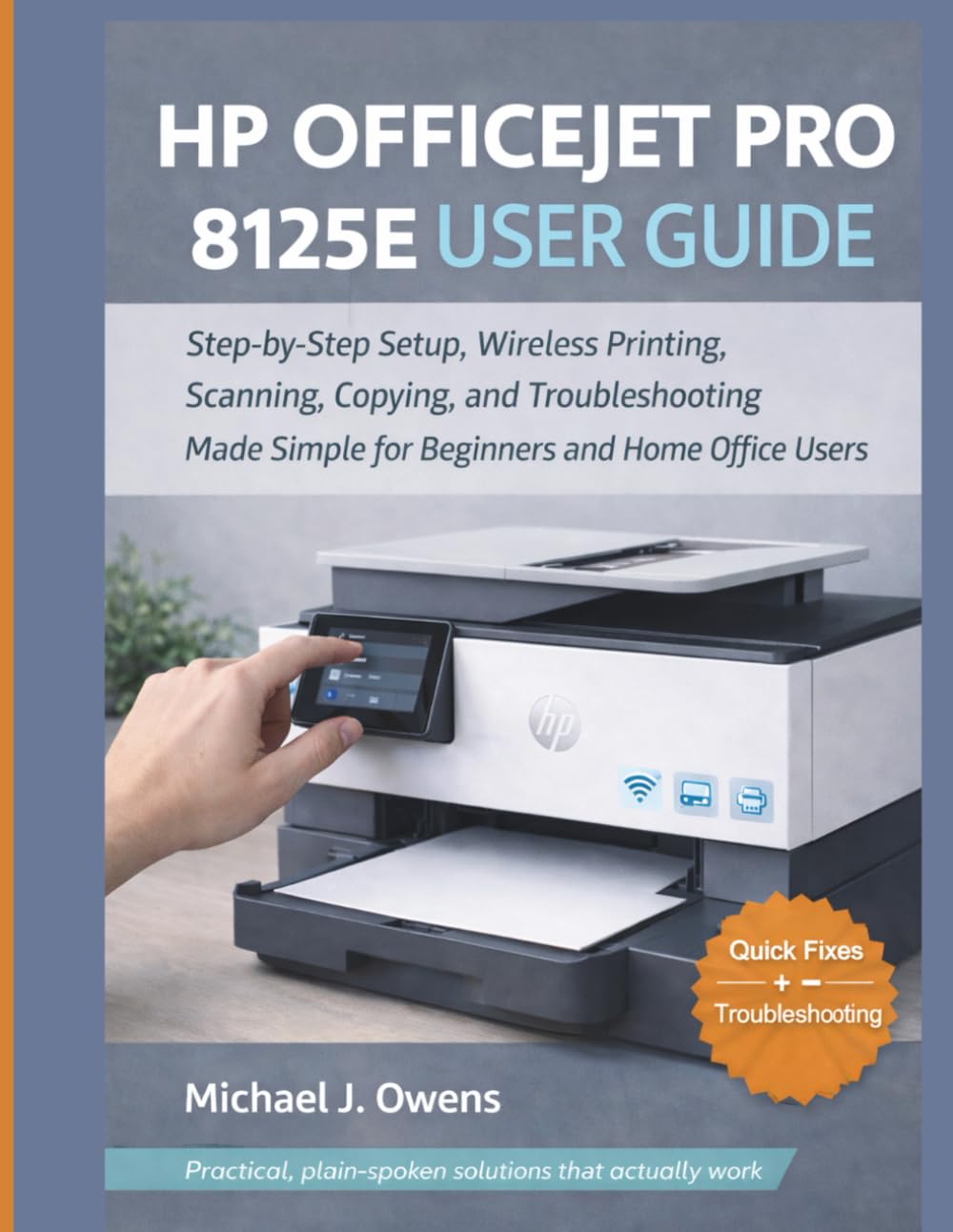
Image: Front cover of the HP OfficeJet Pro 8125e User Guide. This image represents the manual itself, designed to assist users with their printer.
1. సెటప్
1.1 అన్బాక్సింగ్ మరియు ప్రారంభ పవర్-ఆన్
- ప్రింటర్ను దాని ప్యాకేజింగ్ నుండి జాగ్రత్తగా తీసివేయండి.
- ప్రింటర్ వెలుపలి మరియు లోపలి నుండి అన్ని రక్షణ టేపులు మరియు ప్యాకింగ్ సామగ్రిని తీసివేయండి.
- పవర్ కార్డ్ను ప్రింటర్కి కనెక్ట్ చేసి, ఆపై వాల్ అవుట్లెట్కి కనెక్ట్ చేయండి.
- ప్రింటర్ను ఆన్ చేయడానికి పవర్ బటన్ను నొక్కండి.
- Follow the on-screen prompts on the printer's control panel to select your language and region.
1.2 ఇంక్ కార్ట్రిడ్జ్లను ఇన్స్టాల్ చేయడం
- ఇంక్ కార్ట్రిడ్జ్ యాక్సెస్ డోర్ తెరవండి.
- Wait for the print carriage to move to the center.
- కొత్త ఇంక్ కార్ట్రిడ్జ్లను అన్ప్యాక్ చేయండి.
- ప్రతి కార్ట్రిడ్జ్ను దాని సంబంధిత స్లాట్లోకి చొప్పించండి, అది క్లిక్ అయ్యేలా చూసుకోండి.
- ఇంక్ కార్ట్రిడ్జ్ యాక్సెస్ డోర్ను మూసివేయండి.
1.3 పేపర్ లోడ్ అవుతోంది
- ఇన్పుట్ ట్రేని బయటకు తీయండి.
- పేపర్ గైడ్లను సరైన పేపర్ పరిమాణానికి సర్దుబాటు చేయండి.
- Load a stack of plain white paper into the tray, print side down.
- ఇన్పుట్ ట్రేను తిరిగి ప్రింటర్లోకి నెట్టండి.
- Confirm paper type and size on the printer's control panel if prompted.
1.4 Wi-Fiకి కనెక్ట్ చేస్తోంది
- On the printer's control panel, navigate to the Wireless Setup Wizard.
- అందుబాటులో ఉన్న నెట్వర్క్ల జాబితా నుండి మీ Wi-Fi నెట్వర్క్ని ఎంచుకోండి.
- Enter the Wi-Fi password (WPA key) when prompted.
- Confirm the connection. The wireless light on the printer should turn solid blue.
1.5 డ్రైవర్ ఇన్స్టాలేషన్
For Windows and Mac computers, download the latest drivers and HP Smart software from the official HP support webసైట్. ఇన్స్టాలేషన్ సమయంలో స్క్రీన్పై ఉన్న సూచనలను అనుసరించండి.
2. ప్రింటర్ను ఆపరేట్ చేయడం
2.1 పత్రాలను ముద్రించడం
- కంప్యూటర్ నుండి: Open the document, select "Print," choose your HP OfficeJet Pro 8125e, and adjust settings as needed before printing.
- మొబైల్ పరికరాల నుండి (HP స్మార్ట్ యాప్): Install the HP Smart app, add your printer, and use the app to print photos or documents directly from your smartphone or tablet.
- Email Print: If enabled, send documents to your printer's unique email address.
2.2 పత్రాలను స్కాన్ చేయడం
- Place the document face down on the scanner glass or face up in the Automatic Document Feeder (ADF).
- On the printer's control panel or via the HP Smart app/software on your computer, select "Scan."
- Choose scan settings (e.g., color, resolution, destination).
- స్కాన్ ప్రారంభించండి.
2.3 పత్రాలను కాపీ చేయడం
- అసలు పత్రాన్ని స్కానర్ గ్లాస్పై లేదా ADFలో ఉంచండి.
- On the printer's control panel, select "Copy."
- Adjust settings such as number of copies, color/black & white, and size.
- "కాపీ ప్రారంభించు" బటన్ నొక్కండి.
3. నిర్వహణ
3.1 Cleaning the Print Heads
If print quality degrades (streaks, faded colors), perform a print head cleaning from the printer's control panel or the HP Smart software. This process uses ink, so only perform it when necessary.
3.2 ఇంక్ కార్ట్రిడ్జ్లను మార్చడం
When an ink cartridge is low or empty, the printer will notify you. Follow the steps in Section 1.2 to replace cartridges. Use genuine HP ink cartridges for best results.
3.3 సాధారణ శుభ్రపరచడం
ప్రింటర్ యొక్క బాహ్య భాగాన్ని మృదువైన, d శుభ్రముపరచుతో తుడవండి.amp, lint-free cloth. Clean the scanner glass regularly with a glass cleaner applied to a cloth (not directly to the glass) to prevent smudges from affecting scan quality.
4. ట్రబుల్షూటింగ్
| సమస్య | పరిష్కారం |
|---|---|
| Printer Offline Message |
|
| పేపర్ జామ్లు |
|
| పేలవమైన ముద్రణ నాణ్యత |
|
| HP Smart App Issues |
|
5. స్పెసిఫికేషన్లు
Note: The following specifications are typical for the HP OfficeJet Pro 8125e printer. For precise details, refer to the official HP product page or documentation.
- విధులు: Print, Copy, Scan, Fax (optional, depending on region/model)
- ప్రింట్ టెక్నాలజీ: HP థర్మల్ ఇంక్జెట్
- Print Speed (Black): 22 ppm వరకు (ISO)
- Print Speed (Color): 18 ppm వరకు (ISO)
- Print Resolution (Best): Up to 4800 x 1200 optimized dpi color
- Scan Resolution (Optical): 1200 dpi వరకు
- కనెక్టివిటీ: Wi-Fi 802.11a/b/g/n, Ethernet, USB 2.0
- పేపర్ హ్యాండ్లింగ్: 250-sheet input tray, 60-sheet output tray, 35-sheet ADF
- డ్యూప్లెక్స్ ప్రింటింగ్: స్వయంచాలక (ప్రామాణిక)
- ప్రదర్శన: రంగు టచ్స్క్రీన్
6. వారంటీ మరియు మద్దతు
For warranty information, please refer to the documentation included with your printer or visit the official HP support website. HP provides various support resources, including online FAQs, driver downloads, and contact options for technical assistance.
Image: Back cover of the HP OfficeJet Pro 8125e User Guide. This image provides additional information and ISBN details for the manual.